Ways to Navigate Using the Top Bar of Dashboard
The best thing about Eqvista is that you can manage your shareholders, common equity, cap tables, and company filings right from your dashboard.
Navigate your dashboard
On Eqvista, you can manage your cap table using a few options on the top bar of the dashboard.
Here are the steps to follow:
Step 1: Log into Eqvista and choose your company.
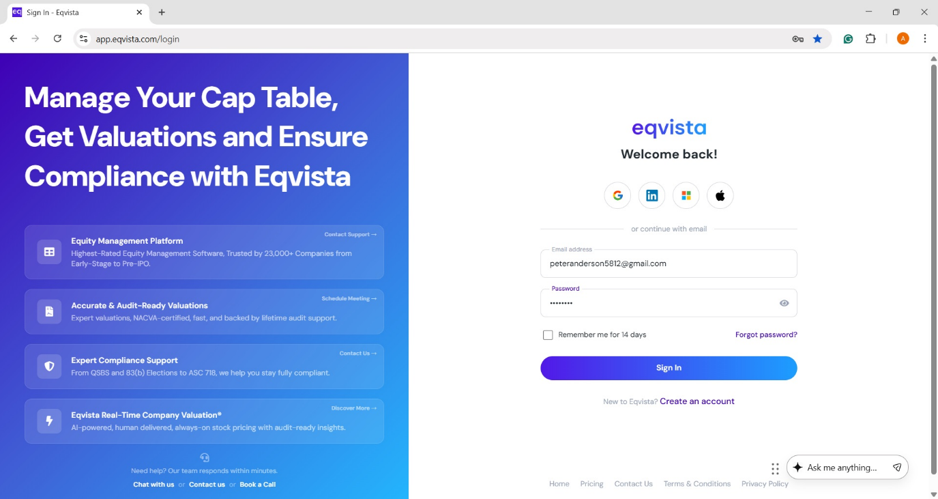
On this page, you will find some options on the top bar that will help you manage your cap table right from the dashboard.
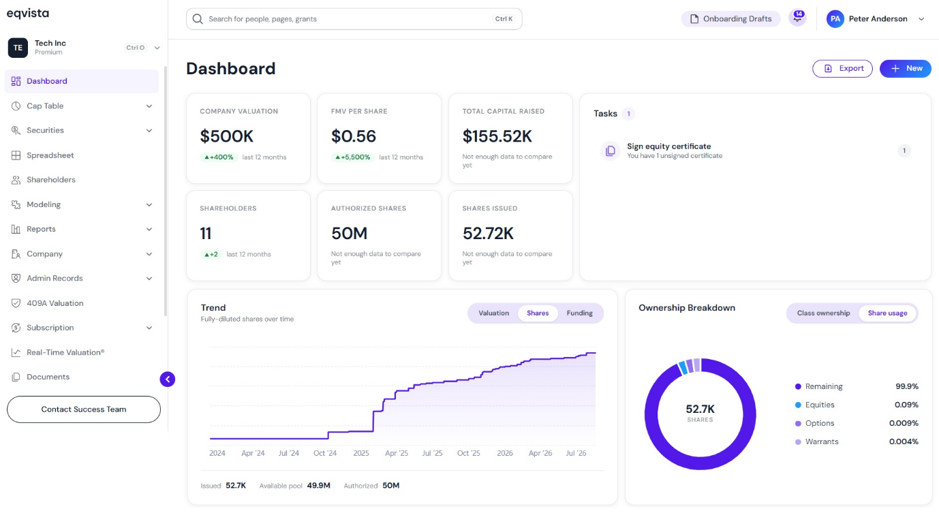
A detailed feature-by-feature analysis of the top bar will help you understand it better.
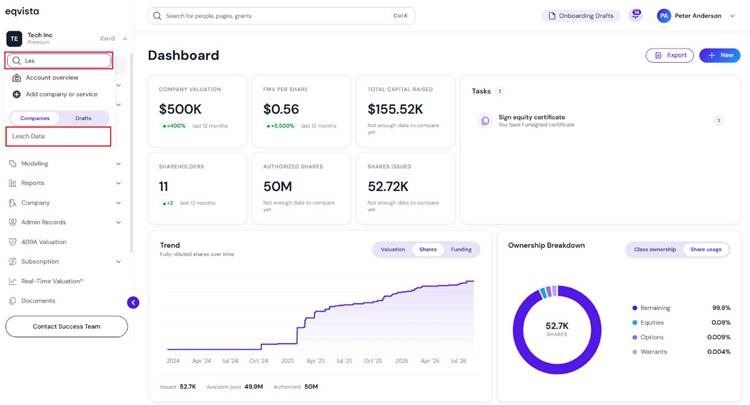
Step 2: On the dashboard, click on the company name to get a drop-down menu as shown below.
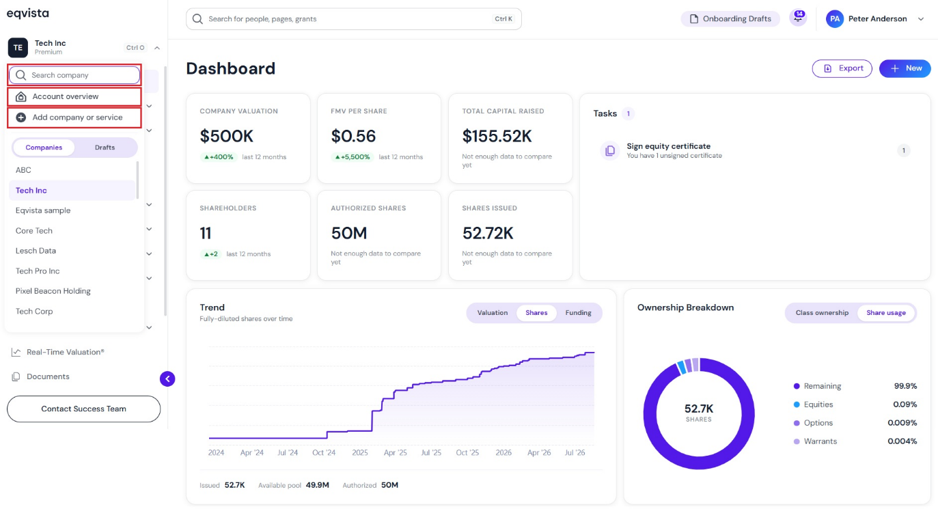
#1 Search for Company
There is an option to search for a company using its name. To do so, type the name in the search bar as shown below.
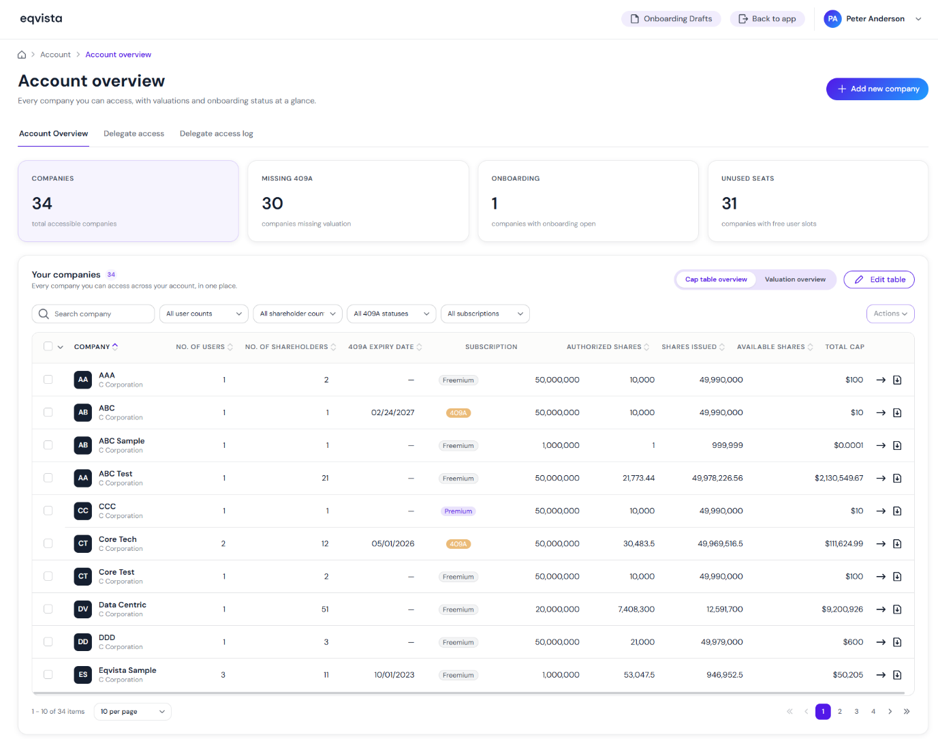
#2 Account overview
The account overview page will help you manage your multiple company accounts.
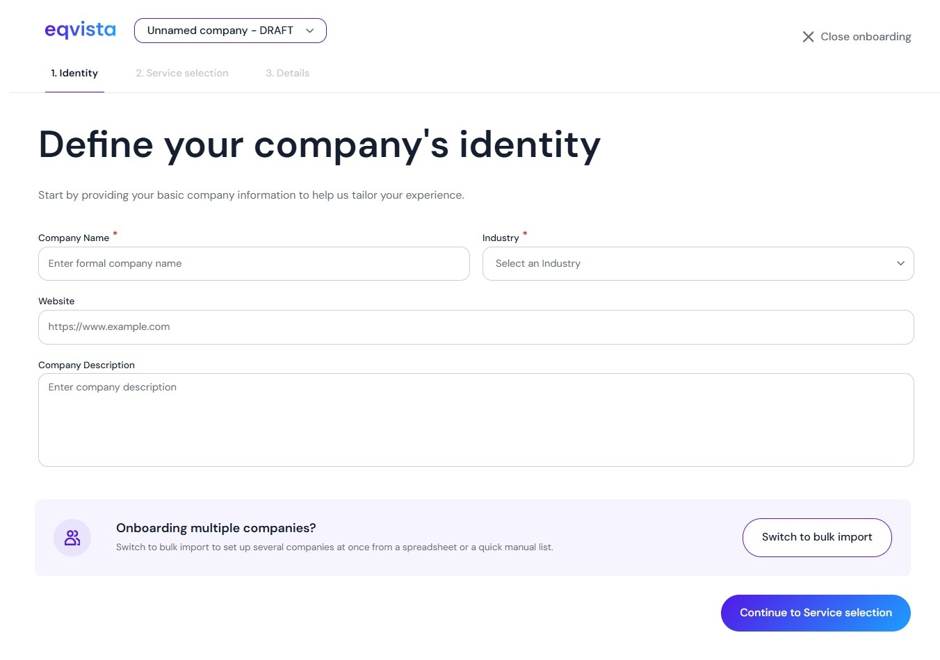
#3 Add new company
On this page, fill in the details of your company, including the company name, type, incorporation date, country of origin, and currency.
Note: You can add a single company by filling in your company details. To onboard multiple companies, click on “Switch to Bulk Import”. Check out the respective support articles to learn about adding companies on Eqvista.
Step 3: On the dashboard, click on the search box on the right of the company name drop-down menu. Here, you can search for people and pages to navigate quickly.
Note: The search feature is only available for company users, not for shareholder accounts.

#1 Search for people
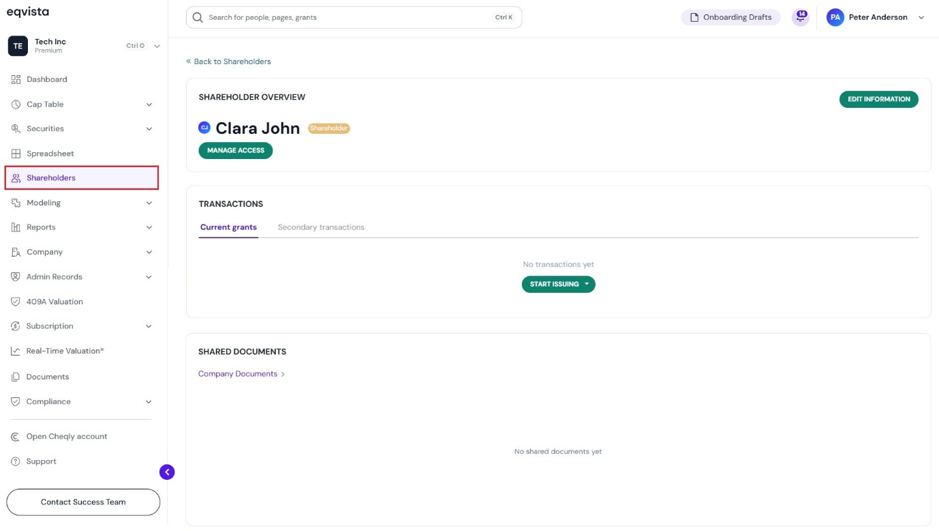
Let’s assume that you want to search for a shareholder using their name. To do so, type the name in the search bar as shown below.
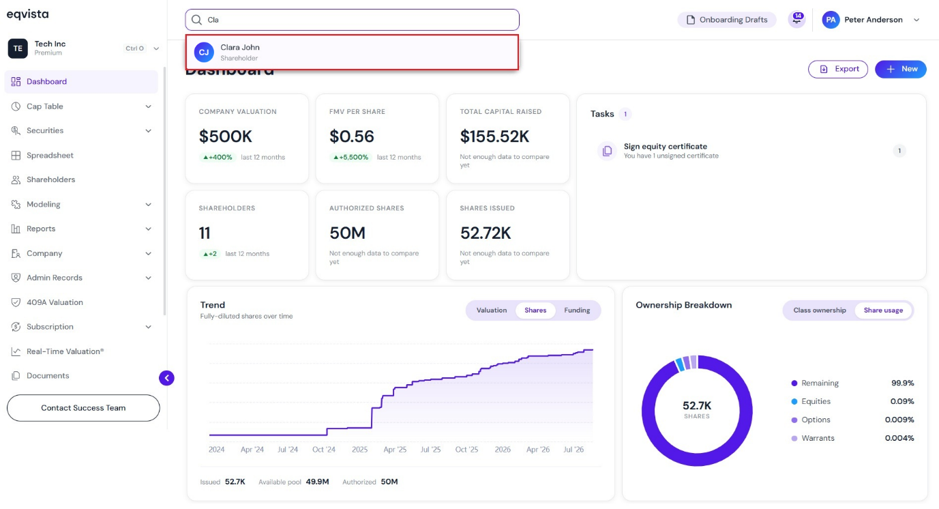
Then, select the shareholder’s name, and you will be redirected to the shareholder overview page.
#2 Search for pages
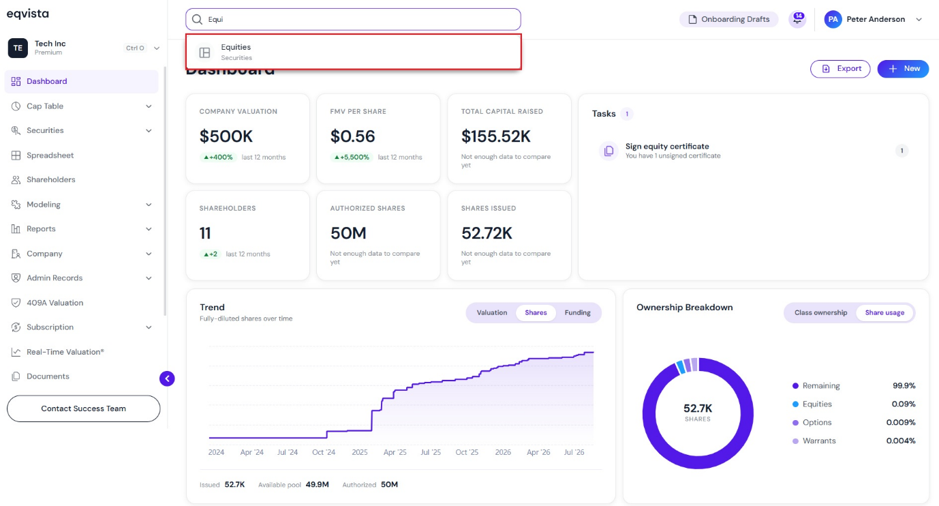
Suppose you want to search for a page and type the name in the search bar as shown below. In this case, we’ll enter “Equities” in the search box.
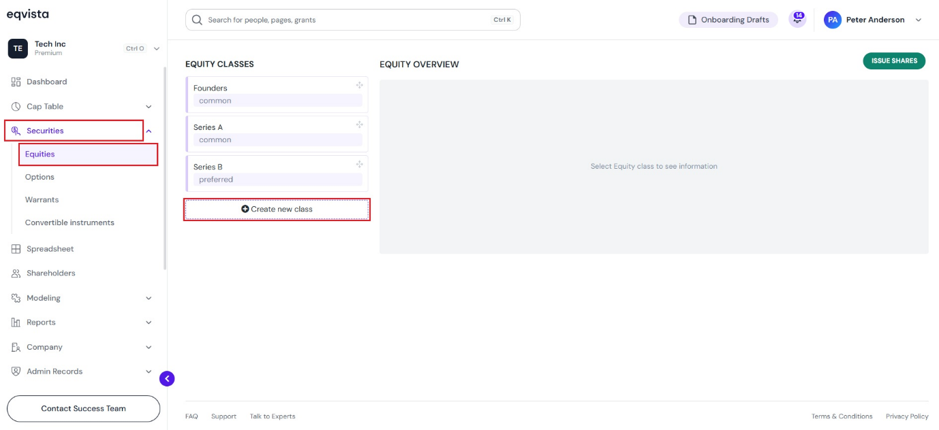
Once you click, you will be redirected to the equities page. Here, click on “Create New Class” to create an equity class. If you already have one, you can issue shares and implement a vesting schedule.
# Search for grants
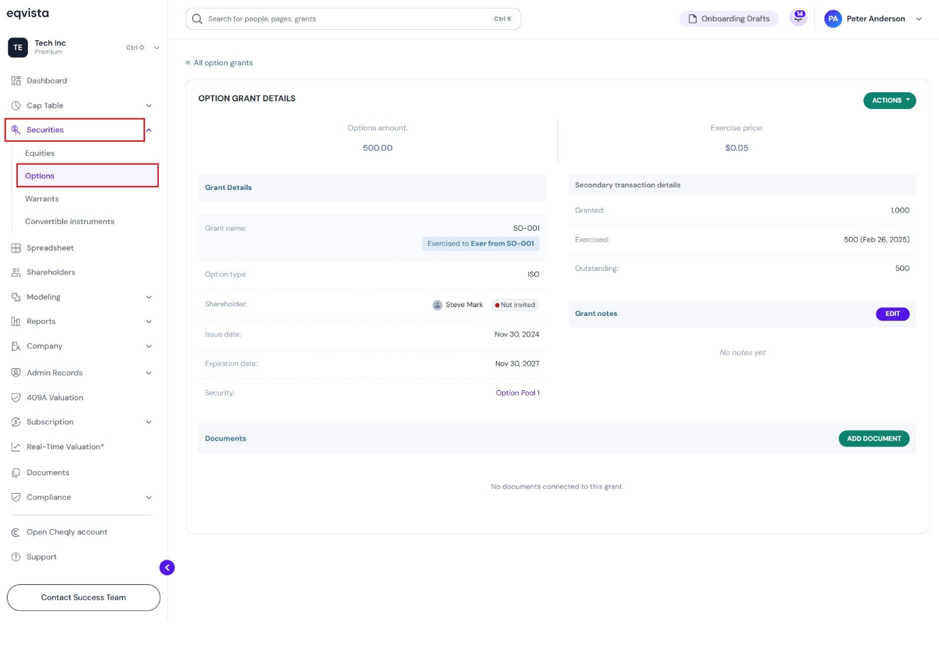
If you want to search for a grant, type grant name in the search bar as shown below. In this case, we’ll enter “SO-001” in the search box.
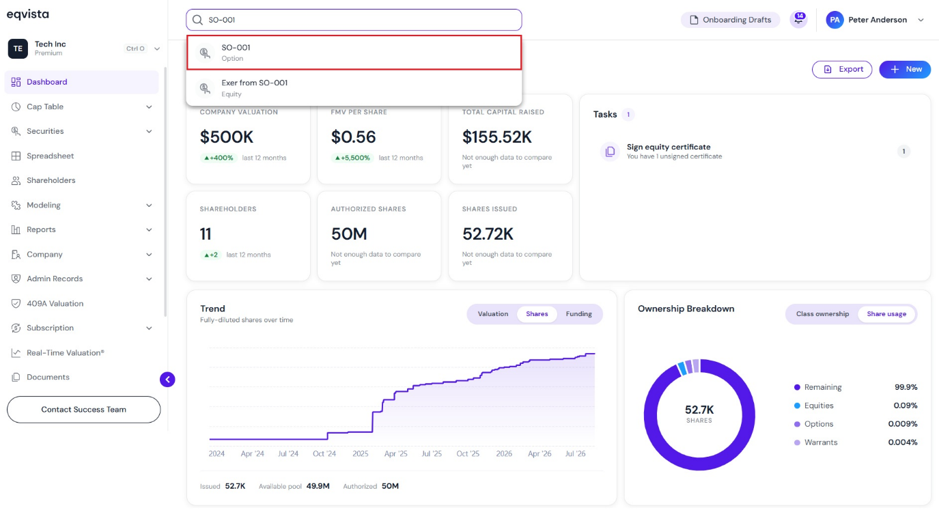
Then, you will be redirected to the grant details page.
Note: You can add a document to the grant by clicking on “Add Document”. Check out the support article to learn more about adding documents to grants.
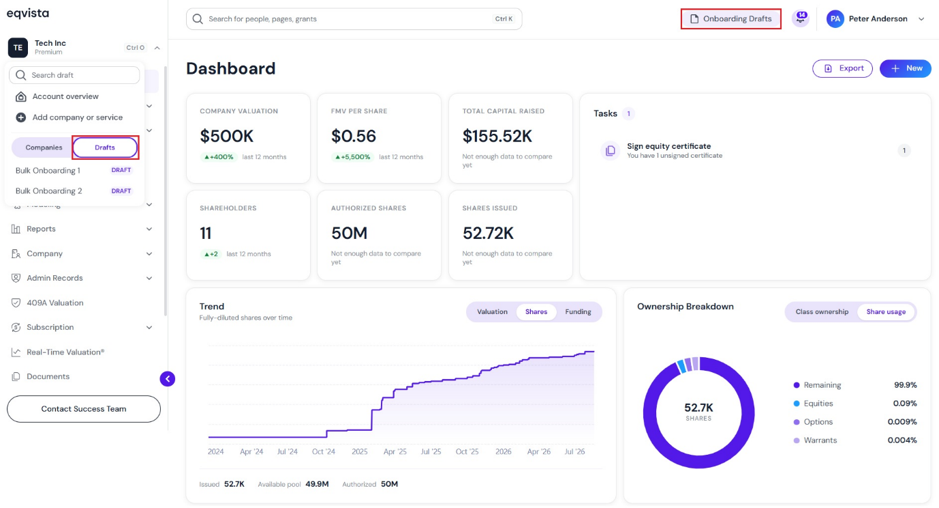
Step 4: On the dashboard, click on the company name on the left side to get a drop-down menu and select “Drafts”, or click on “Onboarding Drafts” on the top right of the page.
Note: The onboarding drafts are only available for company users, not for shareholder accounts.
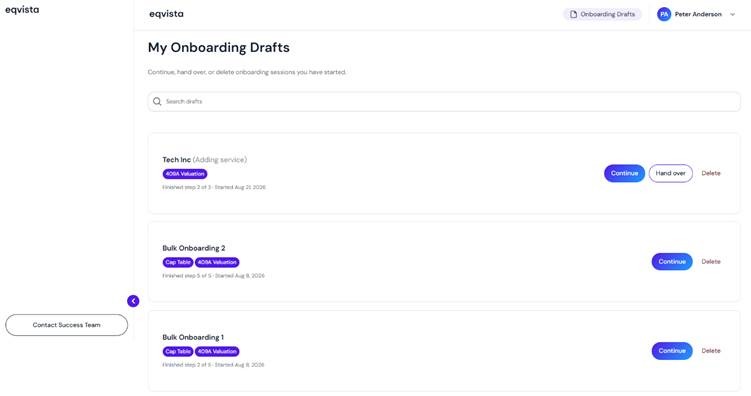
On this page, you can view the onboarding drafts created for adding one or multiple companies, as well as including services for existing or multiple companies.
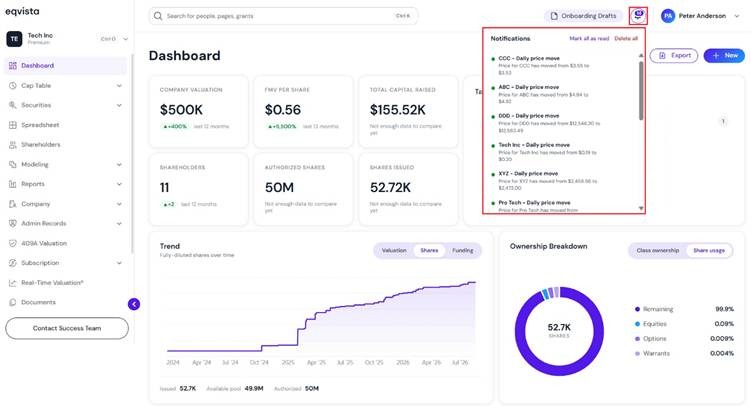
Step 5: On the dashboard, click on the “bell” icon on the top right of the page to view notifications.
Step 6: On the dashboard, click on “your name” on the right to get a drop-down menu as shown below.
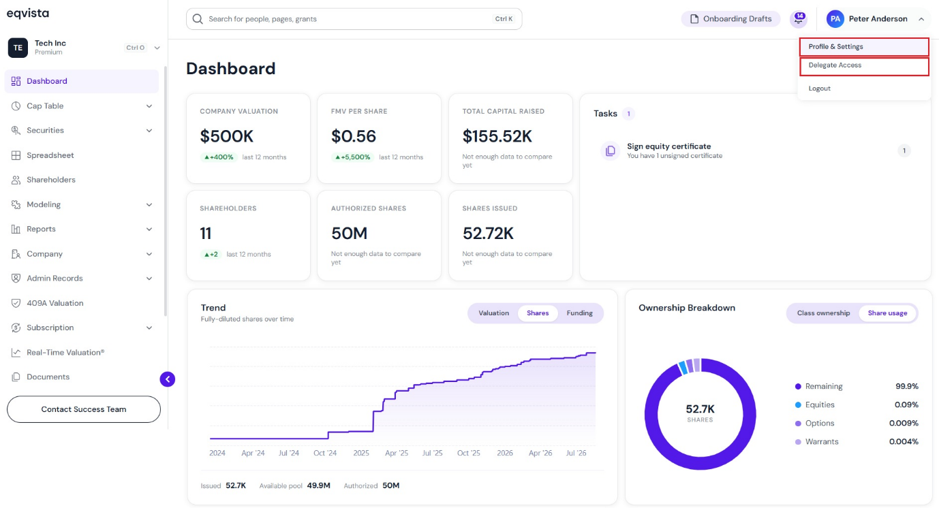
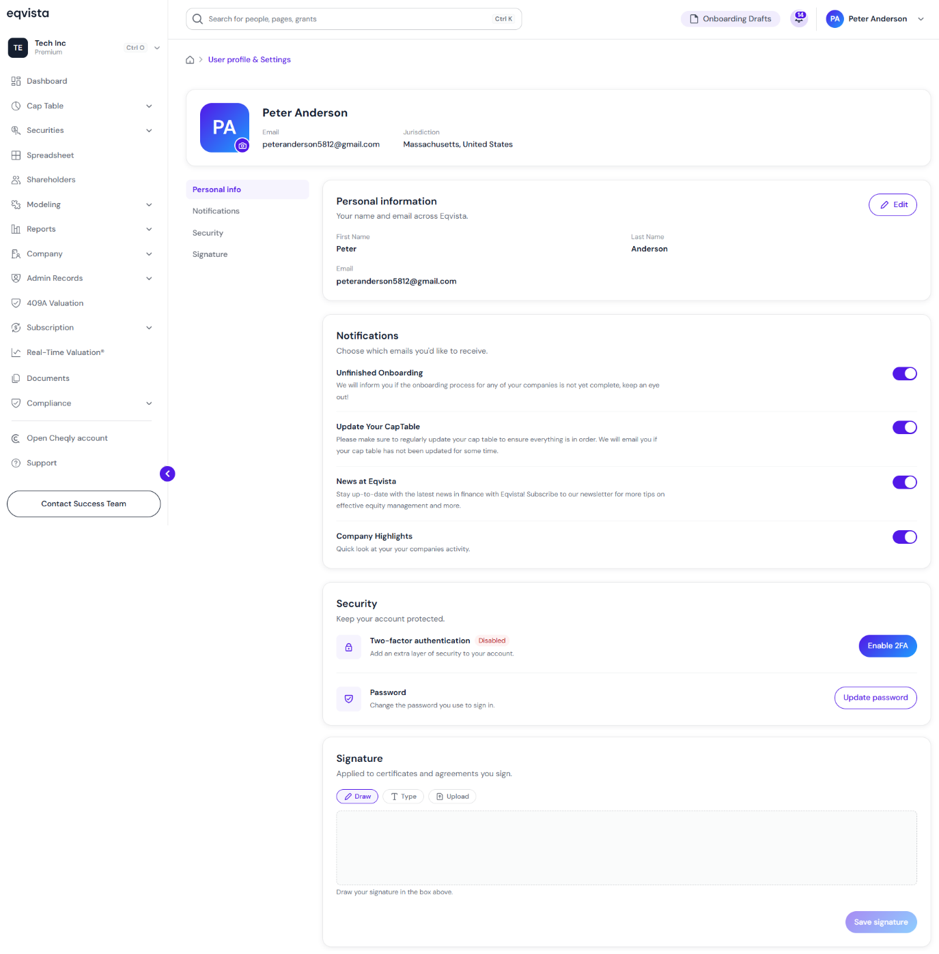
#1 Profile & settings
Here, you can view the profile details along with options: Update profile, Notifications, Change password, Upload avatar, Signature, and Two factor authentication.
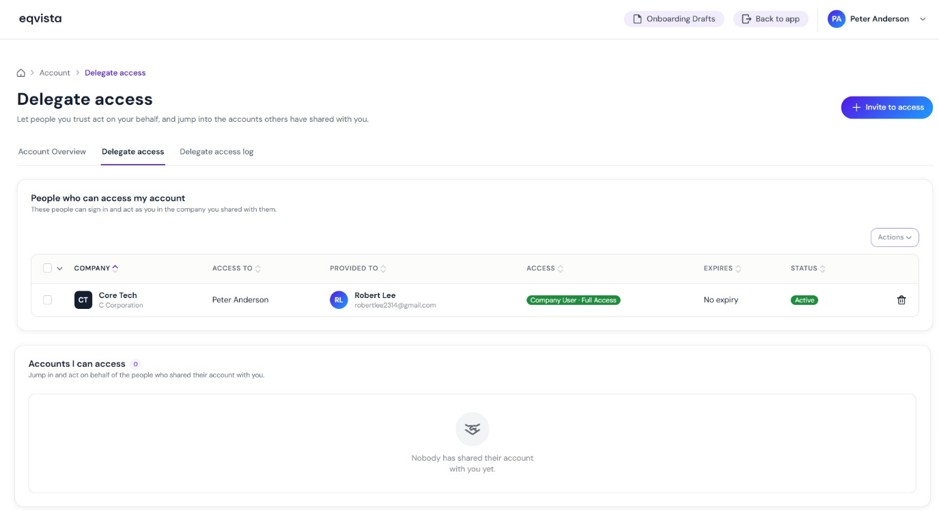
#2 Delegate access
The page displays all the users with delegated access to the company account, along with an option “Invite to Access”. There are two access types that you can choose from:
- Account User Access: Under this option, the user will get access to the cap table based on access levels.
- Shareholder Access: In this option, the user will only be able to view the grants, participate in board resolutions, sign and request electronic certificates, and sign grant acceptances.
If you want to understand Eqvista, check out our support articles or contact us today!