How to Set Ownership Percentage?
After creating your company, it is quite simple to issue shares and securities. With Eqvista, you have the option to choose ownership percentage from two options:
- Issued Only: Includes only “Issued options” in the calculation of total shares issued.
- Issued & Reserved: Includes “Unallocated options” in the calculation of fully diluted shares.
Let’s understand the difference between the two options with an example:
| Shares Issued | 15,000 |
| Unallocated Options | 9,000 |
| Issued Options | 1,000 |
| Fully Diluted Shares | |
| Issued Only | 15,000 + 1,000 (Issued Options) = 16,000 |
| Issued & Reserved | 15,000 + 10,000 (Issued & Unallocated Options) = 25,000 |
| Peter Anderson’s Shares | 10,000 |
| Ownership % | |
| Issued Only | 10,000 / 16,000 * 100 = 62.5% |
| Issued & Reserved | 10,000 / 25,000 * 100 = 40.0% |
Set ownership percentage
On Eqvista, you have the option to choose ownership percentage from two options under the company profile settings.
Here are the steps to follow:
Step 1: Log into Eqvista account and select your company.

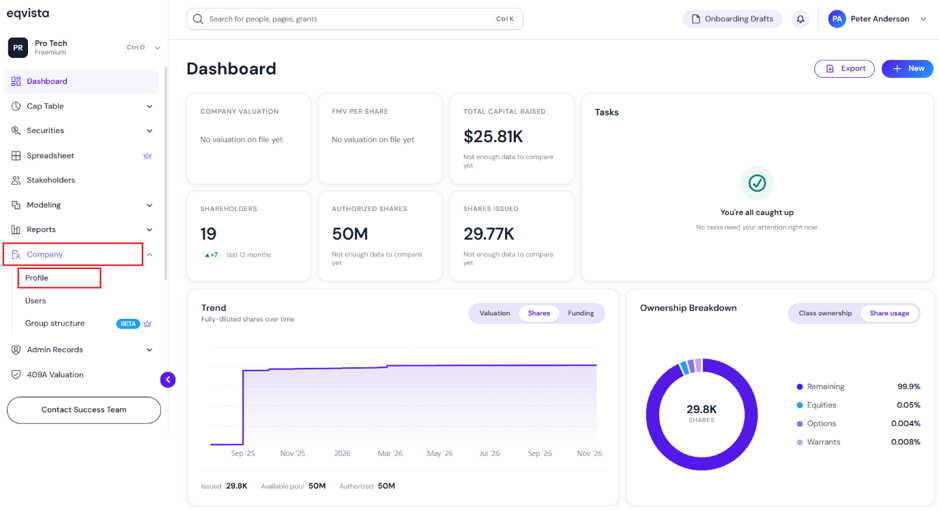
On the dashboard, click on “Company” on the left to get a drop-down menu and select “Profile”.
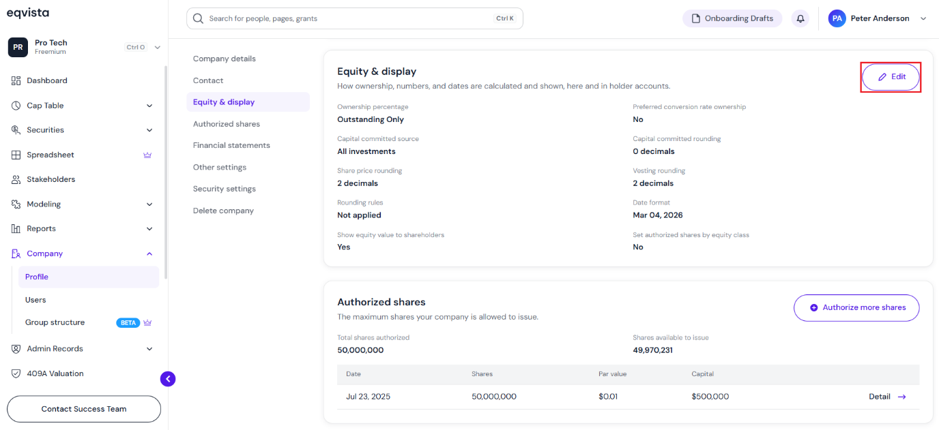
Step 2: Once you click, you will be directed to the page that shows the details of your company. Under the Equity & Display section, click “Edit” at the top right of the page.
Note: On this page, you can view Company Details, Contact, Equity & display, Authorized Shares, Financial Statements, and Other Settings. To further understand the sections in detail, check out the support article here!
Step 3: A panel will appear, and you can choose the ownership percentage from two options: Outstanding Only and Outstanding & Reserved.
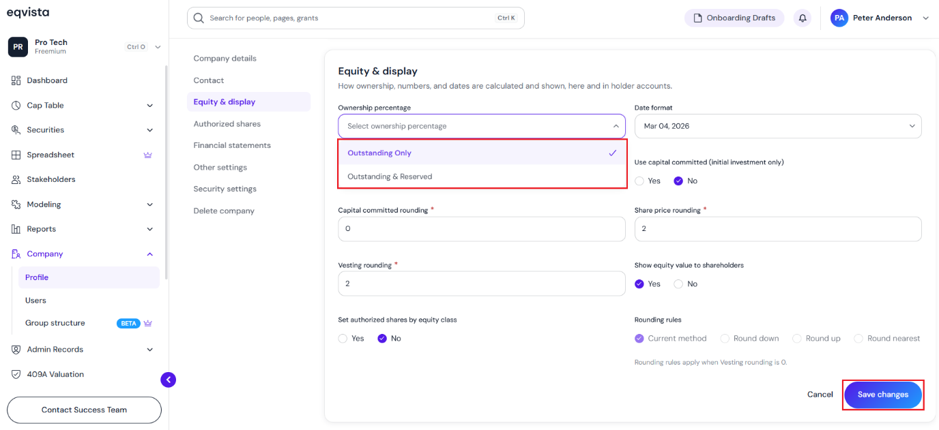
Once done, click on “Save Changes”.
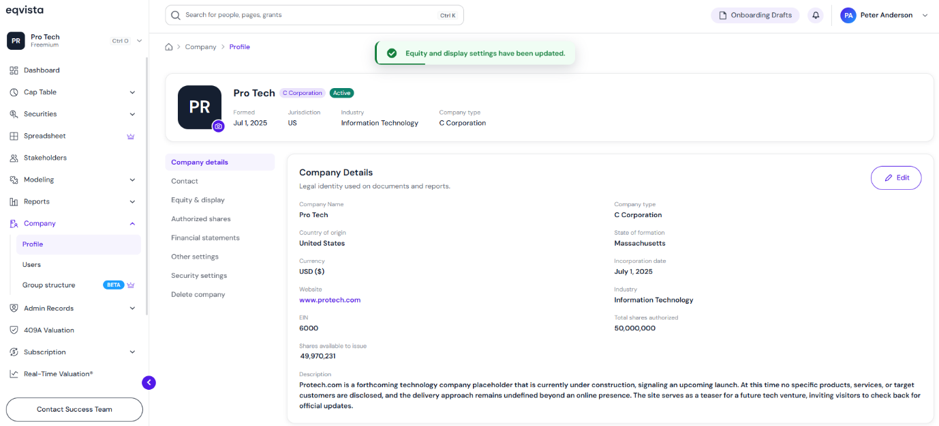
Step 4: With this done, the ownership percentage would be updated as shown below.
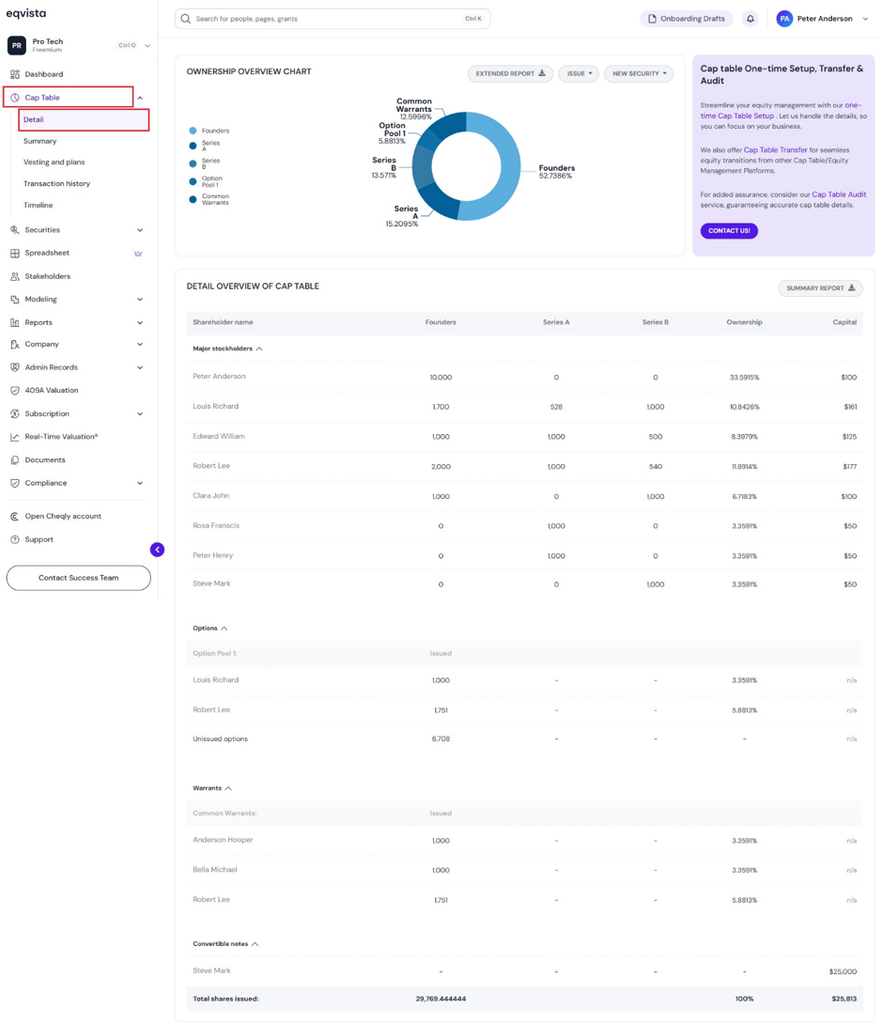
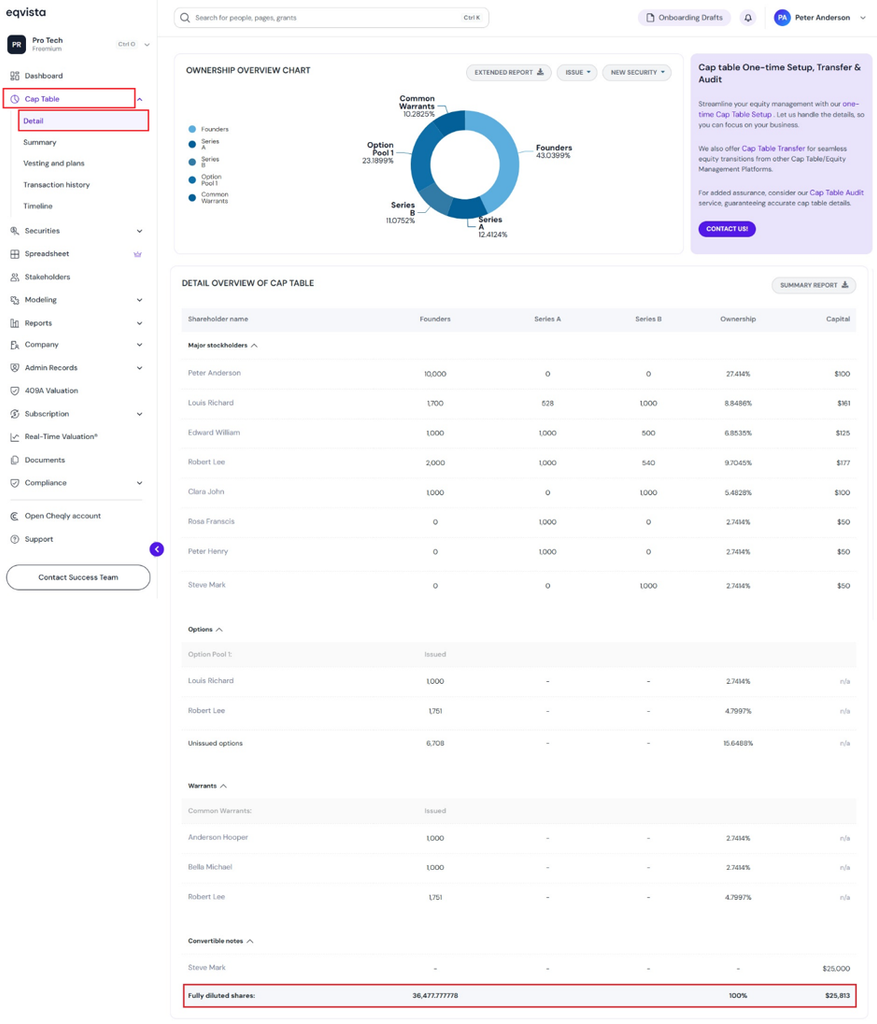
Step 5: You can view the ownership percentage by clicking Cap Table to get a drop-down, and selecting Detail.
Scenario 1 – Issued only
The detail page displays the following details:
- Total Shares Issued includes outstanding stock, outstanding options, and outstanding warrants.
- Ownership excludes unallocated option reserves.
Scenario 2 – Issued and reserved
The detail page displays the following details:
- Fully Diluted Shares includes outstanding stock, outstanding options, unallocated option reserves, and outstanding warrants.
- Ownership includes unallocated option reserves.
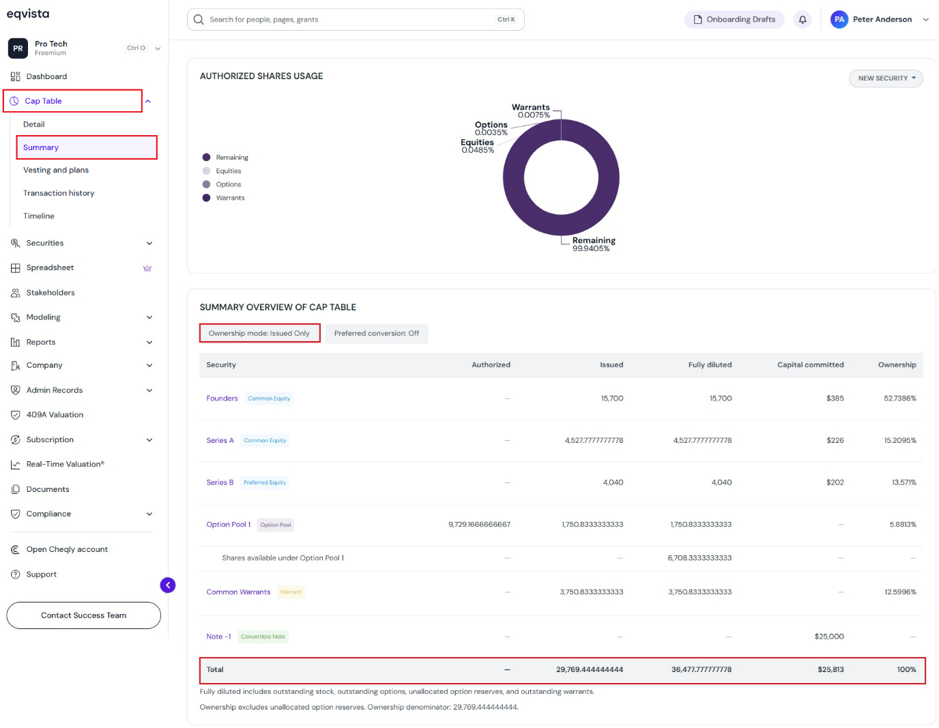
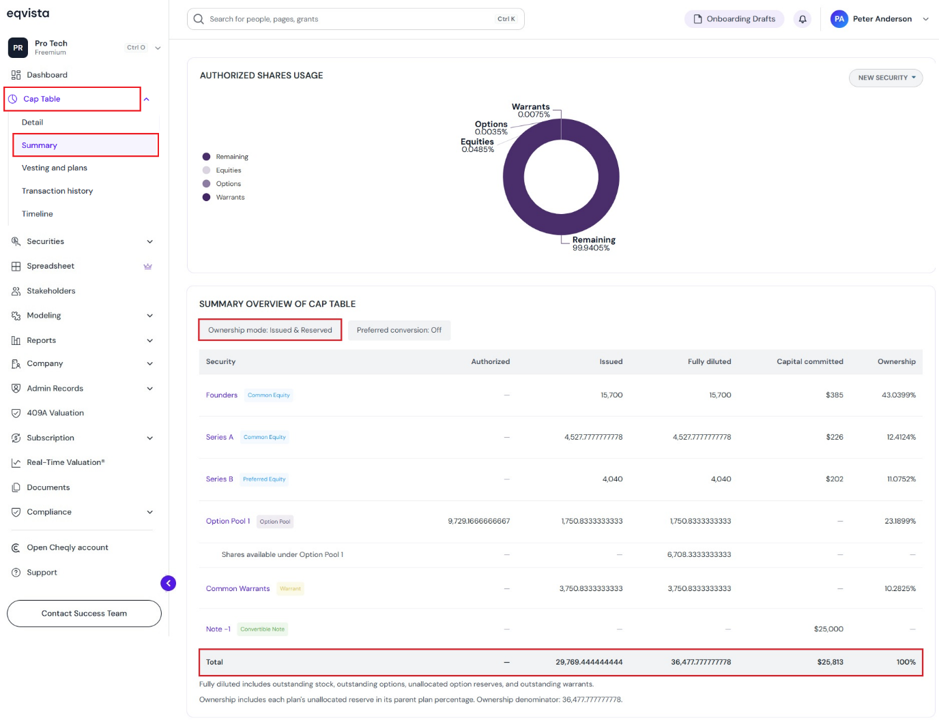
Step 6: The ownership percentage can also be viewed by clicking Cap Table to get a drop-down, and selecting Summary.
Scenario 1 – Issued only
The summary page displays the following details:
- At the top of the page, it displays the ownership mode “Issued only”.
- Fully Diluted includes outstanding stock, outstanding options, unallocated option reserves, and outstanding warrants.
- Ownership excludes unallocated option reserves.
Scenario 2 – Issued and reserved
The summary page displays the following details:
- At the top of the page, it displays the ownership mode “Issued & Reserved”.
- Fully Diluted includes outstanding stock, outstanding options, unallocated option reserves, and outstanding warrants.
- Ownership includes unallocated option reserves.
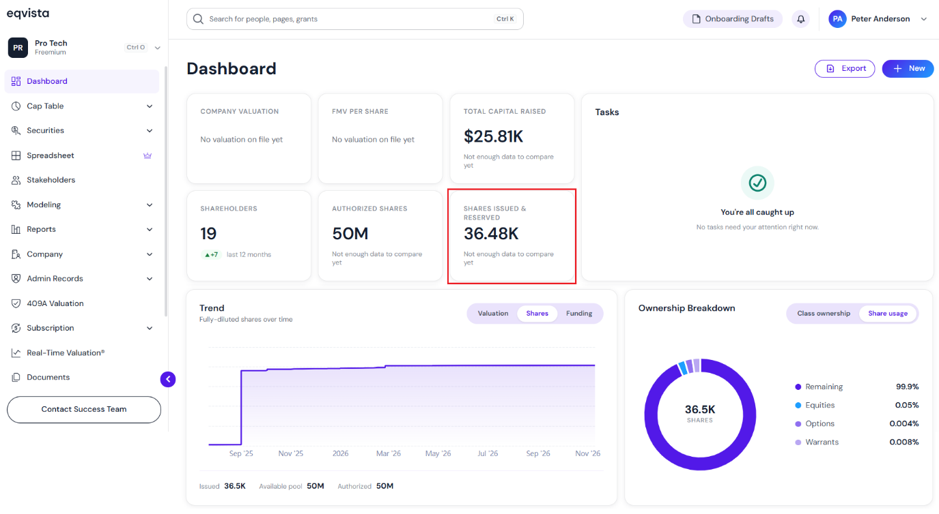
Step 7: The total shares issued and reserved can also be viewed on the dashboard.
For more information on Eqvista, check out our support articles or contact us today!
