How to Reissue Certificate When Shareholder Has Signed It?
Eqvista provides an option to reissue certificates that have already been signed by the shareholder.
Reissue Certificates
Certificates can be reissued when you have edited grant details, making the existing ones inaccurate or outdated. The new certificate will automatically void the previous version.
Note: The certificate feature is only available for premium account holders. Kindly upgrade your account to unlock the feature.
Here are the steps to follow:
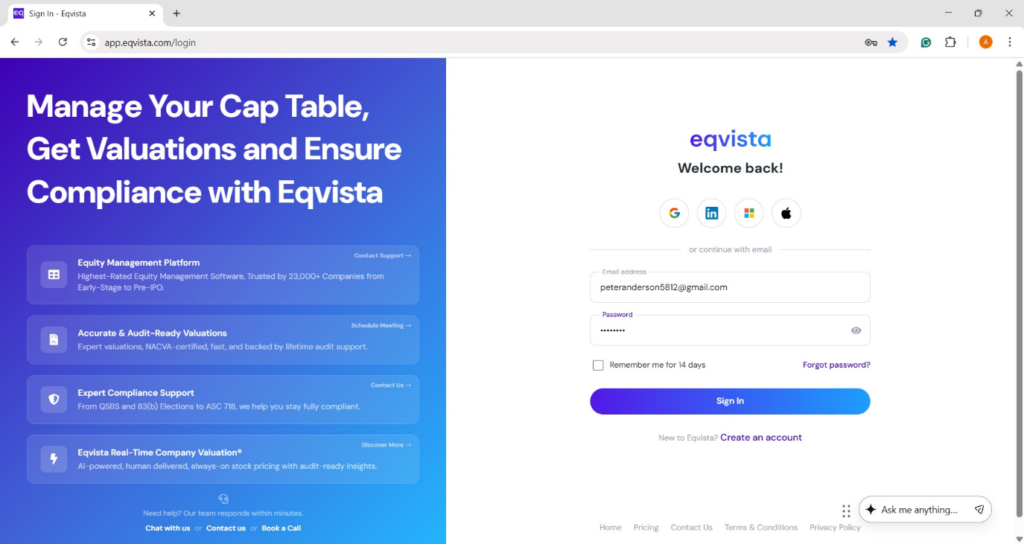
Step 1: Log into Eqvista and select your company account.
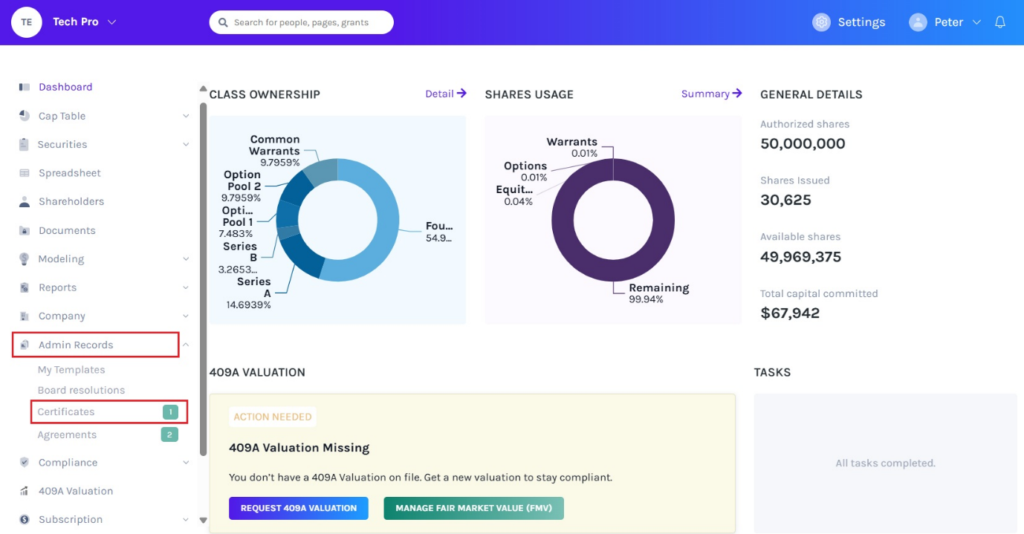
On the dashboard, click on “Admin Records” on the left side to get a drop-down menu and select “Certificates”.
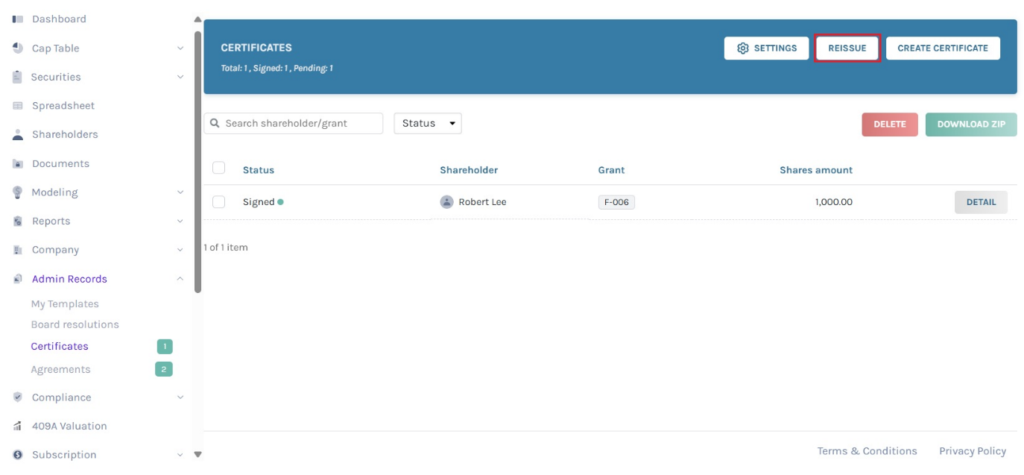
Step 2: Once you do this, you will be directed to the following page. You can reissue certificates that have been signed by the shareholder by clicking “Reissue” as shown below.
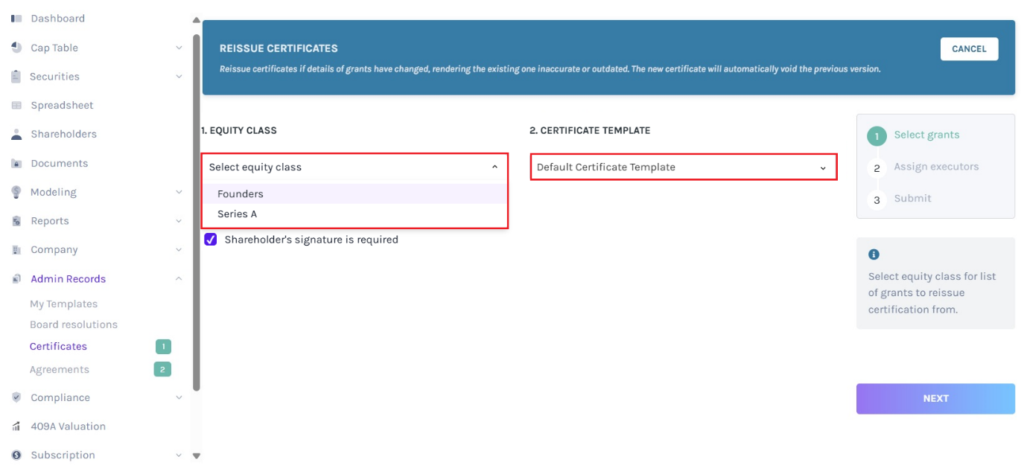
Step 3: A new panel will appear as shown below. Select the equity class and certificate template from the drop-down menu, and tick the box if the shareholder’s signature is required.
Step 4: Once you do this, a list of grants from the equity class with certificates to reissue will appear.
Note: Before reissuing certificates, ensure you have issued certificates. Check out the support article to learn how to issue certificates.
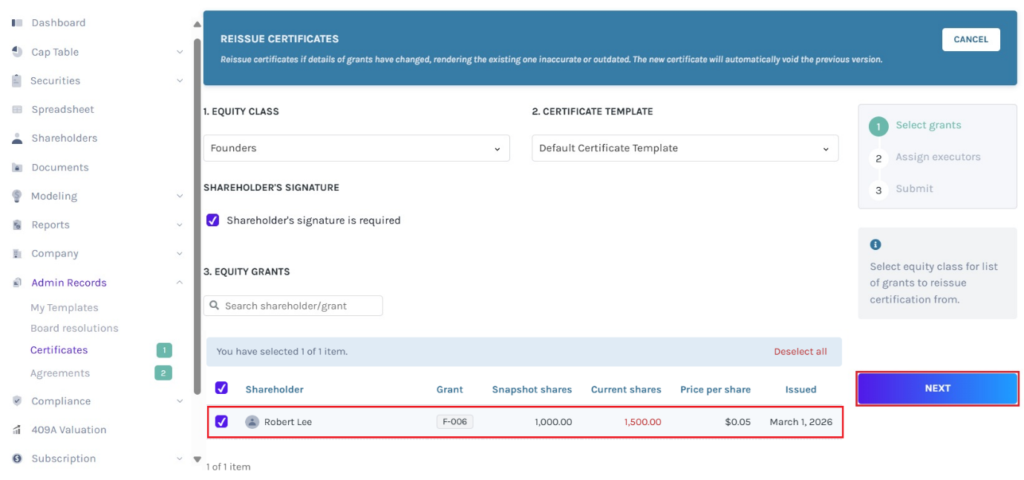
Note: The list for reissuing displays all grants that have an original certificate, have been updated, and have not been reissued with new certificates.
In this case, the amount highlighted in “Red” is the updated amount.
The moment you select the shareholder, you can see the number of shareholders selected. You can select more than one shareholder. In short, you can select all if you want to reissue certificates for all of them at the same time.
Once done, click on “Next”.
Step 5: The next step takes you to add the executor who would be signing the certificate. Select up to two executors and the role of the executor from the drop-down menu.
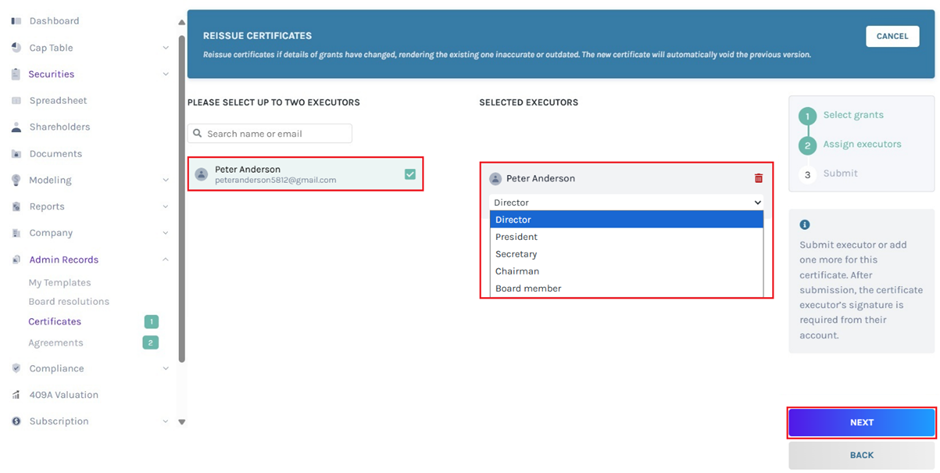
Note: The person who is selected to execute and sign the certificate should be either the director, the secretary, the president, the chairman, or the board member. Company users can only be assigned as executors. To know how to add a company user read this support article.
Once done, click on “Next”.
Step 6: The last step involves you checking the information, including the shareholder’s certificate you want to reissue and the executor who would be signing the certificate.
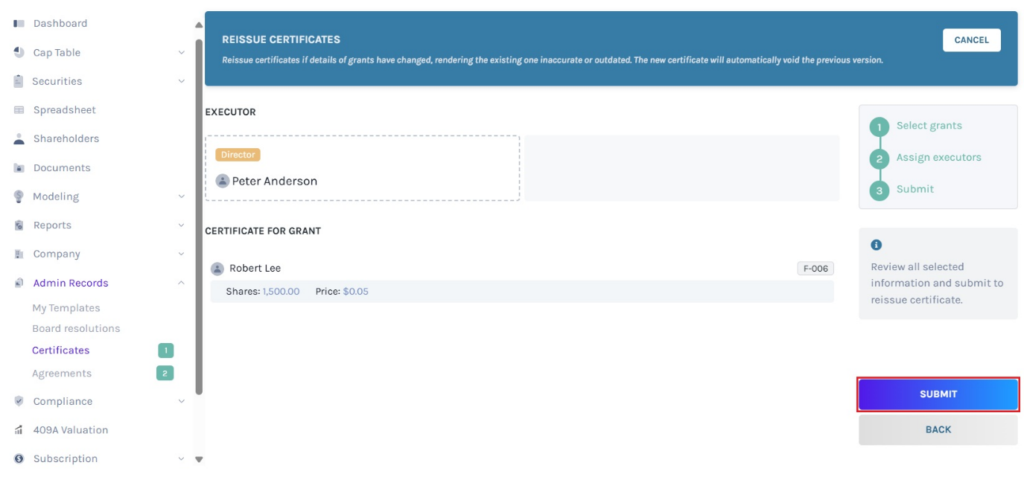
Once done, click on “Submit”.
Step 7: Once you click, the system will prompt a message asking you to request the shareholder’s consent to void the original certificate.
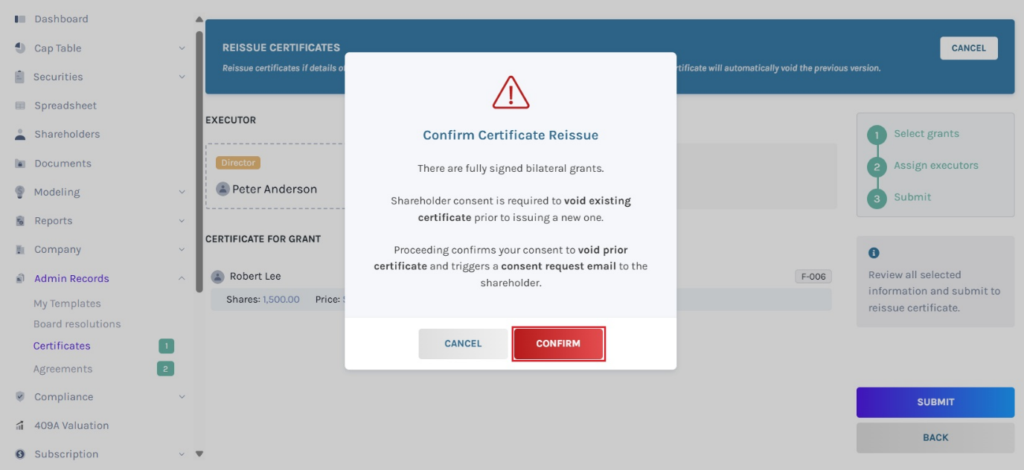
Click on “Confirm” to reissue the certificate. If you want to cancel the process, click on “Cancel”.
Step 8: Then, you will be directed to the following page, where the new certificate will automatically void the previous version. The previous version of the certificate will display the status “Pending Voided” until the shareholder gives consent to void the certificate.
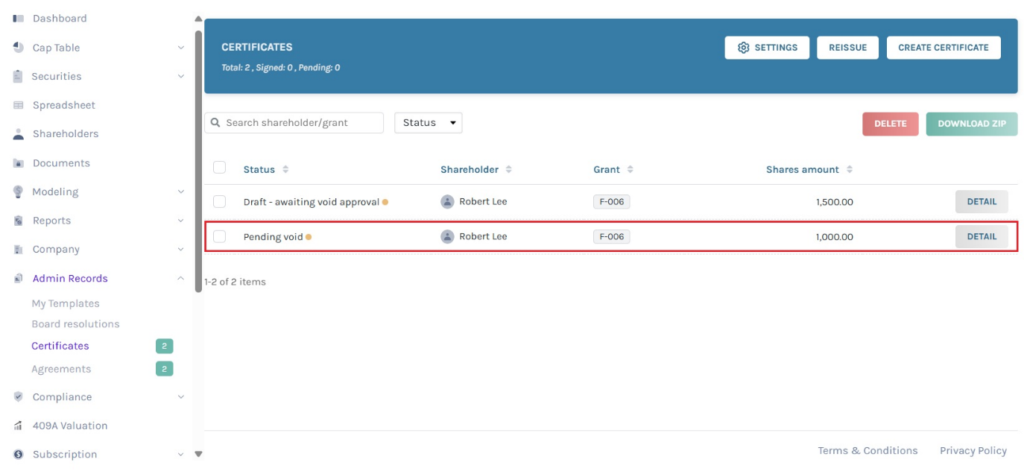
Step 9: The shareholder will receive an email requesting consent to void the original certificate as shown below.
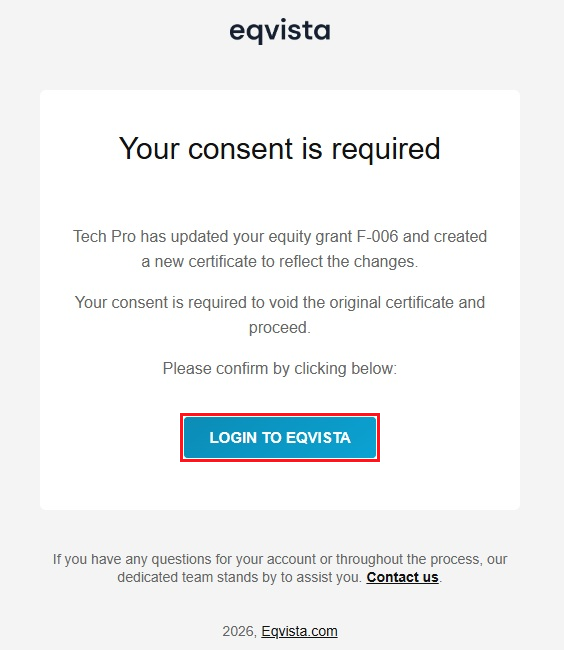
Step 10: The shareholder should click on “Login to Eqvista” and then log into Eqvista.
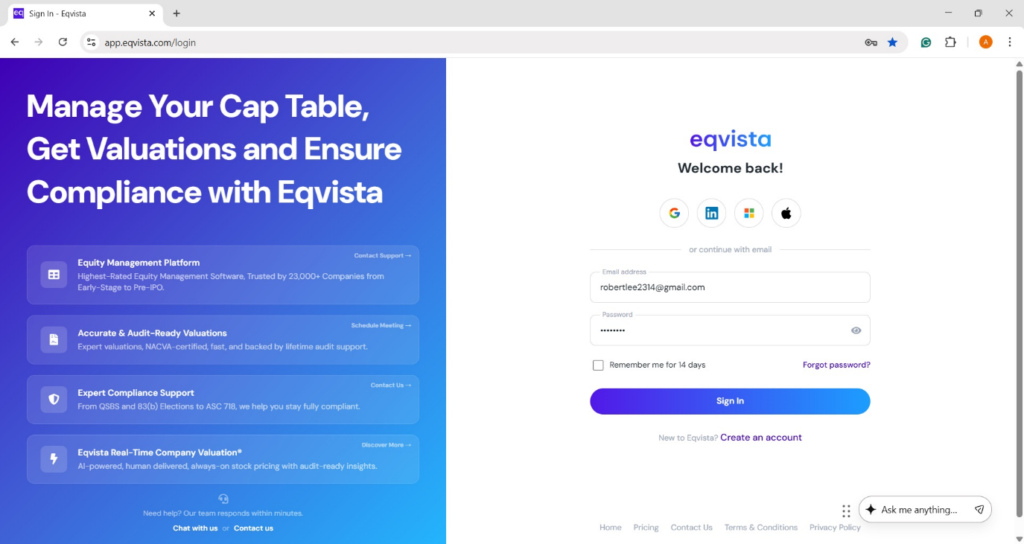
Step 11: Once clicked, it redirects to the shareholder access view dashboard, and then click on “Tasks” on the left-hand side or click on “View’ at the bottom of the dashboard.
Note: Here, you can manage your cap table right from the dashboard. To understand how to view the dashboard, check out the support article.
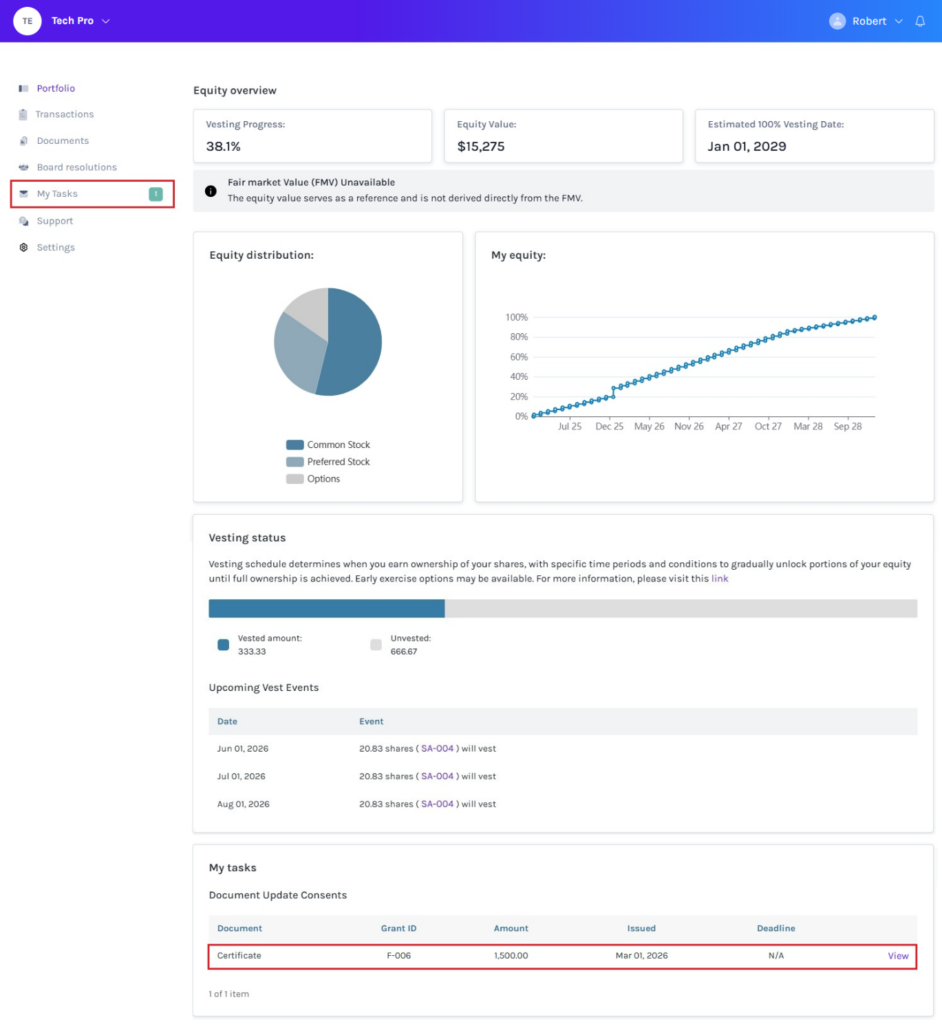
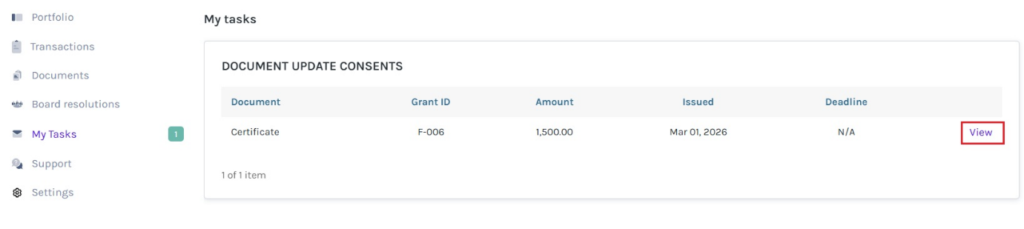
Step 12: The tasks section displays the details of the certificate that needs to be given consent to void and click on “View”.
Step 13: Here, the shareholder will have to add their signature to give consent to void the certificate as shown below.
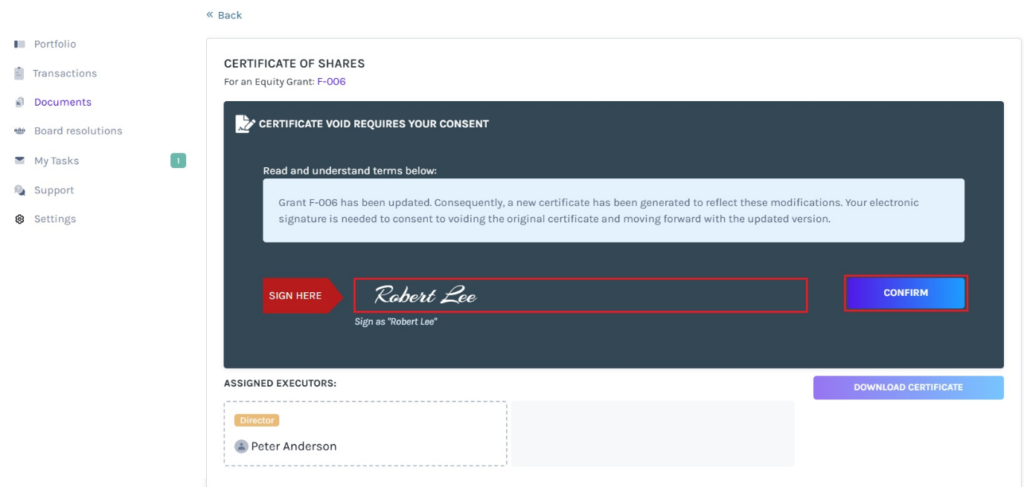
To add the signature, the shareholder needs to type their user name in the field available.
Once done, the shareholder should click on “Confirm”.
To learn more about Eqvista, check out our support articles and knowledge base. For queries, get in touch with us!