Assigning Executors for Signing SAFE Agreements
Share access to the cap table for the shareholder to view their transactions on the company’s cap table and request SAFE agreements.
Signing SAFE agreements
When the shareholder requests SAFE agreements, the company must assign executors to sign the agreement. Once the executors sign it, the shareholder can download the SAFE agreement.
Note: The agreements only apply to SAFEs and are not available for convertible notes.The SAFE agreements are only available for premium account holders. To unlock this feature, kindly upgrade your account.
Here are the steps to follow:
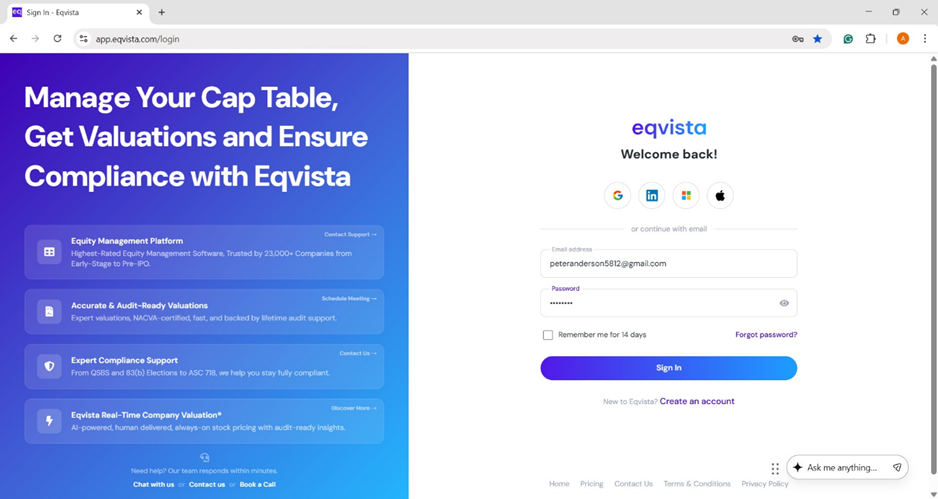
Step 1: Log into Eqvista and select your company.
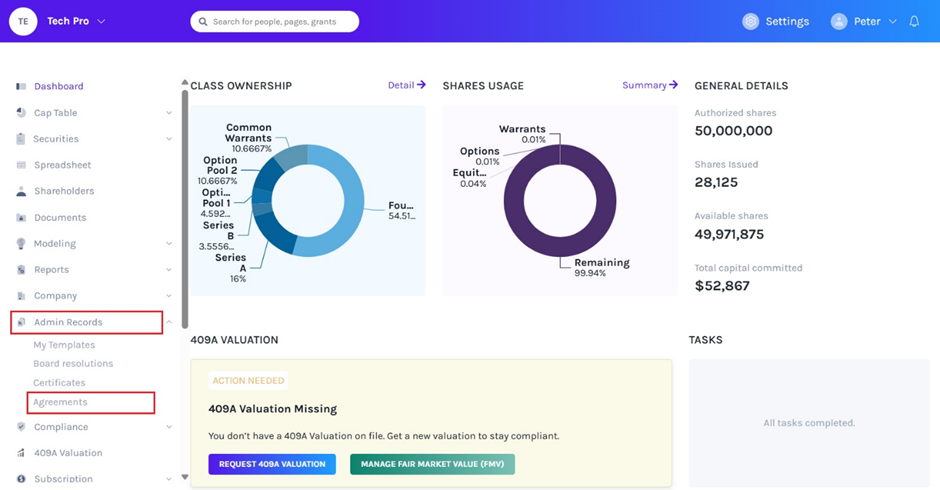
On the dashboard, click on “Admin Records” on the left to get a drop-down menu and select “Agreements”.
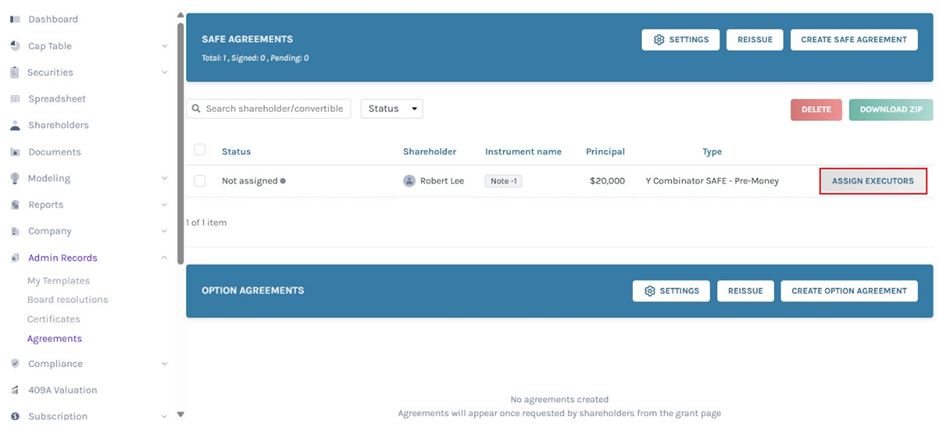
Step 2: On this page, you will see an option “Assign Executors” and click on this to assign executors for signing the agreement.
Note: You can enable automatic SAFE agreement generation by clicking on “Settings”. Check out the support article to learn more about it!
Step 3: Once you click, you will be directed to the page where you can assign executors.
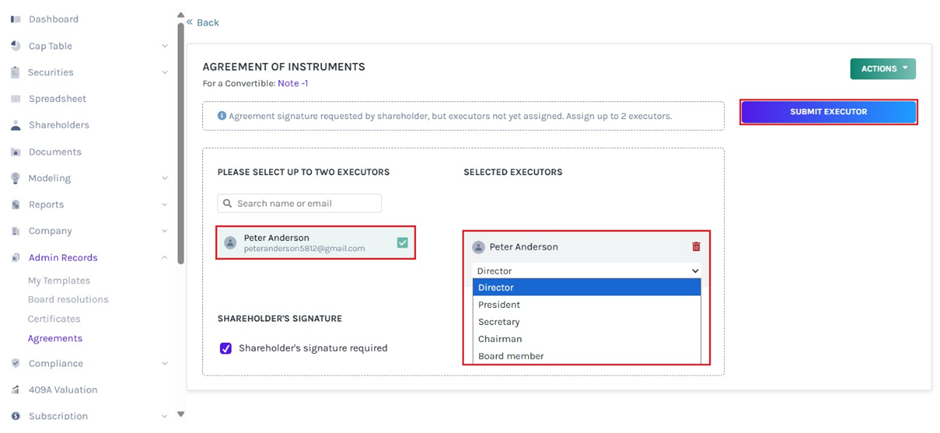
By selecting the name, it will appear in the middle panel, along with the option to select the role. It is normally a director, secretary, president, chairman, or board member who can sign the agreement.
Once done, click on “Submit Executor”. Then, tick the box if the shareholder’s signature is required.
Note: Company users can be assigned as executors. Check out the support article to know how to add a company user!
Step 4: The executor will get an email to sign the agreement, along with an option to view the agreement.
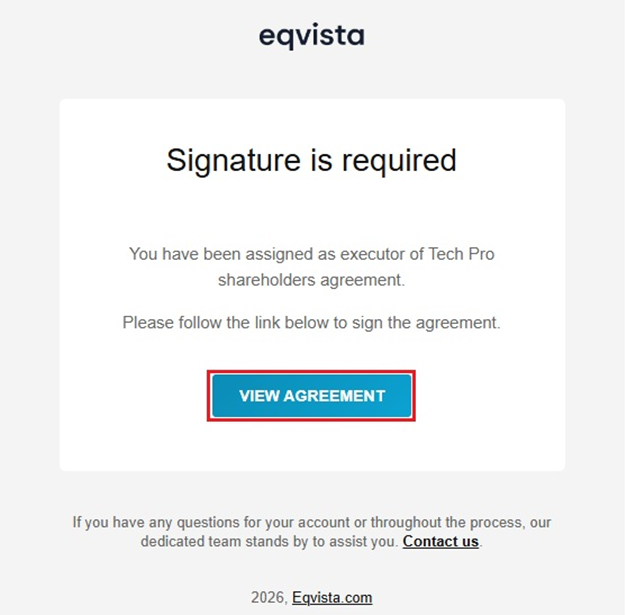
Here, click on “View Agreement”.
Step 5: Once you click, you will be directed to view all the agreements, and click on “Sign” to sign the agreement.
Note: You can reissue the SAFE agreement by clicking “Reissue” if the grant details have changed. Check out the support article to learn more about it!
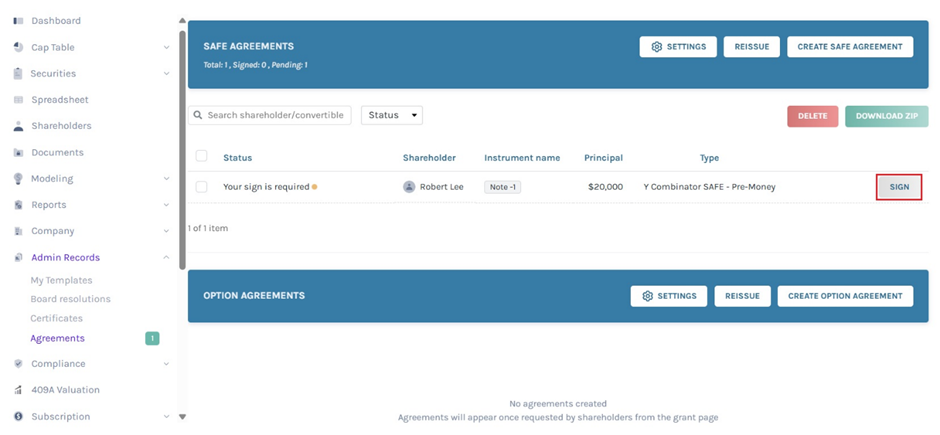
Note: If you want to delete the agreement, select it and click on “Delete”. Apart from that, you will be able to perform many functions. To know more about it, check out the support article!
You will be directed to the agreement as shown below.
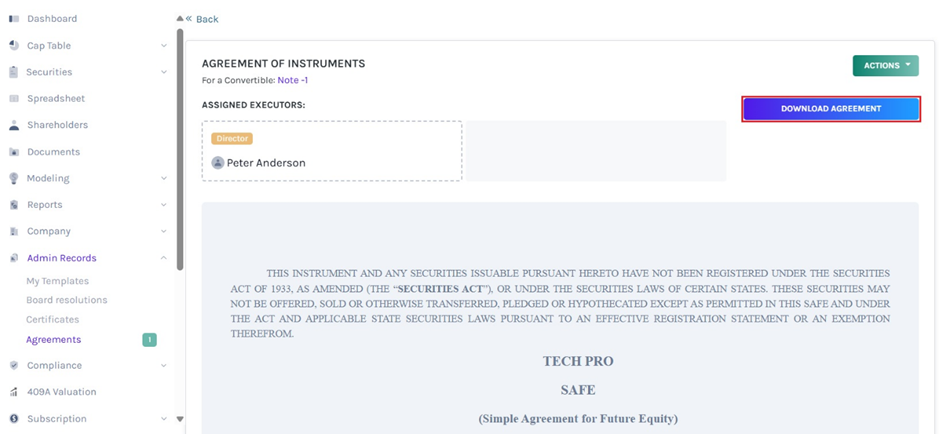
Note: There is an option to download the agreement without signing it by clicking on “Download Agreement”. If you want to delete the agreement, click on “Actions” on the top-right side of the page to get a drop-down menu and select “Delete”.
Step 6: Scroll down to the bottom of the page, and two options appear – Draw or Type your Signature for signing the agreement.
Note: If the executor has saved their signatures in Eqvista, they don’t need to draw or type them – the saved signature will automatically be placed in each agreement assigned to them, and they only need to click “Sign” to confirm.
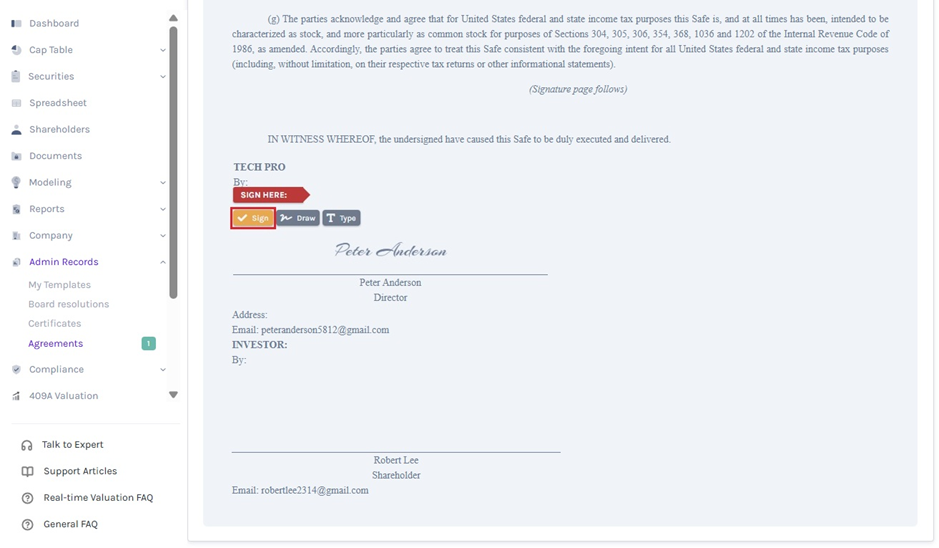
Method 1
If you have chosen “Draw Signature” option, using the plus sign and the mouse, draw your signature in the box.
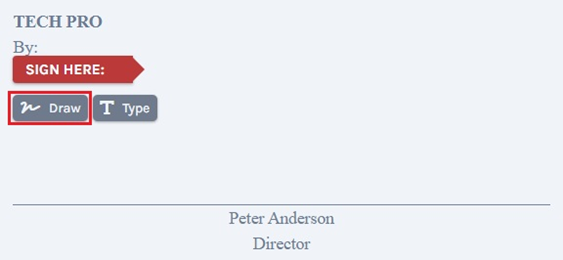
To Sign, click on “Sign” above the box. If you want to re-do the signature, click on “Clear”, as shown below. Click on “Close” to change the option to type signature.
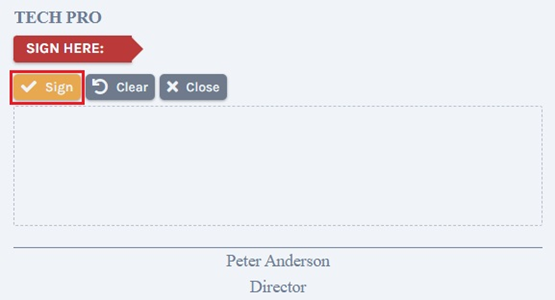
Once done, click on “Sign” above the box. A confirmation message appears, and click on “Yes” to sign.
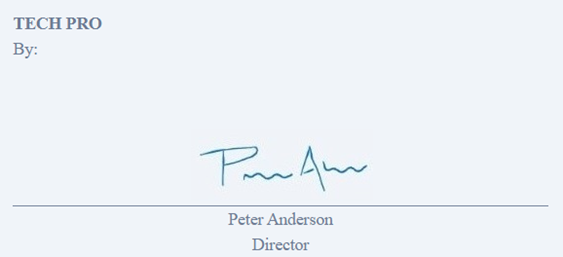
Method 2
Suppose you have chosen “Type signature”, then type your signature in the space provided.
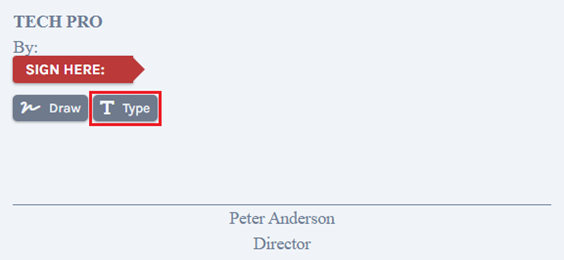
To sign, click on “Sign” above the box. Click on “Close” to change the option to draw signature.
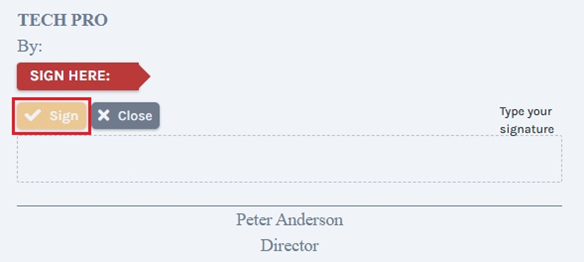
Once done, click on “Sign” above the box. A confirmation message appears, and click on “Yes” to sign.
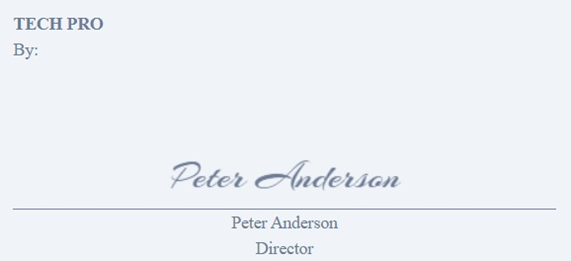
Step 7: Once done, click on “Sign” and the agreement will be signed as shown below.
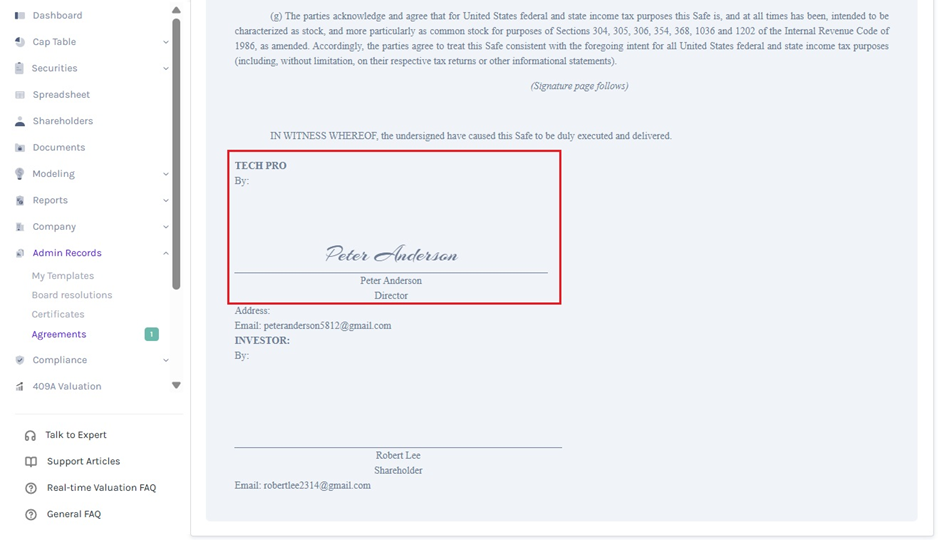
Step 8: Then, scroll back to the top and you can view the option to download the agreement.
Note: The shareholder will receive an email that the agreement has been signed and can be downloaded. Make sure to share access to the cap table with the shareholder to sign and download the agreement.
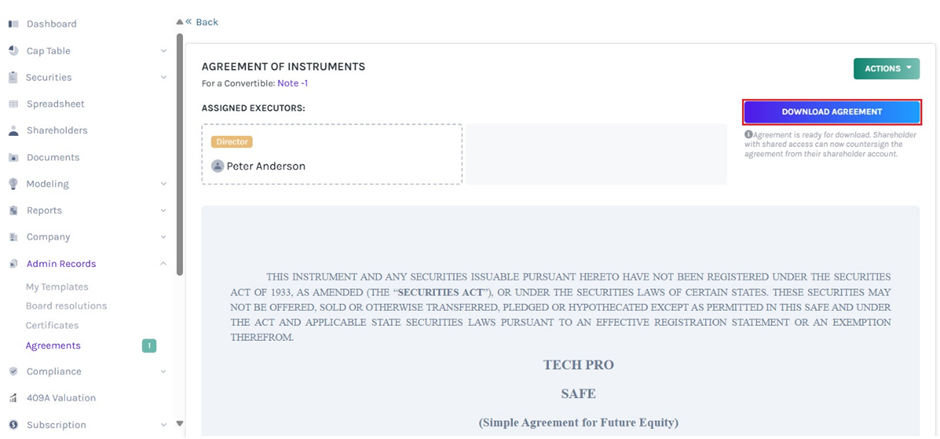
Note: The user can’t make any edits once the agreement is created. If you want to delete the agreement, click on “Actions” on the top-right side of the page to get a drop-down menu and select “Delete”. To delete the agreement after the shareholder has signed, you need to delete the note and re-issue it to create a new agreement.
Once the shareholder has signed the agreement, you can then download the completed agreement. The shareholder can also download the SAFE agreement once they sign it.
For more information on Eqvista, check out our support articles or contact us today!