Filter, Delete, and Download Agreements
On Eqvista, the administrator or superuser can create SAFE agreements, option agreements, and perform several functions.
Note: The agreement feature is only available for premium account holders. To unlock this feature, kindly upgrade your account.
Agreements
Eqvista allows you to filter, delete, and download SAFE and option agreements.
Here are the steps to follow:
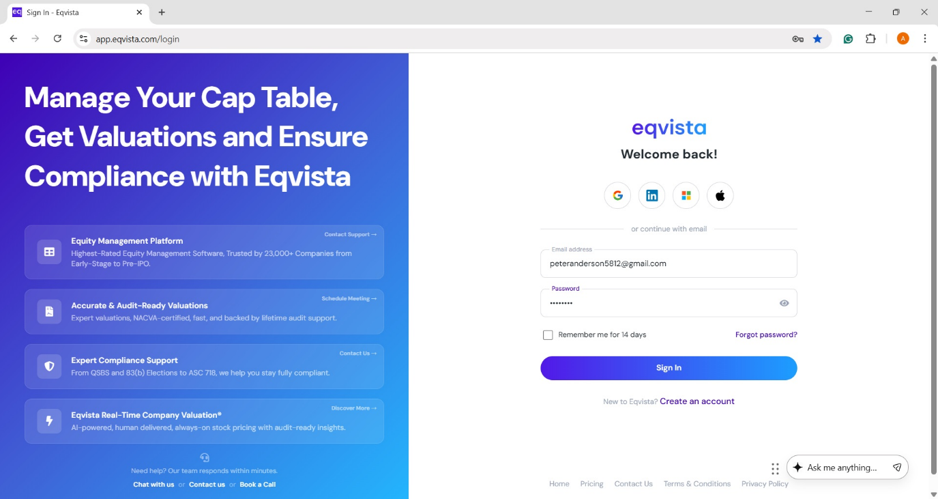
Step 1: Log into Eqvista and select your company.
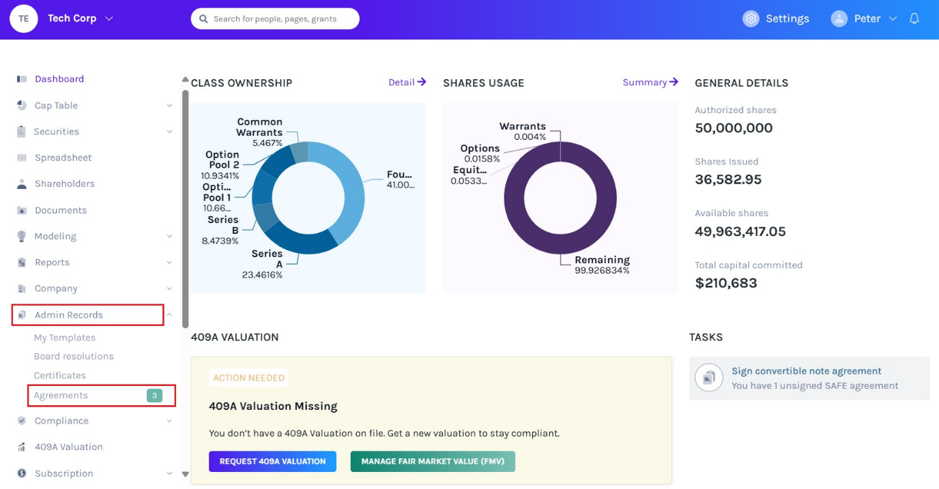
On the dashboard, click on “Admin Records” on the left to get a drop-down menu and select “Agreements”.
Step 2: On this page, you can view the list of created SAFE agreements and option agreements.
- There is an option to enable automatic SAFE agreement and option agreement generation by clicking on “Settings”.
- You can reissue SAFE agreement and option agreement by clicking “Reissue” if the grant details have changed.
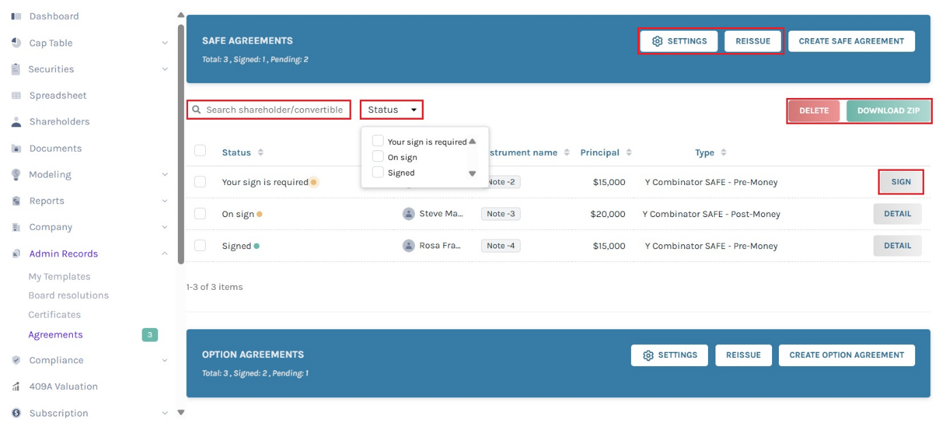
Once you click “Sign”, you will be directed to view and sign the agreement. Apart from signing, the admin or superuser can perform various functions.
#1 Search and filter
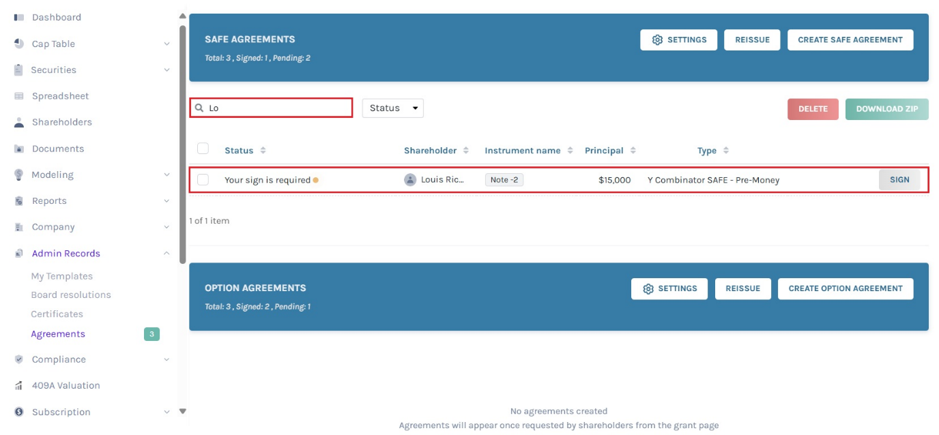
You can search for shareholder or instrument name/option grant by entering in the space as shown below.
Narrow down your search by clicking on the “Status” button, as shown below. The “Status” of each agreement created can be one of the following:
- Your sign is required: The agreement is yet to be signed by you if you are the executor.
- On-Sign: Signed by the executor and is waiting for the shareholder to sign the agreement.
- Signed: The agreement has been signed by both the executor and shareholder.
- Not assigned: The status indicates that the agreement requires the assignment of executors.
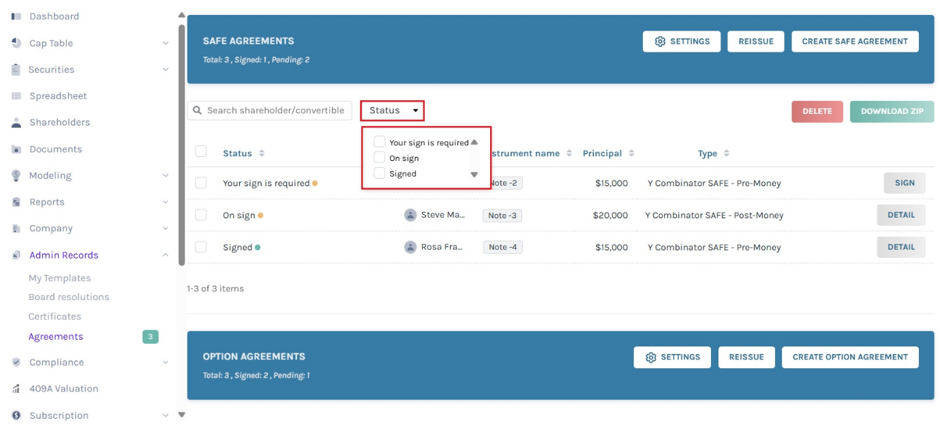
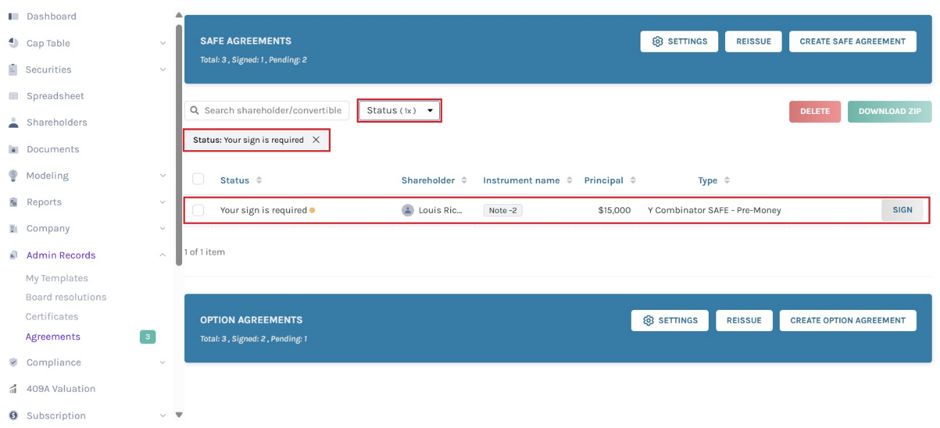
When you click, a drop-down list appears, and choose the options to filter the results.
#2 Delete
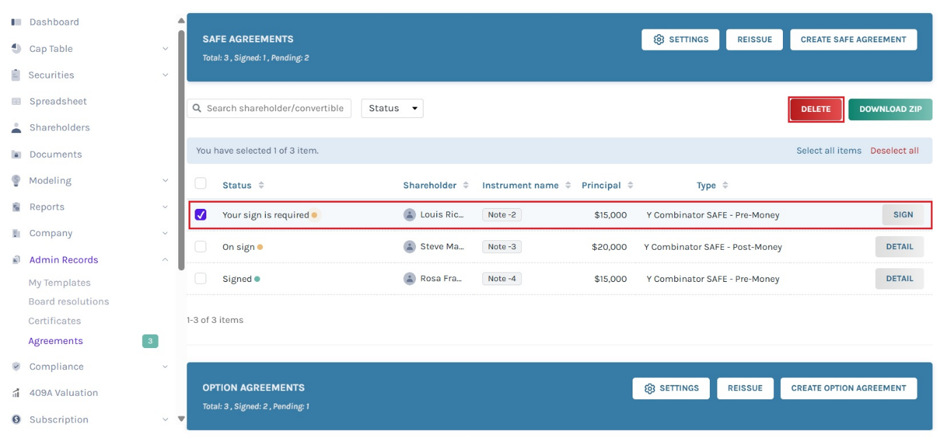
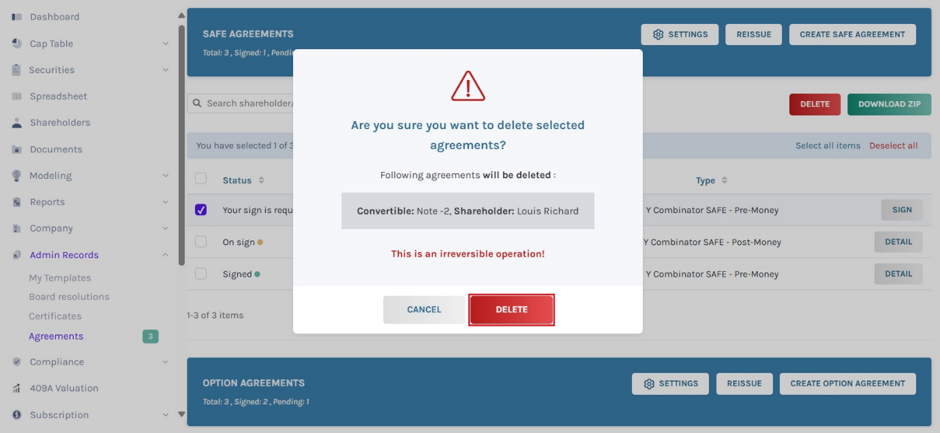
To delete a created agreement, select the agreement and click on “Delete”.
Note: You cannot delete the agreement once it is signed by the shareholder. To delete the agreement, delete the grant and re-issue it to create a new agreement.
Note: You can reissue the agreement after the shareholder has signed it by clicking “Reissue”. Check out the support article to learn more about it!
By clicking on this, a dialogue box appears asking if you are sure that you want to delete the agreement.
#3 Download ZIP
You can download both signed and unsigned agreement by clicking on “Download ZIP”.
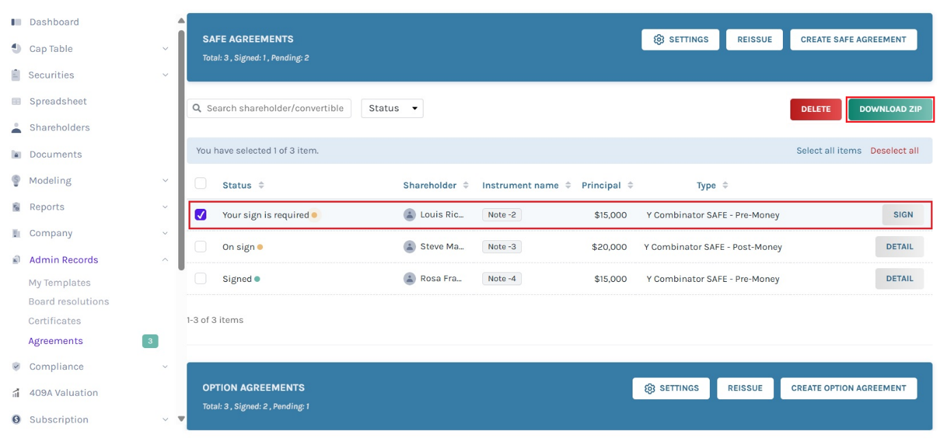
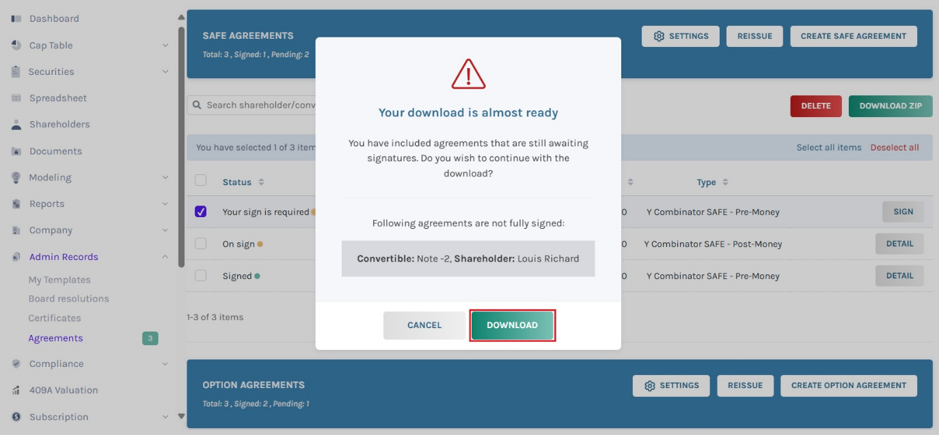
A. Download Unsigned Agreement: If you want to download the agreement without signatures, click on “Download ZIP”.
Note: You can select more than one agreement. In short, you can select all items if you want to download all agreements at the same time.
By clicking on this, a dialogue box appears asking if you are sure that you want to download the agreement with signatures.
B. Download Signed Agreement: Suppose you want to download (signed) agreement, click on “Download ZIP” as shown below.
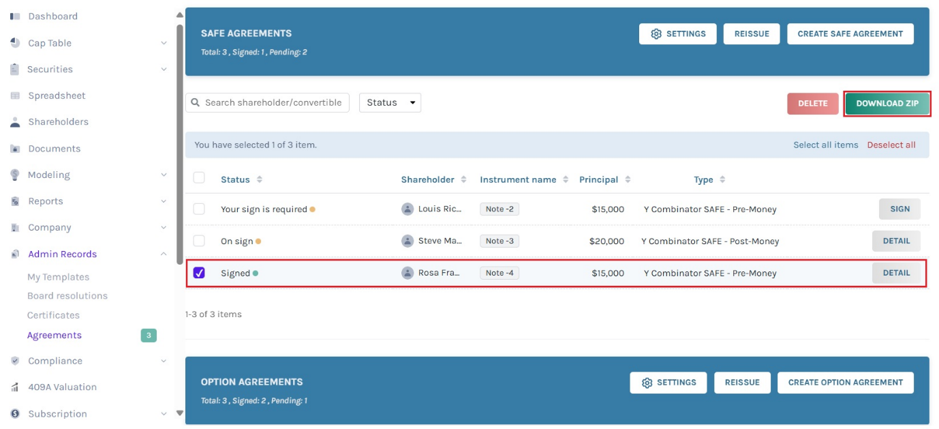
Once you click, the agreement gets downloaded as a zip folder in Downloads.
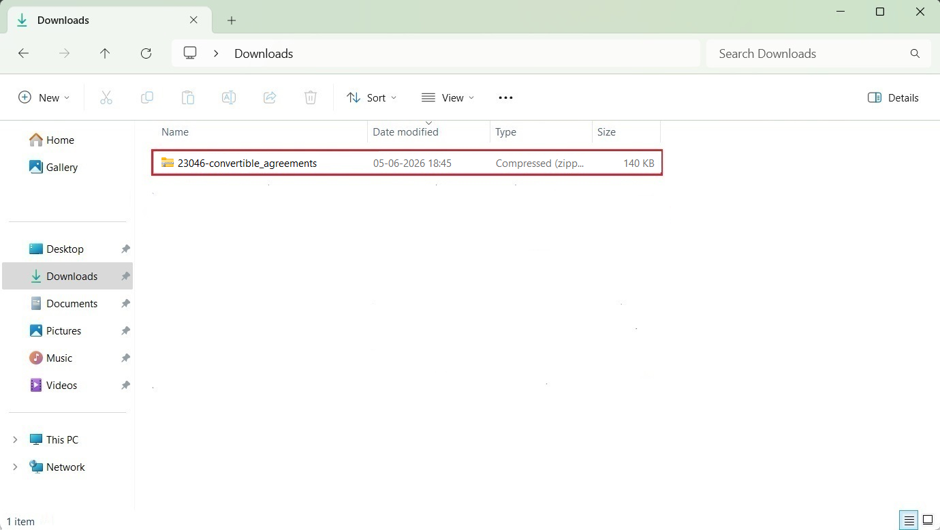
Double-click the zip folder to open the agreement downloaded in PDF format.
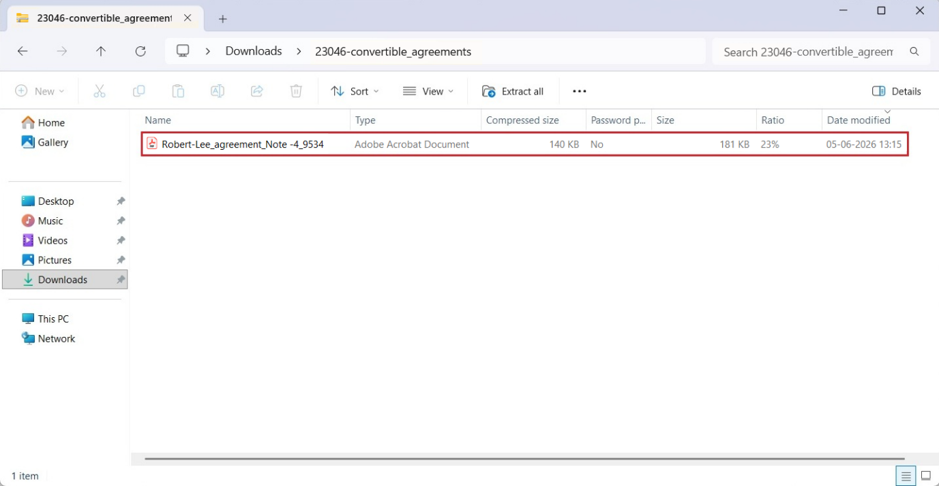
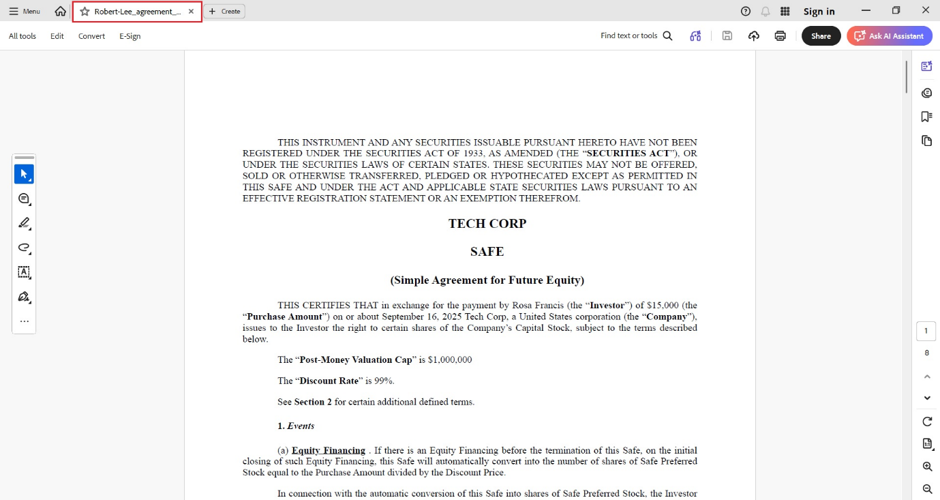
Double-click the PDF to open the downloaded agreement.
For more information on Eqvista, check out our support articles or contact us today!