Restriction Legends
Restriction legends are wording used to create certificates for grants. Each equity grant prints the legends attached to it, whichever certificate template it uses.
Note: The restriction legends are only available for premium account holders. Kindly upgrade your account to unlock this feature.
Manage Restriction Legends
On Eqvista, you can view the list of restriction legends available and create new legends used to generate certificates for grants.
Open My Templates
Here are the steps to follow:
Step 1: Log into Eqvista and select your company account.
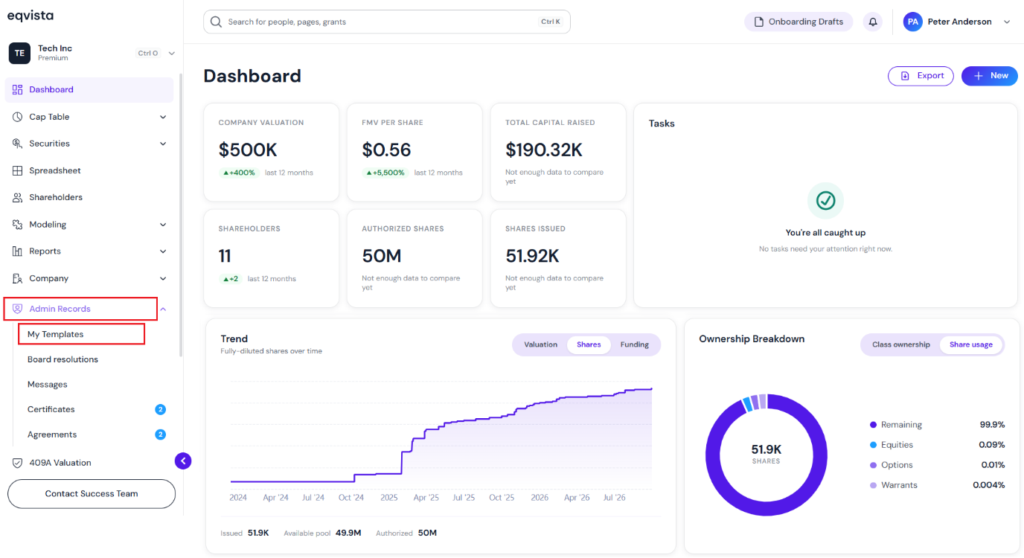
On the dashboard, click “Admin Records” from the left side to get a drop-down menu and select “My Templates”.
Manage Restriction Legends
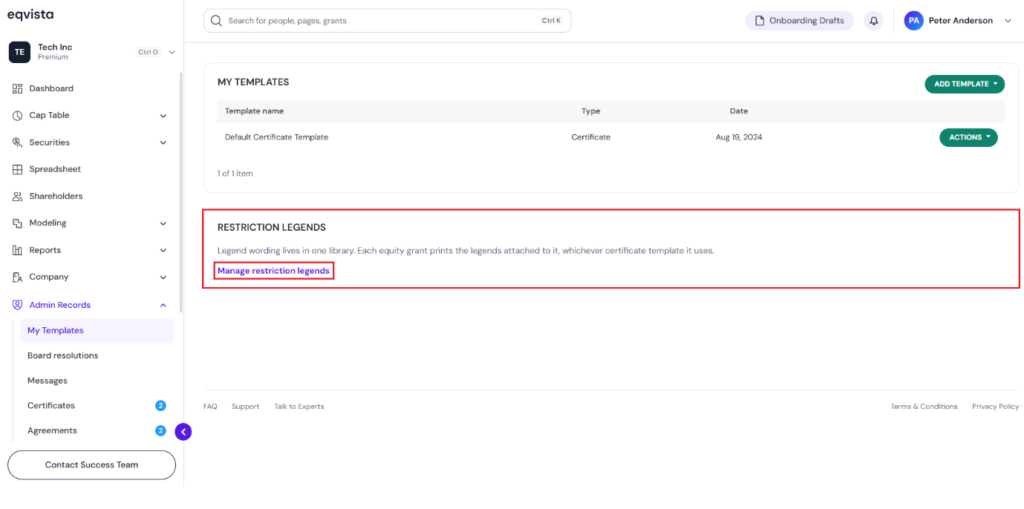
Step 2: Here, you will see certificate templates and option agreement templates that have been created. To manage restriction legends, click on “Manage Restriction Legends”.
Note: A certificate and option agreement template can be created by clicking on “Add Template” to get a drop-down menu and select “Certificate” or “Option Agreement”. Check out the respective support articles to learn about it.
View Restriction Legends
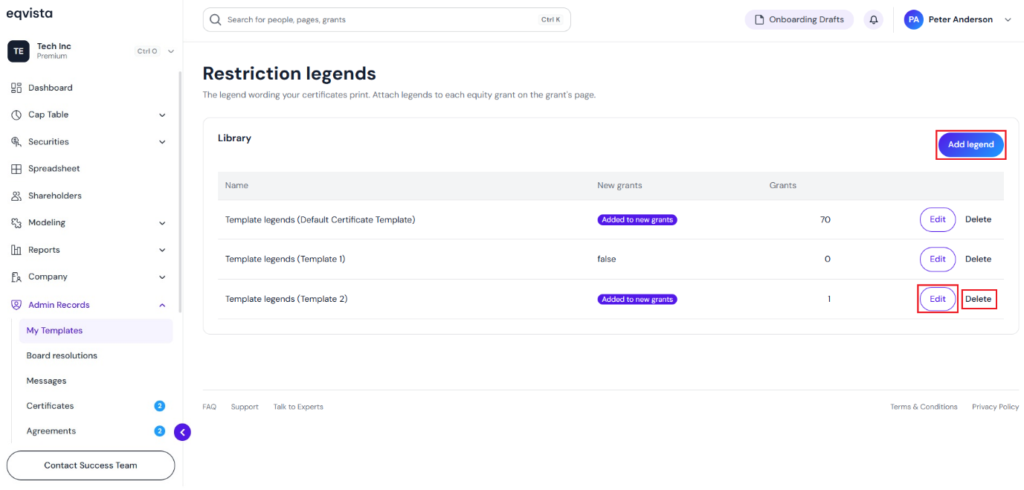
Step 3: On this page, you can view the list of restriction legends available.
By default, two restriction legends – Template legends (Default Certificate Template) and Template legends (Template 1) have been created. It displays the following details of the legend:
- Name of the legend
- Displays whether the legend has been added to new grants. If not, it displays “false”.
- The number of grants in which the restriction legend has been added.
A detailed feature-by-feature analysis of the various options will help you understand them better.
#1 Add Legend
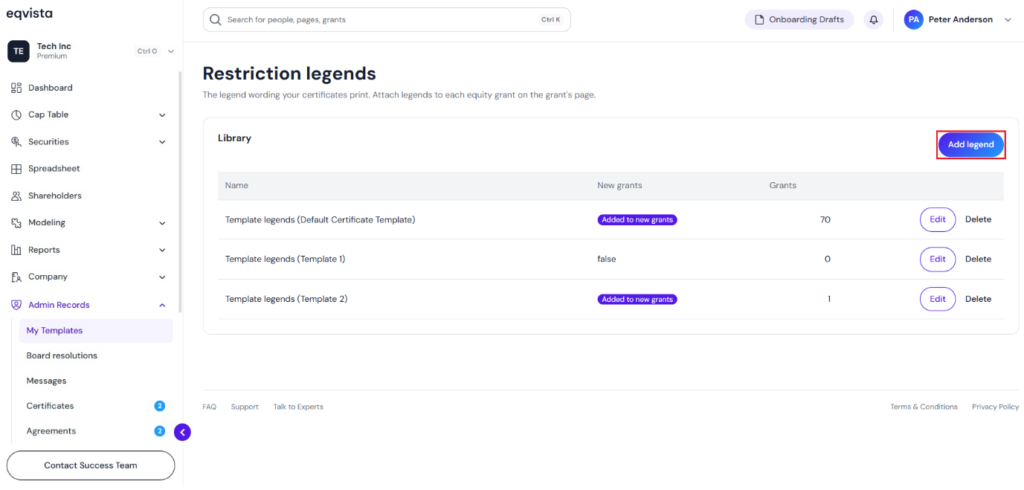
To create a new legend, click on “Add Legend”.
A pop-up panel appears to customize the elements of the legend.
Note: Customize the various elements to create a legend. Check out the support article to learn about adding a legend.
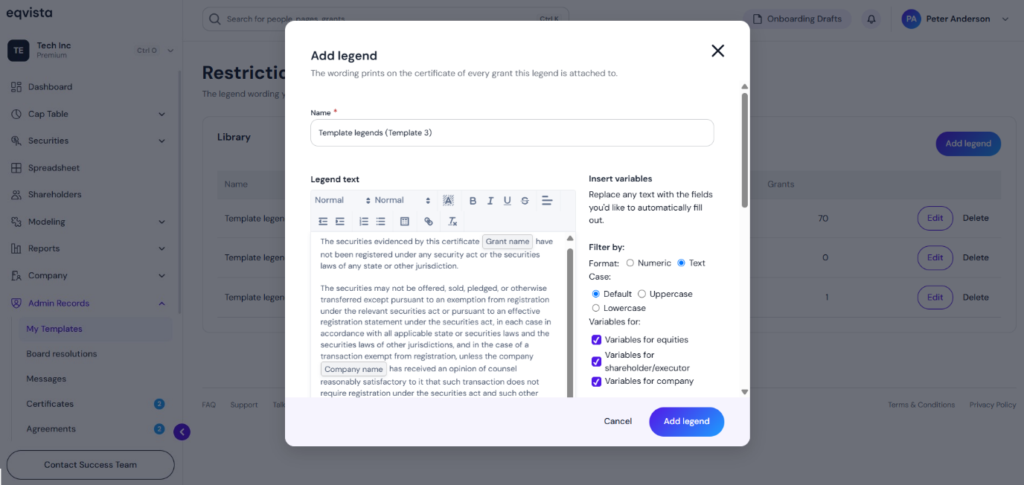
- At the top, enter the legend’s name in the space provided.
- Enter the wording of the legend – the text to be included in the legends of the certificate. Use variables from the left panel to insert information that can be customized for each legend. The variables can be filtered by Format (Numeric and Text), Case (Default, Uppercase, and Lowercase), and Variables for (Equities, Shareholder/Executor, and Company). Select the format, case, and variables for, place the cursor where you want to insert a variable, and then click on the variable to insert it.
- Select the option “Attach to new grants by default” to include the created legend for every new grant by default. The created restriction legend can be viewed on the equity grant details page if the option has been enabled.
After customizing the elements, click on “Add Legend”.
#2 Edit
The restriction legend can be edited by clicking on “Edit”.
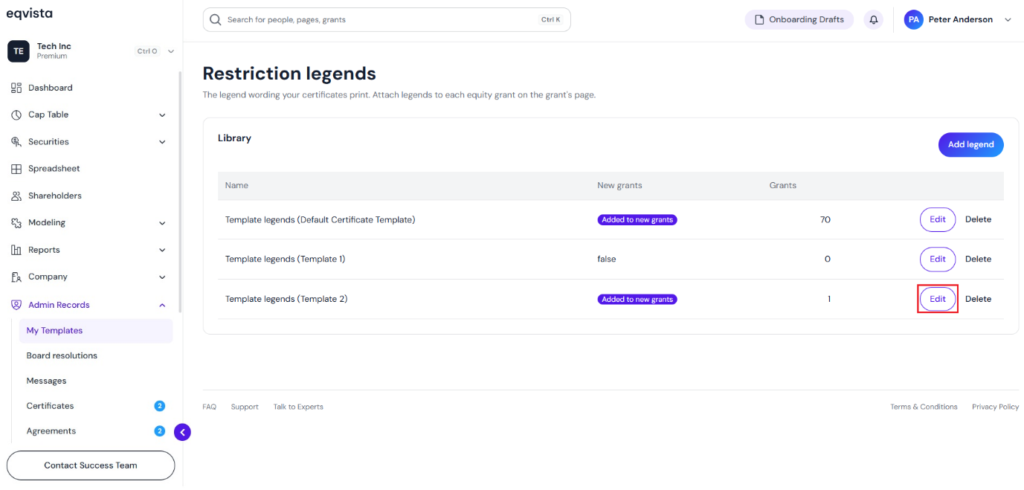
When you click, a pop-up panel appears to edit the restriction legend.
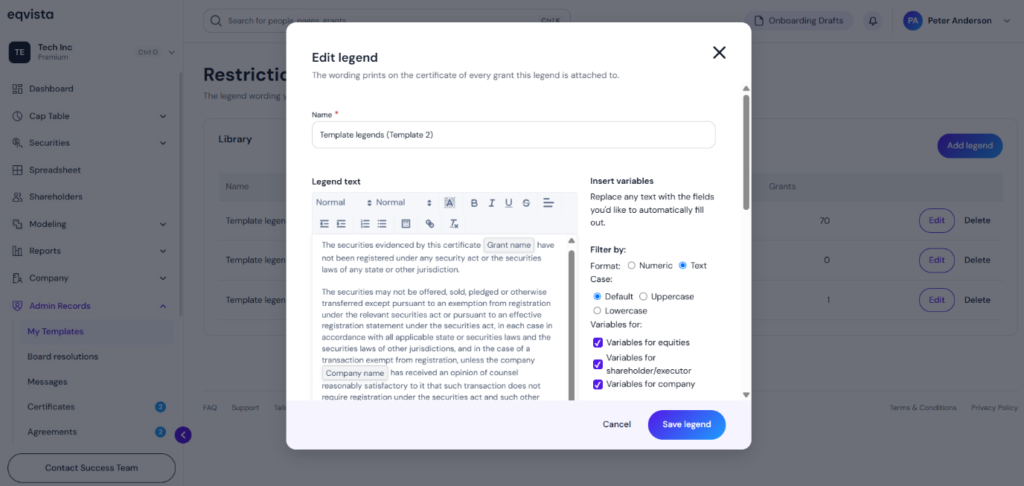
Once done, click on “Save Legend”.
#3 Delete
If you want to delete the restriction legend, then click on “Delete”.
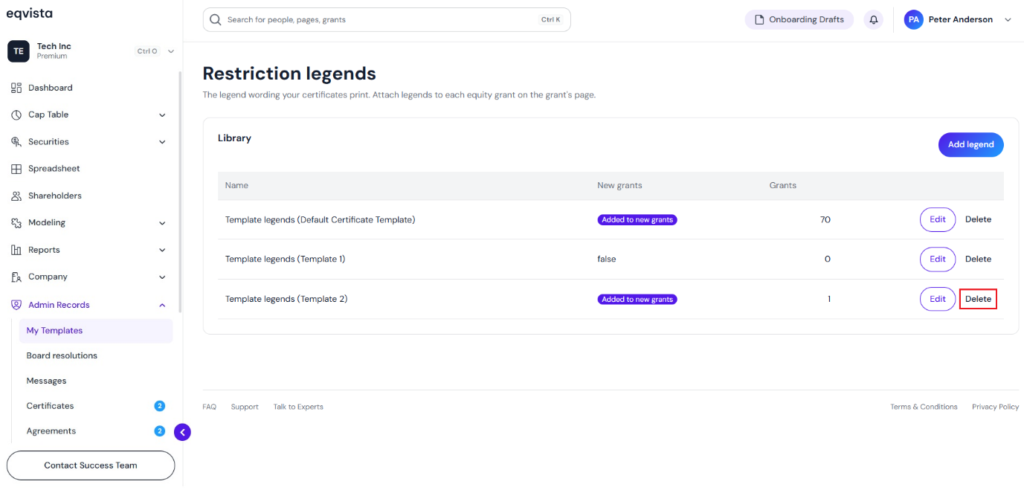
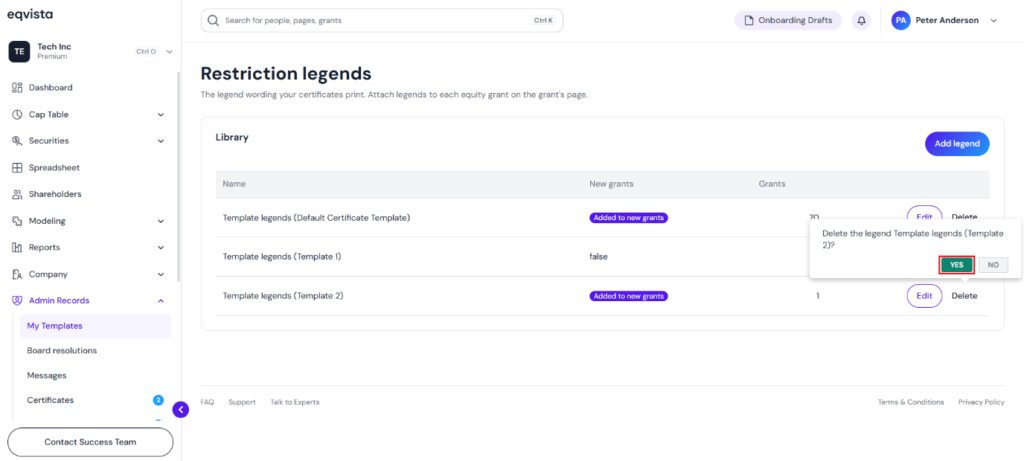
Once you click “Delete”, a pop-up panel appears to confirm the deletion. To proceed, click on “Yes”.
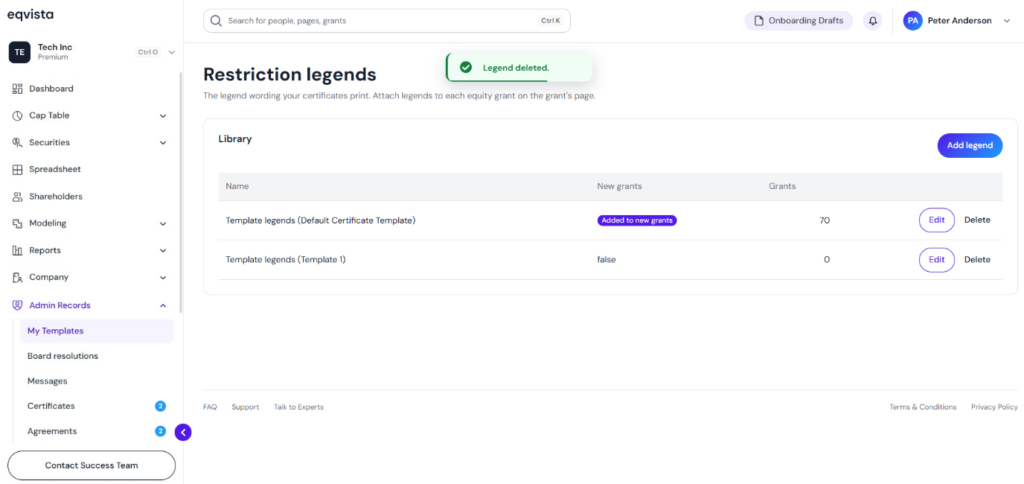
The restriction legend will be removed from the list as shown below.
Manage Restriction Legend on Equity Grant Details
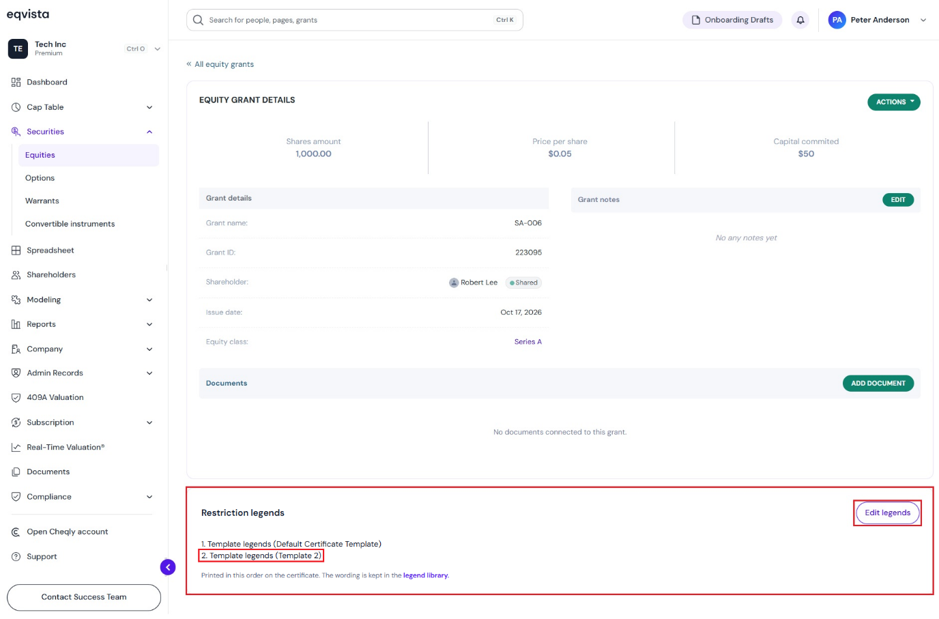
Step 4: Restriction legends can also be viewed on the equity grant detail page. Each equity grant prints the legends attached to it, whichever certificate template it uses.
The created restriction legend can also be viewed on the equity grant details page if the option “Attach to new grants by default” is selected to include the created legend for every new grant by default.
To edit the legends on the equity grant detail page, click on “Edit Legends”.
Add Legend to Equity Grant
Step 5: A pop-up panel appears displaying the details of the legends attached to the grant, along with an option to “Delete”. The certificate prints these legends in this order.
To add a legend, select the legend from the drop-down menu and click on “Add”.
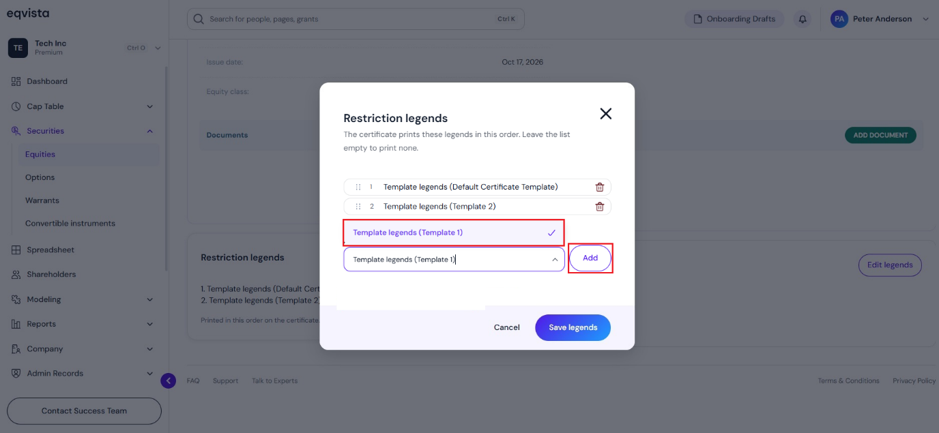
Once you click “Add”, the legend will be added to the equity grant, and the certificate prints these legends in this order.
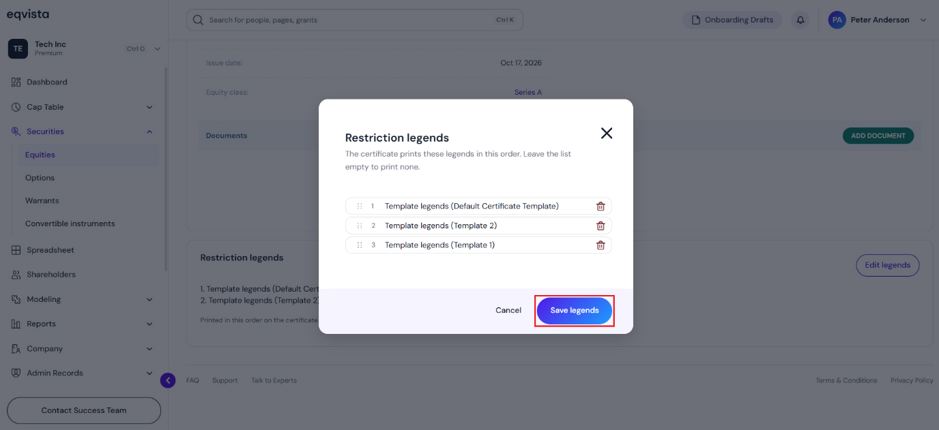
Once done, click on “Save Legend”.
For more information on Eqvista, check out our support articles or get in touch with us today!