Convert Preferred Shares to Common Shares – Partial Conversion
One of the secondary transactions is share conversion, where preferred shares can be converted to common shares.
Partial Conversion
On Eqvista, you can perform partial conversion and full conversion of preferred shares to common shares.
Open Equities
Here are the steps to follow:
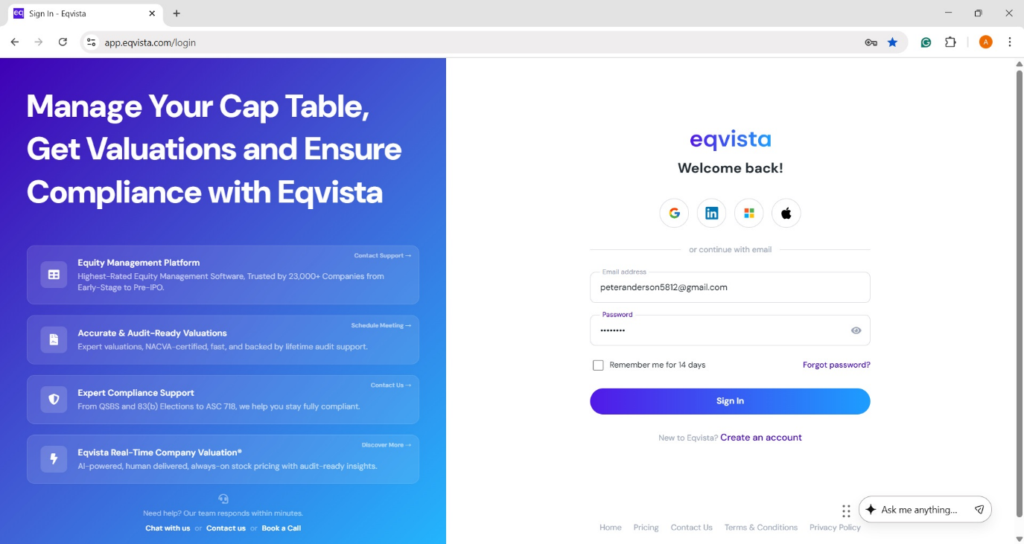
Step 1: Log into Eqvista and select your company account.
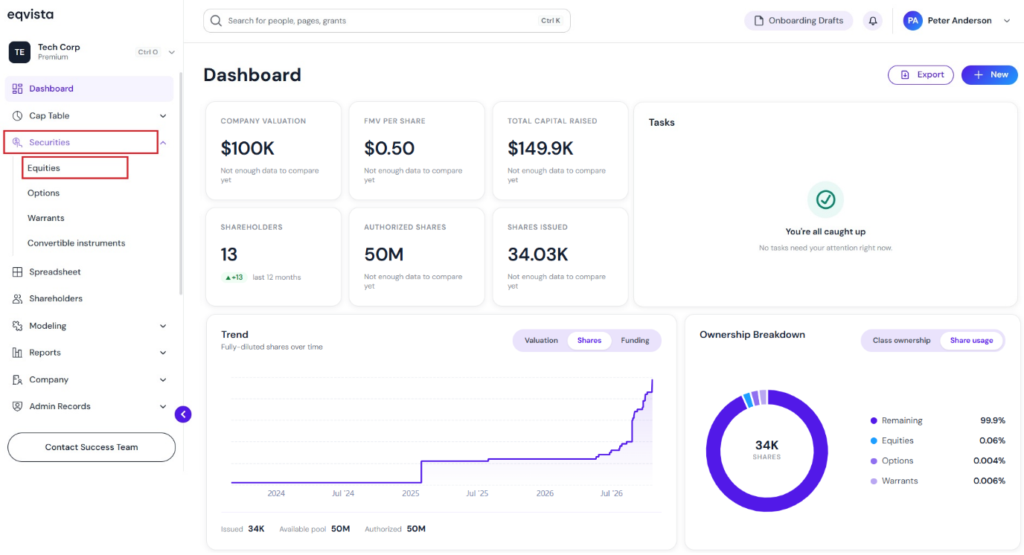
On the dashboard, click “Securities” from the left side to get a drop-down menu and select “Equities”.
Select Preferred Shares to Convert
Step 2: Once you select, you will be redirected to the following page displaying the equity classes created. Then, click on the “Preferred” equity class, and a panel will appear showing the details of those who have been issued shares from this class.
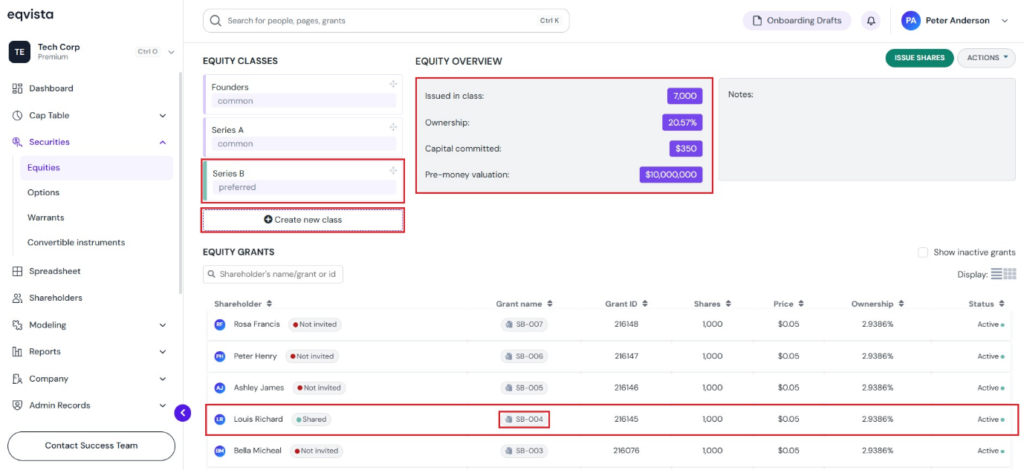
Note: On this page, click on “Create New Class” to create a preferred equity class, and if you have created one, you can issue preferred shares and implement a vesting schedule.
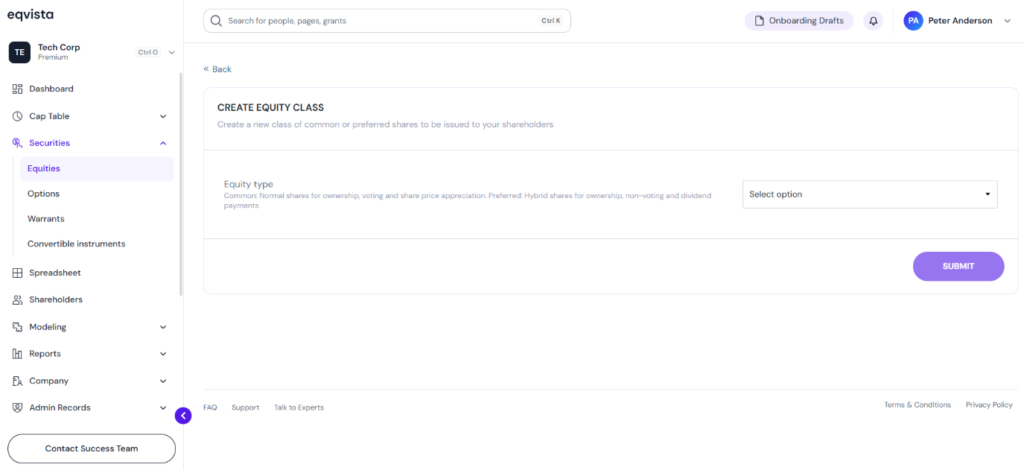
In this case, we will click on the preferred equity class “Series B” and select the grant name “SB-004”.
Convert Preferred to Common Shares
Step 3: Then, you will be redirected to the equity grant detail page. On the page, click on “Actions” and select “Convert to Common Shares” to perform the conversion.
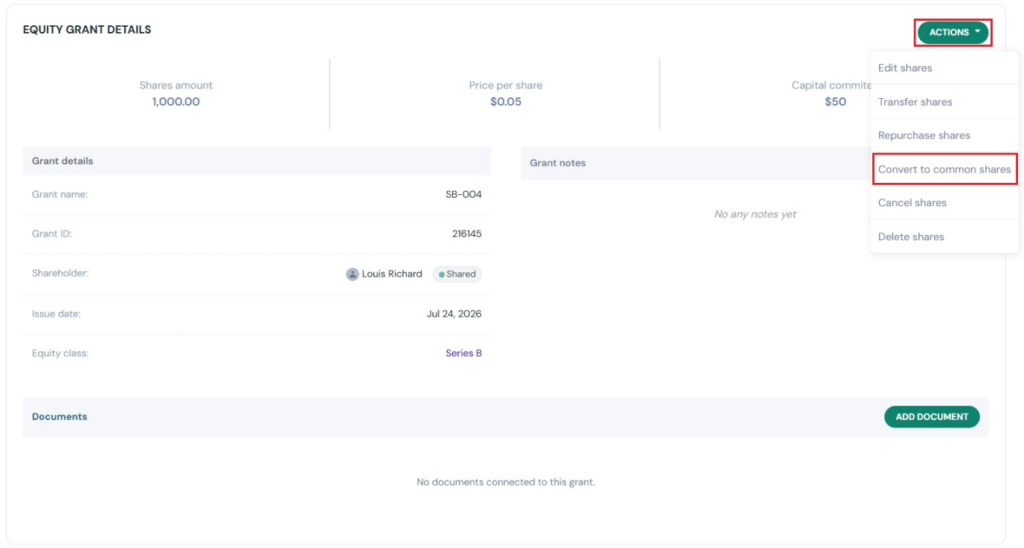
Partial Conversion
Step 4: A new panel will appear where you will have to select whether the conversion is Partial Conversion or Full Conversion.
Note: You can also convert all shares by clicking “Full Conversion”. To learn how to convert all shares, check out the support article!
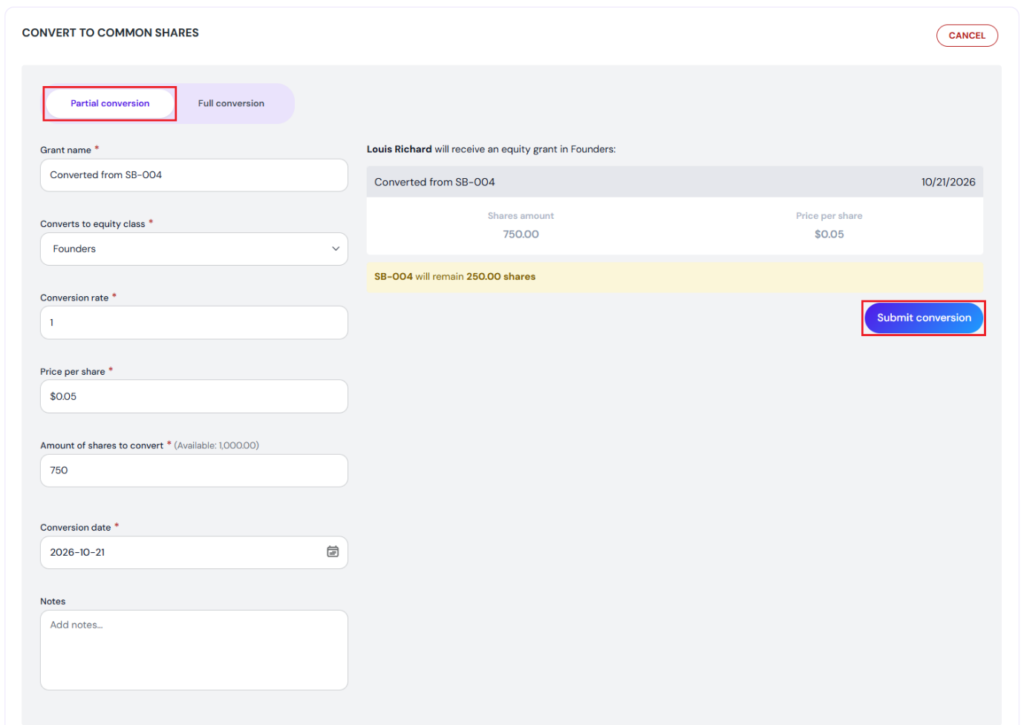
In this case, we selected the option of “Partial Conversion”. With this, you have to add all the details, such as:
- Select the converts to equity class from the drop-down menu.
- Enter amount of shares to convert, and the number of shares remaining will be automatically displayed.
- The grant name, price per share, conversion rate, and conversion date will be automatically filled.
If the conversion date is not today, and the price per share and conversion rate are not the same as the initial share grant, then you can edit those as well. As you edit the details, you will see the right-side panel updating as well.
Once you have added all the details, click on “Submit Conversion”.
Preferred Shares Converted to Common
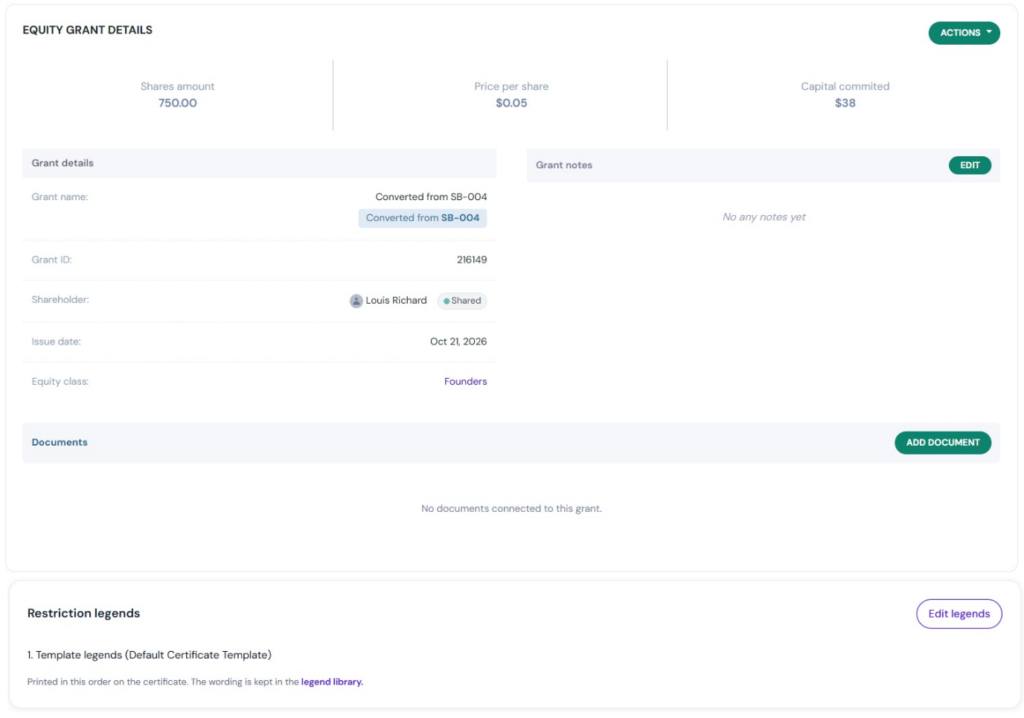
Step 5: The shares will then be converted, and you will be redirected to the equity grant details page that displays the remaining shares.
Note: After partially converting the shares, you cannot edit the grant details.
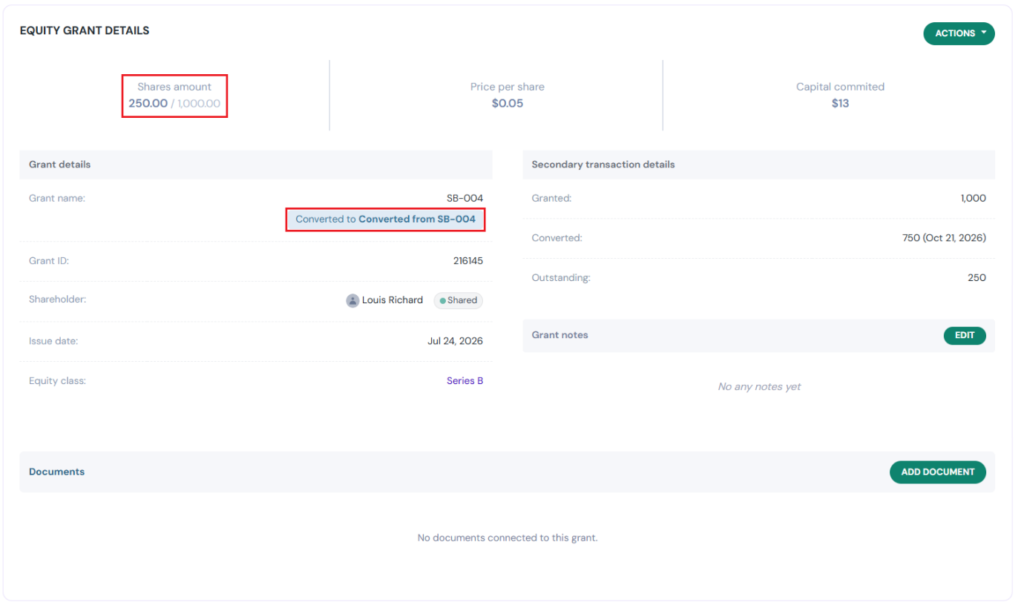
For more details on the converted grant, click on the grant name “Converted from SB-004” to view the shares converted to common.
Note: The restriction legends can be managed by clicking on “Legend Library”. You can add a document to the grant by clicking on “Add Document”. Check out the respective support articles to know more about it.
Record of Secondary Transaction
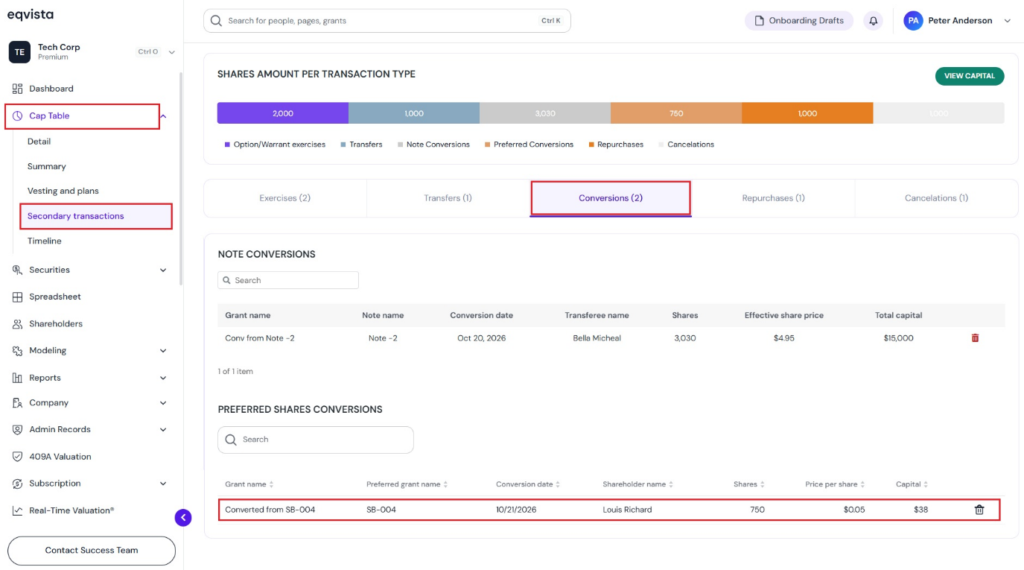
Step 6: The record of the conversion can be viewed by clicking on “Cap Table” to get a drop-down menu and select “Secondary Transactions”.
On this page, click on the “Conversion” tab and, under the Preferred Shares Conversion section, check whether the grant is converted.
Conversion Using Spreadsheet
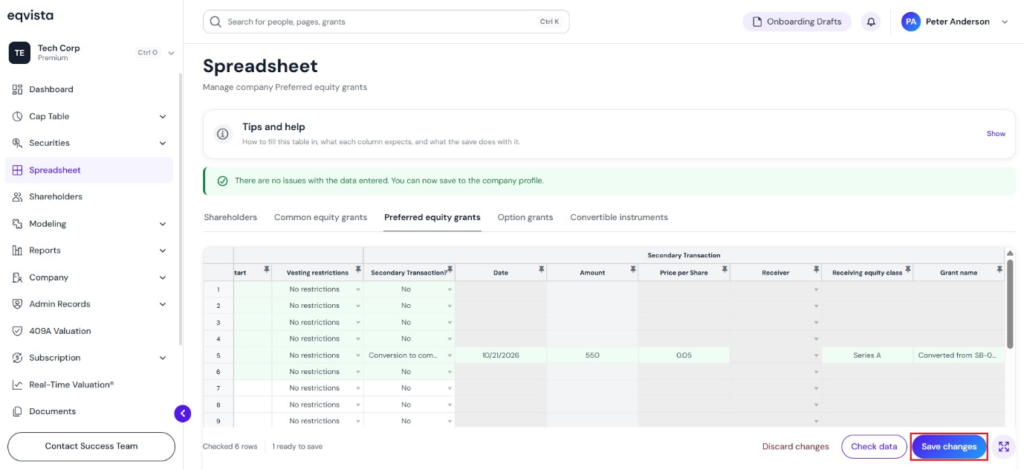
Step 7: Suppose you want to perform preferred share conversion using the spreadsheet feature.
Note: The spreadsheet feature is only available for premium account holders. Kindly upgrade your account to unlock this feature.
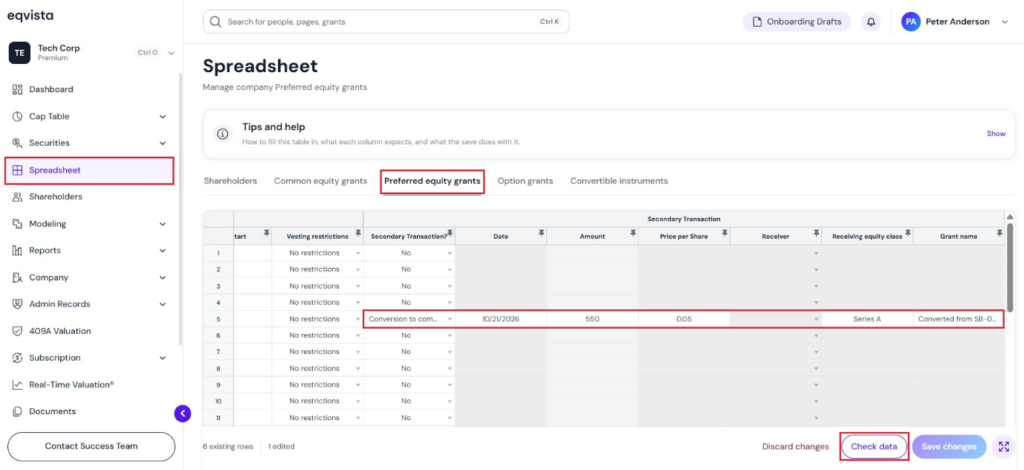
- At the top of the table, click on “Preferred Equity Grants”.
- Under the Secondary Transaction section, the first one is “Secondary Transaction”, which provides the different options to choose from.
- Once you select “Conversion to Common” from the drop-down menu, enter the date, amount, price per share, receiving equity class, and grant name.
After adding the details, click on “Check Data”. If you want to cancel the process, click “Discard all Changes”.
Check Data
Step 8: Once your details have been checked, a data validation message will appear: either the entered details are correct and you can save them, or some information may be missing or incorrect.
When there are some issues or missing information, the validation message will appear in “Red” along with the details of the issue.
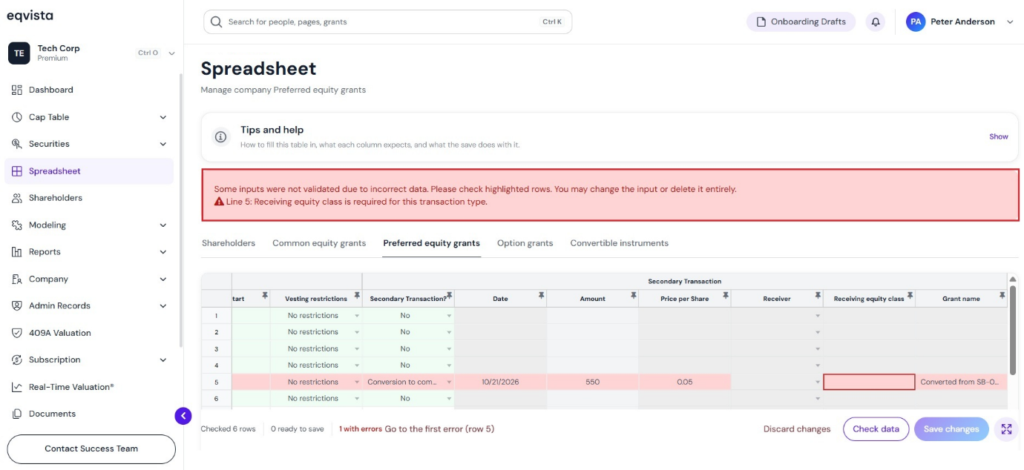
Once the details have been checked, click on “Save Changes”.
Record of Secondary Transaction
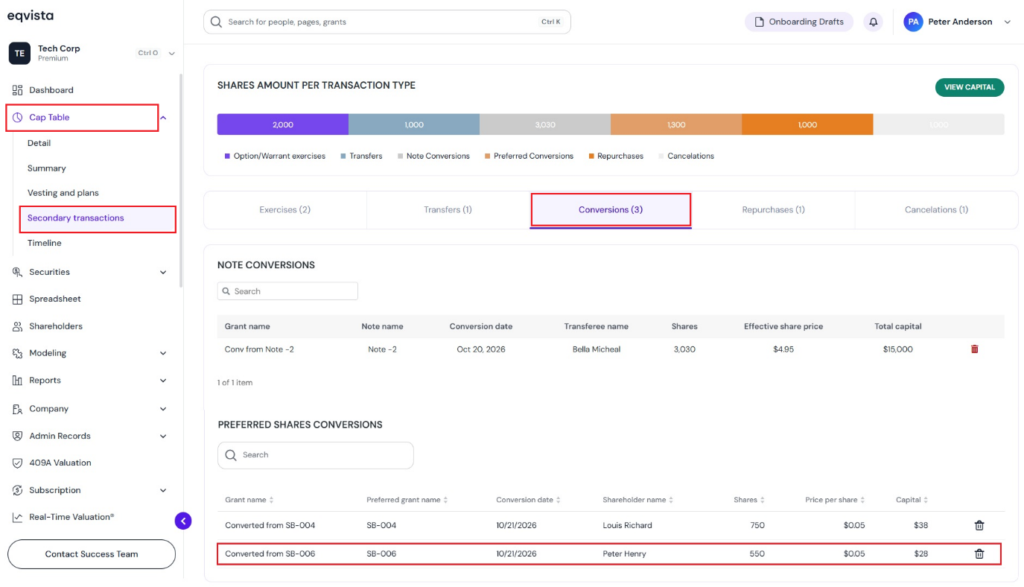
Step 9: The record of the conversion can be viewed by clicking on “Cap Table” to get a drop-down menu and select “Secondary Transactions”.
On this page, click on the “Conversion” tab and, under the Preferred Shares Conversion section, check whether the grant is converted.
To learn more about Eqvista, check out our support articles and knowledge base. For queries, get in touch with us!