How to View API Access of the Company?
API access to the company is enabled by default in the company profile settings. It provides access to the company’s data through the Eqvista public API.
API Access Section in Company Profile
In Eqvista, API access to company data is enabled by default in the company profile settings. Track people with API access to the company using the access log, and export the data.
Open Company Profile
Step 1: Log into Eqvista and select your company account.
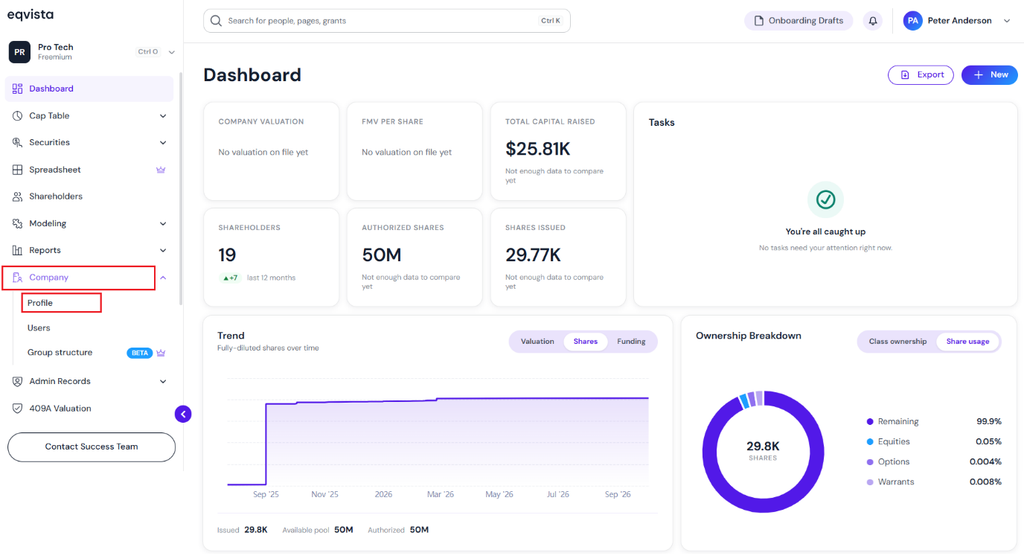
On the dashboard, click on “Company” on the left side to get a drop-down menu and select “Profile”.
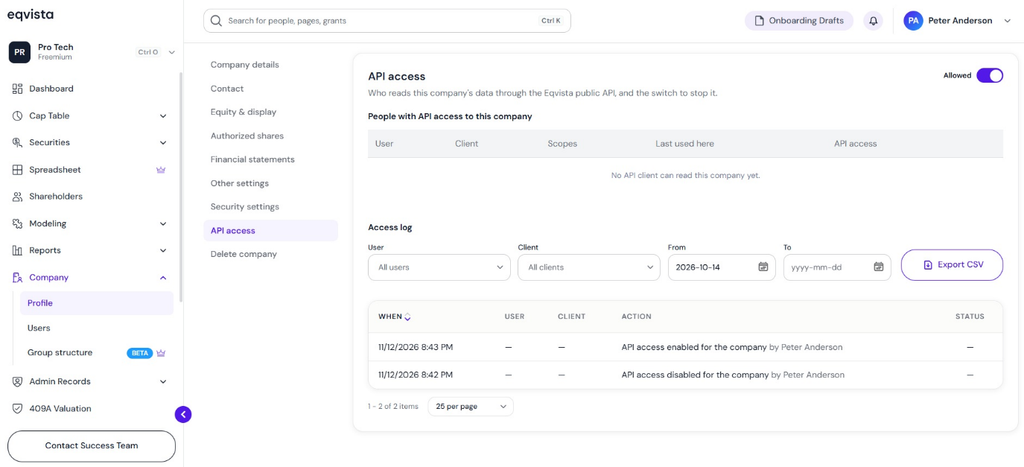
View API Access Section in Company Profile
Step 2: Here, you will be able to see all the details of the company, such as the incorporation date, the formation (entity type), total shares authorized, and the shares available to issue.
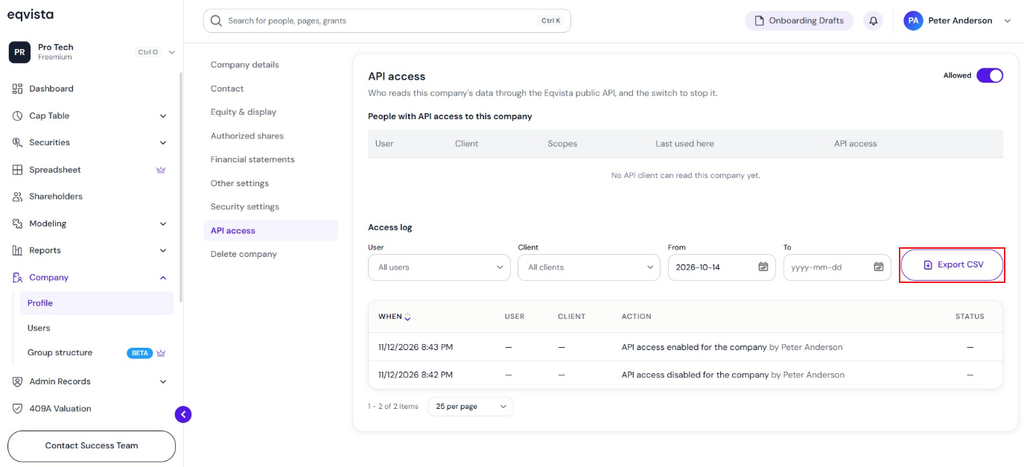
On this page, under the “API Access” section, you can view the details of the API access to the company.
Note: On this page, you can view Company Details, Contact, Equity &Display, Authorized Shares, Financial Statements, and Other Settings. To further understand the various sections in detail, check out the support article here!
A detailed feature-by-feature analysis of the API access section will help you understand it better.
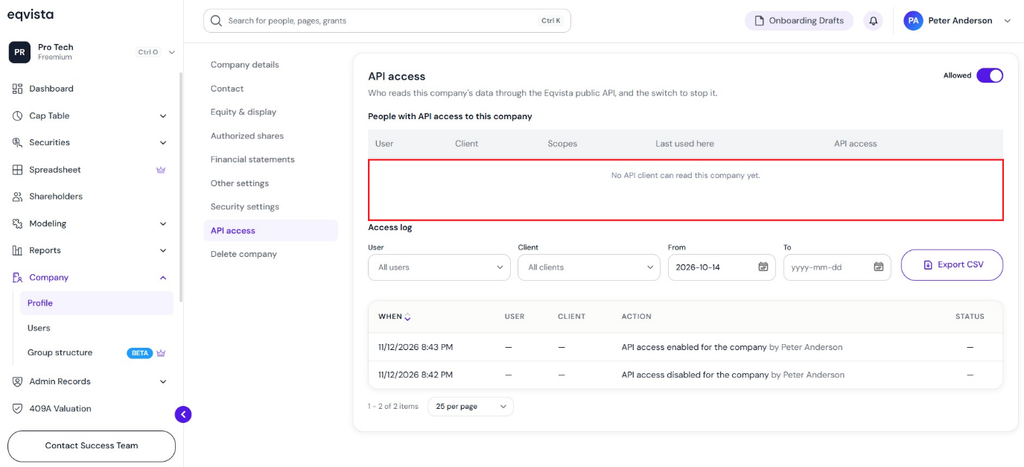
People With API Access
It shows which user and client have API access, the permissions granted, and when the API was last used.
Access Log
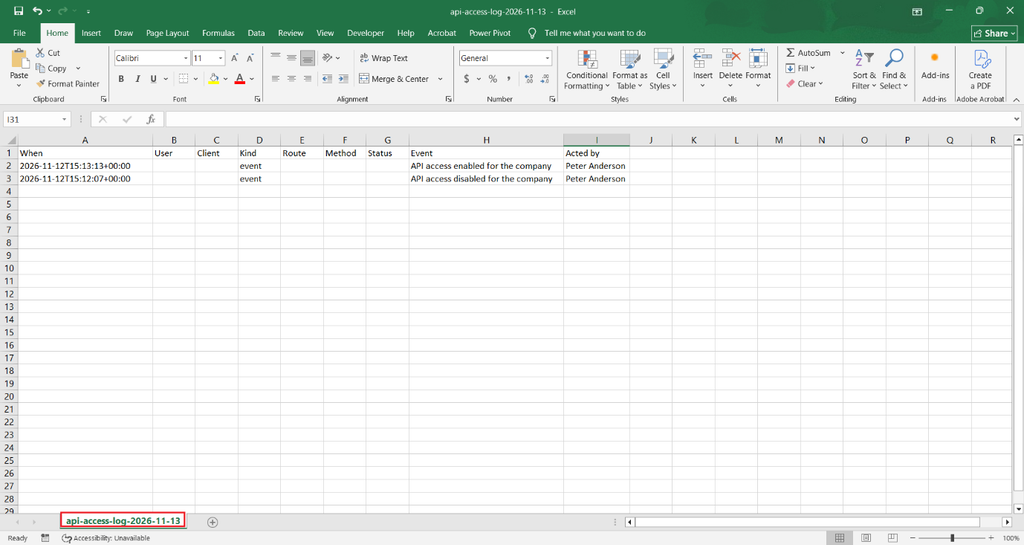
The access log displays the date, time, user, client, action performed, and status. It also provides options to
- Filter by user, client, From date, and To date.
- Export the log as a CSV file by clicking “Export CSV”.
Once you click, the access log gets downloaded as a CSV file to your Downloads.
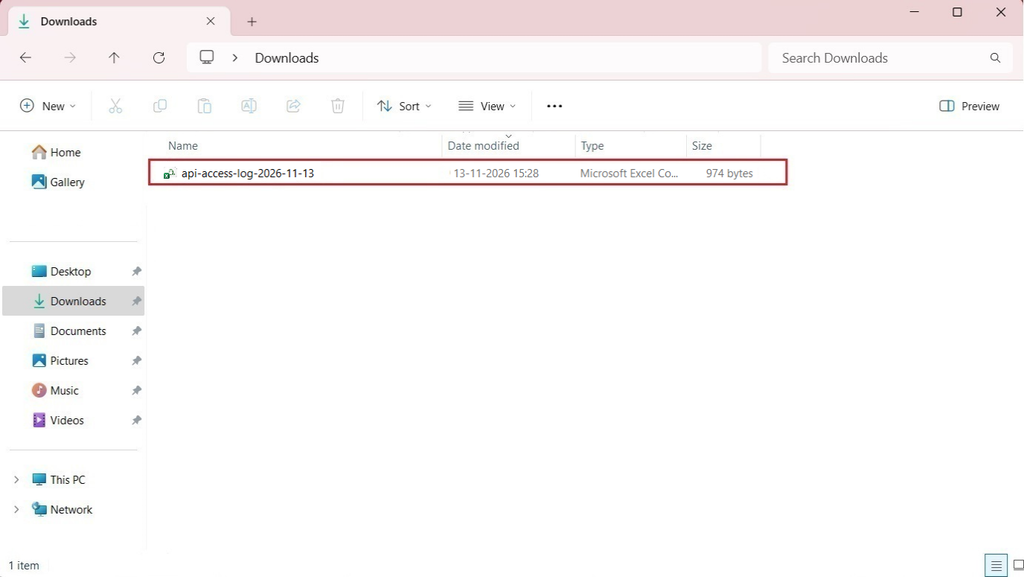
Double-click the file to open the downloaded access log.
Switch Off API Access
Step 3: In the top right of the page, you can switch off API access to the company as shown below.
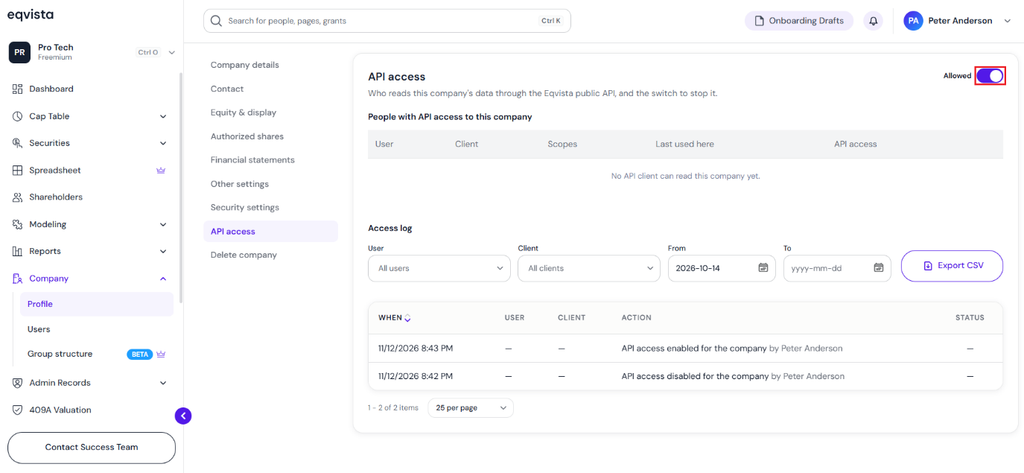
Once you switch it off, a pop-up panel appears confirming that switching off will make every API client stop seeing this company immediately. You can switch it on again at any time.
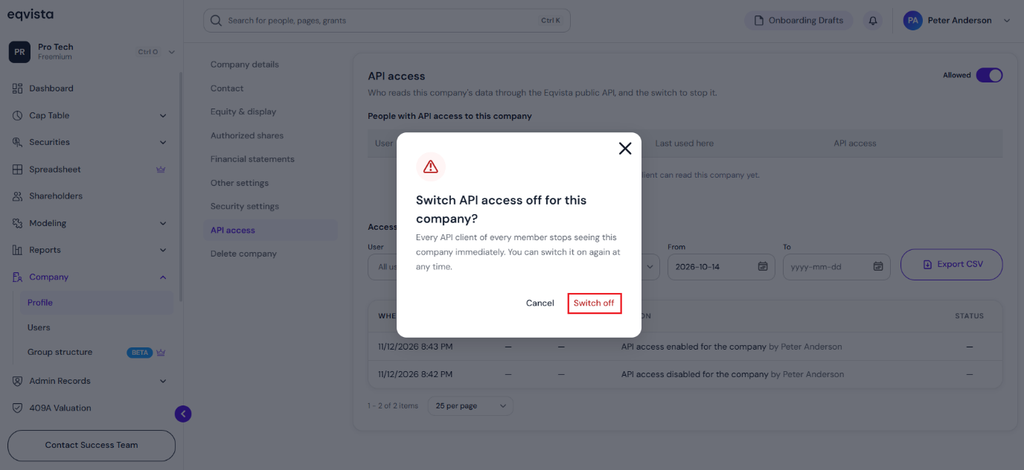
To proceed with switching off, click on “Confirm Switch”.
API Access Has Been Switched Off
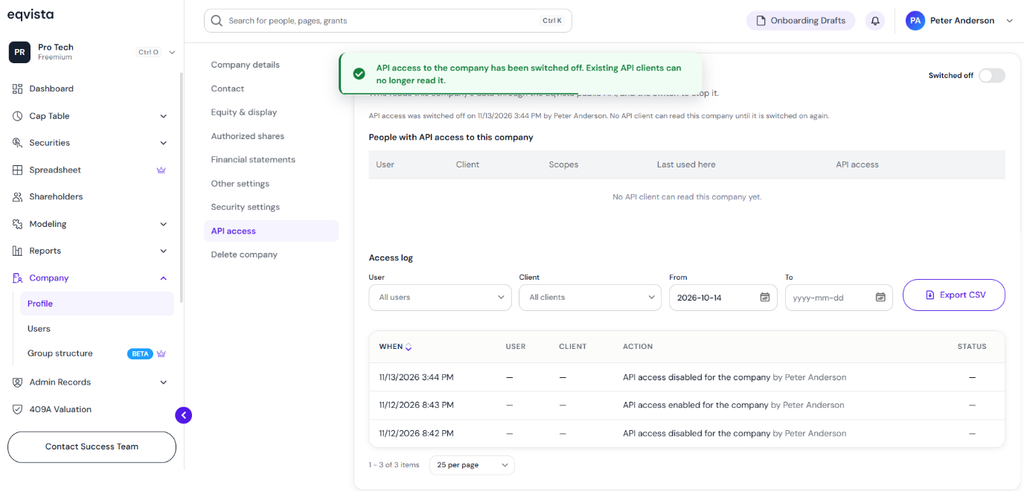
Step 4: You will then be redirected back to where you can see that API access to the company has been switched off. Existing API clients can no longer read it.
To learn more about Eqvista, check out our support articles and knowledge base. For queries, get in touch with us!
