How to Create and Share Messages?
Eqvista is a user-friendly application. In addition to setting up your company’s cap table and monitoring all equity and securities, it can also manage your messages.
Create and share messages
With Eqvista, you can effortlessly draft and share messages to your shareholders in simple steps. Whether you’re sharing important updates or strategic changes, the platform streamlines the communication process, making it easy for you to keep your stakeholders informed and engaged.
Here are the steps to follow:
Step 1: Log into Eqvista account and select your company.
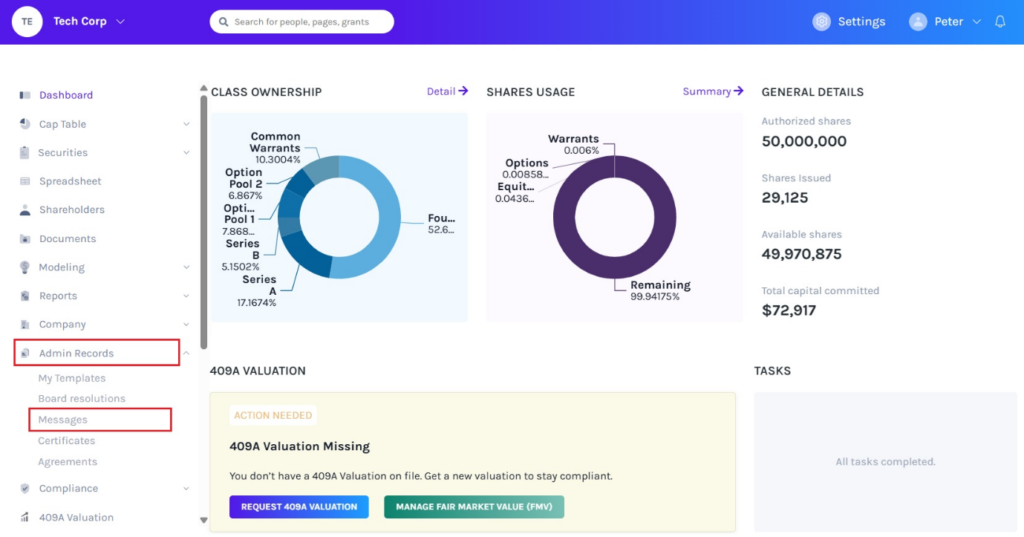
On the dashboard, click on “Admin Records” on the left side to get a drop-down menu and select “Messages”.
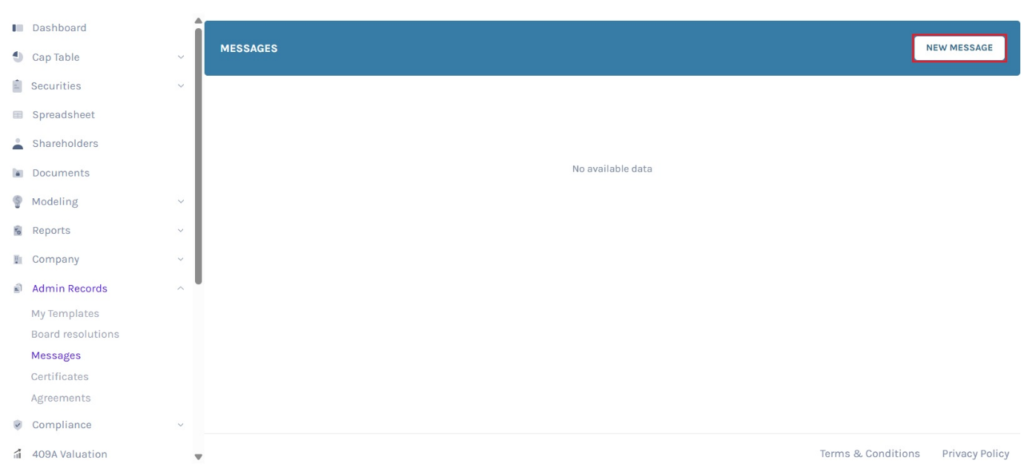
Step 2: Once you do this, you will reach the following page. In case your company doesn’t have any message, you will see the text “No available data”. On this page, click on “New Message” to create a new message.
Step 3: Then, fill in the details of the message in the available space. You can also attach a document by clicking on “Attach Document” to support the message you are creating.
Note: The Message field must be at least 8 characters
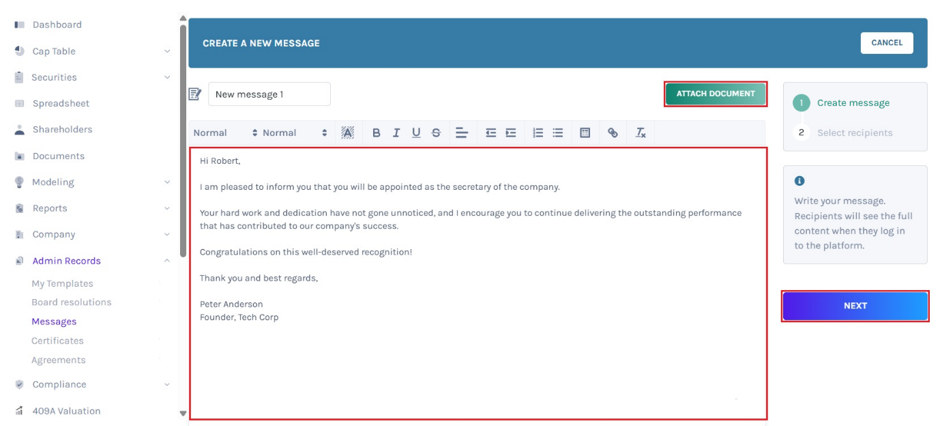
Once done, click on “Next”.
Step 4: You will be directed to the next page to select recipients of the message, which adds the founders automatically, as shown below.
You can tick the options to notify shareholders by email when a new message is sent, and the full message will appear in the notification email.
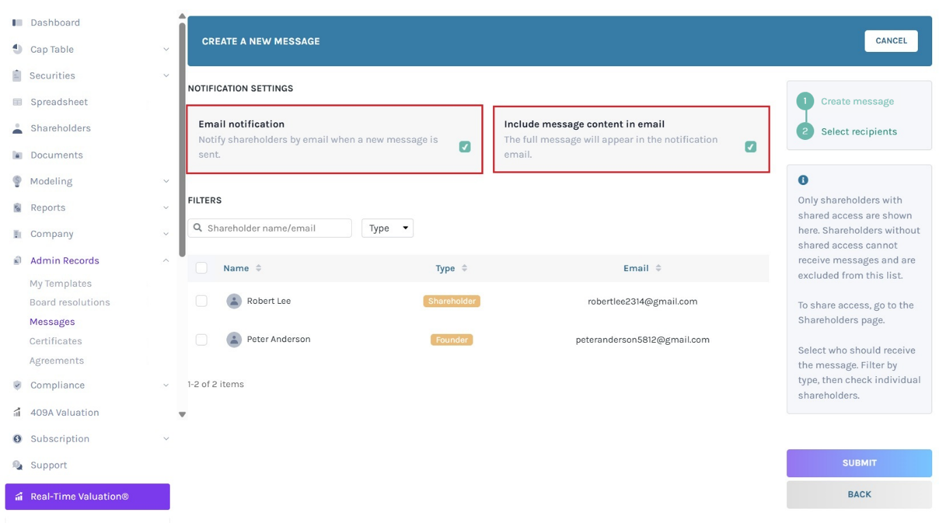
Moreover, you can also search for shareholders to add to the list. The names that usually show up are the ones who have shared access.
The results of the search show only those with shared access. Then, tick the box to add as a recipient. You can individually select the recipient by clicking on the box on the left or click on “Select all items” to include all.
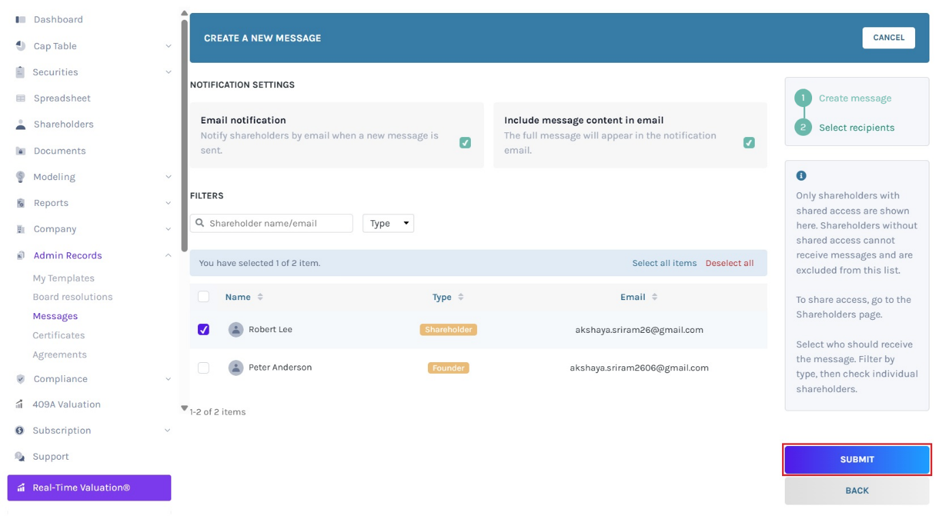
Note: The shareholders who have access to the cap table can only be added as recipients. So, kindly ensure that you share access with them.
Once you have done this and selected all the recipients, click on “Next”.
Step 5: Then, you will be redirected to the page where you can now see the message created and click on it to view the details of the message.
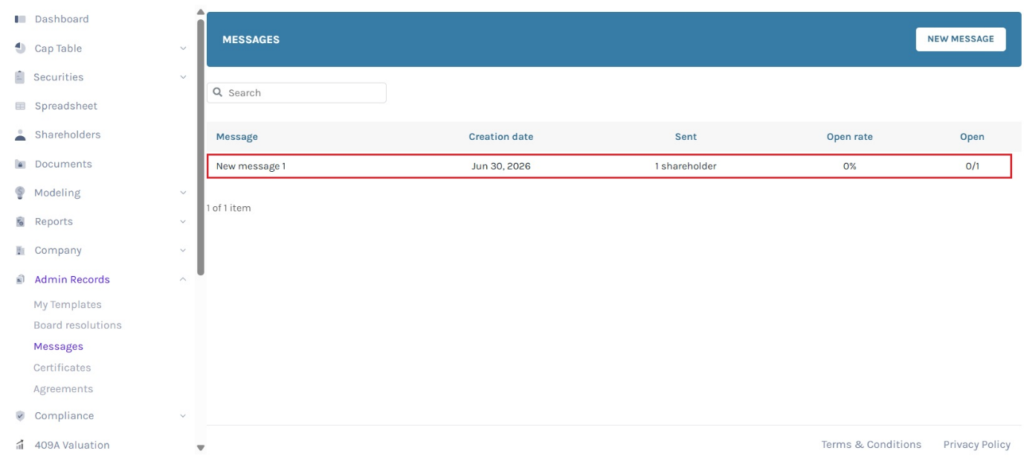
Step 6: When you click on the message, you will be taken to the following page, where you can see the details of the message created.
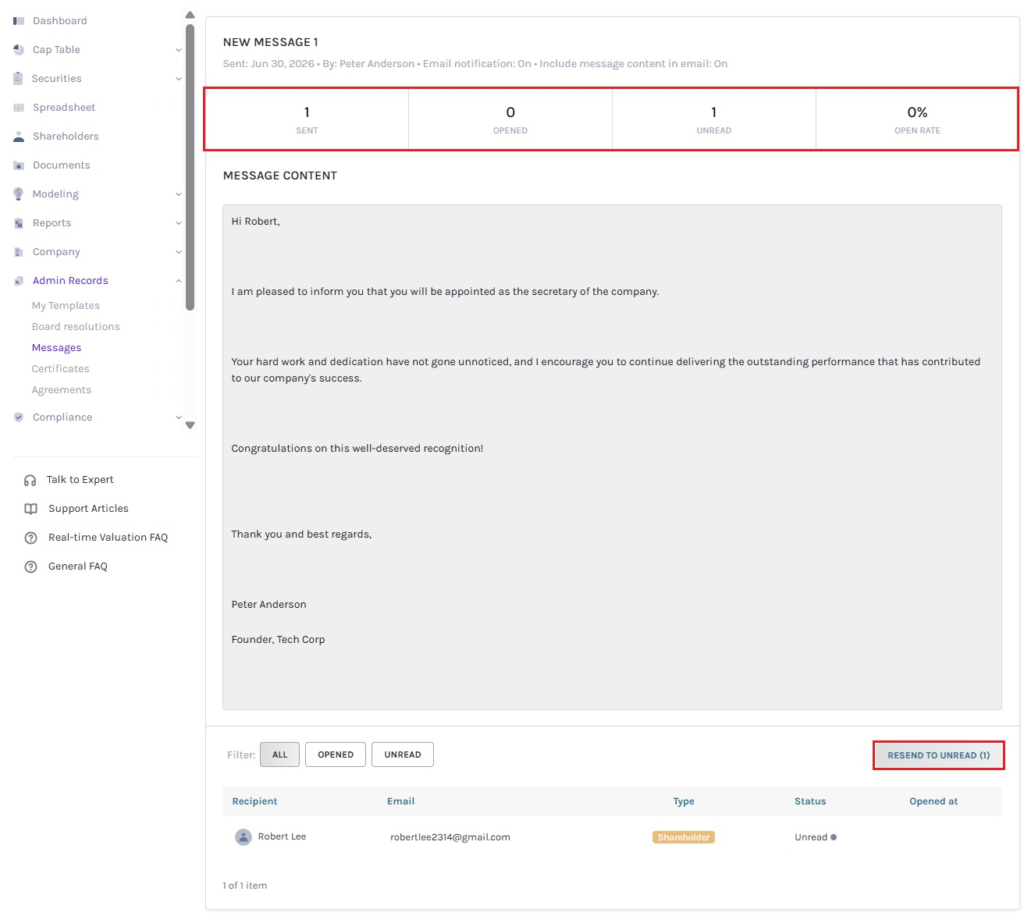
Scenario 1 – Unread
If the shareholder has not yet opened the message, you can resend it by clicking “Resend to Unread”.
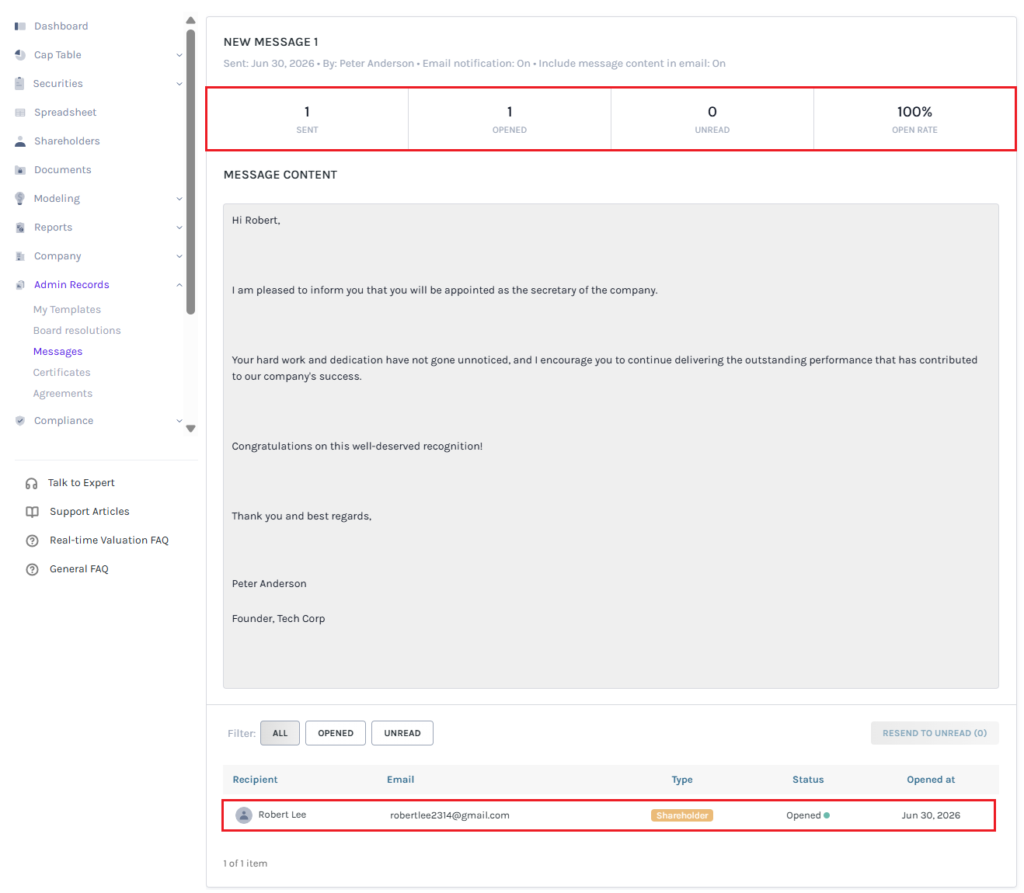
Scenario 2 – Opened
Suppose the shareholder has viewed the message, then the status changes to “Opened” and displays the date the message was opened in the “Opened at” column.
For more information on Eqvista, check out our support articles or get in touch with us today!