How to Enable Two Factor Authentication?
Eqvista allows users to enable two factor authentication and update their account settings for extra security.
Enable two factor authentication
On Eqvista, users have the option to activate two factor authentication, enhancing the security of their accounts. Additionally, users can easily manage and update their account settings to ensure their personal information remains protected and up to date.
Here are the steps to follow:
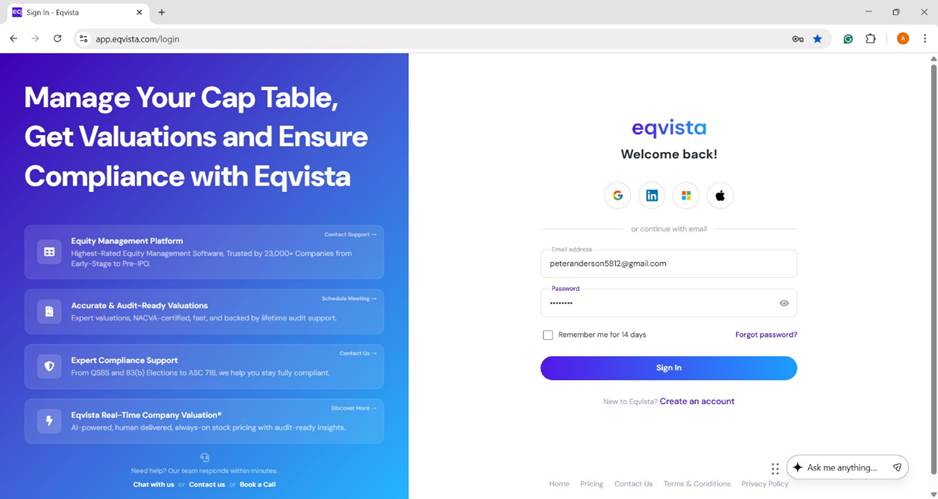
Step 1: Log into Eqvista account and select your company.
On the dashboard, click on “your name” on the right to get a drop-down menu and select “Profile & Settings” to view your profile settings.
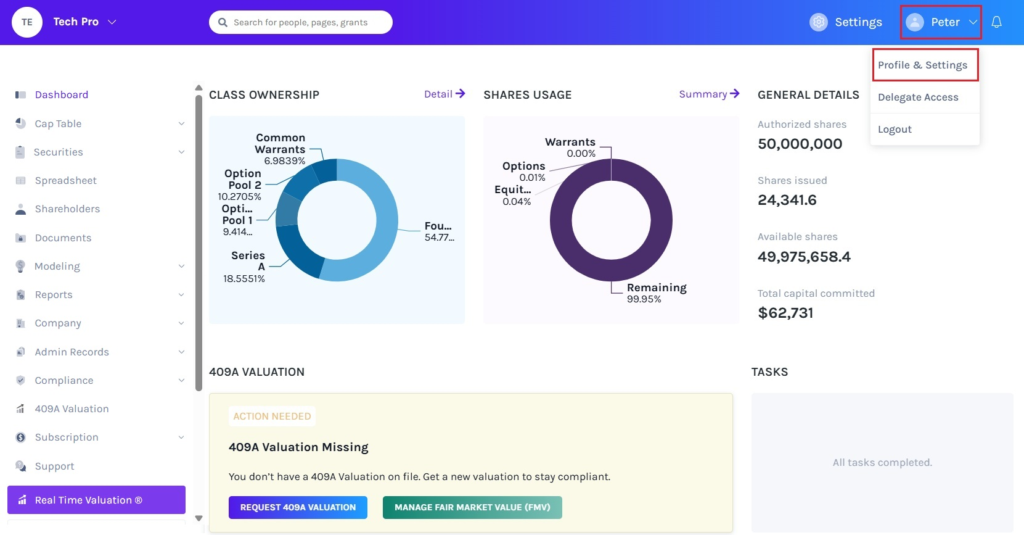
Step 2: Once you do this, you will be directed to the page where you can change your profile details and settings.
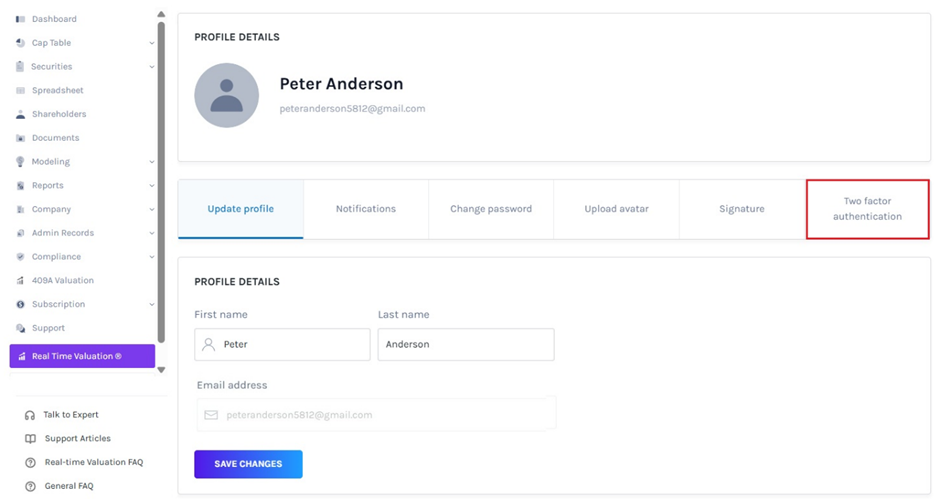
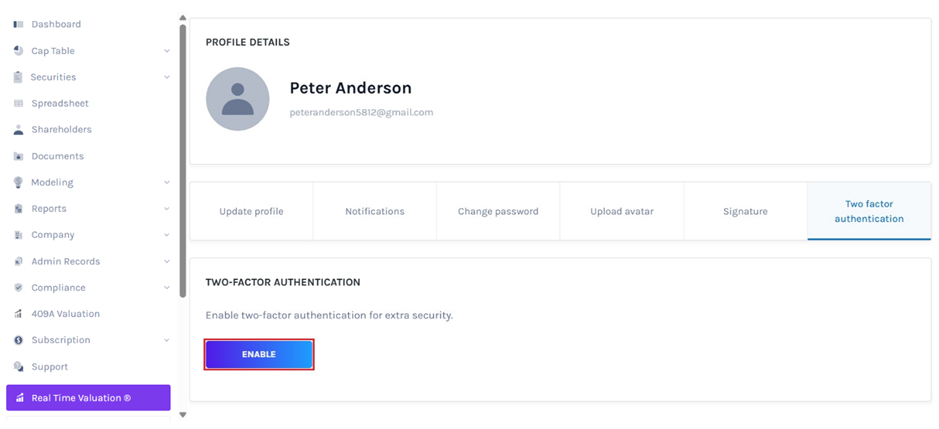
Here, you will view the profile details along with options – Update profile, Notifications, Change password, Upload avatar, Signature, and Two factor authentication.
To enable two factor authentication, click on “Two factor authentication”.
Step 3: Then, click on “Enable” to enable two factor authentication as shown below.
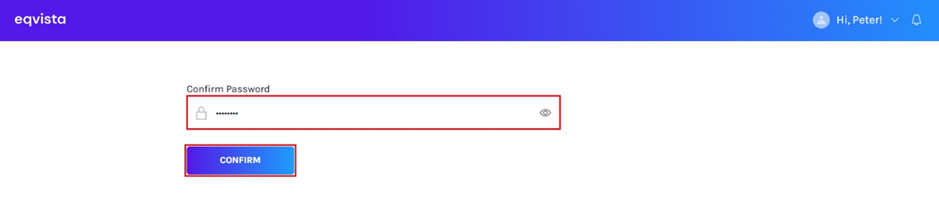
Step 4: Once you click, you will be redirected to enter your password and click on “Confirm”.
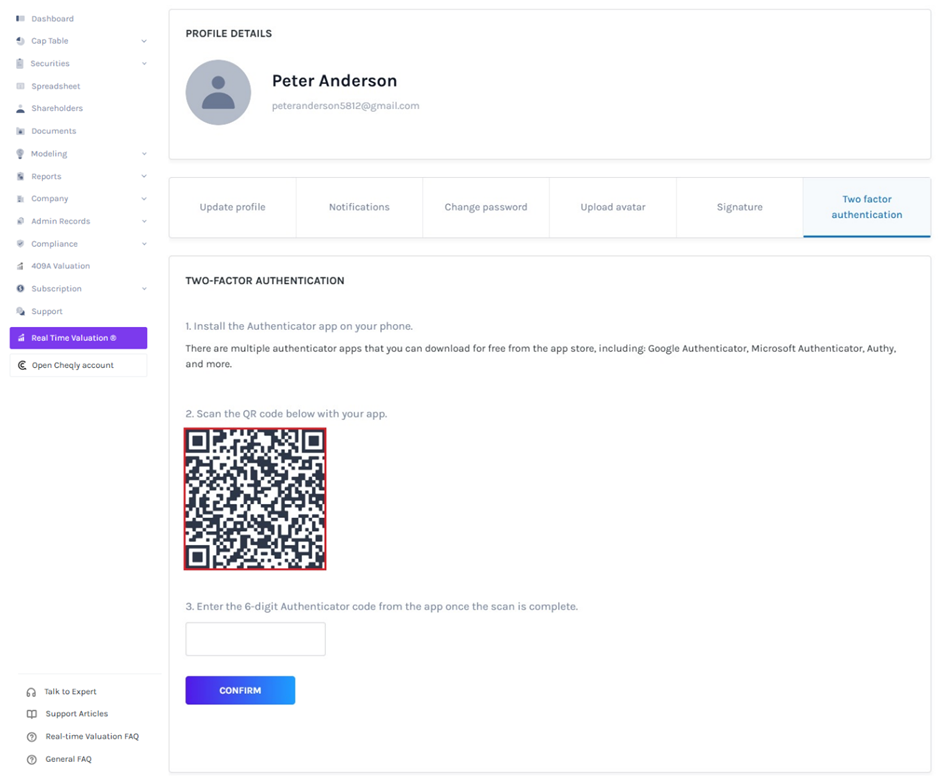
Step 5: With this done, you will be directed to the following page as shown below. Install Authenticator app on your phone and scan the QR code with the app.
Note: There are authenticator apps that you can download from the app store, including Google Authenticator, Microsoft Authenticator, Authy, and more.
Step 6: Enter the 6-digit Authenticator code from the app once the scan is complete.
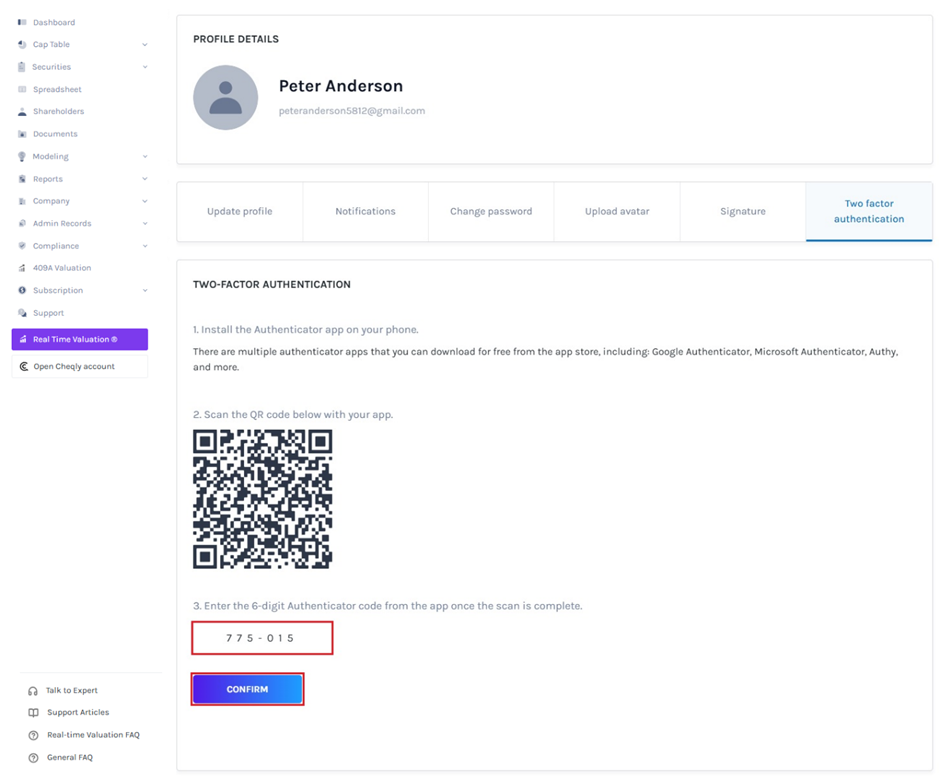
Once done, click “Confirm”.
Step 7: If you cannot access your Authenticator app, then sign in to your account using the backup codes available here. Write, copy, or download these backup codes and keep them safe.
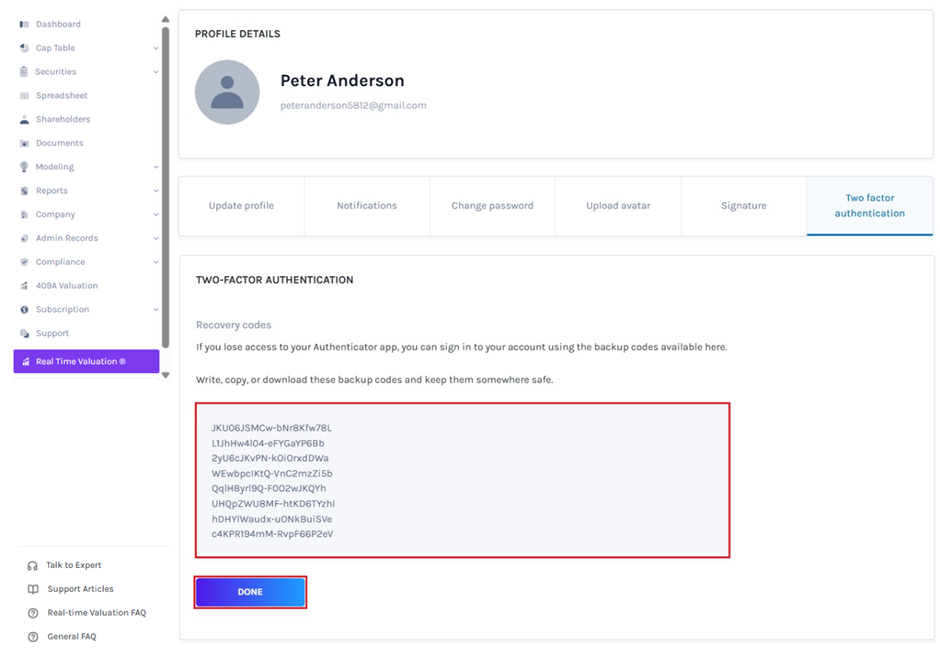
Once done, click on “Done”.
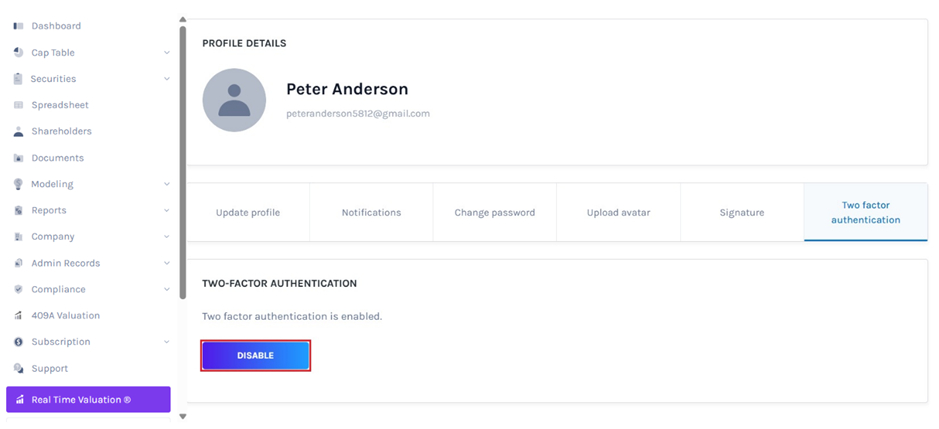
Step 8: Then, two factor authentication has been enabled for your account. Suppose you would like to disable the two-factor authentication, then click on “Disable”.
Step 9: Once your two factor authentication has been enabled, log into Eqvista account with your credentials.
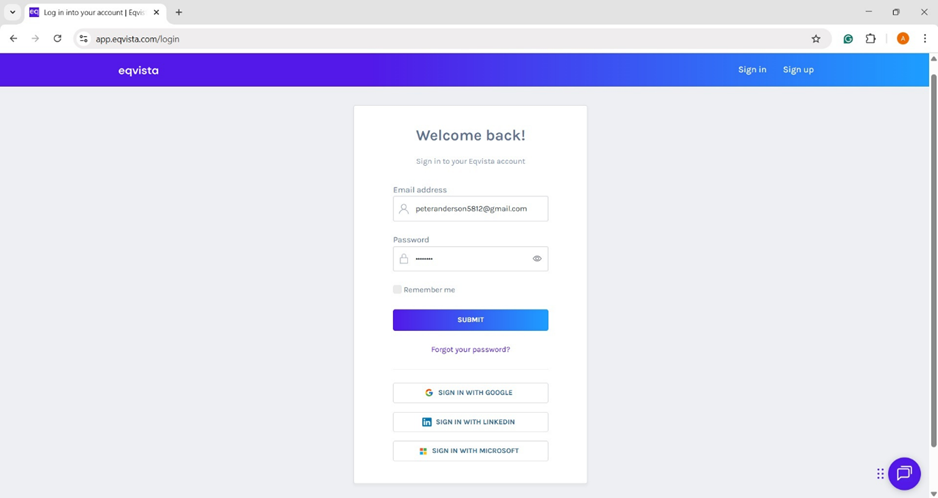
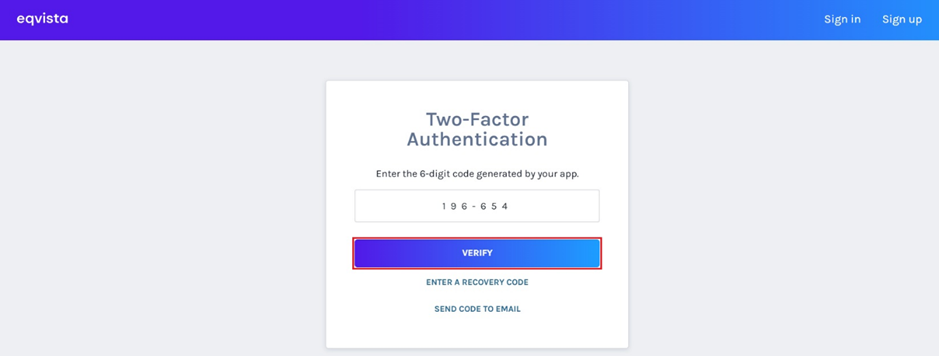
Once you click “Submit”, you will be directed to two factor authentication. Enter the code generated in your authentication app and click “Verify”.
If you want to understand Eqvista’s other features, check out our support articles or contact us today!