How To Enable Automatic Option Agreement Generation?
On Eqvista, you can enable automatic option agreement generation for your issued options.
What is automatic option agreement generation?
The feature simplifies the process of creating option agreements, allowing you to generate them with just a few clicks. The agreements are only applicable to options.
Note: The automatic agreement generation feature is only available for premium account holders. Kindly upgrade your account to unlock the feature.
Here are the steps to follow:
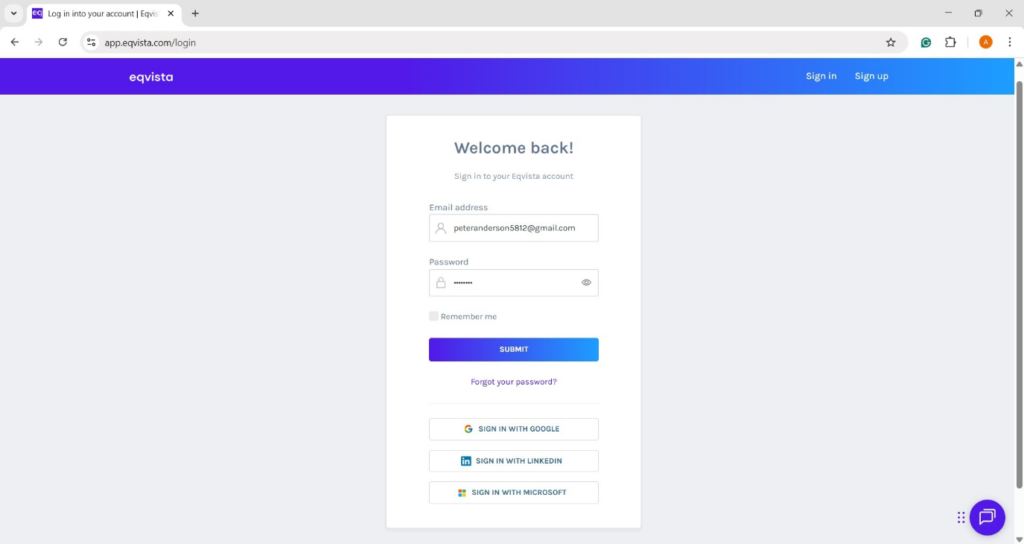
Step 1: Log into Eqvista and select your company account.
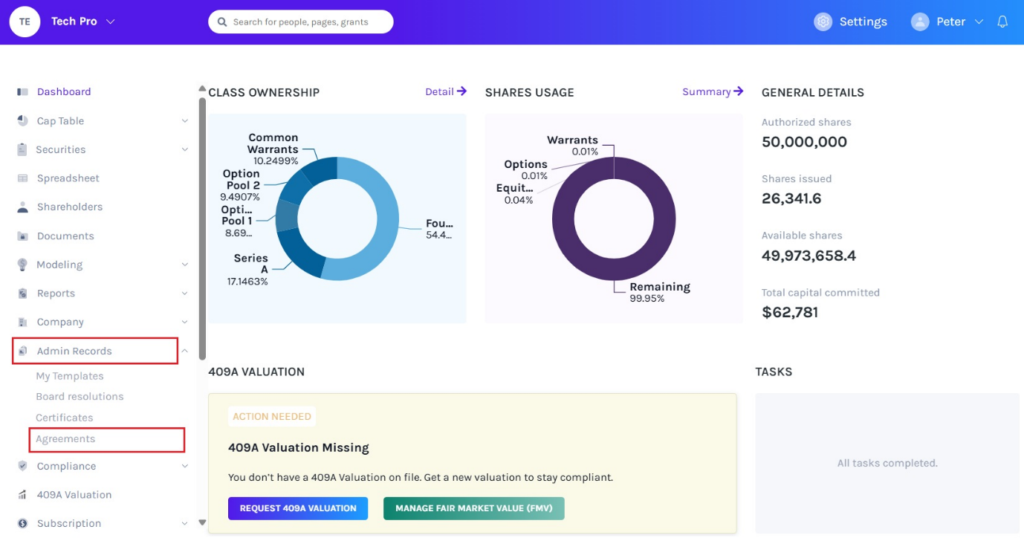
On the dashboard, click on “Admin Records” on the left side to get a drop-down menu and select “Agreements”.
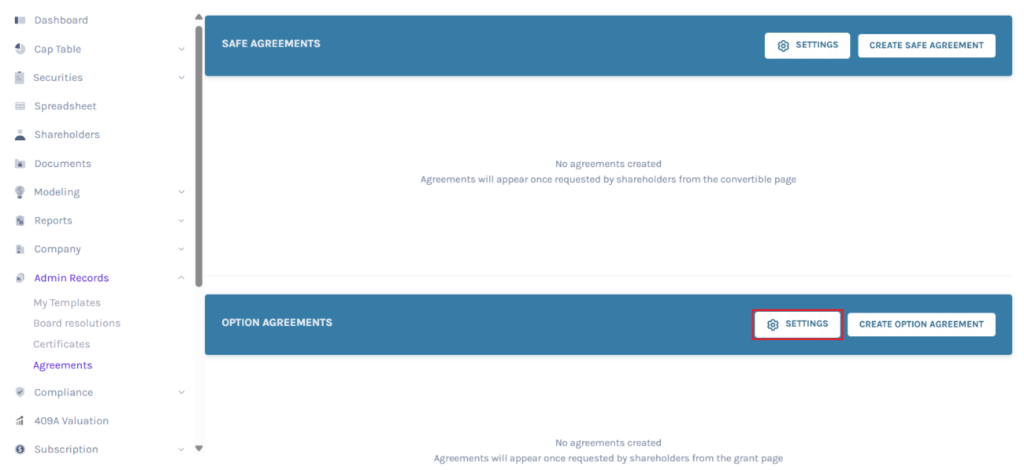
Step 2: Once you do this, you will be directed to the following page. You can enable automatic option agreement generation by clicking “Settings” as shown below.
Step 3: A pop-up panel appears as shown below. Enable automated agreement issuance by selecting “Yes”. Select the option agreement template from the drop-down menu, tick the box if the shareholder’s signature is required, select up to two executors, and the role of the executor from the drop-down menu.
Note: The person who is selected to execute and sign the agreement should be either the director, the secretary, or the president. Company users can only be assigned as executors. To know how to add a company user, read this support article.
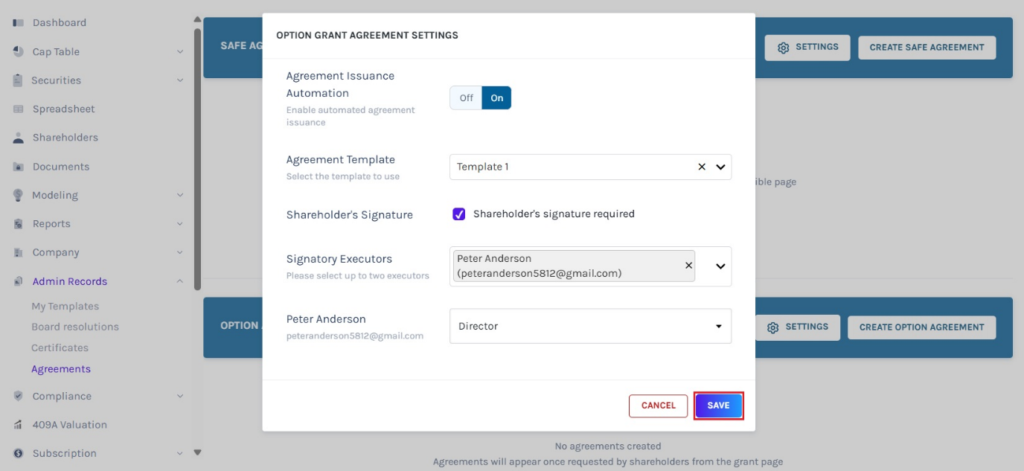
In this case, we selected “Peter Anderson”. Here, Peter is the Director. Once done, click on “Save”.
Step 4: Suppose you issue options by clicking on “Securities” to get a drop-down menu and selecting “Options”.
Fill in the details such as – exercise price, date of issuance, option type, expiration period, and option name
Note: You can add a vesting schedule while issuing shares, options, and warrants. Check out the respective support articles to learn about this.
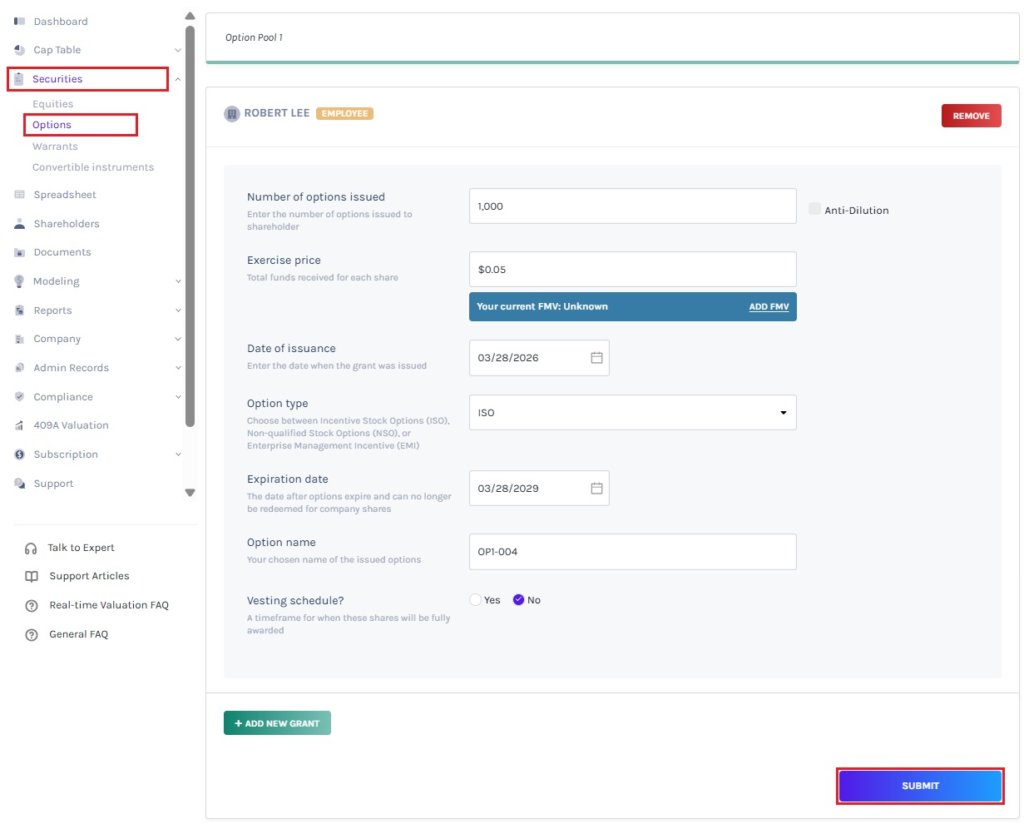
Once done, click on “Submit”.
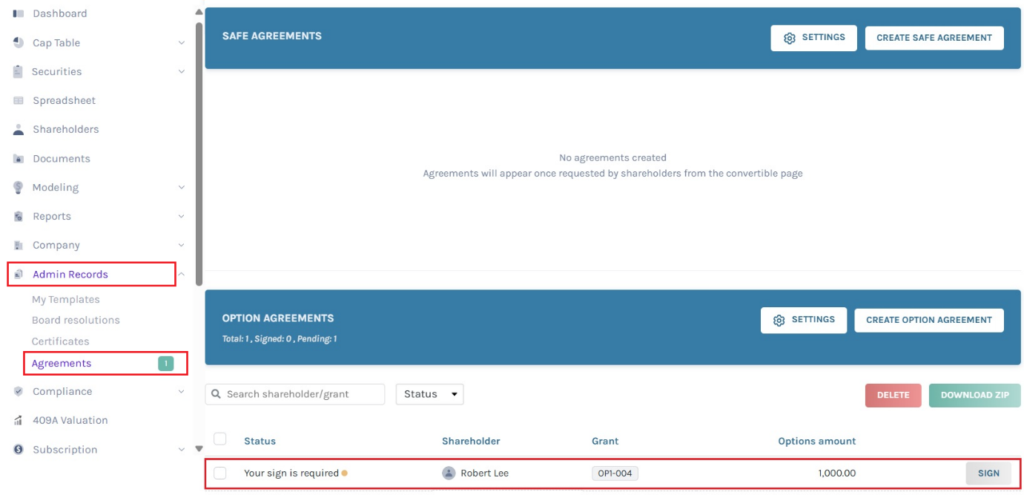
Step 5: Once you have enabled automatic option agreement generation, the agreement will be generated for the newly issued options. To view the agreement generated, click on “Admin Records” on the left side to get a drop-down menu and select “Agreements”.
You can see the option “Your sign is required”, which appears for the executor. To sign the agreement, click on “Sign”.
Note: From here, you will be able to perform many functions. To know more about it, check out the support article!
If you are the executor, you will also receive an email to sign the agreement and click on “View Agreement”.
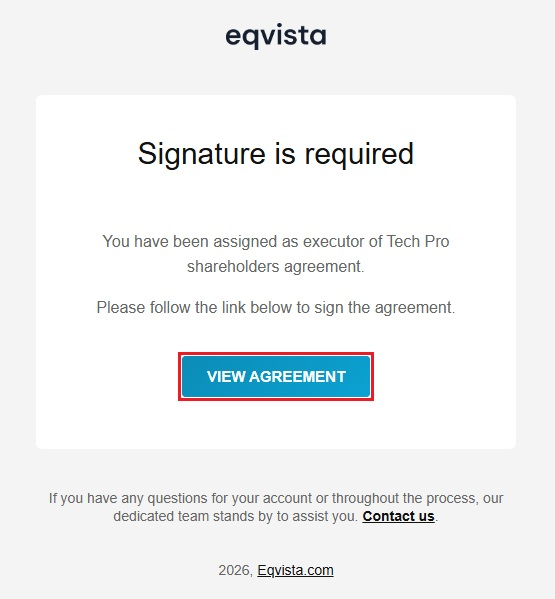
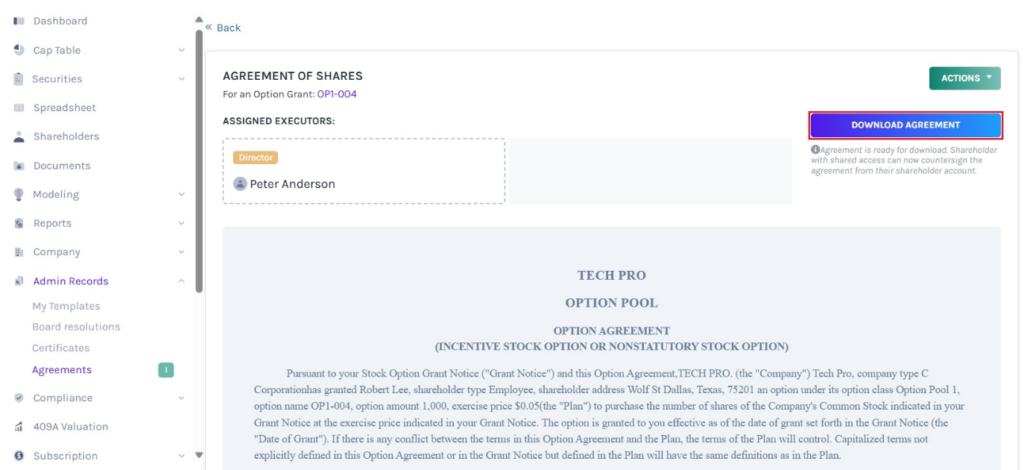
Step 6: Once you click, you will reach the page where you can view the agreement and sign it. The admin or superuser has the option to download the unsigned agreement by clicking on “Download Agreement”.
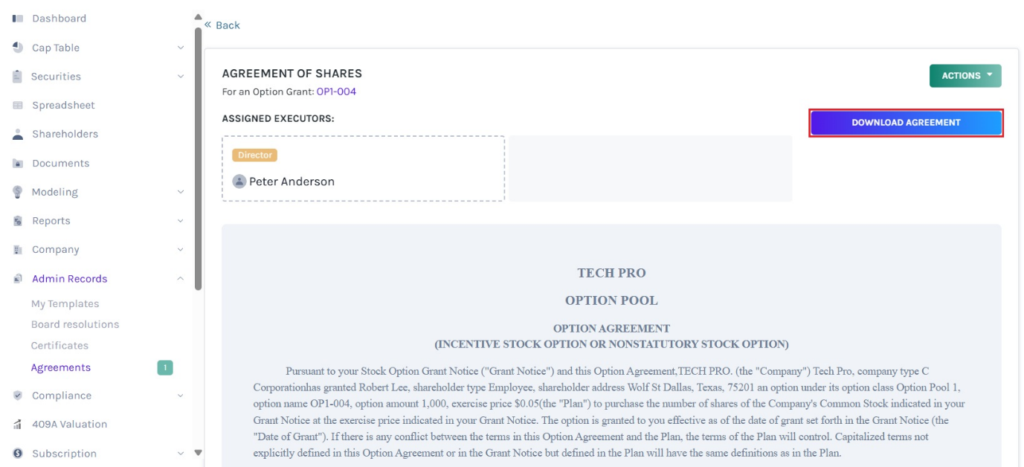
Note: You can delete the agreement before signing by clicking on “Actions” on the top-right to get a drop-down menu and click “Delete”. A confirmation message appears, and click on “Yes” to delete.
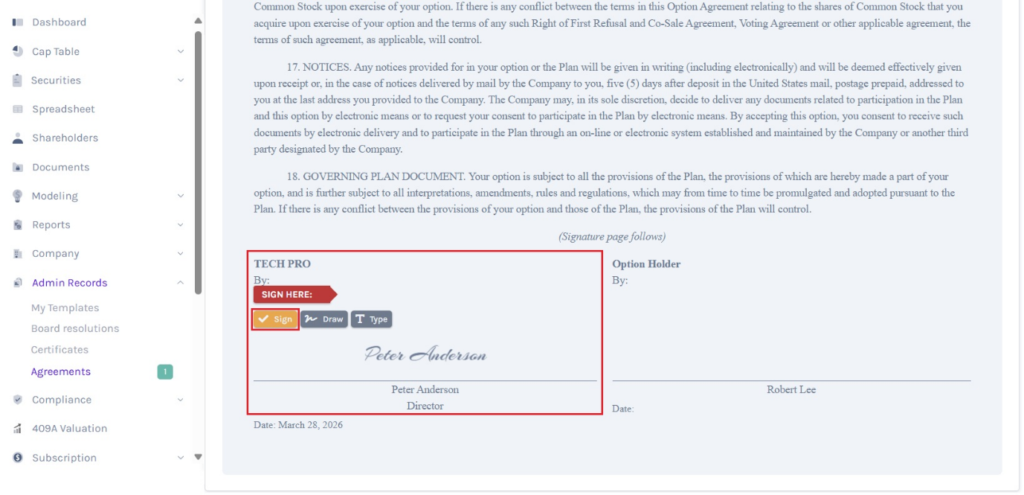
Step 7: To sign the agreement, scroll down to the bottom of the page, click on the box, and select one of two options – Draw or Type your Signature.
Note: If the executor and shareholder have saved their signatures in Eqvista, they don’t need to draw or type – the saved signature will be placed in every agreement assigned to them, and they only need to click “Sign” to confirm signing.
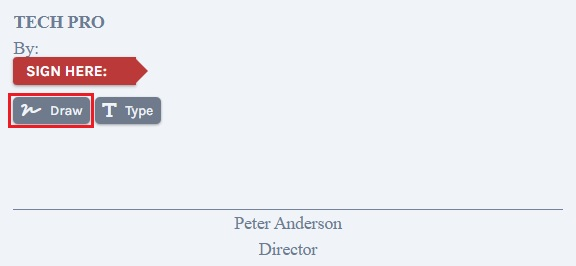
Method 1 – Draw signature
If you have chosen the “Draw Signature” option, using plus sign and the mouse, draw your signature in the box.
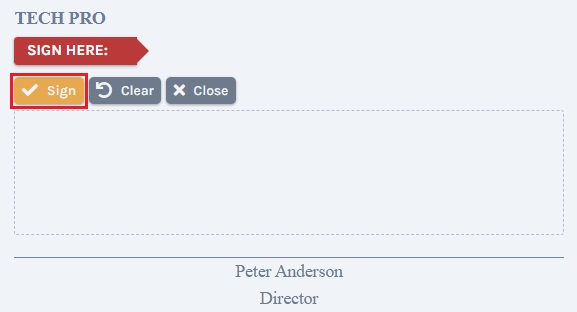
To sign, click on the “Sign” above the box. If you want to redo the signature, you can click on the “Clear”, as shown below. Click the “Close” to change the option to type signature.
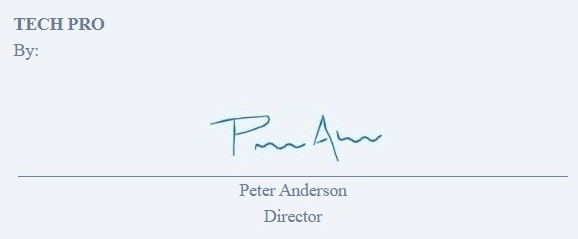
Once done, click on “Sign” above the box. A confirmation message appears, and click on “Yes” to sign. This is how the sign would look when you use your cursor to sign the agreement.
Method 2 – Type signature
Suppose you have chosen the option “Type signature”, then type your signature in the space provided as shown below.
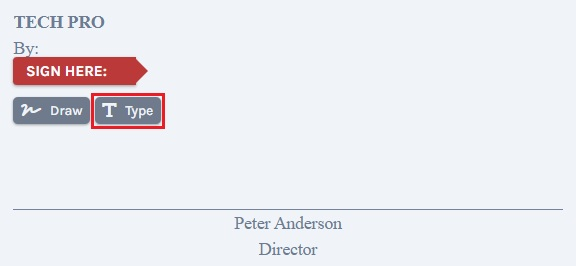
To sign, click on the “Sign” above the box. Click the “Close” to change the option to draw signature.
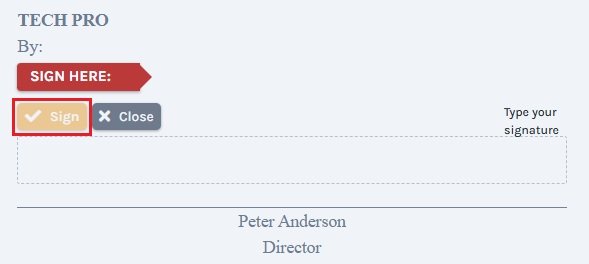
Once done, click on “Sign” above the box. A confirmation message appears, and click on “Yes” to sign. This is how the sign would look when you type it to sign the agreement.
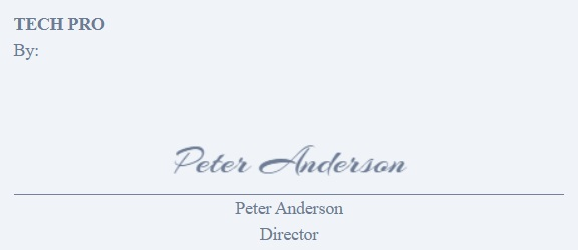
Step 8: Once done, click on the “Sign” to sign the agreement, as shown below.
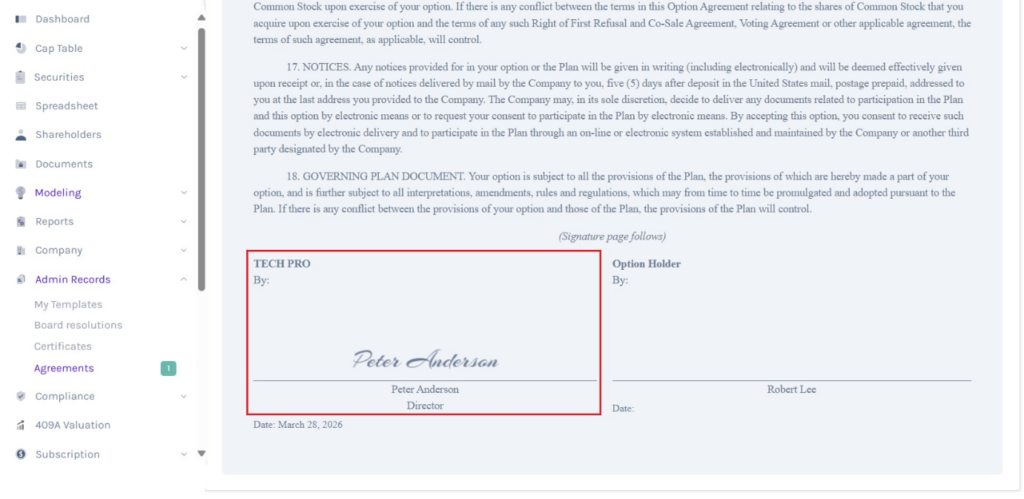
Step 9: Now, you can download the agreement by clicking on “Download Agreement”.
Note: You can’t make any edits once the agreement is created. If you want to delete the agreement, click on “Actions” on the top-right side of the page to get a drop-down menu and select “Delete”. To delete the agreement after the shareholder has signed, you need to delete the note and re-issue it.
The shareholder will receive an email that the agreement has been signed and can be downloaded. Make sure to share access to the cap table with the shareholder to sign and download the agreement. After the shareholder has signed the agreement, you can then download the agreement.
For more information on Eqvista, check out our support articles or get in touch with us today!