How to Provide Access to Multiple Shareholders?
The superuser can share access to the cap table with their shareholders, employees, investors, board members, and accountants.
Manage Access to Multiple Shareholders
On Eqvista, two access types can be provided: shareholder access and full access/admin access to the cap table.
- The shareholder access provides access to view grants and documents, participate in board resolutions, and sign electronic certificates.
- Full access or admin access gives full access to the company’s cap table.
Open Shareholders
Here are the steps to follow:
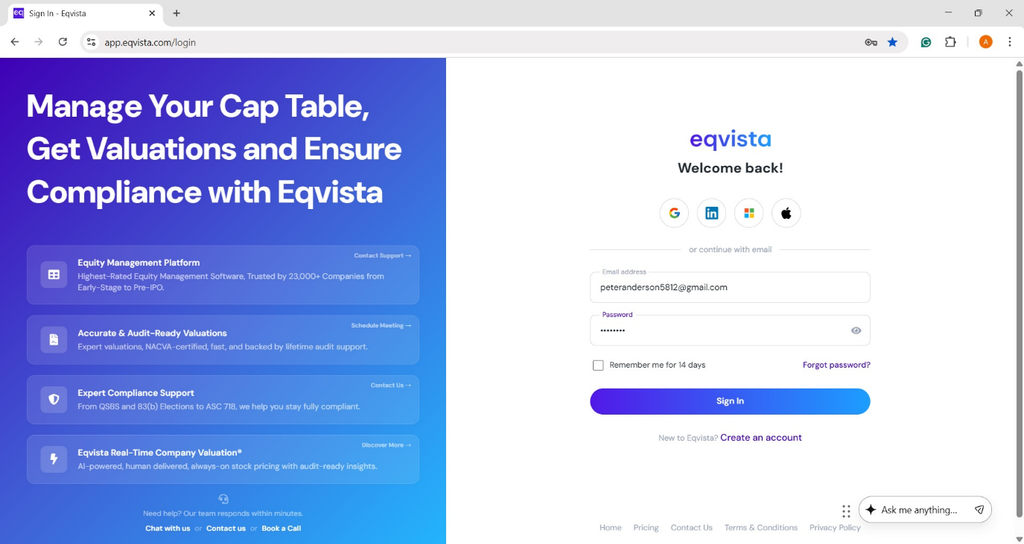
Step 1: Log into Eqvista and select your company.
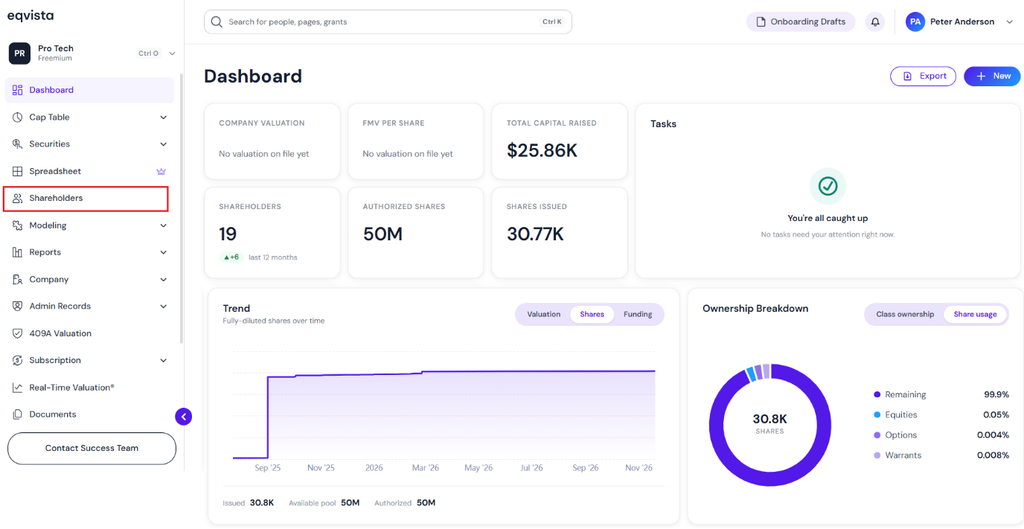
On the dashboard, click on “Shareholders” on the left-side menu on the page below.
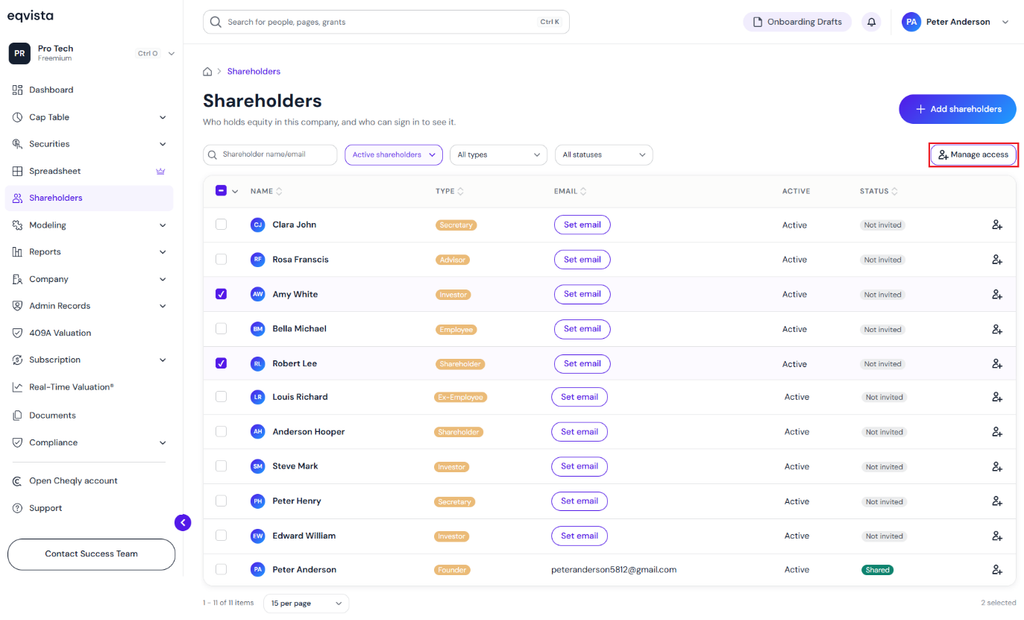
Select Shareholders to Provide Access
Step 2: On this page, it displays the shareholders of the company. To provide access to multiple shareholders, tick the box beside the names of the shareholders and click on “Manage Access”.
Add Email Address and Select Access Type
Step 3: Once you click “Manage Access”, a panel appears with the selected shareholders to provide access. Add an email and pick the access for each of the selected shareholders.
Note: If the same email is entered for another shareholder, only the first one will be invited. Kindly ensure the email address entered for each shareholder is different.
To provide the same access to all selected shareholders, select the access and click on “Apply to All”.
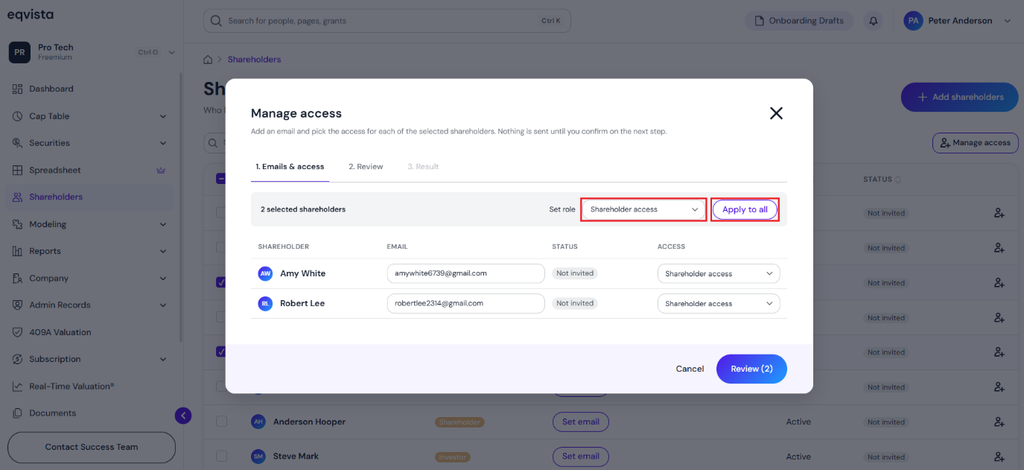
In this case, select different access for the shareholder(s) by selecting access for each shareholder.
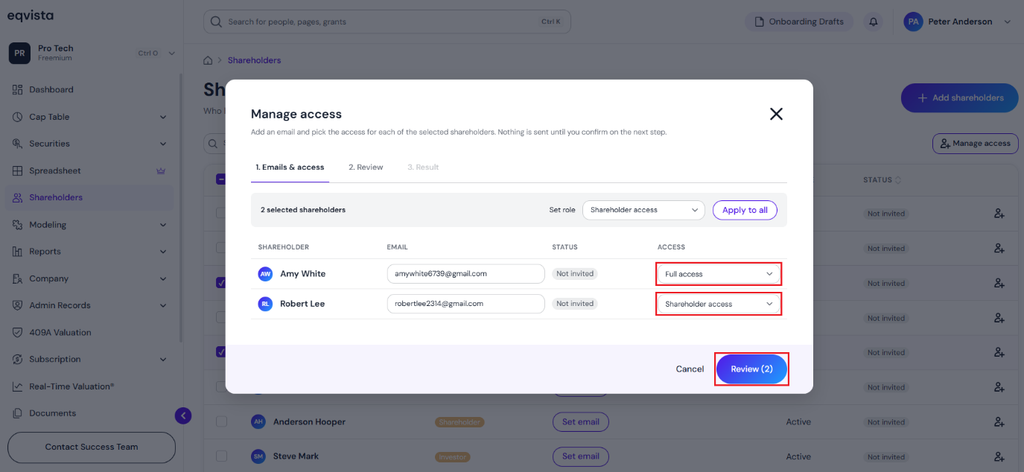
After entering the email address and selecting the access, click on “Review(2)”.
Review the Details to Provide Access
Step 4: Check who gets an invitation and who is skipped before you grant access.
Note: Invitations to the shareholders will not be sent until you confirm this step.
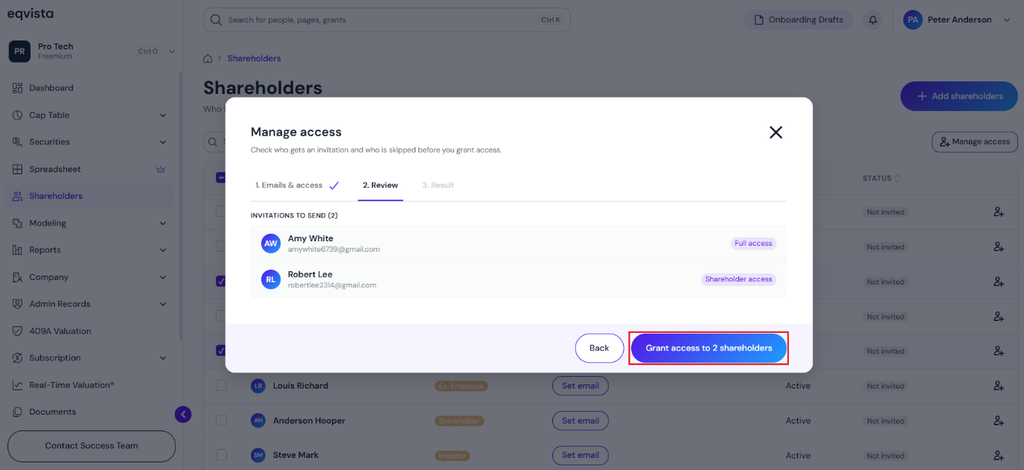
Once done, click on “Grant Access to (2) Shareholders”.
Result of Access Provided
Step 5: It displays the status of the invite sent to each shareholder. Failed rows can be fixed and sent again. In this case, the invite has been sent, and it displays the status “Invited”.
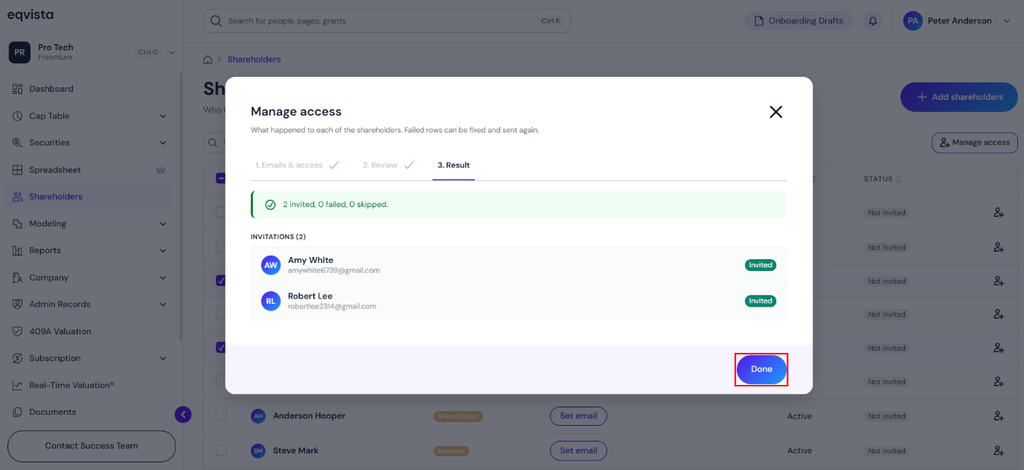
After reviewing it, click on “Done”.
Status Updated to Pending
Step 6: Once access is given, the status will change from “Not Invited” to “Pending”.
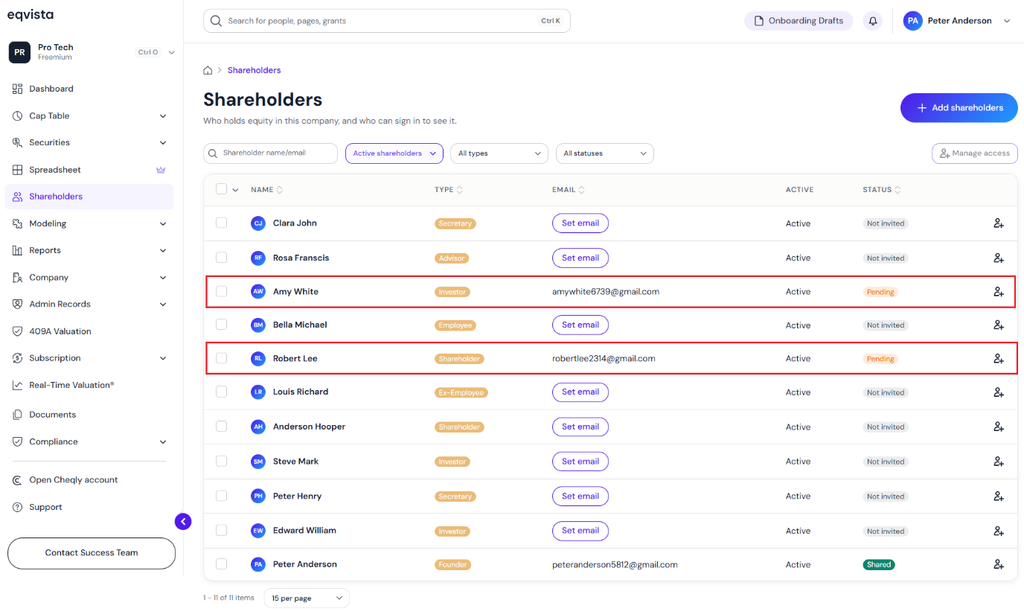
Access Granted to Shareholders
Step 7: After access is granted, an invitation will be sent to the shareholder(s), which must be accepted.
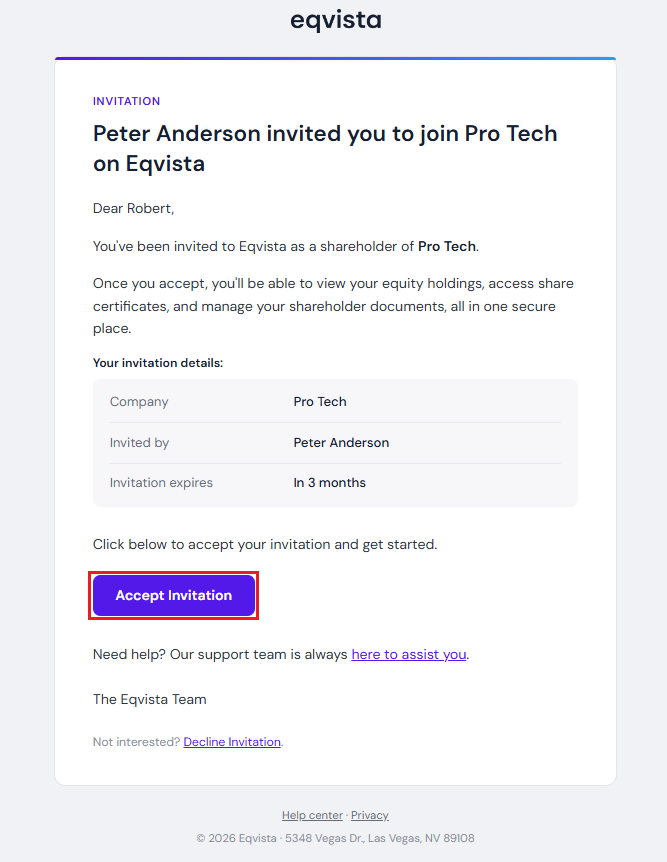
The shareholder(s) should click on “Accept Invitation” and be redirected to a new page to set a new password and create a shareholder account, or log in to Eqvista if they already have an account.
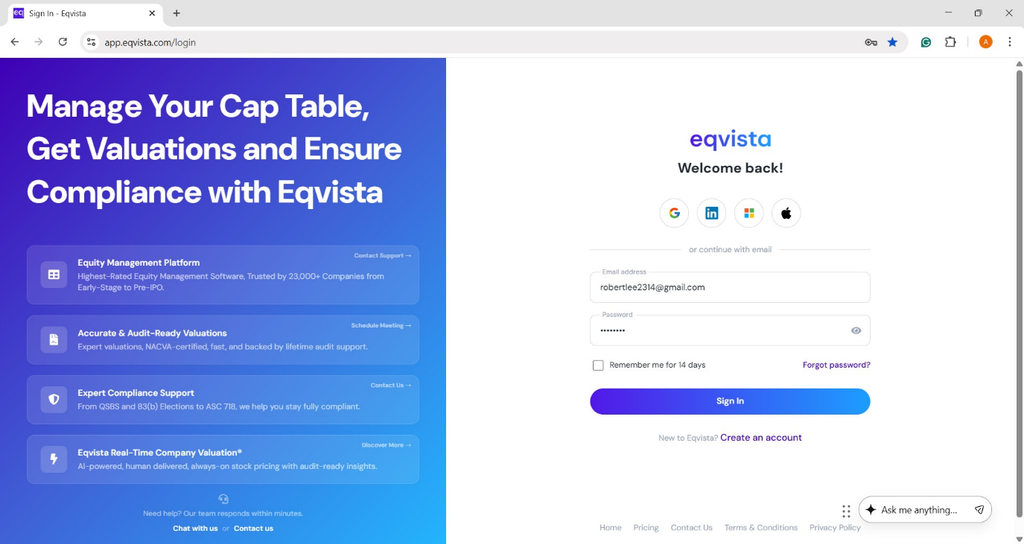
Scenario 1: Registered Users
The shareholder(s) should click on “Accept Invitation” and then log into Eqvista.
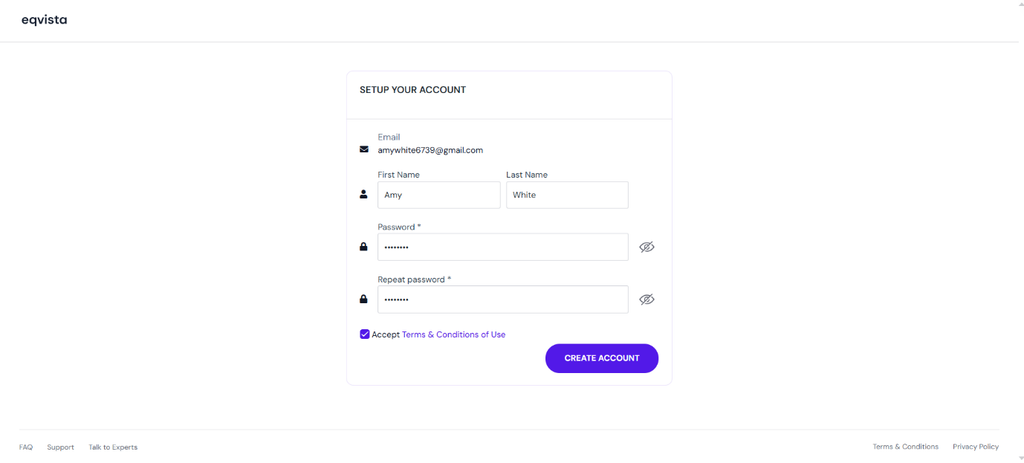
Scenario 2 – New Users
Add a new password for your account in both the fields – password and repeat password, and accept the terms and conditions. Once done, click on “Create Account”.
Two Types of Access Provided
Step 8: After the shareholder(s) create an account or log in to Eqvista if they already have an account, the shareholder(s) can access their account depending on the access type.
In this case, the shareholder(s) have been provided with two types of access: shareholder access and full access.
Shareholder Access
Once the shareholder(s) create an account or log in to Eqvista if they already have an account, they will be redirected to the shareholder access view dashboard as shown below.
Note: Here, you will find data to manage your transactions from the dashboard. Check out the support article to learn about the dashboard.
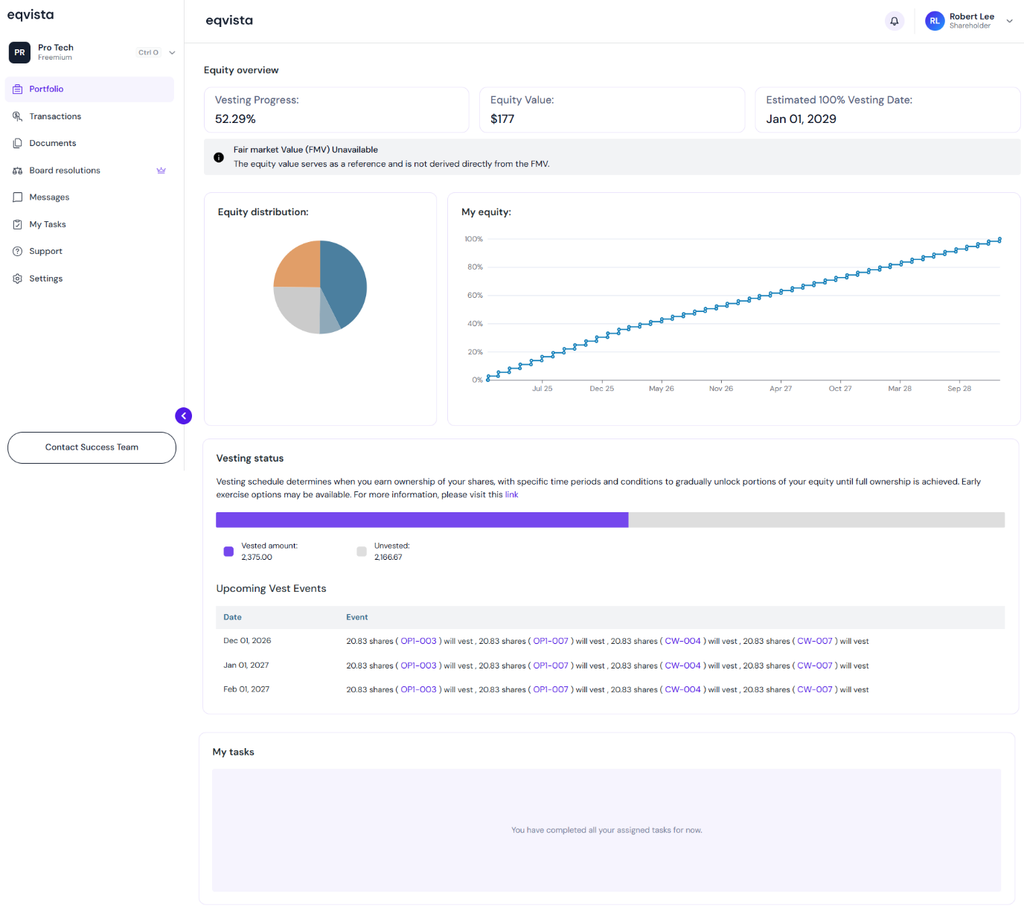
Full Access
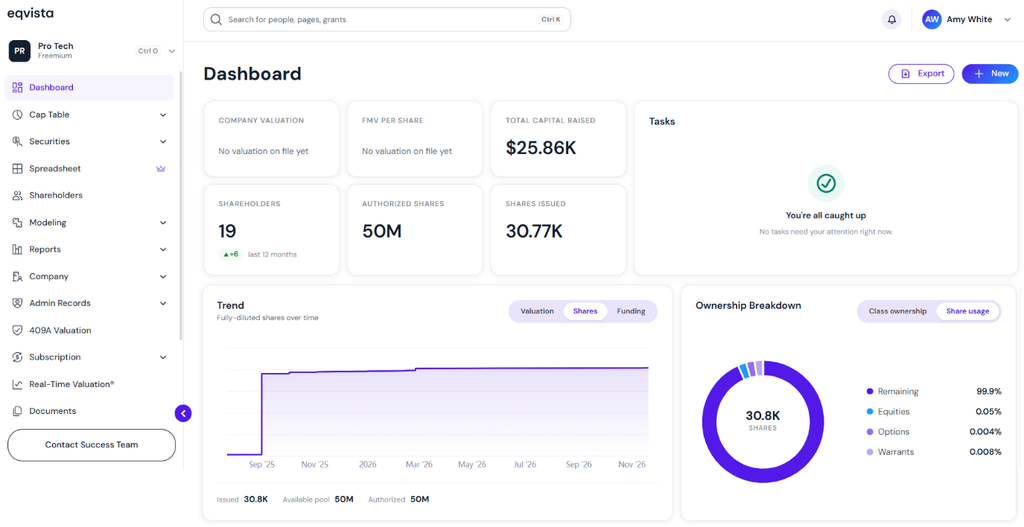
When the shareholder(s) create an account or log in to Eqvista if they already have an account, they will be redirected to the dashboard as shown below.
Note: On this page, you will find data to manage your cap table from the dashboard. To further understand how to view the dashboard, check out the support article.
Status Updated to Shared
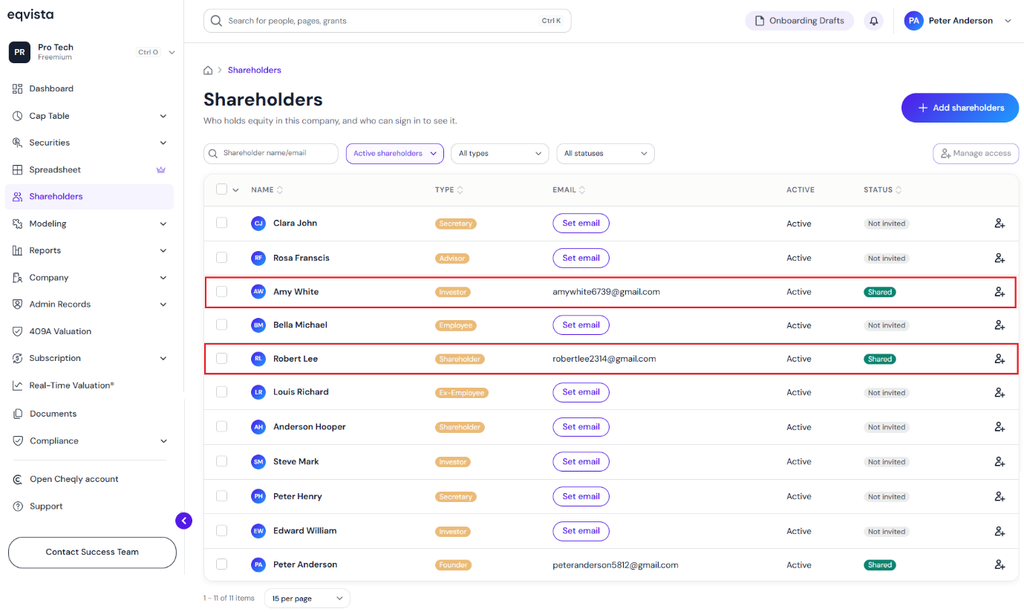
Step 9: When the shareholder(s) accept the invitation, it will change to “Shared” in the status column.
For more information on Eqvista, check out our support articles or get in touch with us today!