How to View the Shared Folders by Shareholder?
Share access to the cap table for the shareholder to view the folder. There are two types of access granted:
- The shareholder access provides access to view grants and documents, participate in board resolutions, and sign electronic certificates.
- Full access or admin access gives full access to the company’s cap table.
The shareholder can view the shared folder in the documents section, depending on their access type.
Here are the steps to follow:
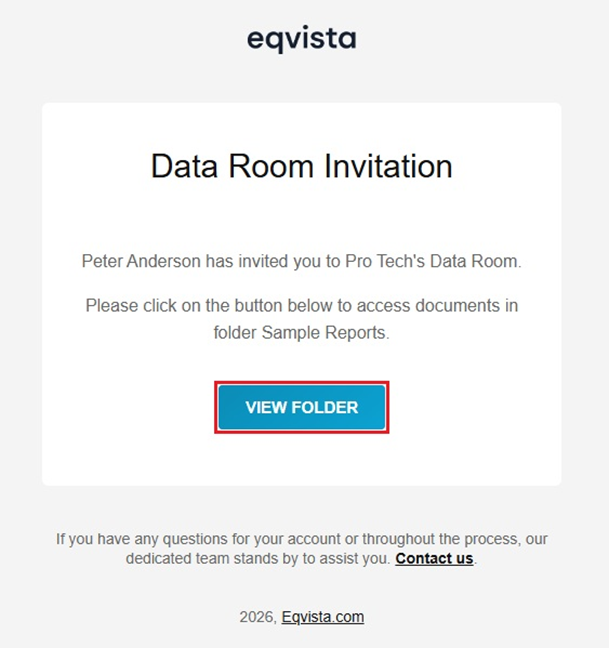
Step 1: Once the folder is shared, an email will be sent to the shareholder. A sample of the email that appears to the shareholder.
Scenario 1 – Registered users
The shareholder should click on “View Folder” and then log into Eqvista.
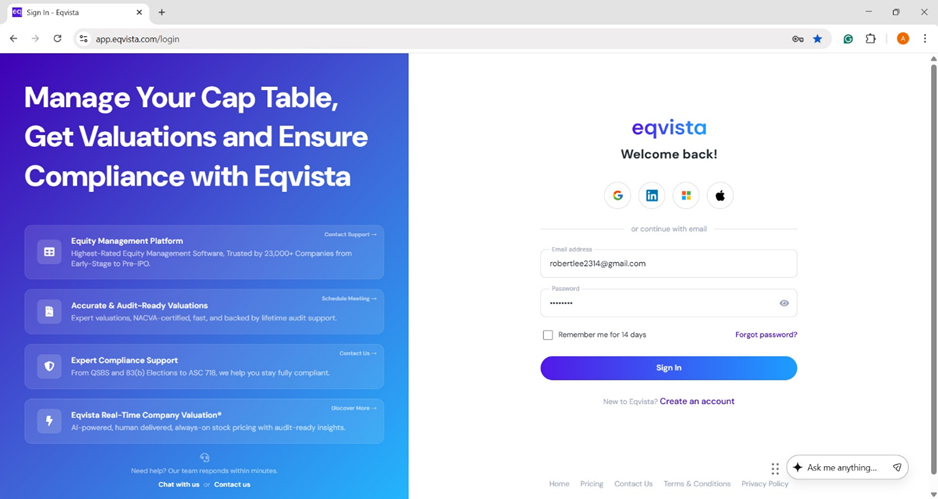
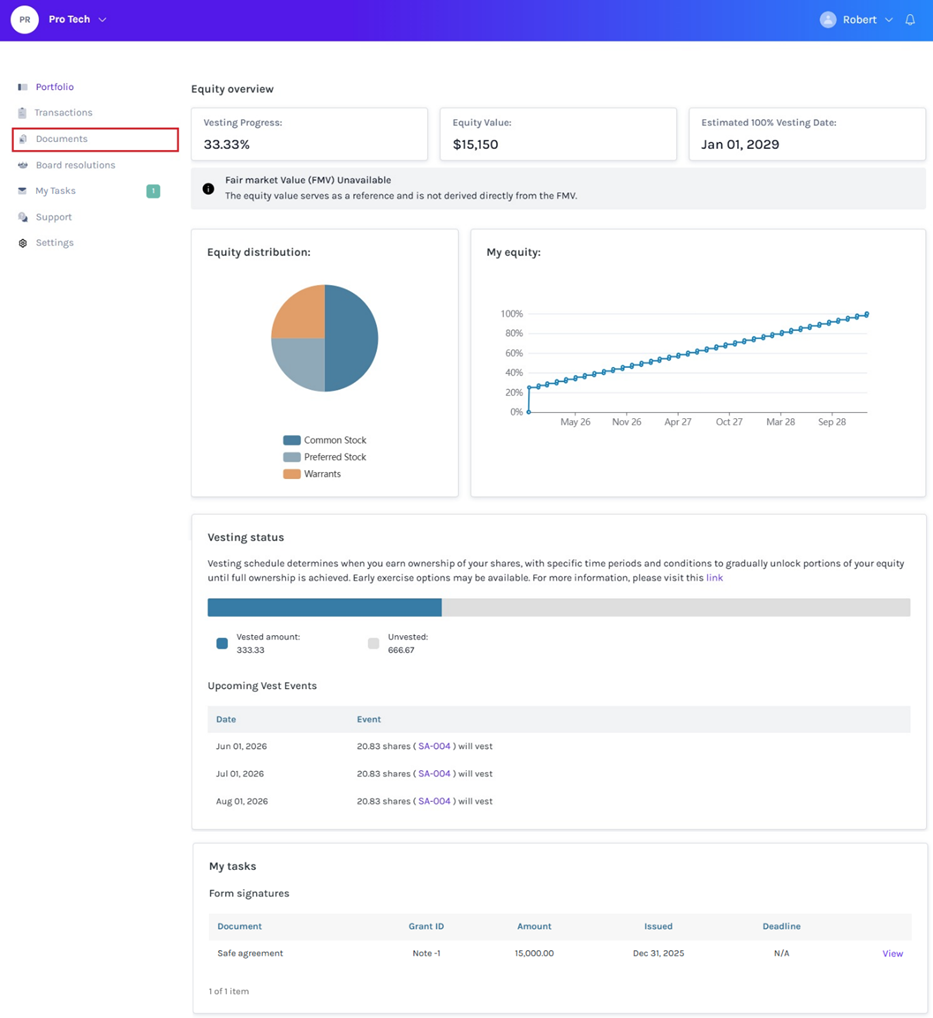
Step 2: Once clicked, it redirects to the shareholder access view dashboard, and then click on “Documents” on the left-hand side.
Note: Here, you can manage your cap table right from the dashboard. To understand how to view the dashboard, check out the support article.
Step 3: Here, you will see Securities Documents and Other Documents. The shared folder could be found under Other Documents.
Note: The documents and folder must be shared with a shareholder to be viewed. Check out the respective support articles to learn how to share documents and folders with your shareholders.
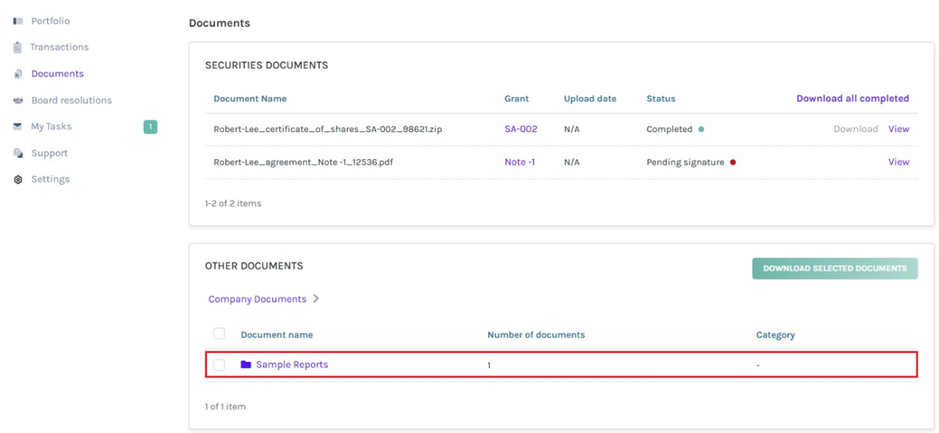
Step 4: When the folder name is clicked, it redirects to the following page. From here, the following functions can be performed:
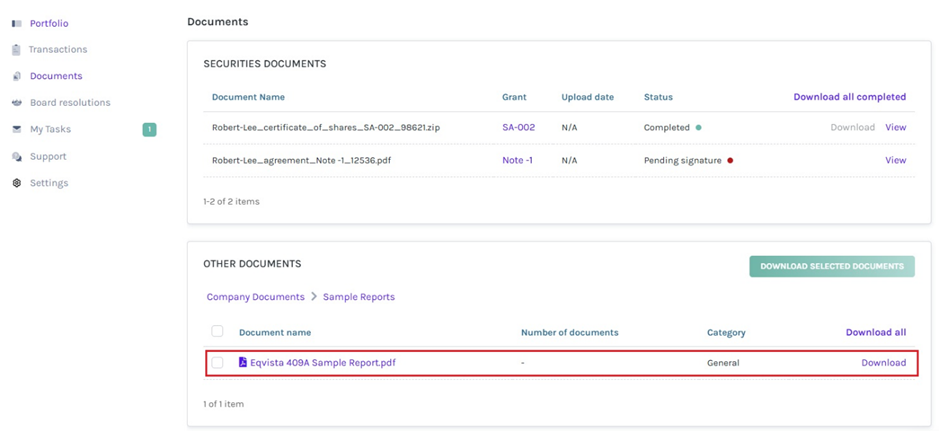
#1 Preview
The preview of the document can be seen by clicking on the file name, as shown below.
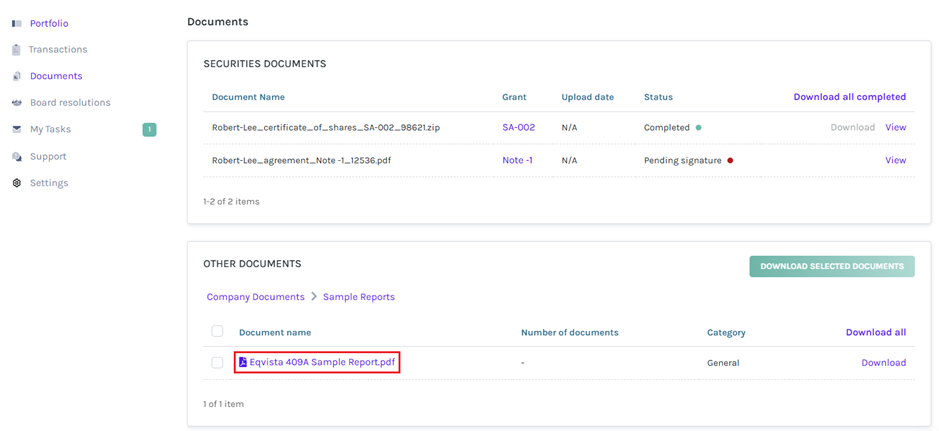
Once the file name is clicked, it redirects to display the preview of the document.
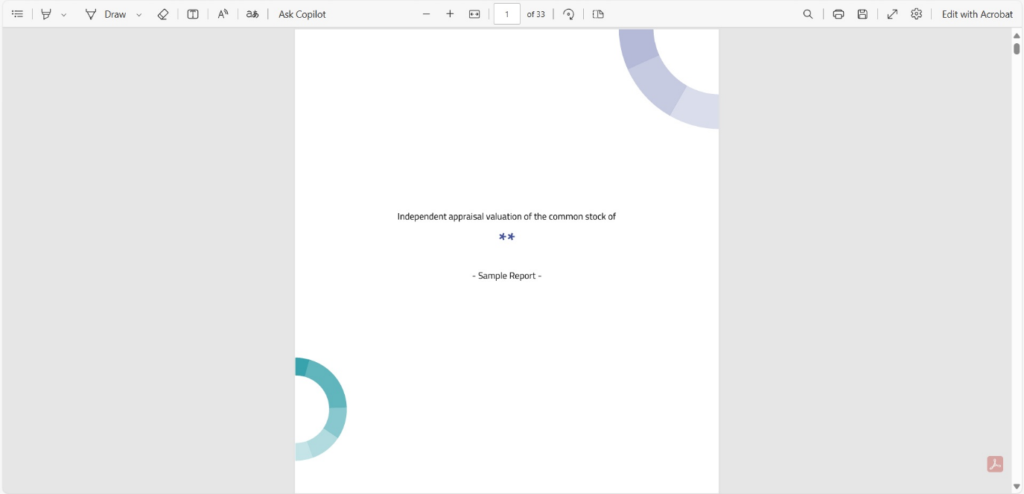
#2 Download
Suppose you want to download a document from the folder. Click on “Download All” to download all documents or “Download” next to the document name.
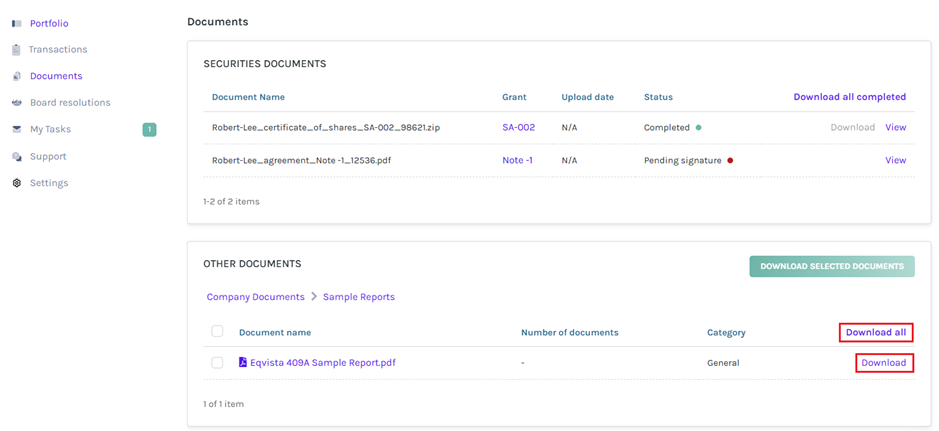
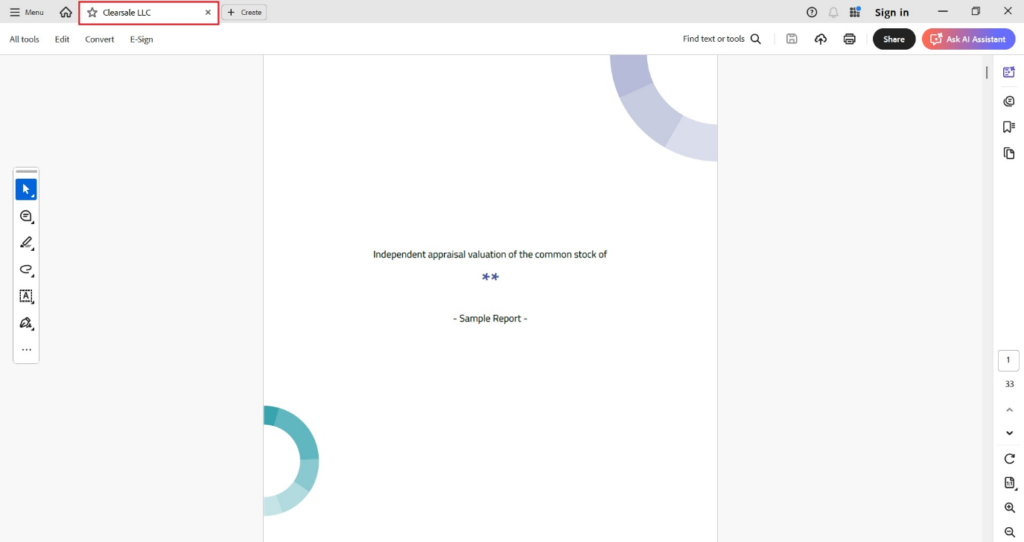
Once you click “Download”, the document gets downloaded to your Downloads. In this case, the document gets downloaded in PDF format.
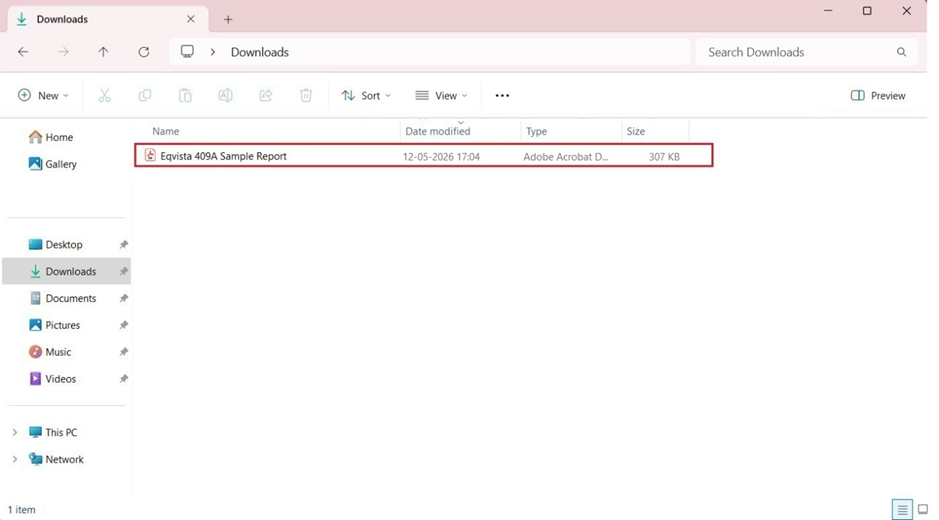
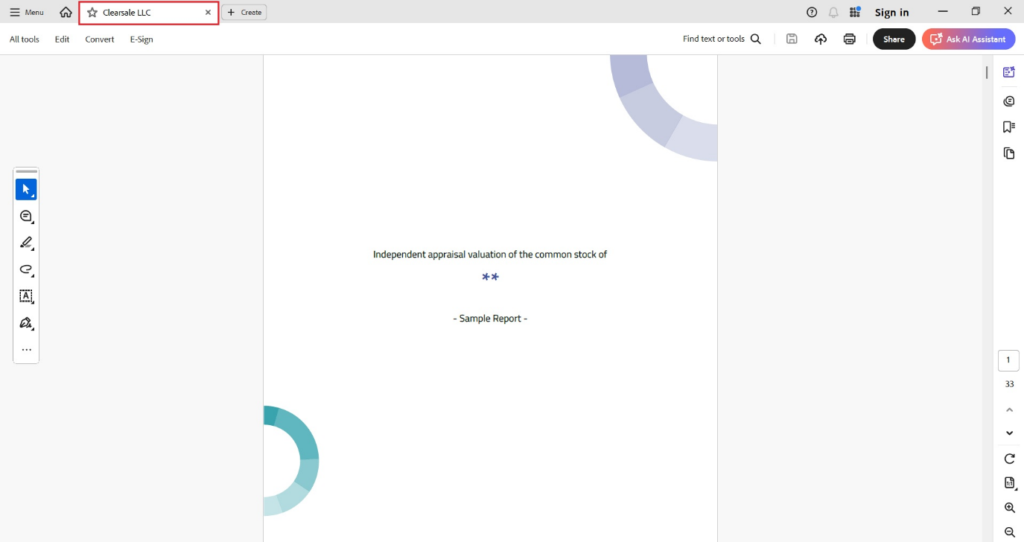
Double-click the PDF to open the document that was downloaded.
Scenario 2 – External users
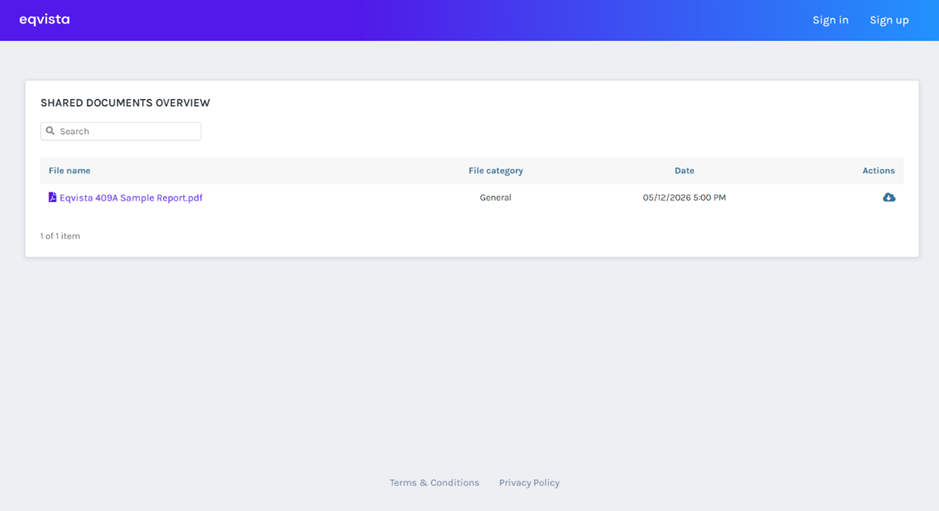
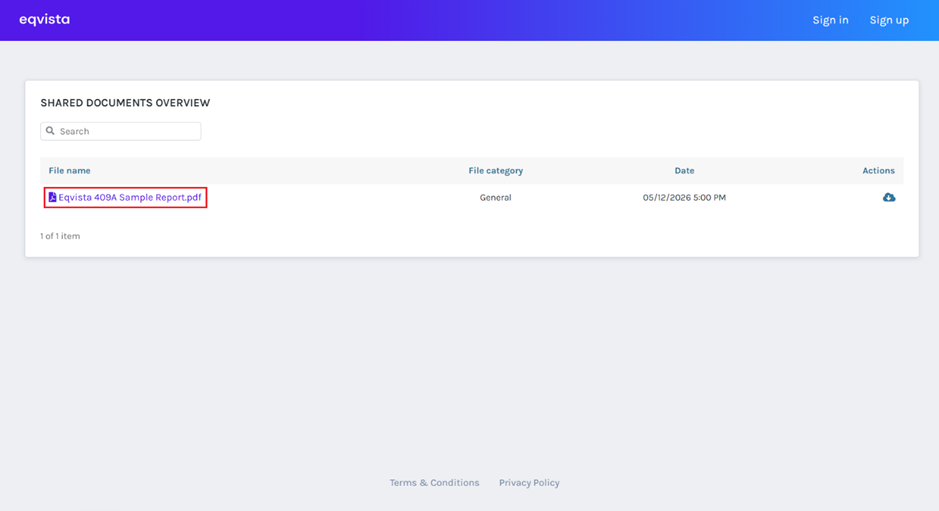
When the external user clicks on “View Folder” on the email received, it redirects to the page as shown below.
#1 Preview
The preview of the document can be seen by clicking on the file name, as shown below.
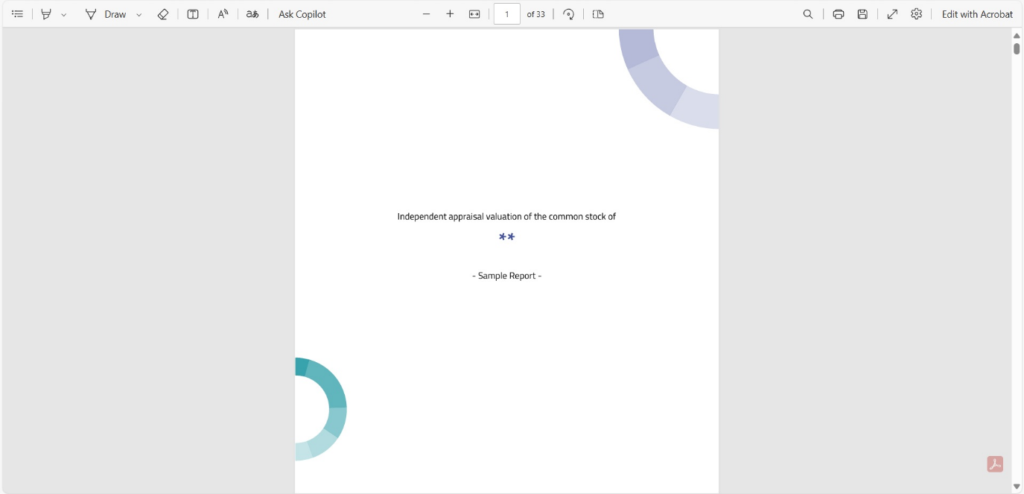
Once the file name is clicked, it redirects to display the preview of the document.
#2 Download
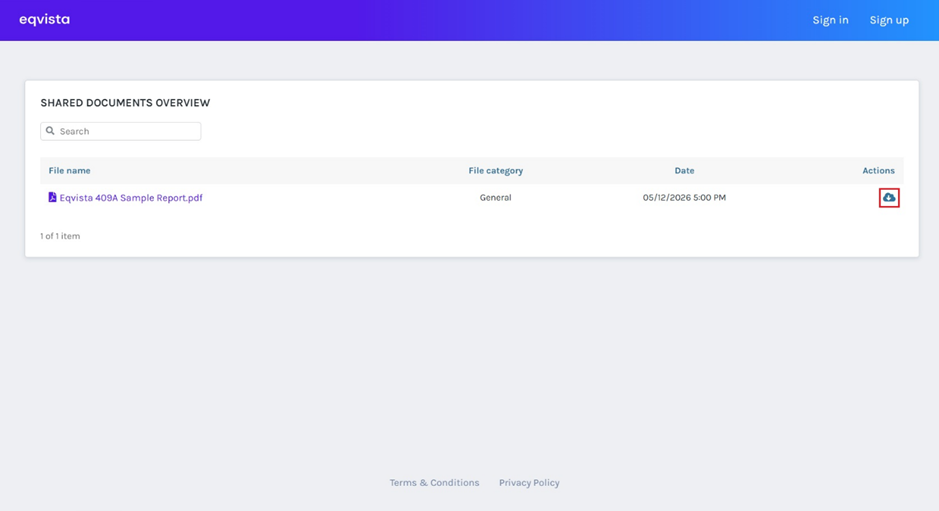
If you want to download the document, click on the button as shown below:
The document gets downloaded to your Downloads. In this case, the document gets downloaded in PDF format.
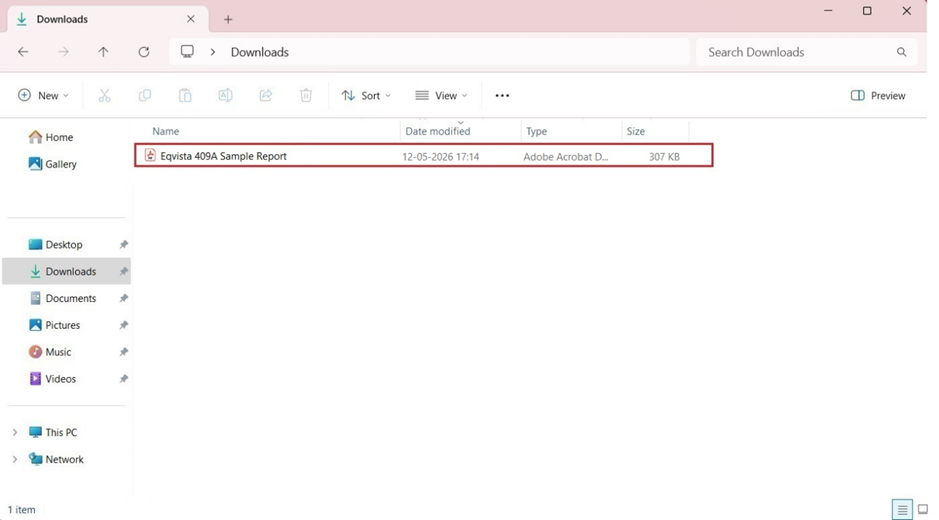
Double-click the PDF to open the document that was downloaded.
If you want to understand Eqvista, check out our support articles or contact us today!