How to Enable Draft Grants for Shares and Options?
Share and option grants are saved as drafts and reach the cap table only once they are signed by the company and the shareholder. A draft is sent for signatures after the board approval is recorded.
Enable Draft Grants in Company Profile
In Eqvista, draft grants can be enabled in the company profile settings, and drafts can be created for shares and options.
Open Company Profile
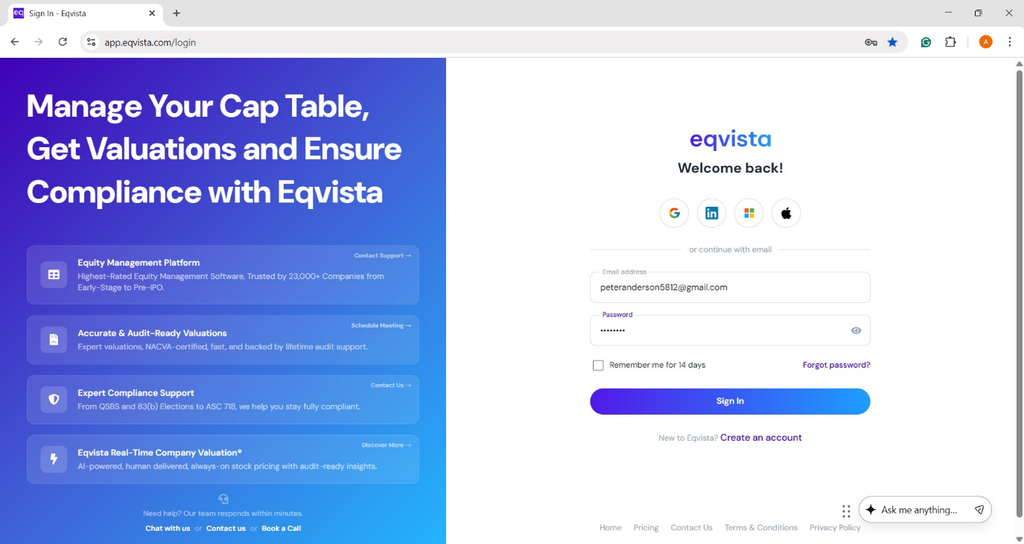
Step 1: Log into Eqvista and select your company account.
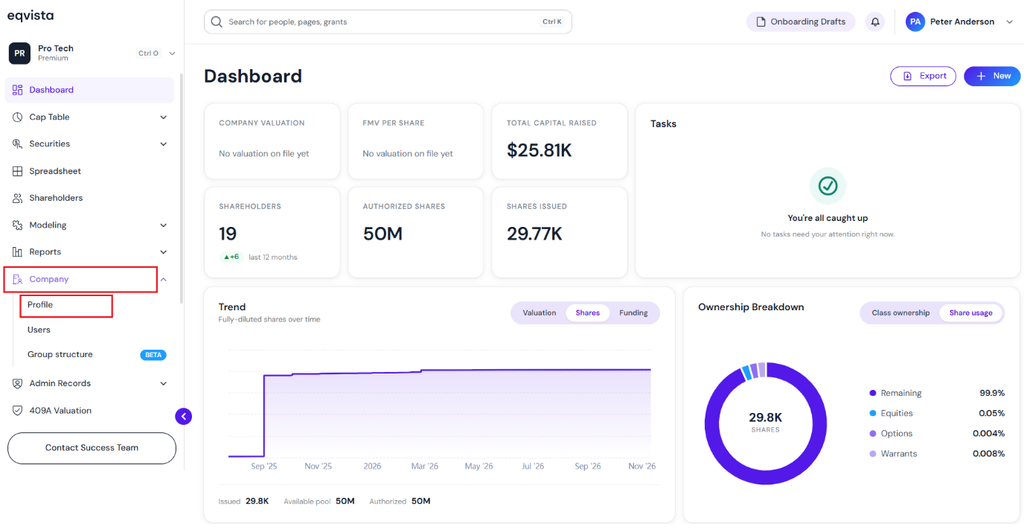
On the dashboard, click on “Company” on the left side to get a drop-down menu and select “Profile”.
Enable the Option “Use Draft-to-Issue Flow”
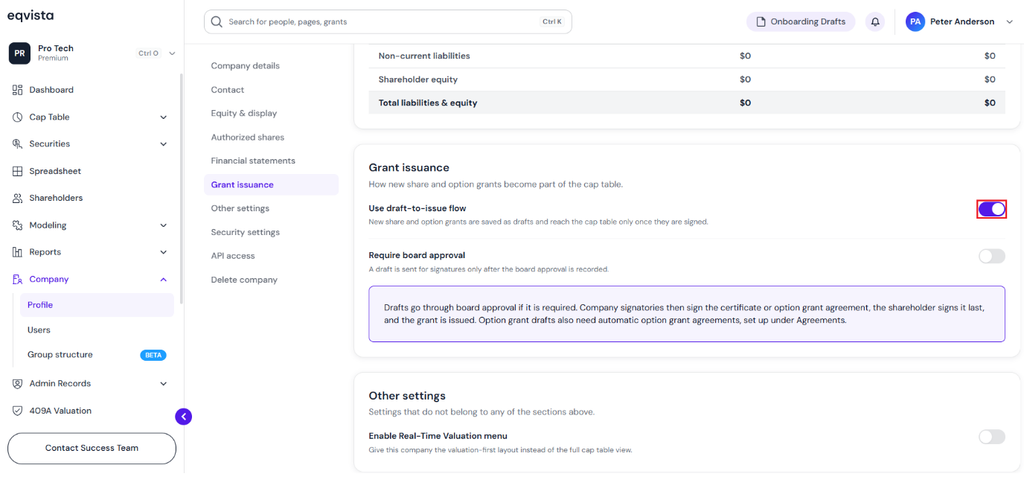
Step 2: Here, you will be able to see all the details of the company, such as the incorporation date, the formation (entity type), total shares authorized, and the shares available to issue.
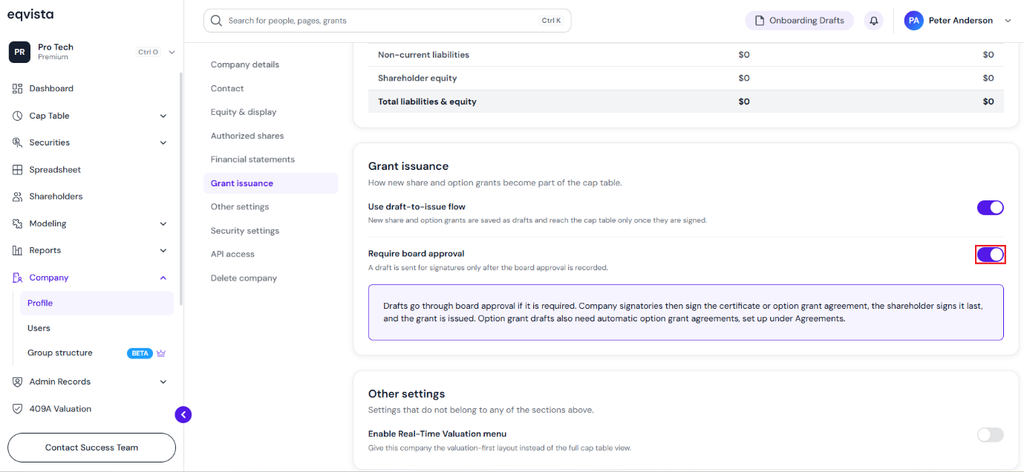
On this page, under the “Grant Issuance” section, you can enable the option “Use draft-to-issue flow”.
Note: On this page, you can view Company Details, Contact, Equity &Display, Authorized Shares, Financial Statements, and Other Settings. To further understand the various sections in detail, check out the support article here!
Require Board Approval
Step 3: Then, enable the option “Require Board Approval” as shown below. A draft is sent for signatures only after the board approval is recorded.
Drafts go through board approval if it is enabled. Company signatories sign the certificate or option agreement, the shareholder signs it last, and the grant is issued.
Grant Issuance Settings Updated
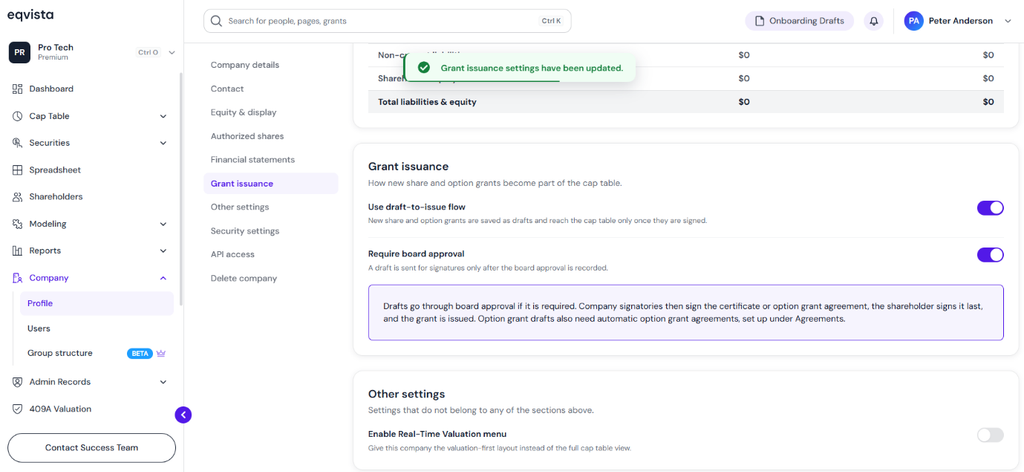
Step 4: With the options enabled, the grant issuance settings would be updated as shown below.
Prerequisites to Create Draft Grant
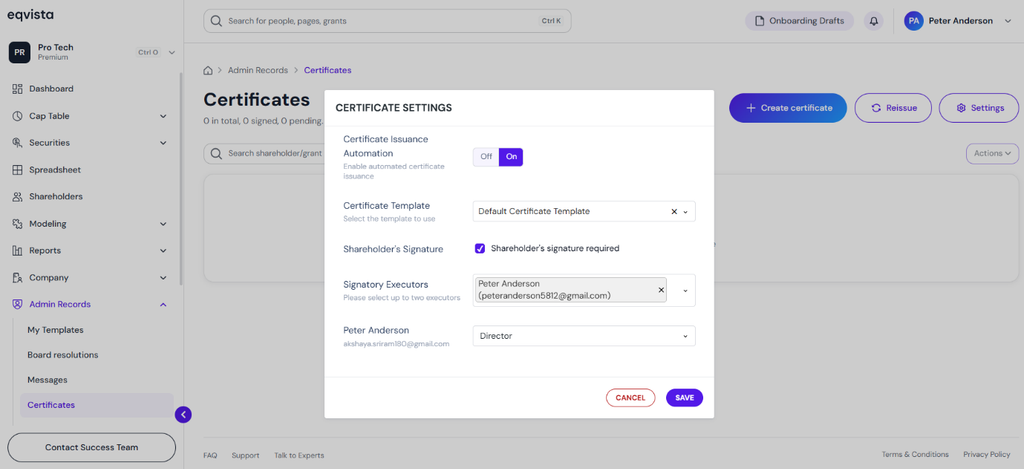
Step 5: To create draft grants for shares and options, automated certificate and agreement generation must be enabled.
Automated Certificate Generation
Automated certificate issuance can be enabled by selecting “Yes”. Select the certificate template from the drop-down menu, tick the box if the shareholder’s signature is required, select up to two executors, and select the role of the executor from the drop-down menu.
Note: The person who is selected to execute and sign the certificate should be either the director, the secretary, or the president. Company users can only be assigned as executors. To know how to add a company user, check out this support article.
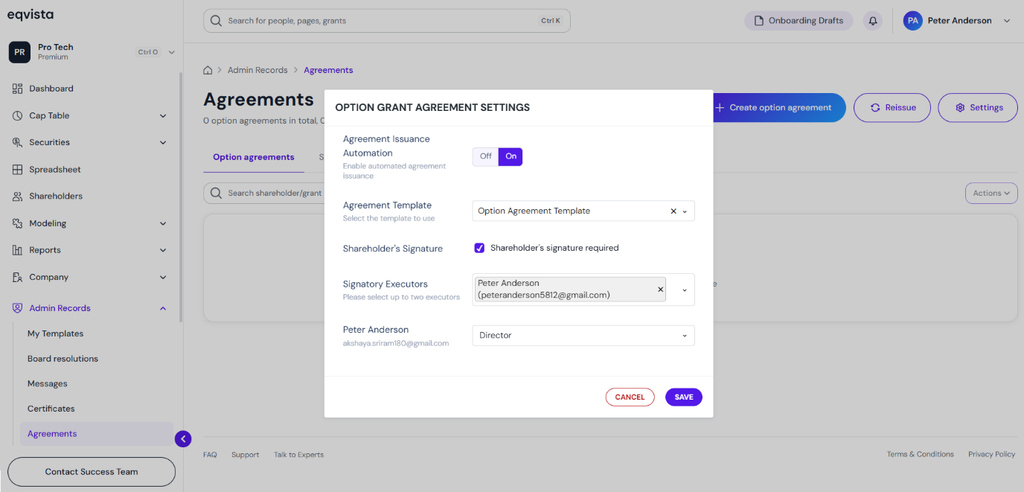
Automated Agreement Generation
A pop-up panel appears as shown below. Enable automated agreement issuance by selecting “Yes”. Select the option agreement template from the drop-down menu, tick the box if the shareholder’s signature is required, select up to two executors, and select the role of the executor from the drop-down menu.
Note: The person who is selected to execute and sign the agreement should be either the director, the secretary, or the president. Company users can only be assigned as executors. To know how to add a company user, check out this support article.
To learn more about Eqvista, check out our support articles and knowledge base. For queries, get in touch with us!