Create Secondary Transaction Agreement Template – Repurchase
If shares and securities are repurchased, an agreement template can be used to create agreements and enable automatic agreement generation.
Note: The agreement template feature is only available for premium account holders. To unlock this feature, kindly upgrade your account.
How to Create a Repurchase Agreement Template?
Eqvista provides options to customize template elements to create a secondary transaction agreement template for repurchases in just a few clicks. Here are the steps to follow:
Open My Templates
Step 1: Log into Eqvista and select your company.
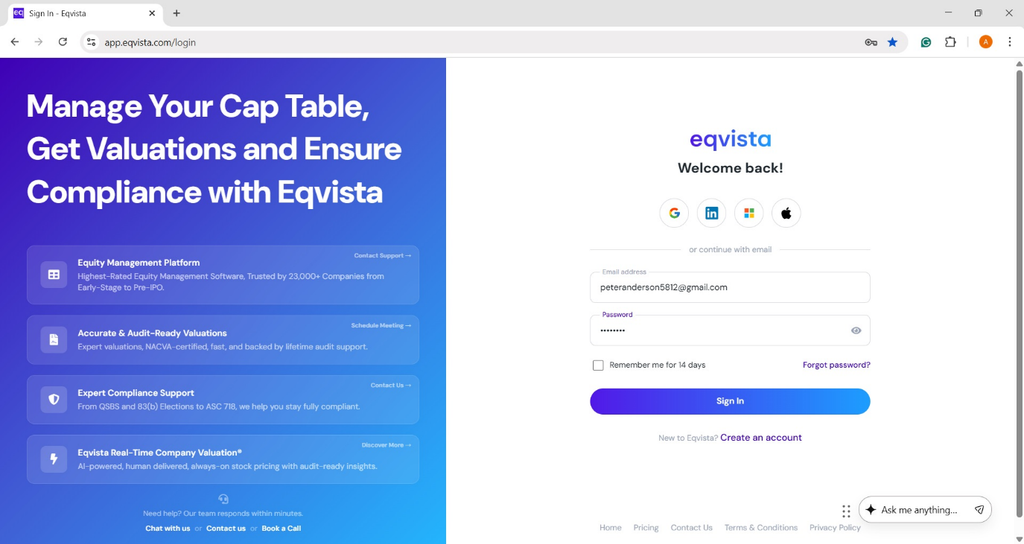
On the dashboard, click “Admin Records” from the left to get a drop-down menu and select “My Templates”.
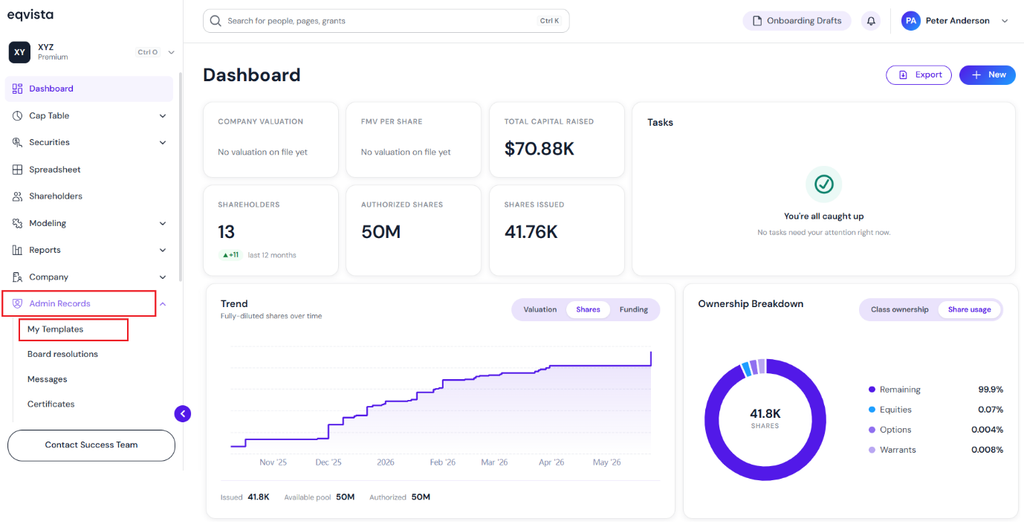
Click Add Template to Create a Template
Step 2: On this page, you can view all the templates created in the company. To create a new repurchase agreement template, click “Add Template” to get a drop-down menu and select “Agreement”.
Note: A certificate template can be created by clicking on “Add Template” to get a drop-down menu and select “Certificate”. Manage restriction legends by clicking on “Manage Restriction Legends”. Check out the respective support articles to learn more about it.
Enter Name of the Template
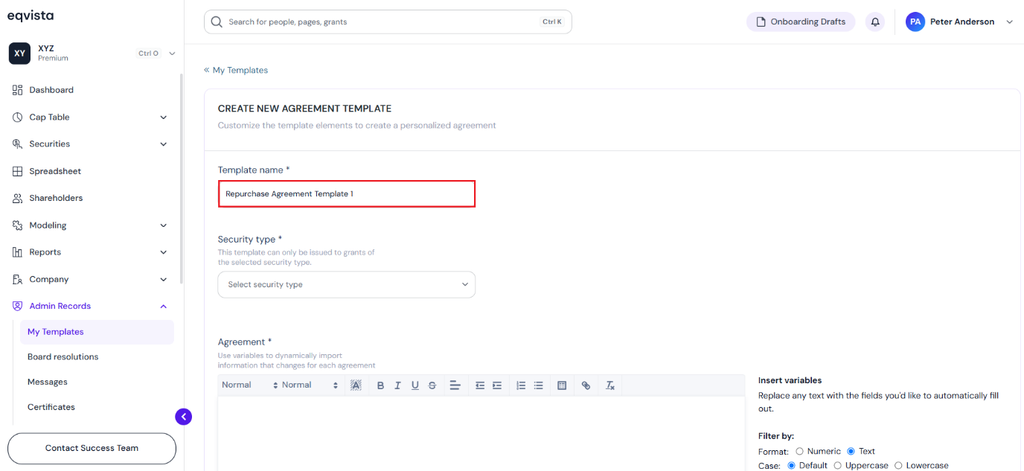
Step 3: You can customize the template elements to create a personalized repurchase agreement. First, enter the template’s name in the space shown below.
Select Security and Secondary Transaction Type
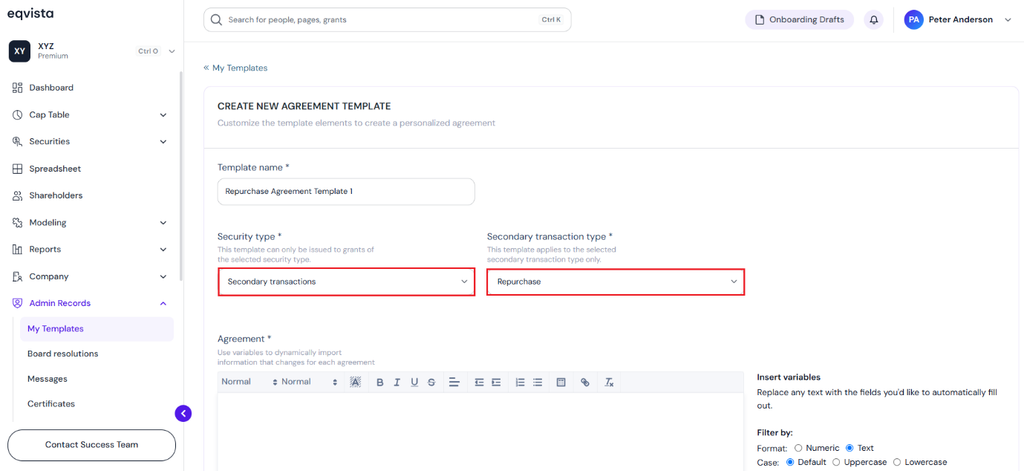
Step 4: Select the security and secondary transaction type from the drop-down menu. The template can only be issued for grants of the selected security and secondary transaction type. In this case, select “Secondary Transactions” and “Repurchase” to create a repurchase agreement template.
Note: Templates can be created for security types such as Equities, Options, Warrants, and Convertible Notes. You can select the secondary transaction type: Exercise, Transfer, Cancellation and Conversion. Check out the respective support articles to learn more about them.
Customize the Agreement Using Variables
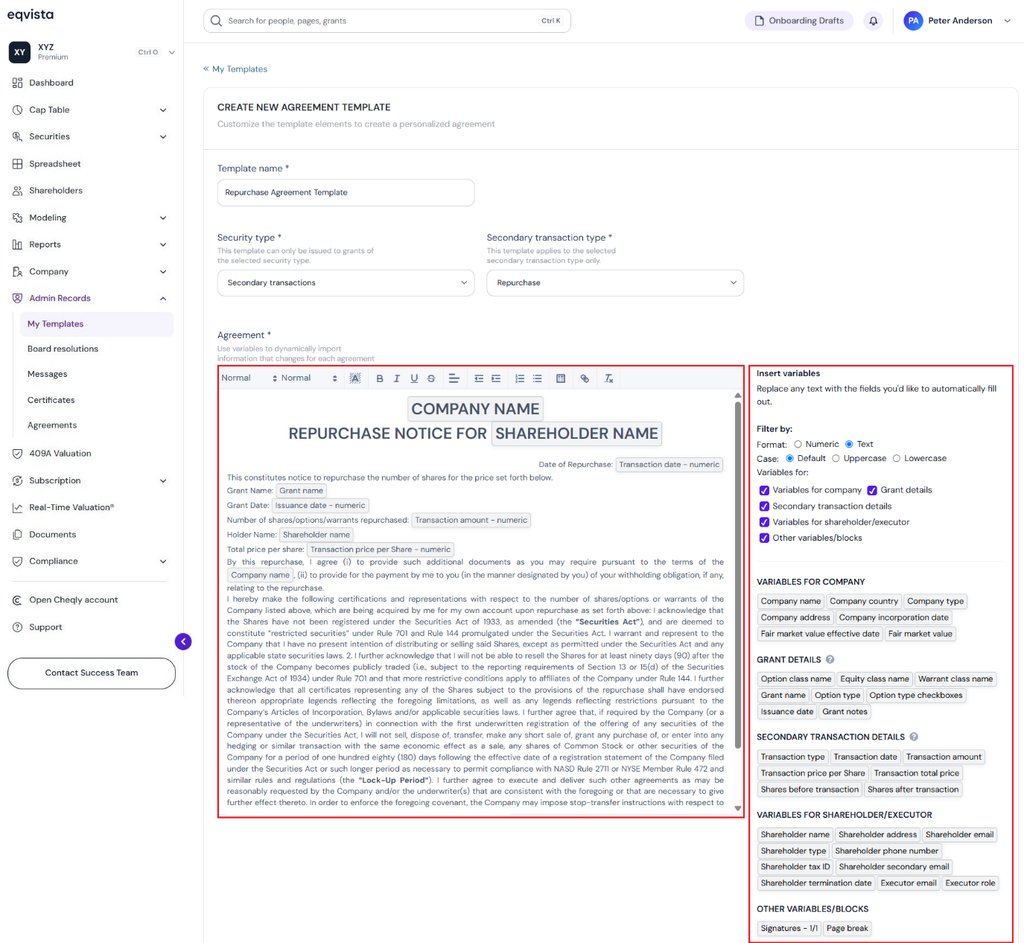
Step 5: Add the various details or information to be included in the repurchase agreement. Use variables from the left to insert information that can be customized for each repurchase agreement. The variables can be filtered by:
- Format – Numeric and Text
- Case – Default, Uppercase, and Lowercase
- Variables for – Company, Grant Details, Secondary Transactions Details, Shareholder/executor, and Other variables/blocks
Select the format, case, and variables for, place the cursor where you want to add a variable, and click on it to insert.
Download Preview
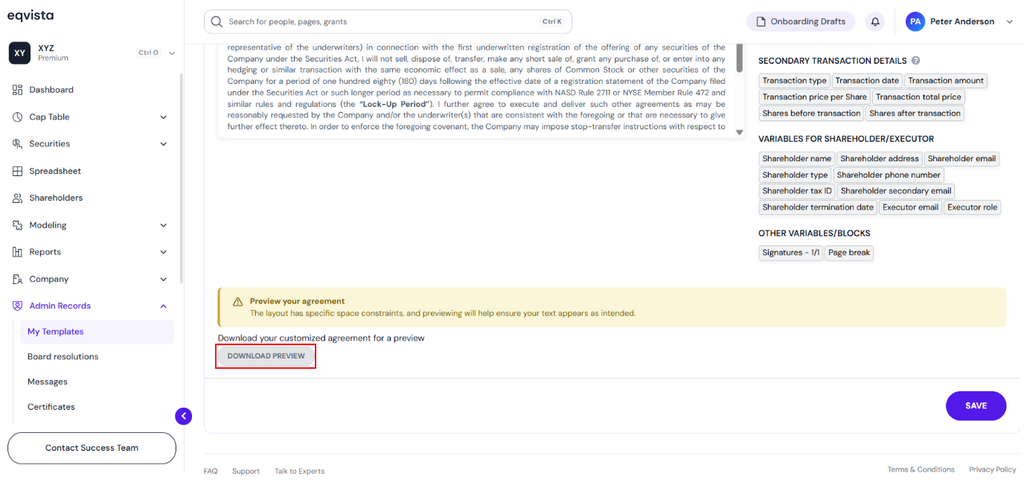
Step 6: The repurchase agreement template can be downloaded for preview by clicking on “Download Preview”.
View Downloaded Repurchase Agreement Template
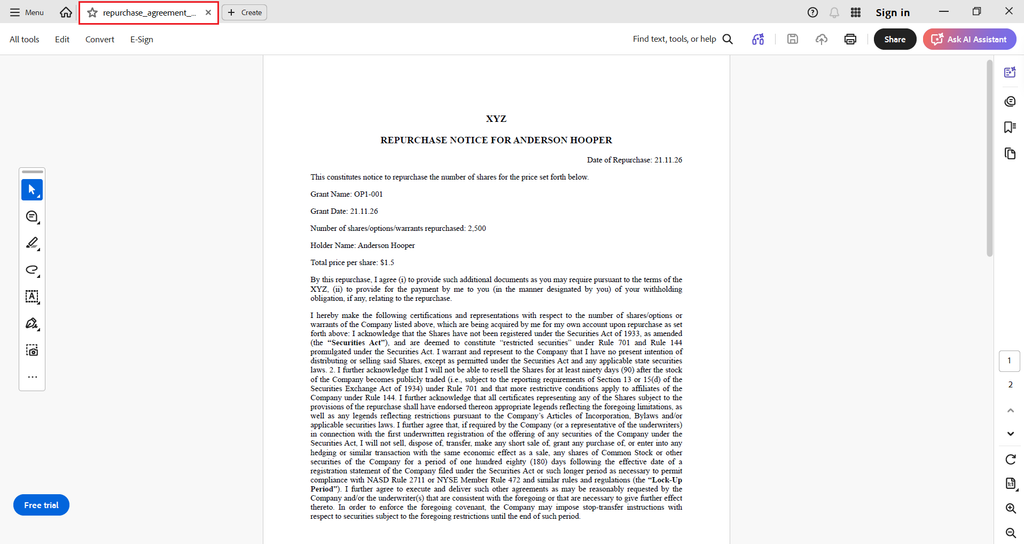
Step 7: The template gets downloaded as a PDF in your Downloads.
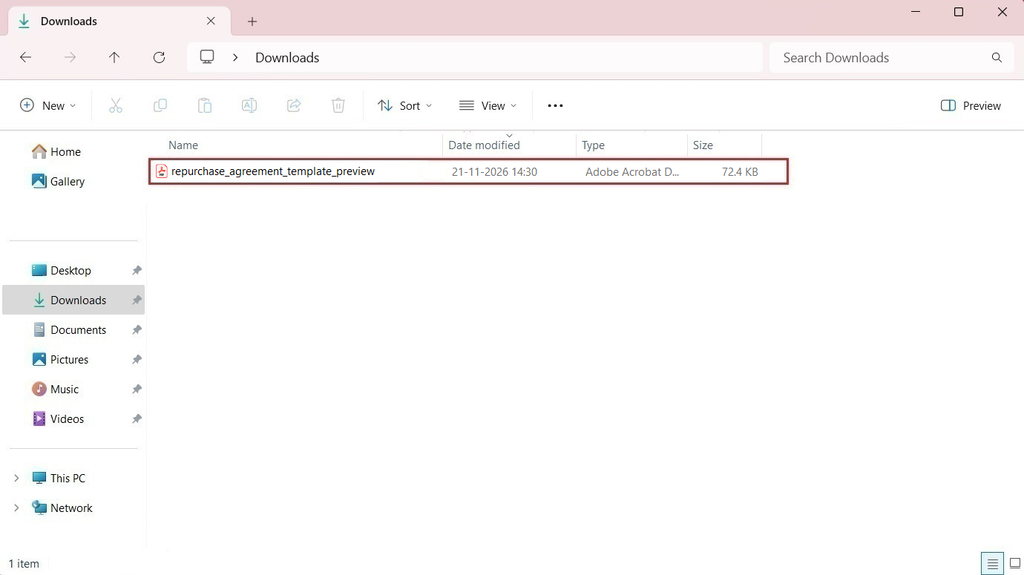
Double-click the PDF to open the preview of the downloaded repurchase agreement template.
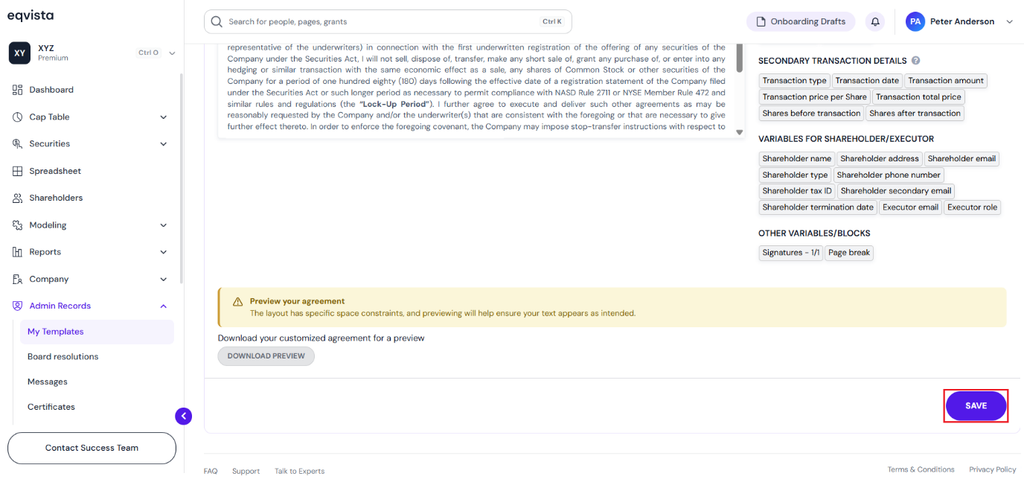
Save the Repurchase Agreement Template
Step 8: After you have reviewed the downloaded preview and added all information, click on “Save”.
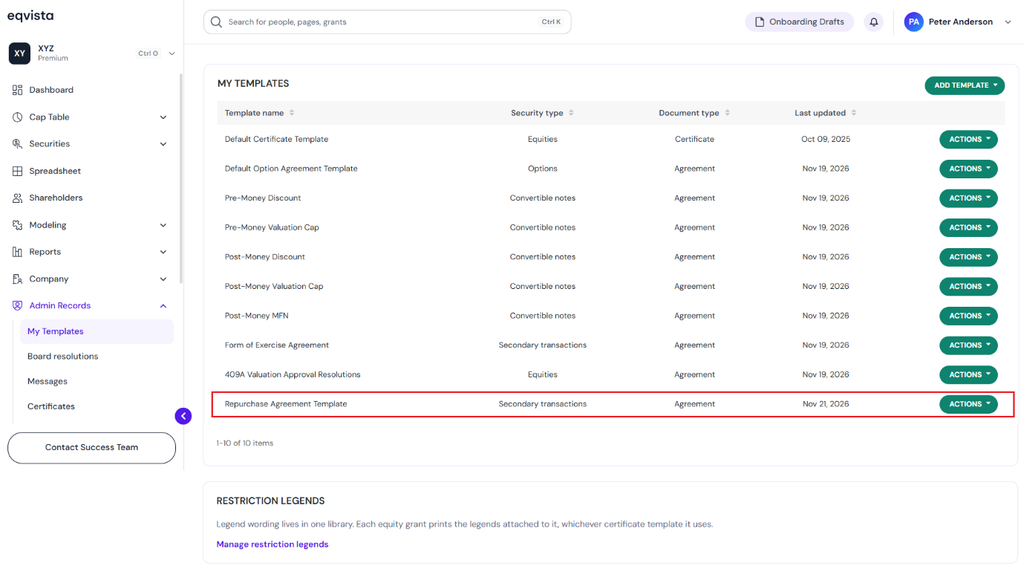
Repurchase Agreement Template Created
Step 9: Once you click “Save”, the repurchase agreement template will be added to the other templates.
Note: On this page, click on “Actions” and you will be able to perform many functions. To know more about it, check out the support article!
Usage of Created Repurchase Agreement Template
Step 10: The created repurchase agreement template can be used to enable automatic agreement generation and create agreements when shares and securities are repurchased.
Automatic Agreement Generation
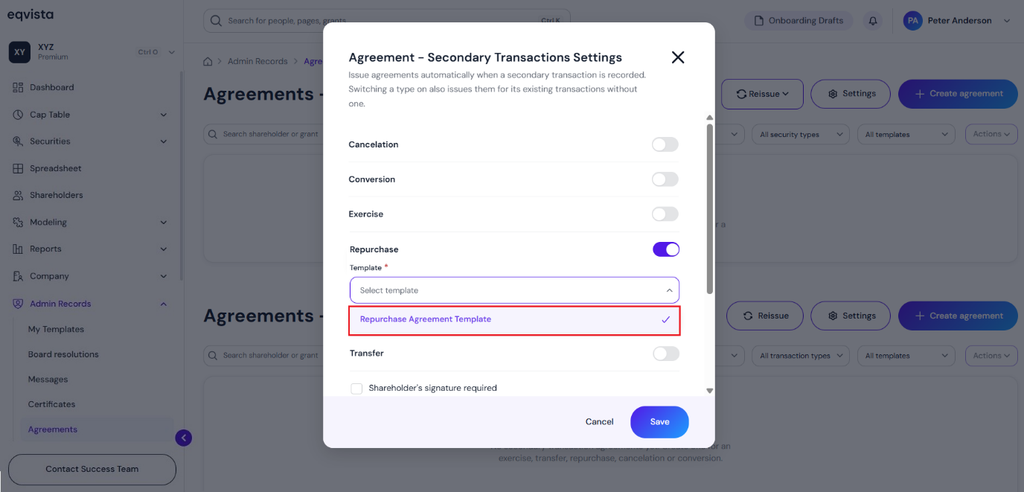
When enabling automatic agreement generation for repurchases, by clicking on “Admin Records” to get a drop-down menu and select “Agreements”. Then, click on “Settings” to get to enable automatic agreement generation.
Enable the “Repurchase” option and select the created repurchase agreement template from the drop-down menu.
Create Agreements
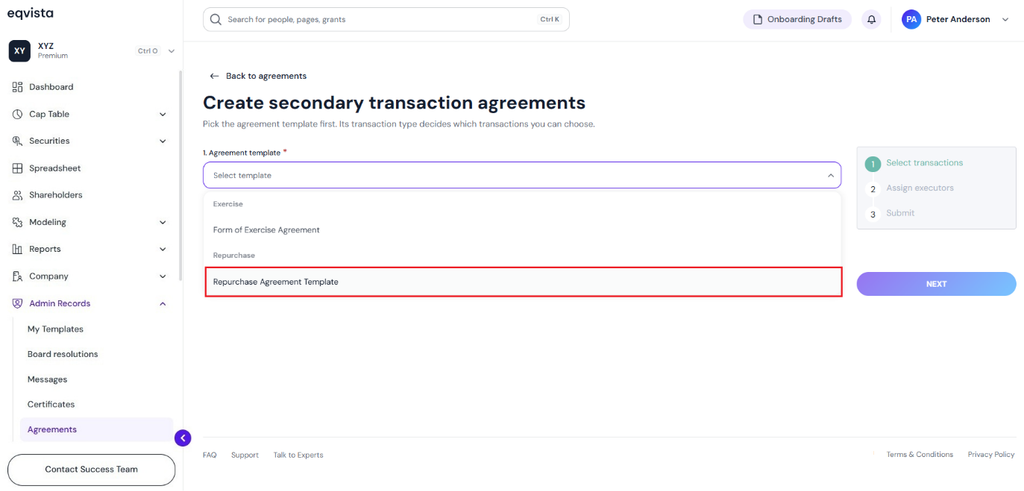
The template can be used when creating agreements for repurchases by clicking on “Admin Records” to open the drop-down menu and select “Agreements”.
Then, click on “Agreement” to create one. On this page, select the created repurchase template from the drop-down menu.
To learn more about Eqvista, check out our support articles and knowledge base. For queries, get in touch with us!