How to Include 409a Valuation Service for an Existing Company?
On Eqvista, you can add 409A valuation service to an existing company.
Note: The companies have the following access types – full access, limited view, or full view. You must have full access to add services to the company.
Add 409a Valuation Service for Existing Company
Whether you’re looking to expand or improve the services of an existing company, this guide will walk you through the simple steps to add 409A valuation service for an existing company on the Eqvista platform.
Step 1: Log into your account on Eqvista, or create an account if you have not yet signed up.
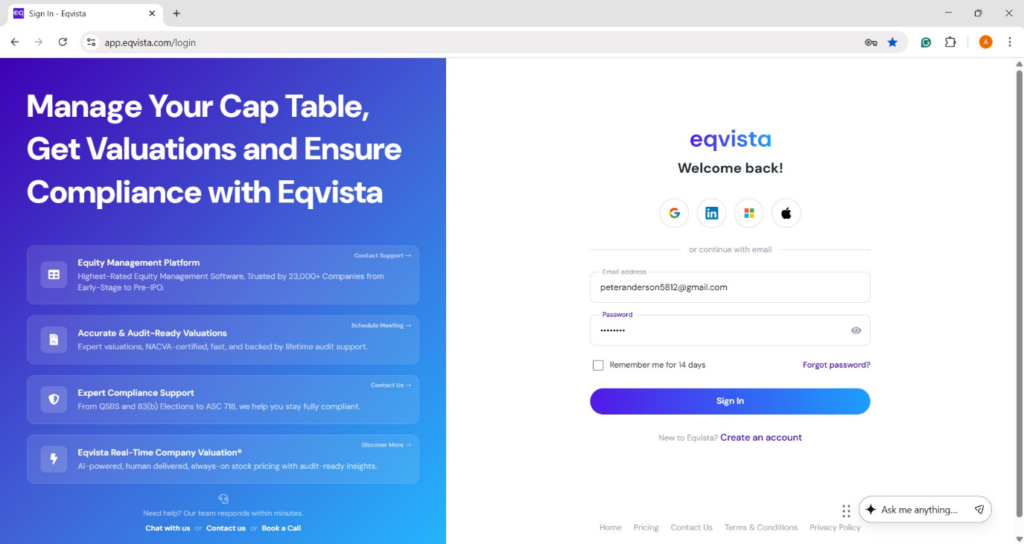
On the dashboard, click on company name on the left-hand side to get a drop-down menu and select the company you would like to add service.
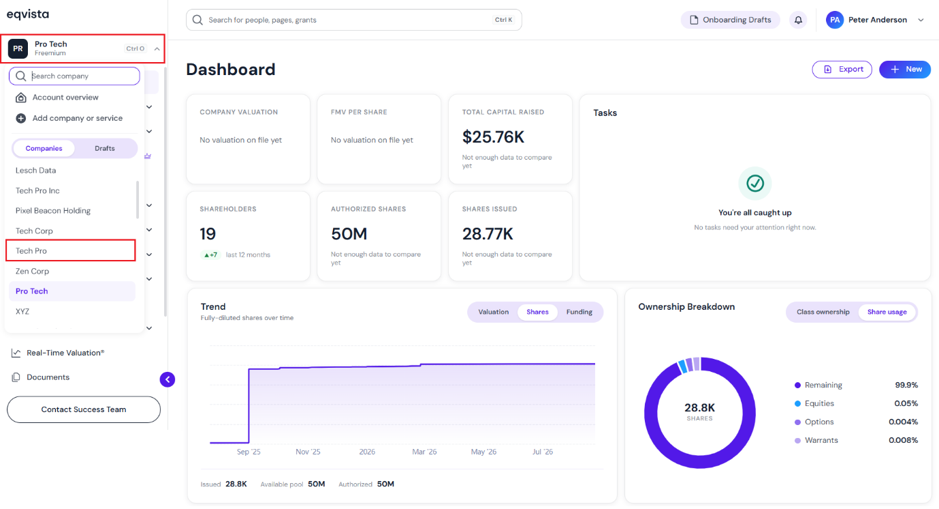
Step 2: You will be directed to the dashboard of the company you would like to add services to.
Suppose the company has no 409A valuation, and you would like to add it to the company.
Note: Similarly, you can add services such as real-time valuation to an existing company. Check out the support article to learn more!
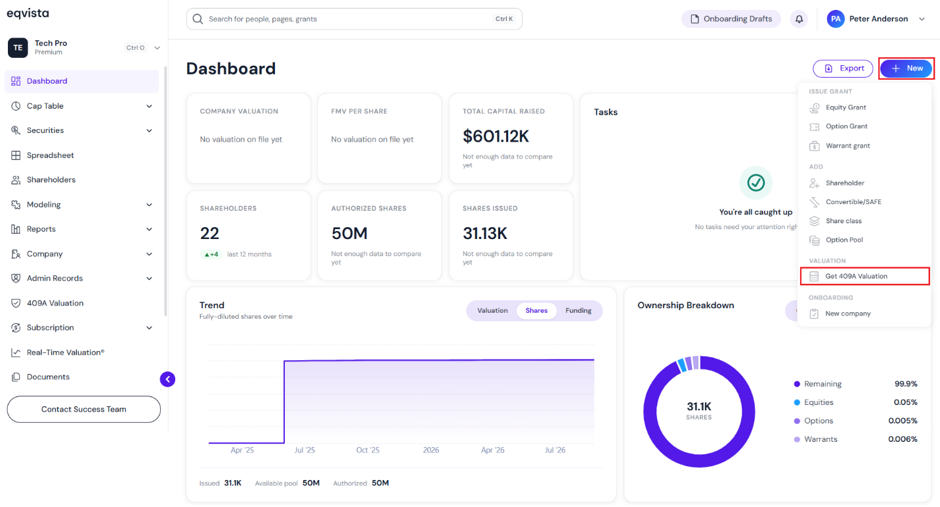
There are two ways in which you can add it to the company.
Method 1
On the dashboard, click on “New” on the right-hand side to get a drop-down menu and select “Get 409A Valuation”.
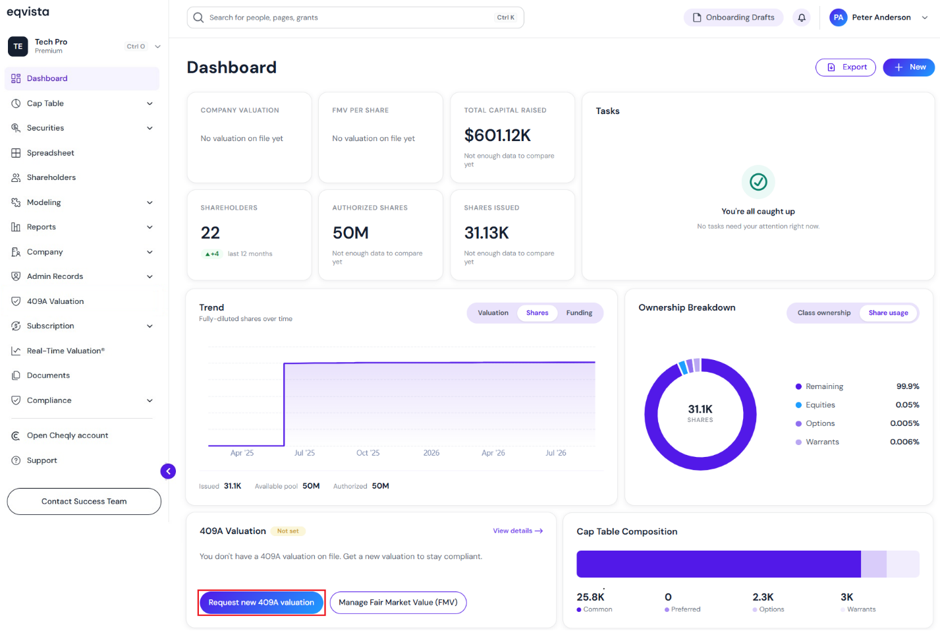
Method 2
On your dashboard, click on “Request 409A Valuation” as shown below.
Step 3: Fill in the details for each field, including, phone, total outside capital raised, approximate annual revenue, number of stakeholders on cap table, and purpose of valuation.
Note: A 409A valuation is applicable for 12 months or year after the valuation date unless there is a significant material event
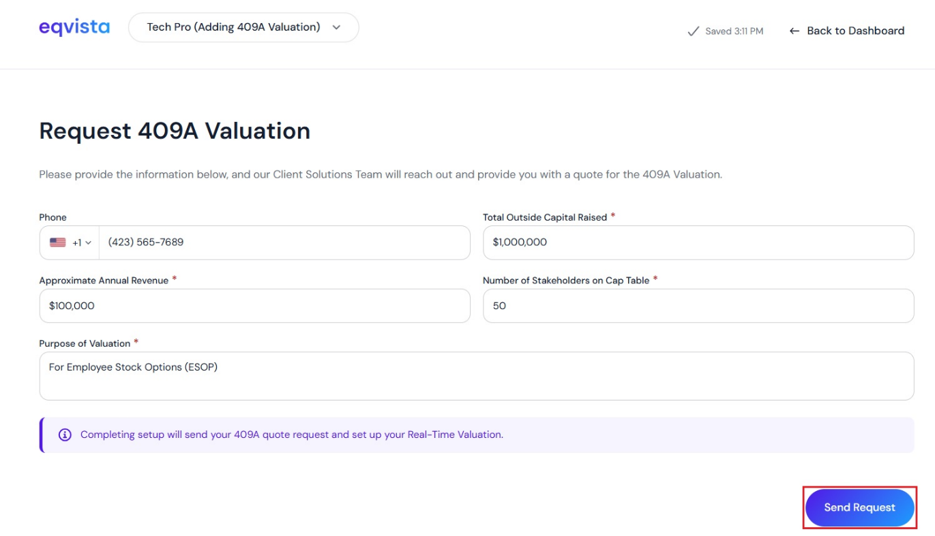
Once done, click on “Send Request”.
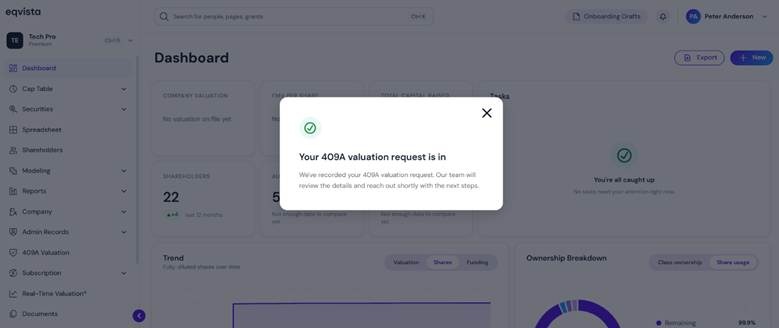
A pop-up panel appears confirming that the request has been successfully submitted.
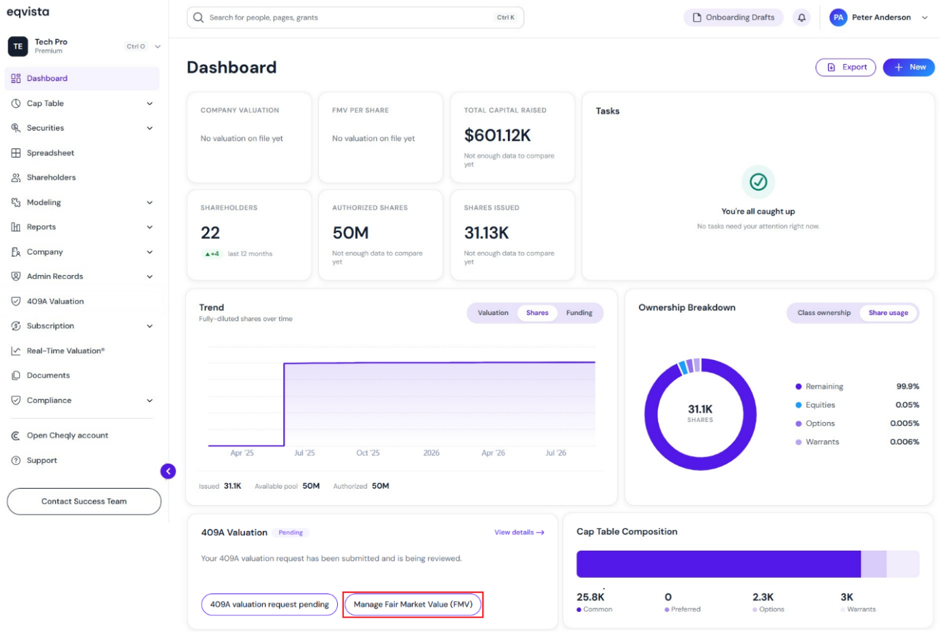
Step 4: The 409A valuation can be viewed by clicking on “409A Valuation” on the left side of the dashboard or by clicking on “Manage Fair Market Value (FMV)”.
Step 5:All the valuation results will be updated here, and a graph will be shown.
Note: By clicking on “Add Fair Market Value“, you can add fair market value. To share and edit the fair market value entered, check out the respective support article.
The “TBD” can only be deleted by clicking on “Actions”.
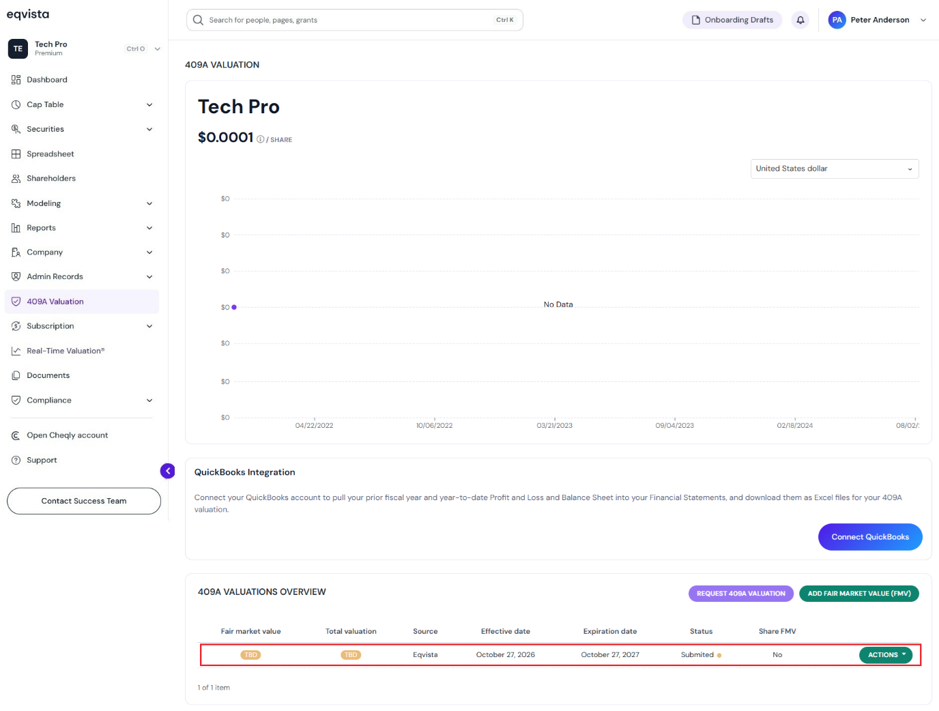
Note: Connect QuickBooks to 409A Valuation by clicking on “Connect QuickBooks” to allow Eqvista to access your financial data. Check out the support article to learn how to connect QuickBooks!
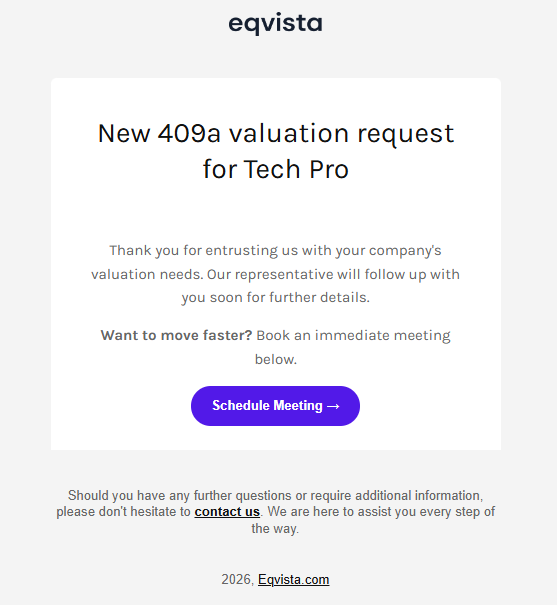
You will receive an email confirming that your request has been successfully submitted along with an option to “Schedule Meeting”.
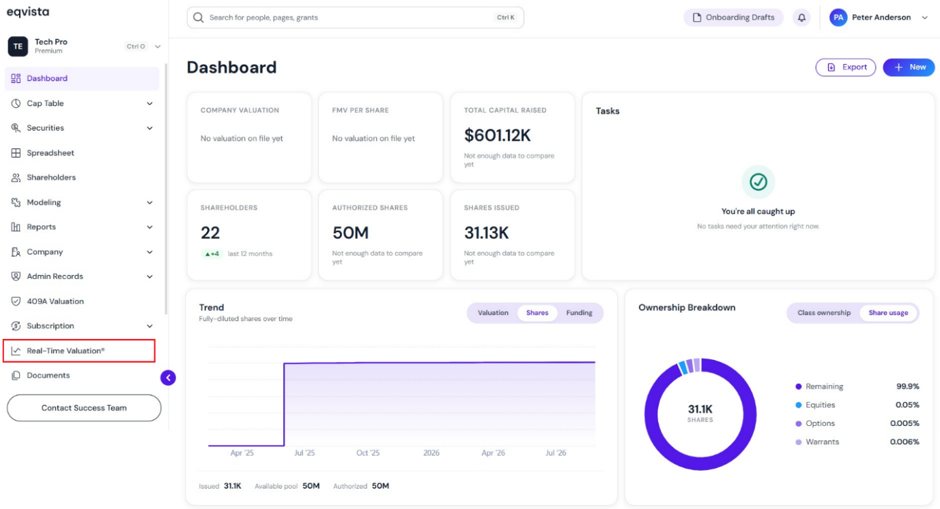
Step 6: The real-time valuation generated can be viewed by clicking on “Real Time Valuation” on the left side of the dashboard.
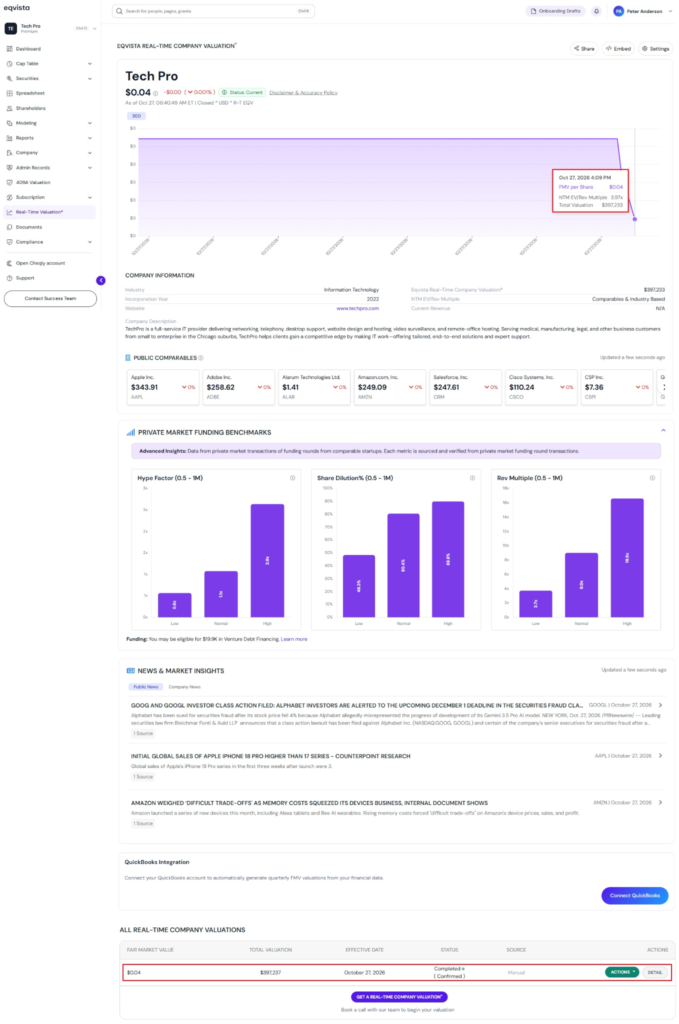
Then, you will be directed to the page displaying the fair market value of real-time valuation and the source as “Manual”.
Note: On this page, you can view the real-time valuation graph and to embed the real-time valuation, click on “Embed”. To share your real-time valuation report, click on “Share”. View company news on real-time valuation by clicking on “Settings”. Connect QuickBooks to import financials and build a real-time valuation automatically. Check out the respective support articles to learn more about it.
For more information on Eqvista, check out our support articles or get in touch with us today!
