How to Sign in Using an Apple Account?
There are several alternative options available for signing in if you have recently created an account with Eqvista.
Sign in to Eqvista Using an Apple Account
Here are the steps to follow:
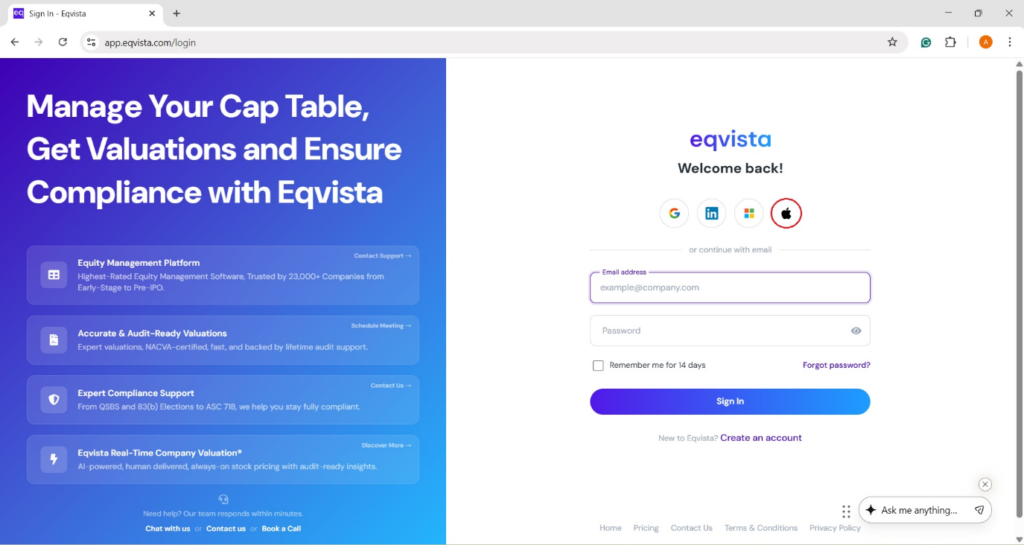
Step 1: Sign in to your Eqvista account with your email address and password, or choose from a variety of alternatives, such as an Apple account. To get started, click on the “Apple” symbol.
Note: You must have already signed up with Eqvista. Check out our support article to sign up
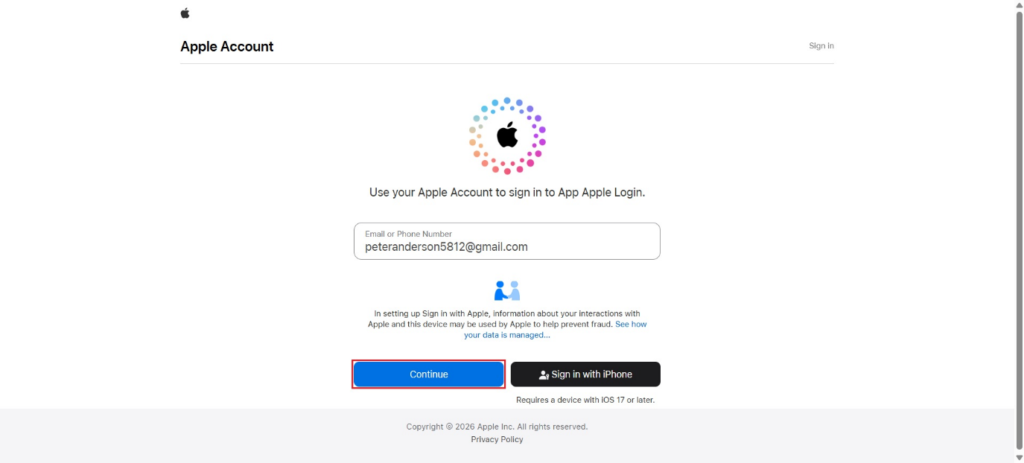
Step 2: Once you do this, you will be directed to the next page where you can enter your email address or phone number. Then, click on “Continue”.
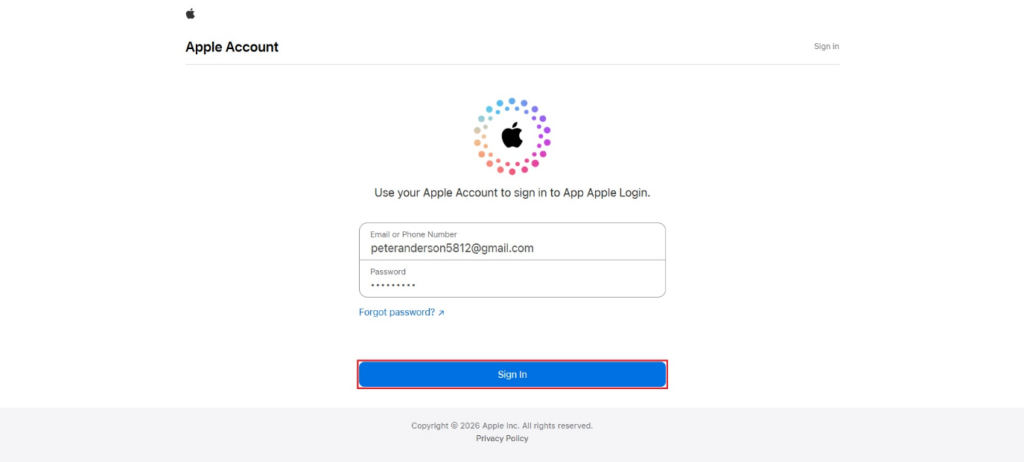
Step 3: After filling in your email address or phone number, enter your password and click on “Sign In”.
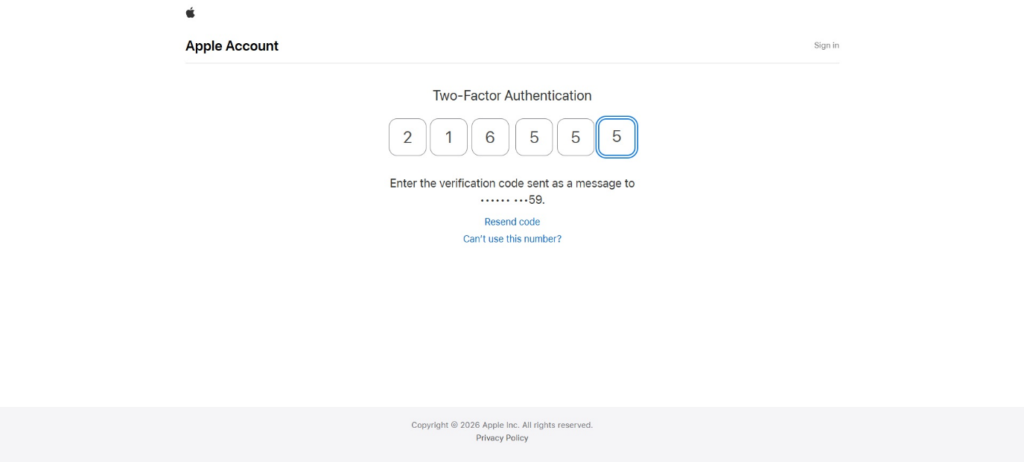
Step 4: With this, you will be directed to two factor authentication and enter the verification code sent as a message to your phone number.
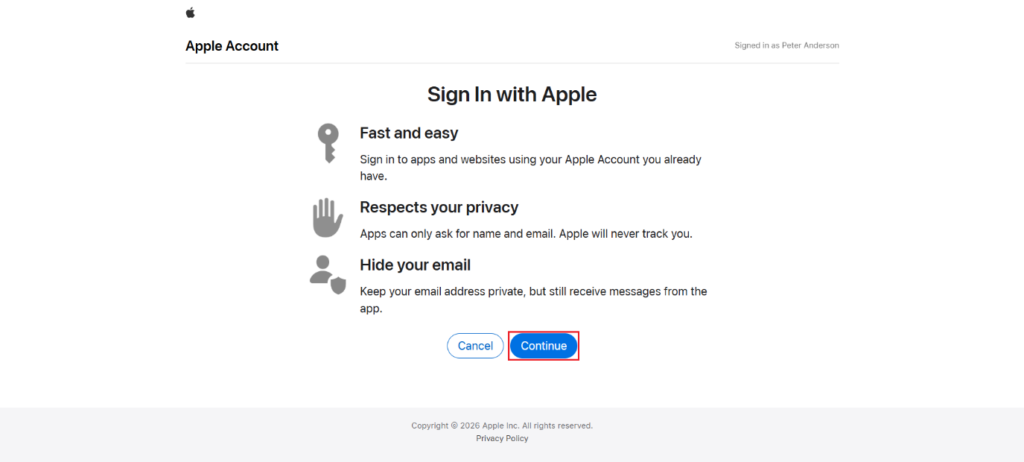
Step 5: Then, you will be taken to a tab where you need to click on “Continue” to sign in using your Apple account.
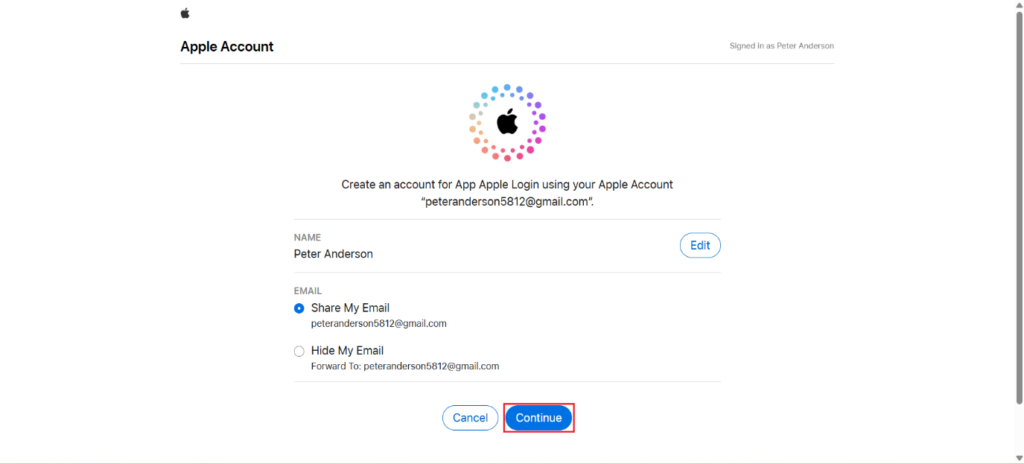
Step 6: Here, you can edit your name and choose one of the options – Share My Email or Hide My Email, and click on “Continue”.
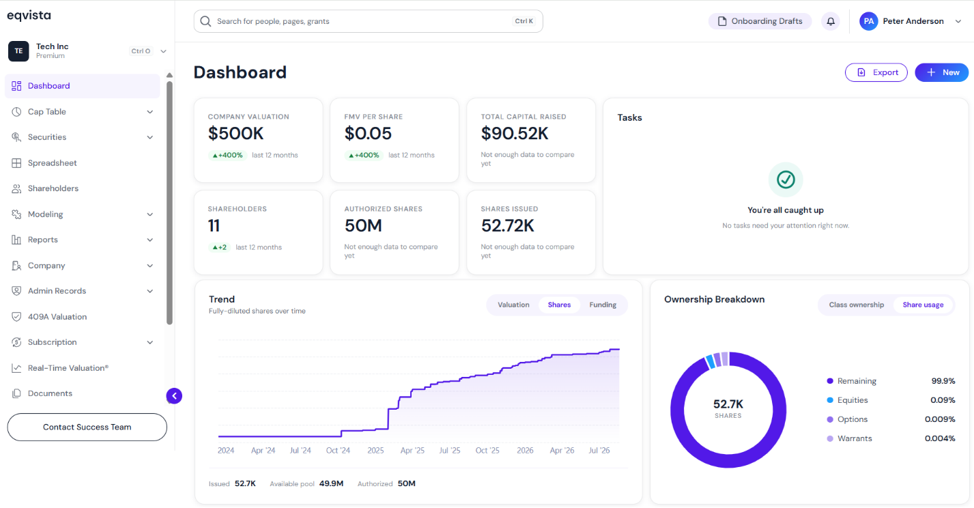
Now, you would have signed in to your Eqvista account successfully.
For more information on Eqvista, check out our support articles or get in touch with us today!