Implementing a Vesting Schedule
Eqvista is easy to use when issuing shares and adding a vesting schedule. Here is how you can easily implement a vesting schedule while issuing shares to your employees.
Implement a vesting schedule while issuing shares to your employees
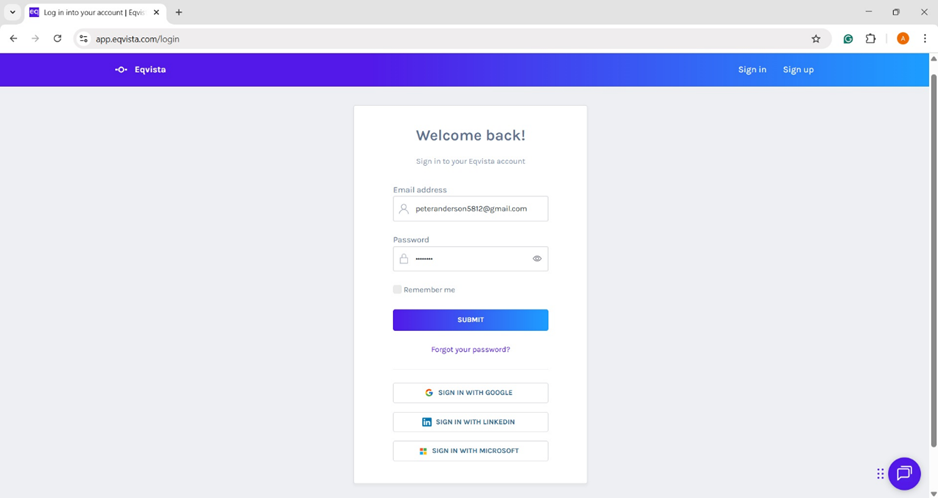
Step 1: First log into your account, select the company account to issue shares, and add a vesting schedule.
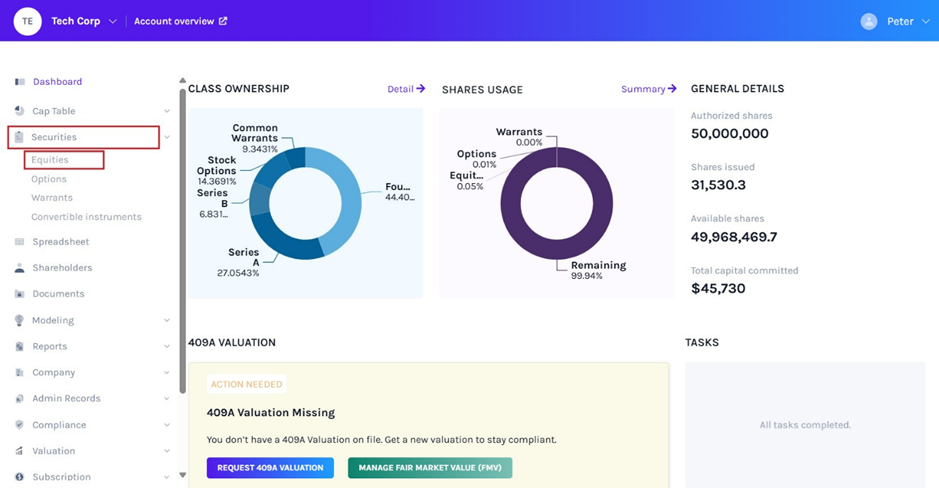
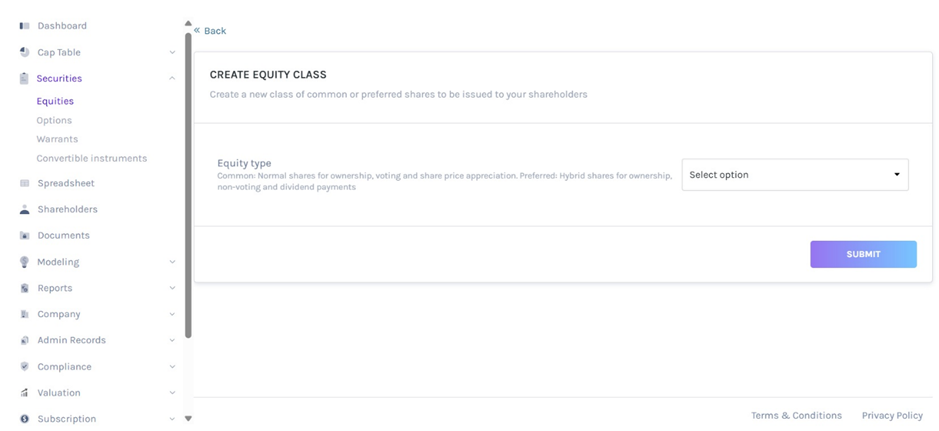
On the dashboard, click on “Securities” and then on “Equities” from the left-side menu to reach the following page. From here, you now need to start the process of issuing shares to the shareholder or employee.
Step 2: From here you will see all the equity classes that you have already created in the company.
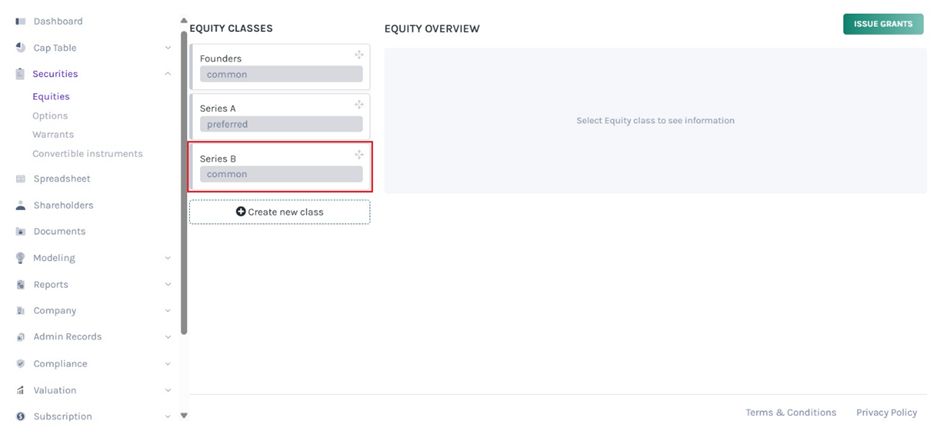
Note: On this page, click on “Create New Class” to create an equity class and if you have created one, you can issue shares and implement a vesting schedule.
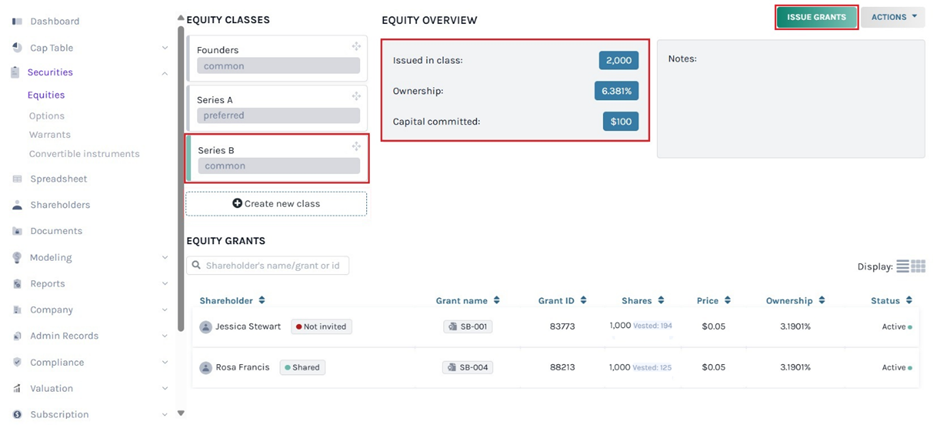
In this case, we already have the equity class created – Series B. We are going to issue options to an employee from Series B. To do this, click on “Series B” from this page.
Step 3: Once you do this, all the issuances from this class and its details will show up as shown below. From here, select the equity class and click on “Issue Grants” from the top right-hand side of the page.
Step 4: You will be redirected to the next page to select the equity class again from the list available.
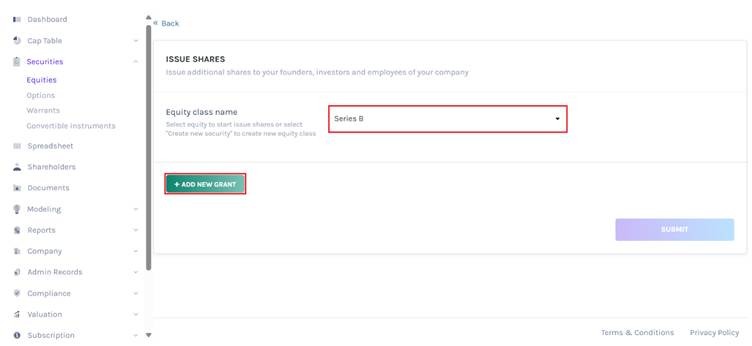
Once you select the equity class, a button will appear that says “Add New Grant” and click on this.
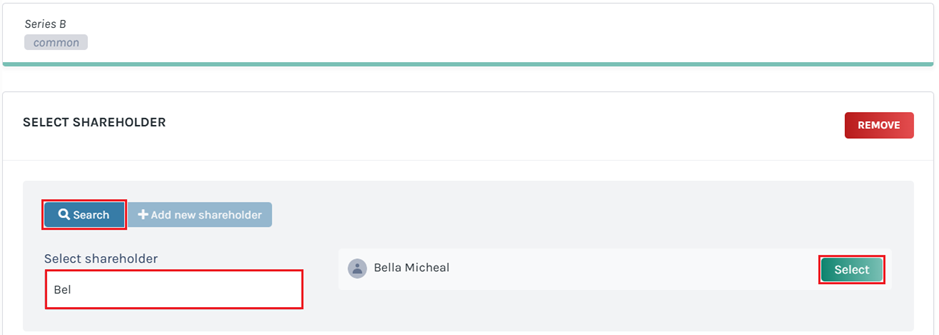
Step 5: Once done, you will reach the following page where you need to look for the shareholder’s profile.
Here, you have the option to search for a shareholder or to add a shareholder from here directly.
Note: You need to have the shareholder profile already created. Check out the support article to add a shareholder. If you do not have it created, you can choose the option “Add New Shareholder” here too.
In this case, we already have the shareholder profile and are using that. Type in the name of the shareholder in the search field and the name will appear on the right side with a “Select” button. Click on this.
Step 6: When you do this, a new panel will appear where you can now add the details of the issuance.
Add in the details and when you reach the last option – where you need to select if you need a vesting schedule or not, click on “Yes”.
Note: You can add a vesting schedule while issuing shares, options, and warrants. Check out the respective support articles to learn about this.
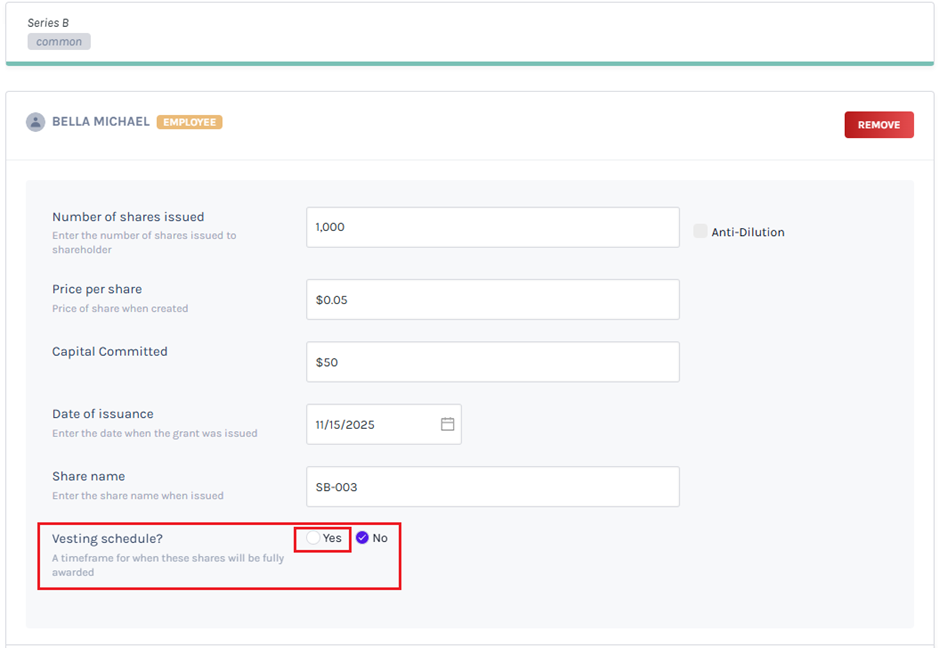
Step 7: When you do this, one more option will appear where you need to select the vesting schedule you have already created to add it to this issuance process.
Note: You can create your vesting plan or choose from six default plans. To know more about vesting plans, check out the support article here!
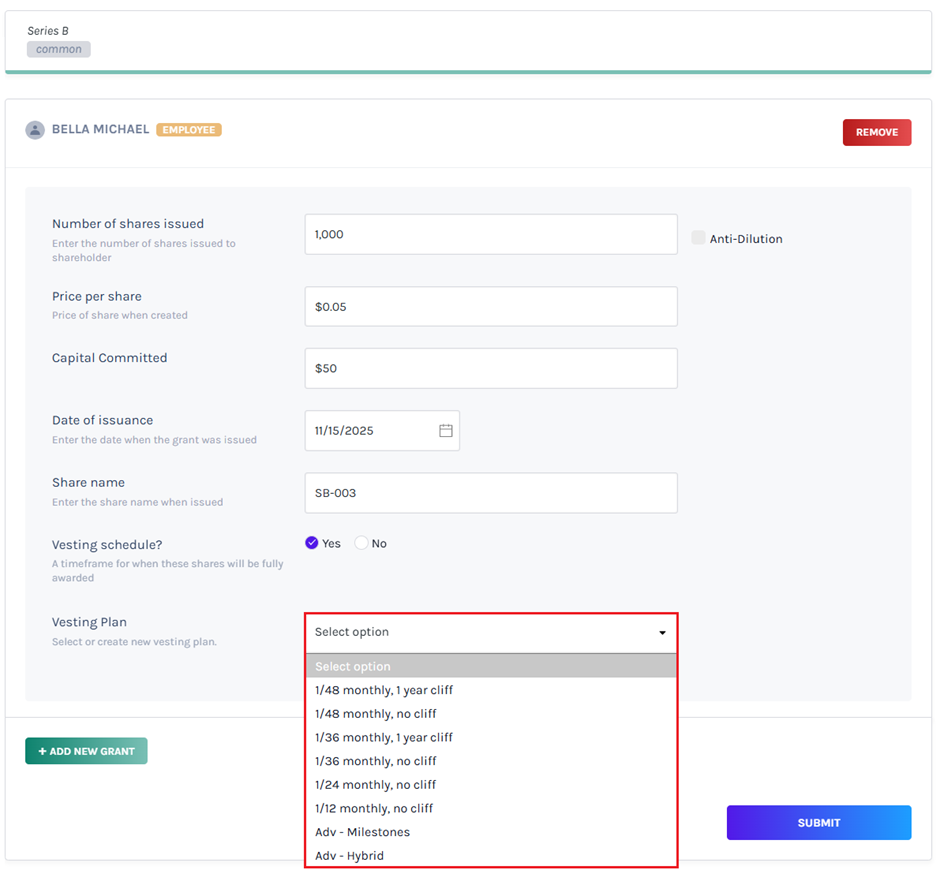
Step 8: With this, two more options would show up.
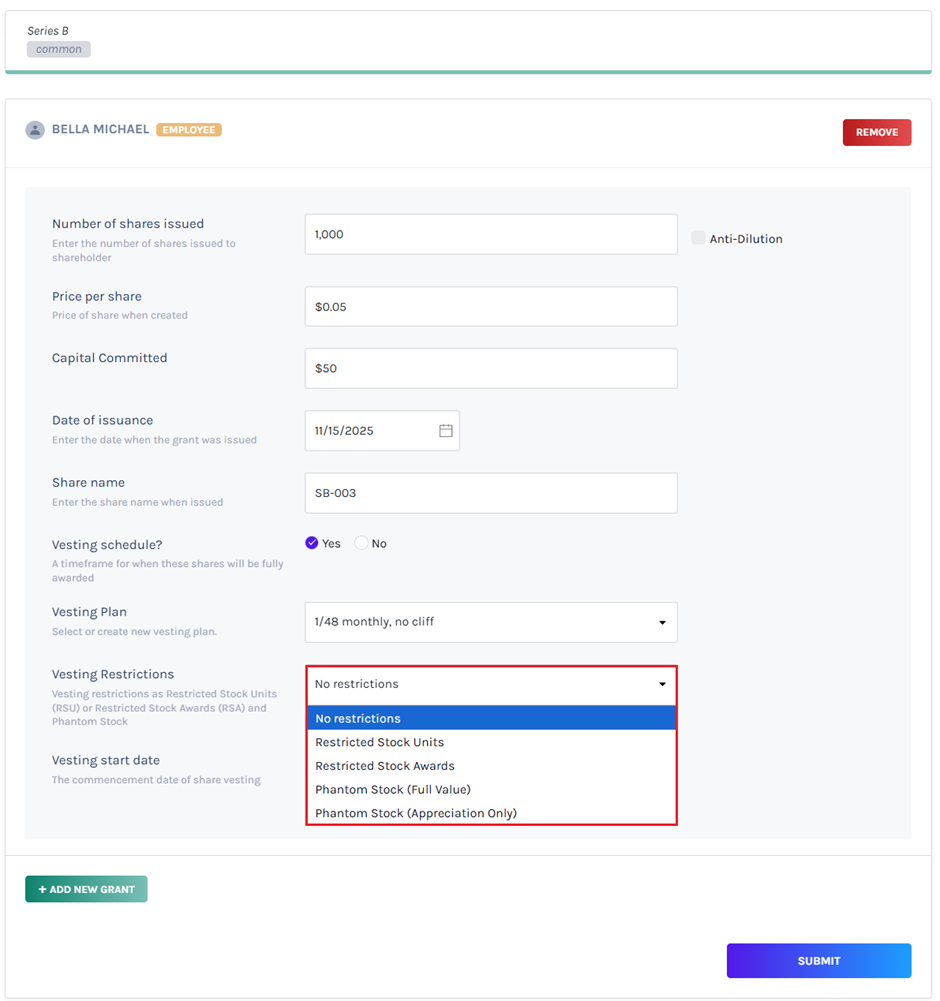
One is the vesting restriction and the second is the vesting start date. Choose the vesting restriction that you want from the list available and then add the start date as shown below.
Note: If you have issued equities, you need to choose Restrictions – No restrictions, Restricted Stock Units, Restricted Stock Awards, and Phantom Stock. In case of options, you can enable Early Exercise option. Check out the respective support articles to learn about this.
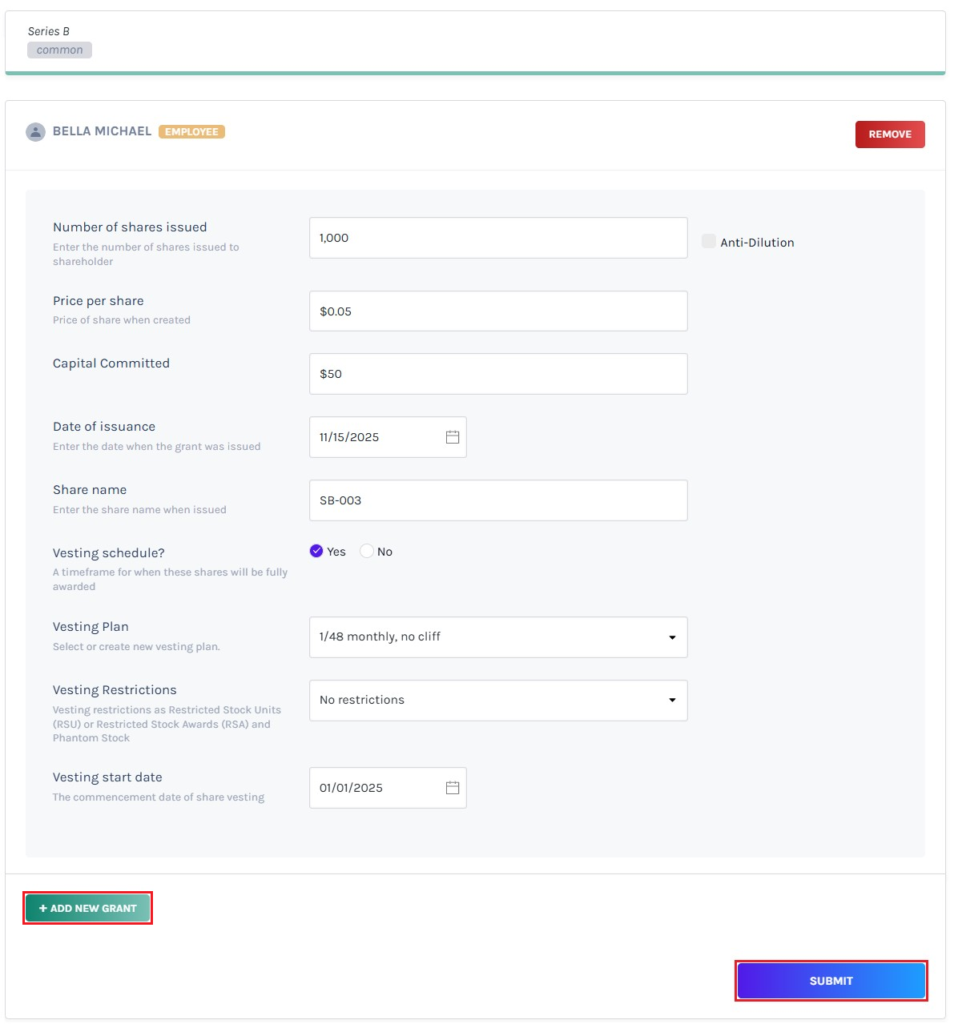
Note: You can add another grant by clicking on “Add new grant”. This is if you want to issue shares from the same equity class to more than one shareholder. All you need to do is click on “Add new grant” and then select the shareholder profile or add a new shareholder and fill in the details.
When done, click on “Submit”.
Step 9: You will then be redirected to the equity class page where you can see that the shares were issued and the vesting schedule has been implemented.
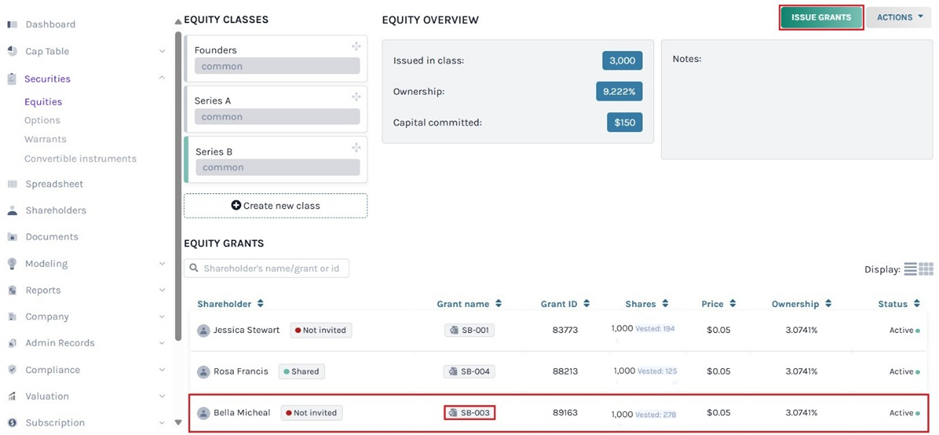
Note: Suppose you want to issue another equity from the class you issued. Then, click on “Issue grants”. Just ensure that you have selected the equity class from which you want to issue equities.
To see how the vesting schedule has been implemented, click on the certificate name, which is “SB-003” here.
Step 10: This will take you to the page where you can see the details of the issuance. This would also include the vesting schedule that was added. You can easily see how many shares are vested as per the plan.
Note: You can add document to the grant by clicking on “Add Document”. Check out the support article to know more about adding documents to grants.
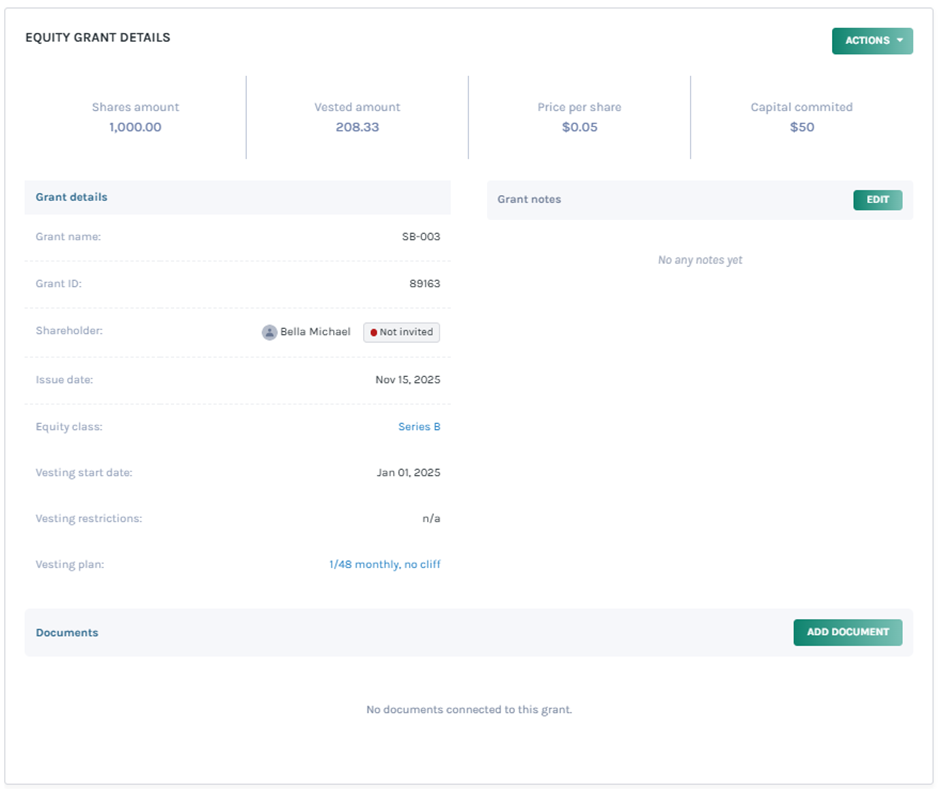
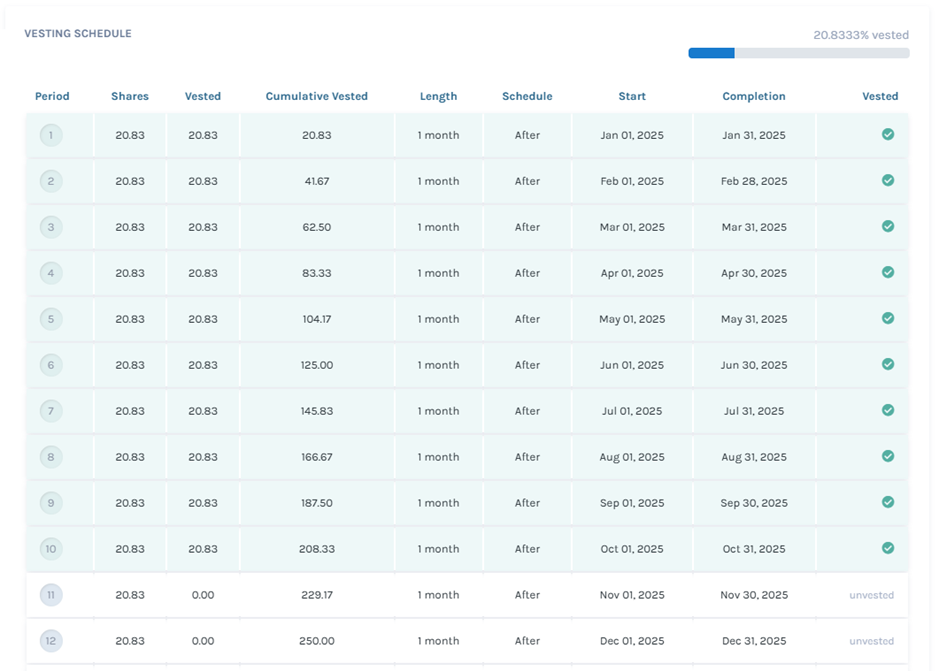
From the above, you can see that the shares have been issued with the vesting schedule implemented as well. You can follow the same steps for any other employees/shareholders for whom you want to add a vesting schedule while issuing shares to them.
If you have any doubts or want to know more, check out the other support articles here or contact us!