How to View the Profits Interests Ledger and Export It?
Profits Interests are a form of equity compensation issued by LLCs and partnerships. They grant recipients the right to share in the company’s future profits and appreciation, but not its current value.
Profits Interests Ledger
Once you have enabled the profits interests equity by creating a new LLC company or changing the type in company profile settings, you can view the dedicated “Profits Interests” section to record profit interest units, contractual percentage units, and export the ledger.
Open Profit Interests
Step 1: Log into Eqvista and select your company account.
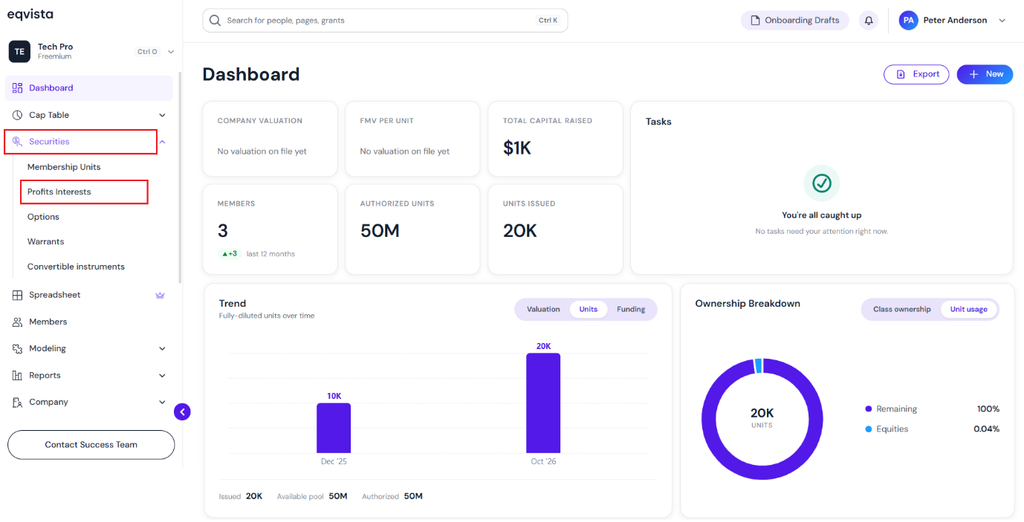
On the dashboard, click on “Securities” on the left side to get a drop-down menu and select “Profits Interests”.
Profits Interests Ledger
Step 2: Then, you will be redirected to the dedicated ledger for profits interests. On this page, you will find data to manage your transactions from the ledger.
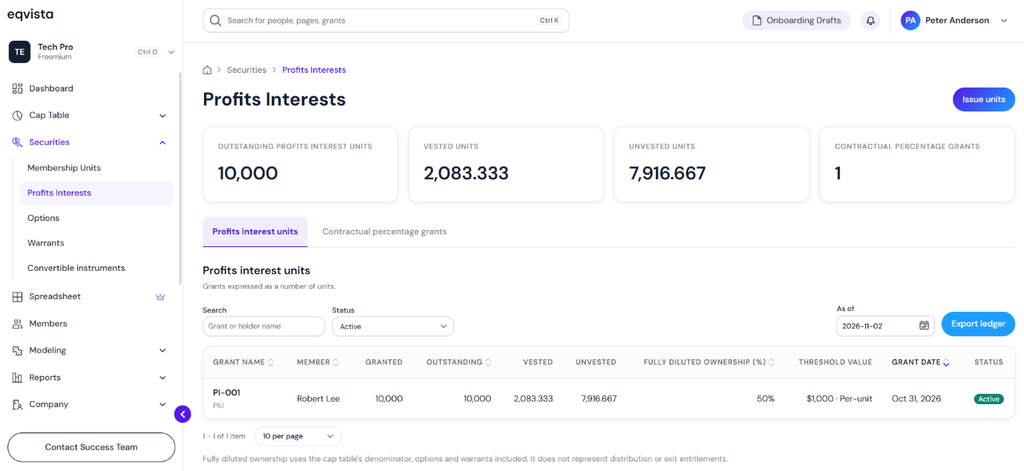
A detailed feature-by-feature analysis of the profits interest ledger will help you understand it better.
Panel 1
At the top left of the page, it displays the company’s outstanding profits interest units.

Panel 2
Moving to the next section of the ledger, it provides the number of vested units. It is the proportion of vested units out of the total profits interest units granted with a vesting schedule.

Panel 3
The next section displays the number of unvested units. It is the proportion of unvested units out of the total profits interest units granted with a vesting schedule.

Panel 4
In the top right of the page, it displays the number of contractual percentage grants issued by the company.

Profits Interest Units
In the top right of the page, you can issue profits interest units by clicking on “Issue Units”.
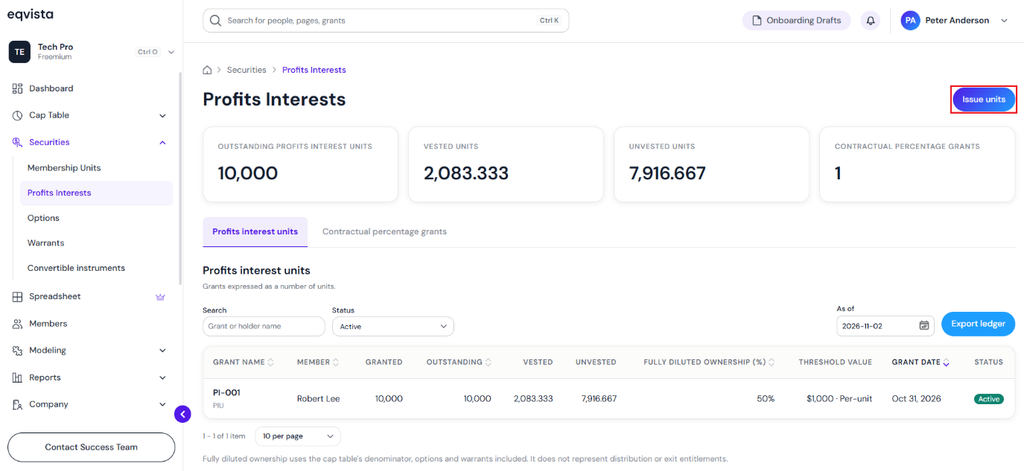
Once the profits interest units are issued, it displays the record of the units issued on the ledger. It also provides options to search by grant or holder name and filter by status.
Note: The company has issued profits interests, so it remains an LLC. The company type cannot be changed in the company profile settings.
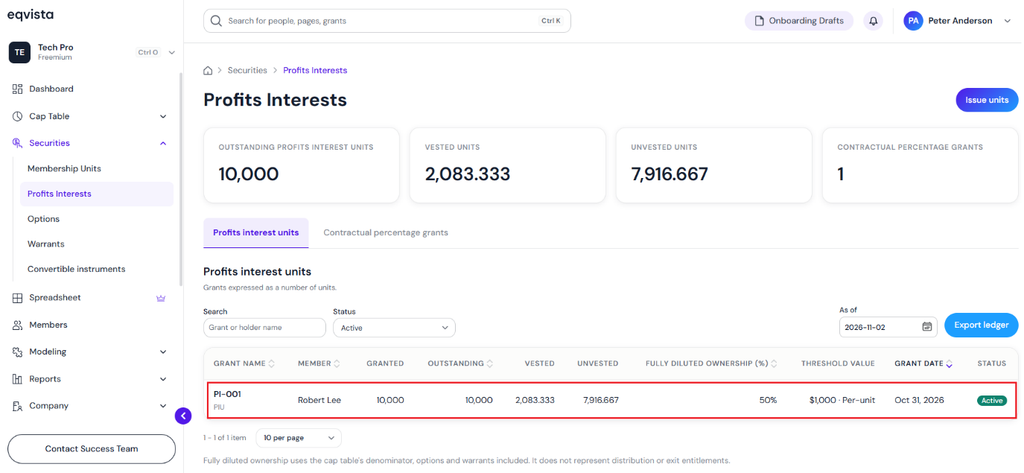
Then, click the grant name to view the unit details. In this case, click the grant name “PI-001”.
Note: You can add a document to the grant by clicking on “Add Document”. Check out the support article to know more about adding documents to grants.
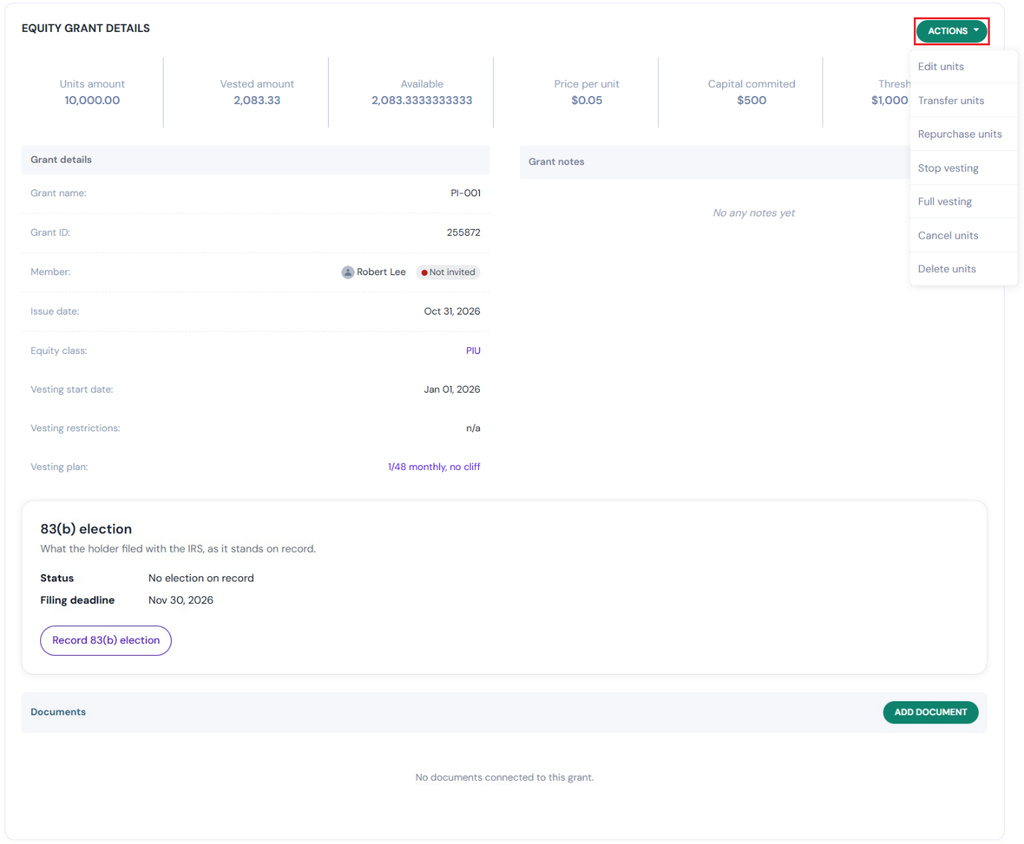
On the top right-hand side of the page, you will see an option, “Actions”. When you click on it, you will get a drop-down menu where you have various options to choose from, such as:
- Edit Units: This allows you to edit grant details such as number of units, grant name, issue date, threshold value, currency, basis, apply vesting schedule if not, and add vesting details.
- Transfer Units: This option allows you to transfer the units to another member. This action comes under a secondary transaction that takes place in the company.
- Repurchase Units: It allows the company to repurchase the units from the member. Once this is done, the company would now own the units. This action comes under a secondary transaction that takes place in the company.
- Stop Vesting: This allows you to stop the vesting process of the units issued to the members.
- Full Vesting: There is an option for full vesting or accelerating vesting of units issued to members.
- Cancel Units: As the name suggests, this is to cancel the units issued. This action comes under a secondary transaction that takes place in the company.
- Delete Units: This option is used if you made a mistake in the grant, like issuing it to the wrong member. It would delete the whole transaction.
Record 83(B) Election
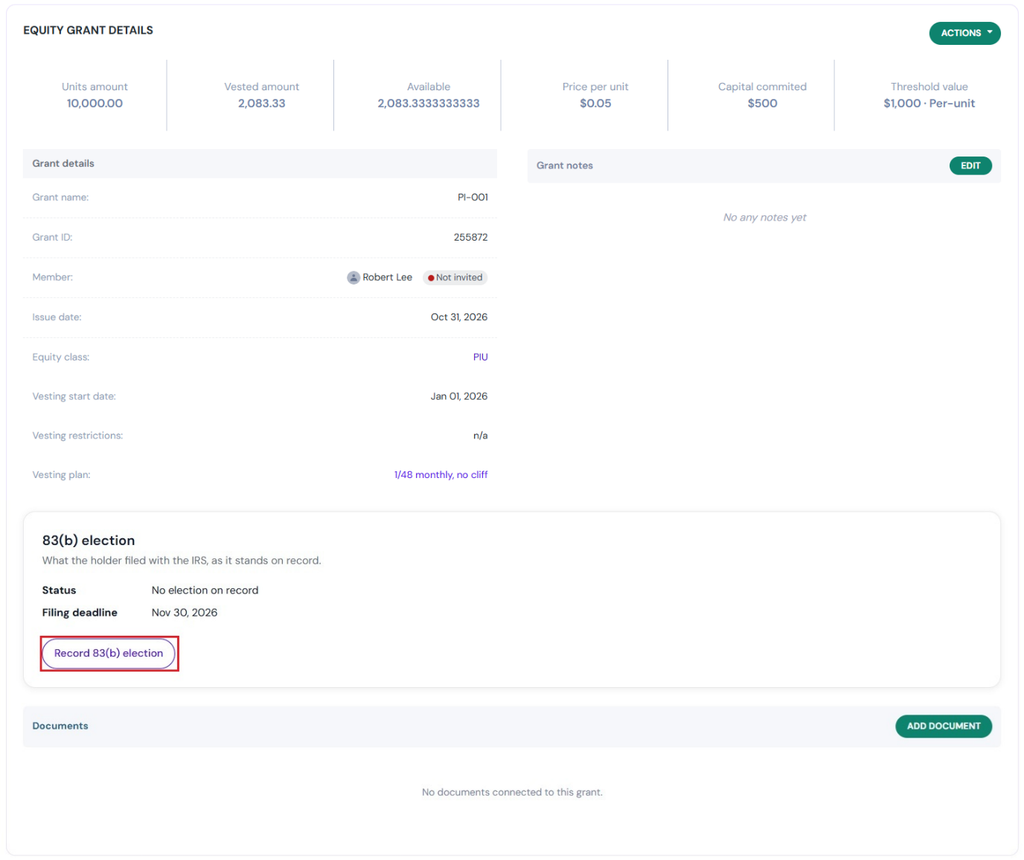
On the equity grant details page, you can record the 83(B) election by clicking on “Record 83(B) Election”.
A pop-up panel appears to select the status “Filed” and fill in the filing date using the calendar. Upload the file copy for reference by clicking on “Browse Files”.
Note: This records the 83(B) election. It does not file the 83(B) election.
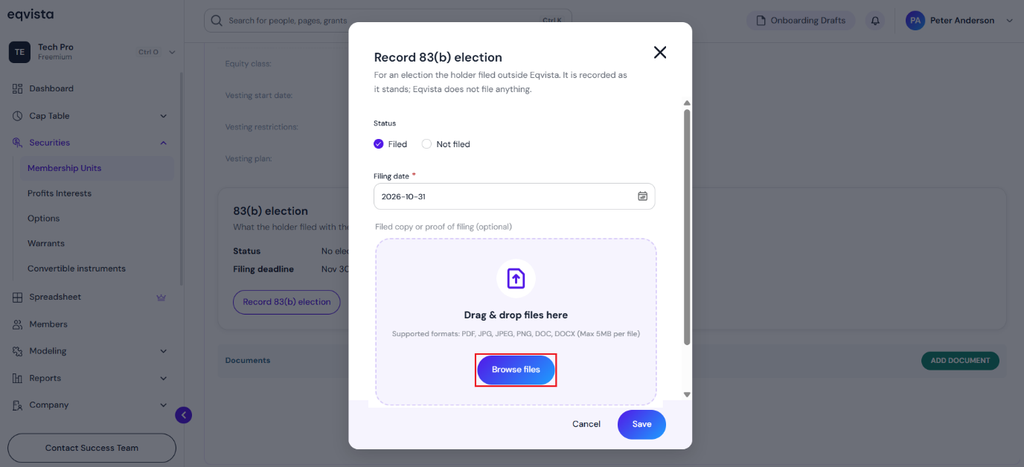
Choose the file that you want to add and click on “Open”.
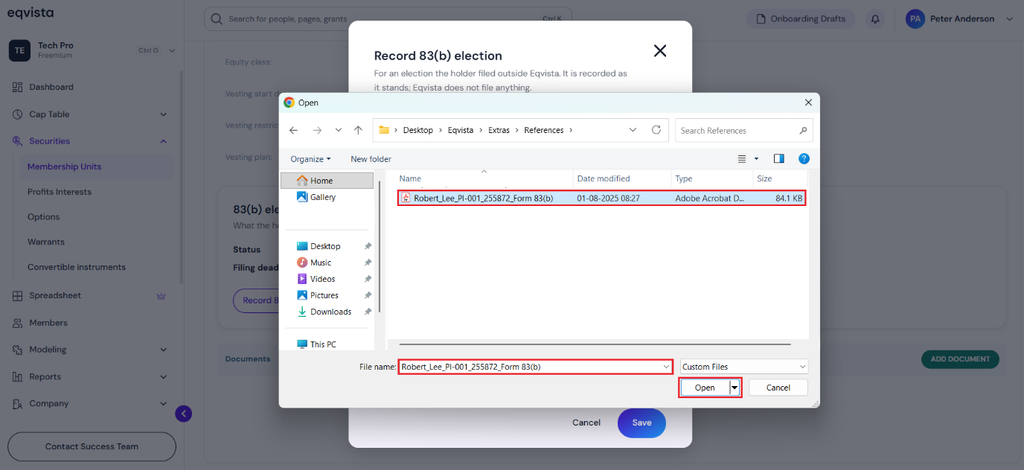
When you click on “Open”, the file will be uploaded as shown below.
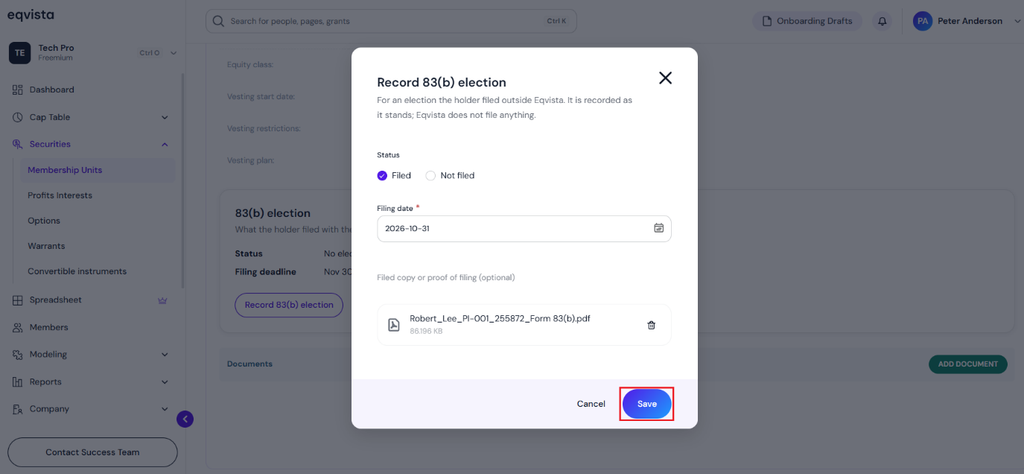
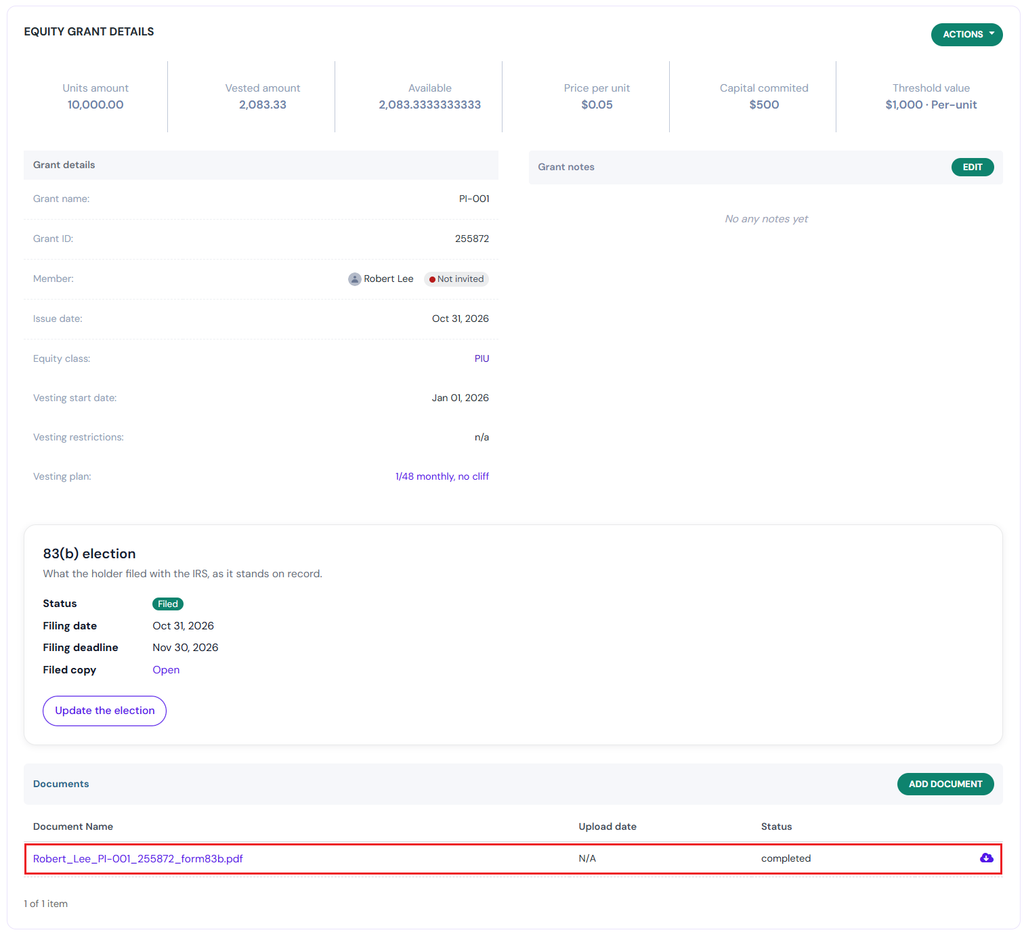
Once done, click on “Save”. The status, filing date, and file copy attached will appear in the 83(b) election section along with the option to “Update the Election”. The document section displays the file attached.
Contractual Percentage Grants
In the top right of the page, you can issue contractual percentage grants by clicking on “Issue Interest”.
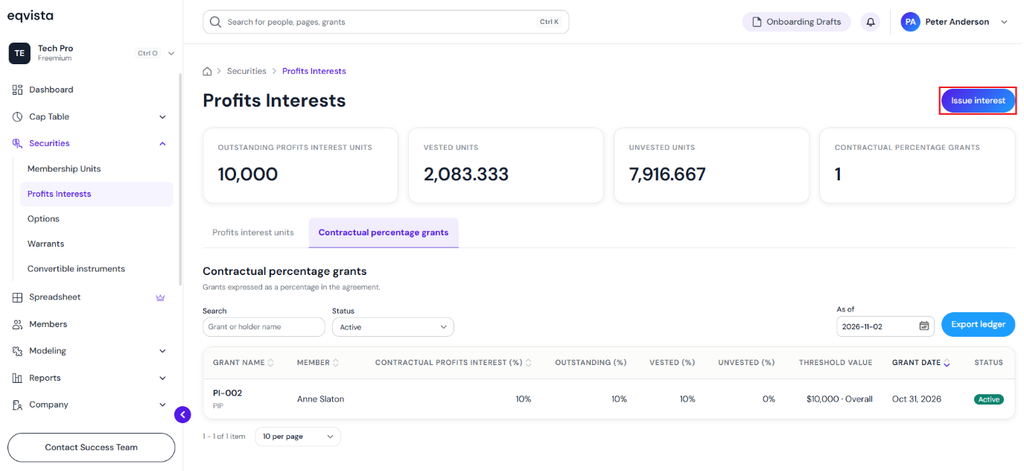
Once the contractual percentage grants are issued, it displays the record of the issuance on the ledger. It also provides options to search by grant or holder name and filter by status.
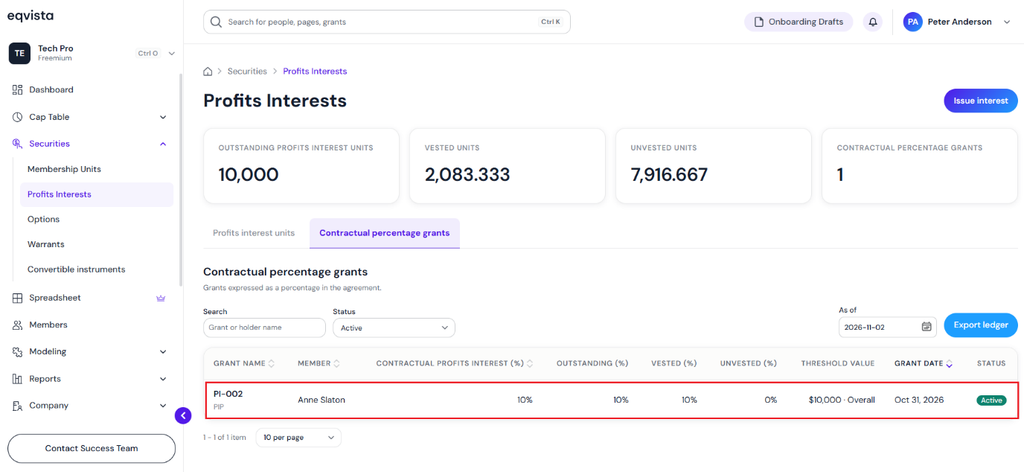
Then, click the grant name to view the grant details. In this case, click the grant name “PI-002”.
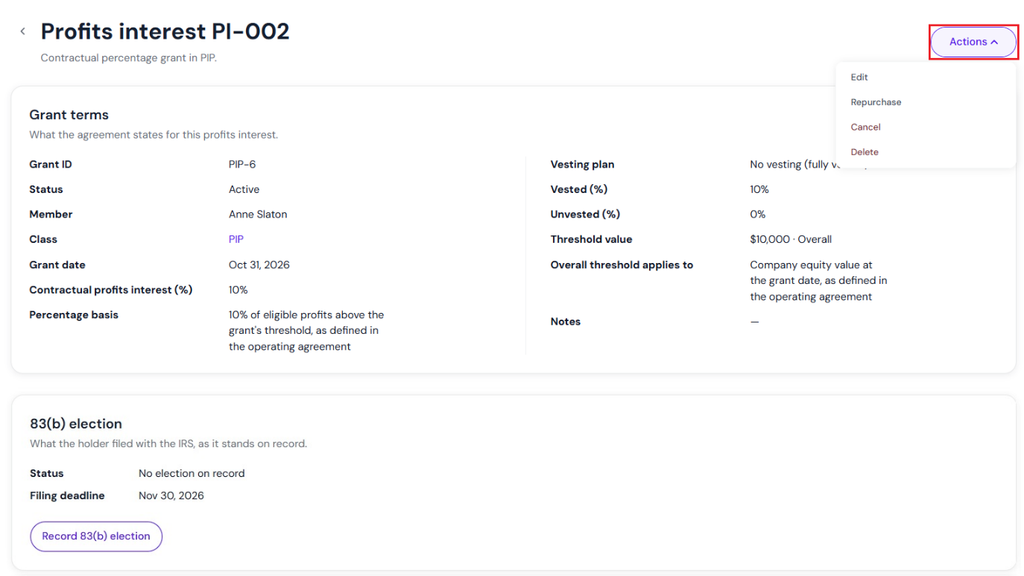
On the top right-hand side of the page, you will see an option, “Actions”. When you click on it, you will get a drop-down menu where you have various options to choose from, such as:
- Edit: This allows you to edit grant details such as grant name, grant date, contractual profits interest (%), percentage basis, threshold value, currency, overall threshold applies to, and apply vesting schedule if not.
- Repurchase: It allows the company to repurchase the grant from the member. Once this is done, the company would now own the percentage. This action comes under a secondary transaction that takes place in the company.
- Cancel: As the name suggests, this is to cancel the grant issued. This action comes under a secondary transaction that takes place in the company.
- Delete: This option is used if you made a mistake in the grant, like issuing it to the wrong member. It would delete the whole transaction.
Record 83(B) Election
On the grant terms page, you can record the 83(B) election by clicking on “Record 83(B) Election”.
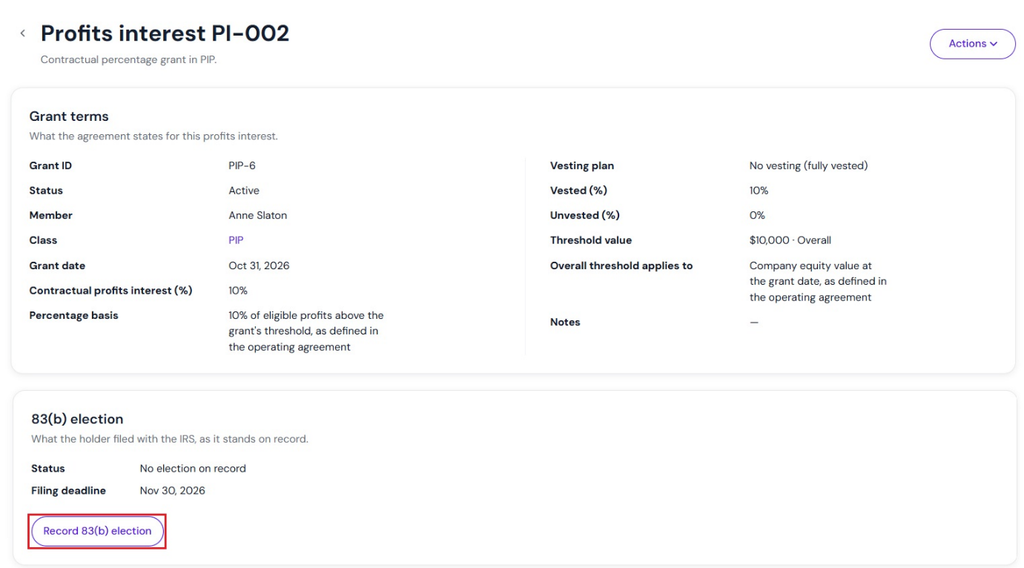
A pop-up panel appears to select the status “Filed” and fill in the filing date using the calendar. Upload the file copy for reference by clicking on “Browse Files”.
Note: This records the 83(B) election. It does not file the 83(B) election.
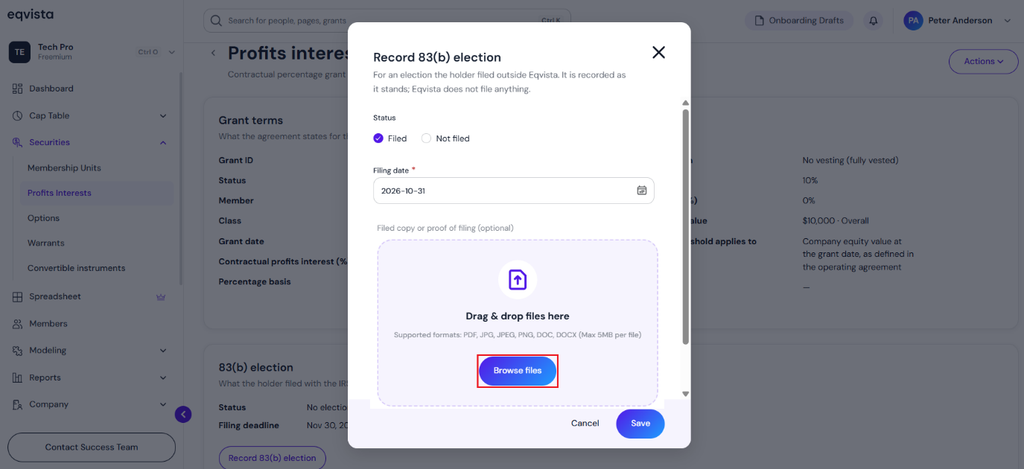
Choose the file that you want to add and click on “Open”.
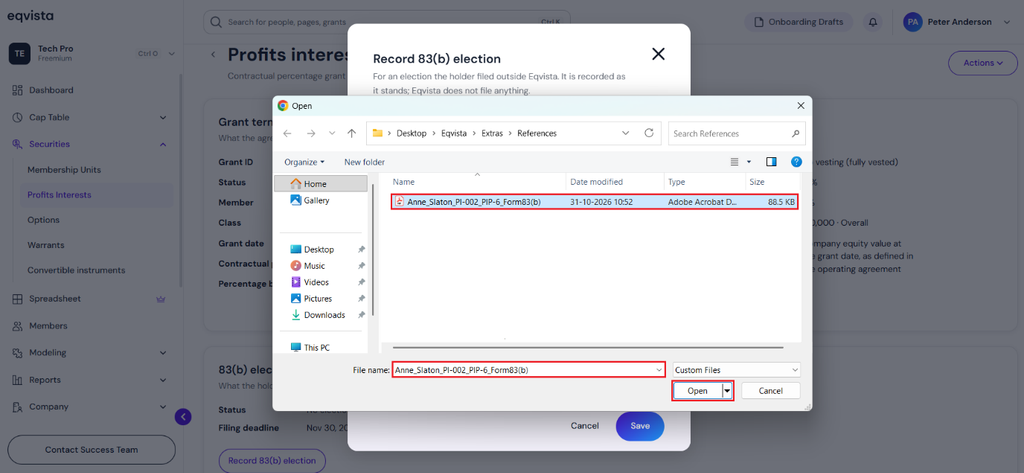
When you click on “Open”, the file will be uploaded as shown below.
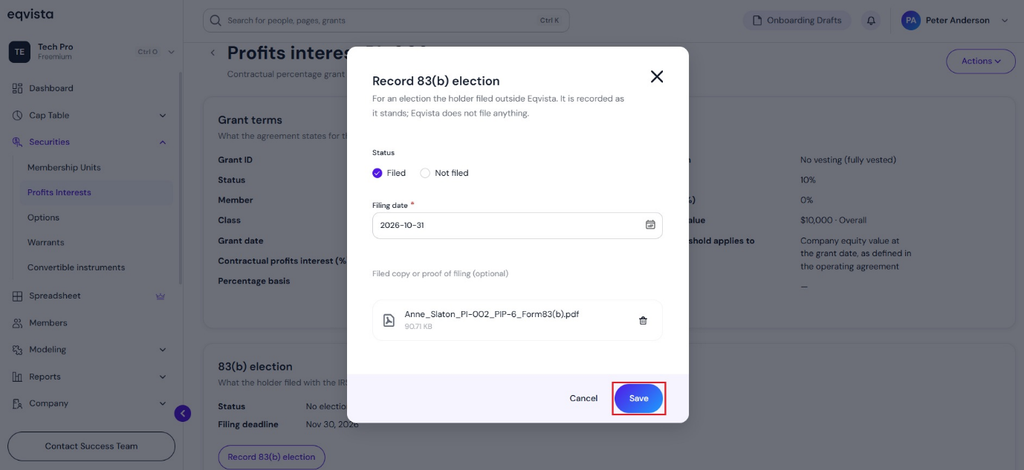
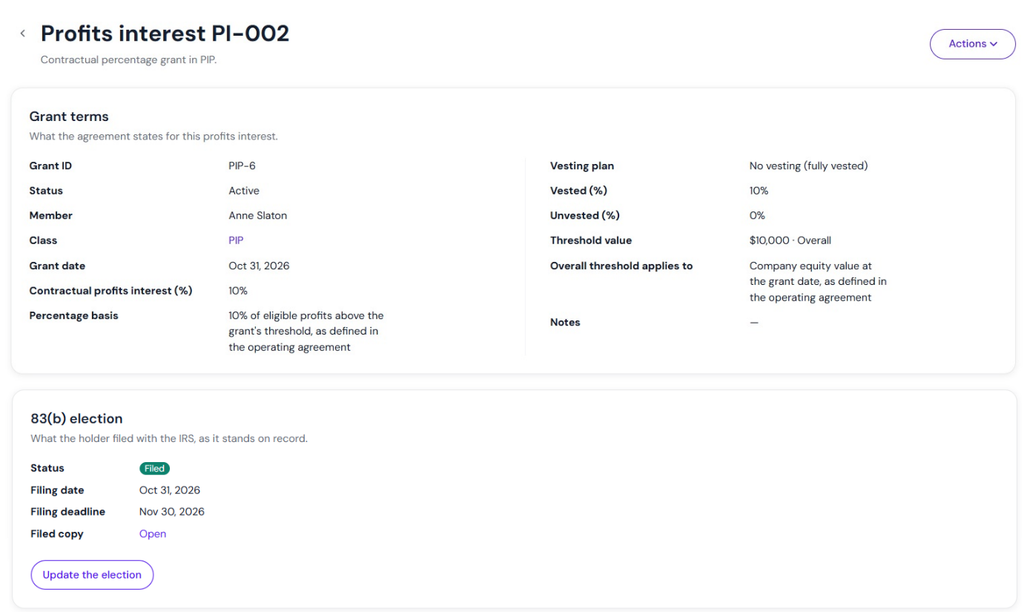
Once done, click on “Save”. The status, filing date, and file copy attached will appear in the 83(b) election section along with the option to “Update the Election”. The document section displays the file attached.
Export Ledger
Export profits interest ledger by selecting the date that is by default set to the current date, and click on “Export Ledger”.
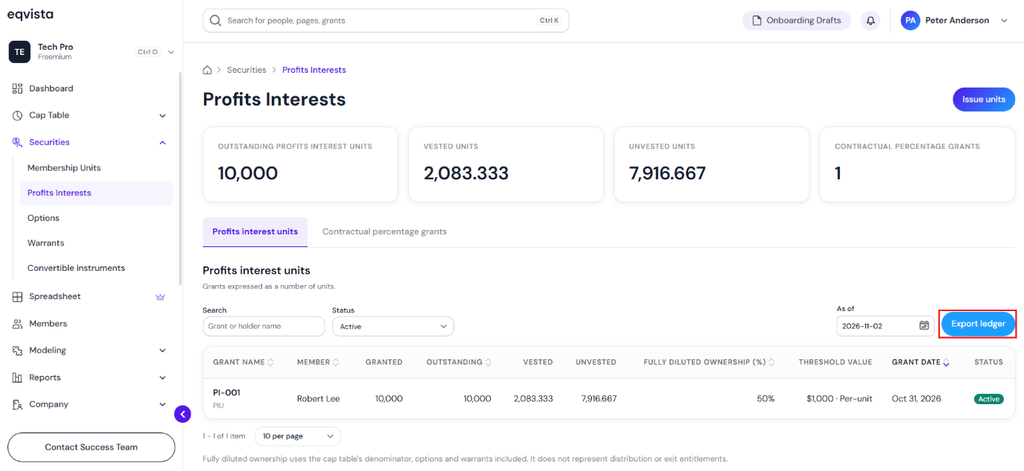
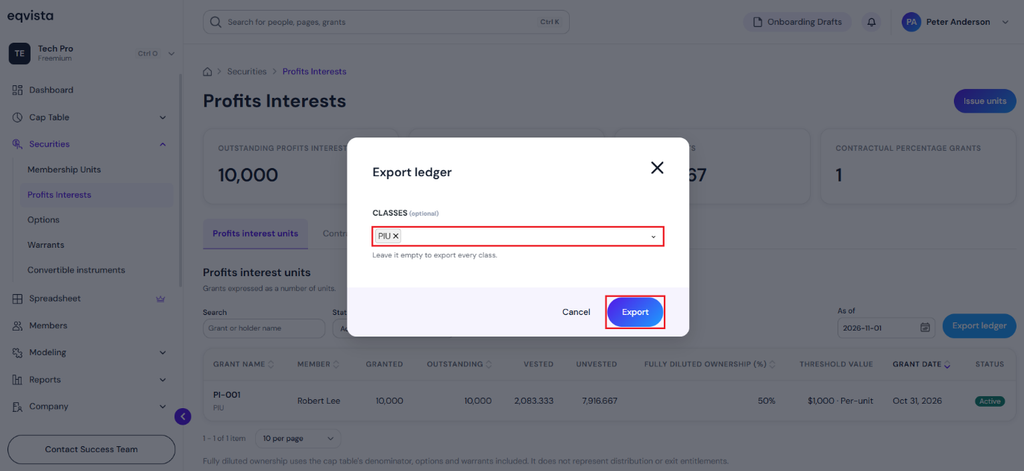
Once you click, a pop-up panel appears to select the profits interest class and generate a report containing only the related securities.
One Profits Interest Class
All Profits Interest Classes
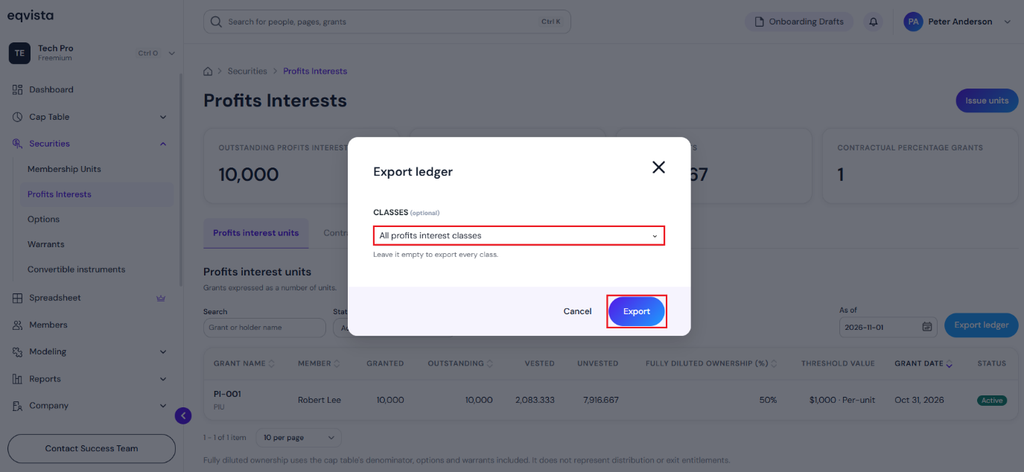
After selecting the option, click on “Export”.
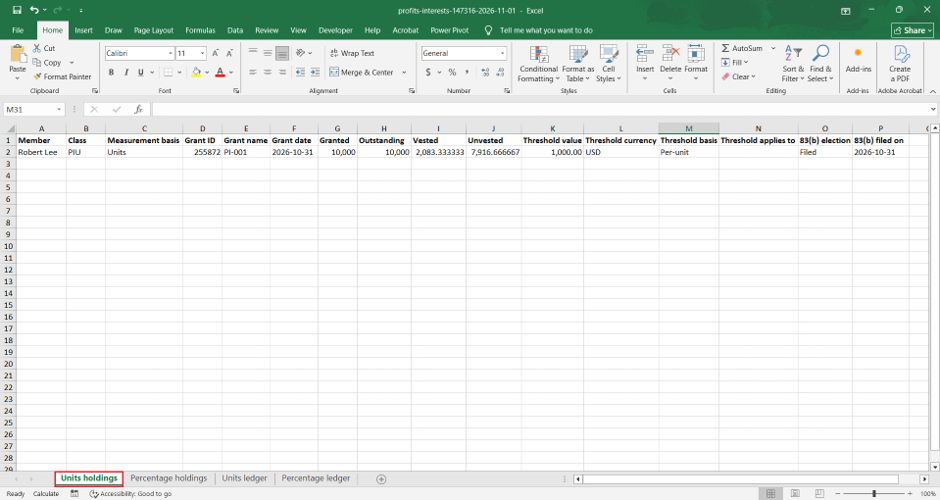
The report gets downloaded as an Excel sheet in your Downloads. Double-click the Excel sheet to open the downloaded report. The exported ledger report has four sheets – Units Holdings, Percentage Holdings, Units Ledger, and Percentage Ledger.
Units Holdings
The first sheet of the report explains units holdings and provides details such as member, class, measurement basis, grant ID, grant name, grant date, granted, outstanding, vested, unvested, threshold value, threshold currency, threshold basis, threshold applies to, 83(B) election, and 83(B) election filed on.
Percentage Holdings
The next sheet shows all percentage holdings of the company. To view this, click on the “Percentage Holdings” tab at the bottom of the sheet.
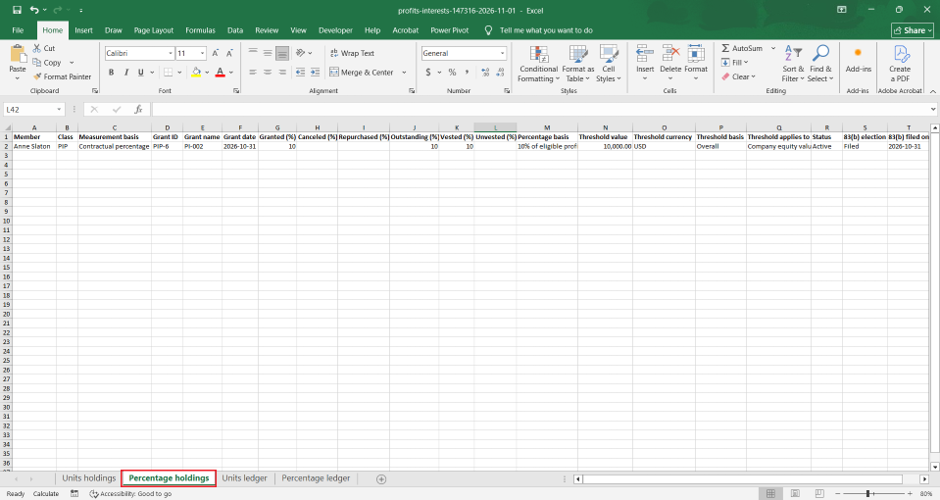
It provides details such as member, class, measurement basis, grant ID, grant name, grant date, granted (%), canceled (%), repurchased (%), outstanding (%), vested (%), unvested (%), percentage basis, threshold value, threshold currency, threshold basis, threshold applies to, status, 83(B) election, and 83(B) election filed on.
Units Ledger
The next sheet presents the units ledger of the company. To view this, click on the “Units Ledger” tab at the bottom of the sheet.
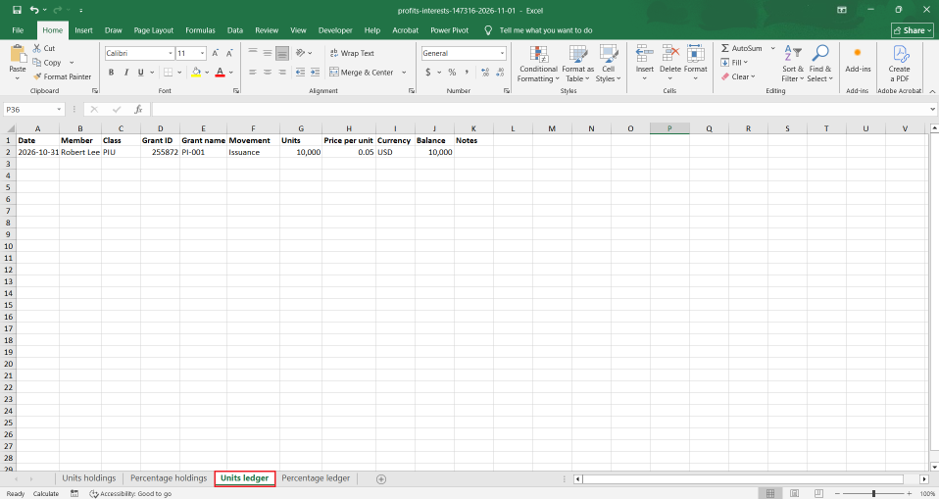
It provides details such as date, member, class, grant ID, grant name, grant date, movement, units, price per unit, currency, balance, and notes.
Percentage Ledger
The next sheet presents the percentage ledger of the company. To view this, click on the “Percentage Ledger” tab at the bottom of the sheet.
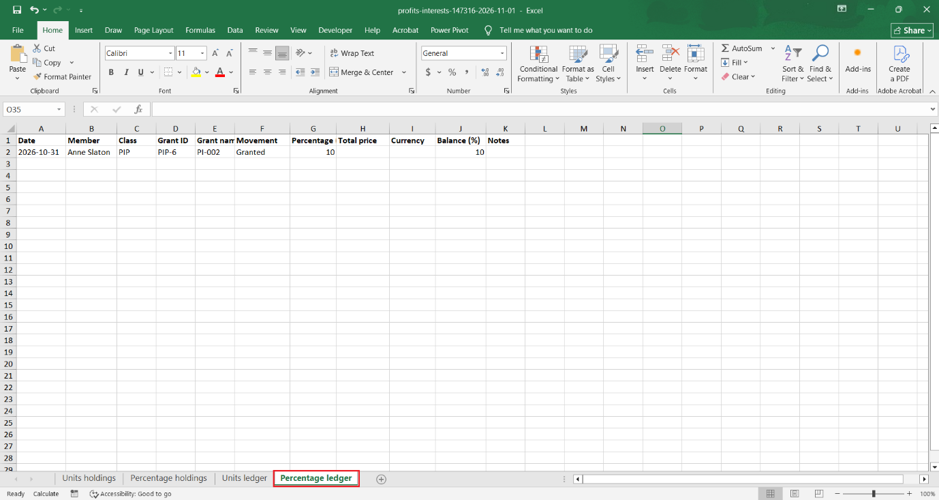
It provides details such as date, member, class, grant ID, grant name, grant date, movement, percentage, total price, currency, balance, and notes.
For more information on Eqvista, check out our support articles or get in touch with us today!
