Sharing Folders With Shareholder Type
Sharing folders with different shareholder types ensures that relevant information is easily accessible to shareholders, streamlining communication and collaboration.
How to Share Folders With Different Shareholder Types?
Eqvista offers an option to share folders with different shareholder types in just a few clicks.
Open Documents
Here are the steps to follow:
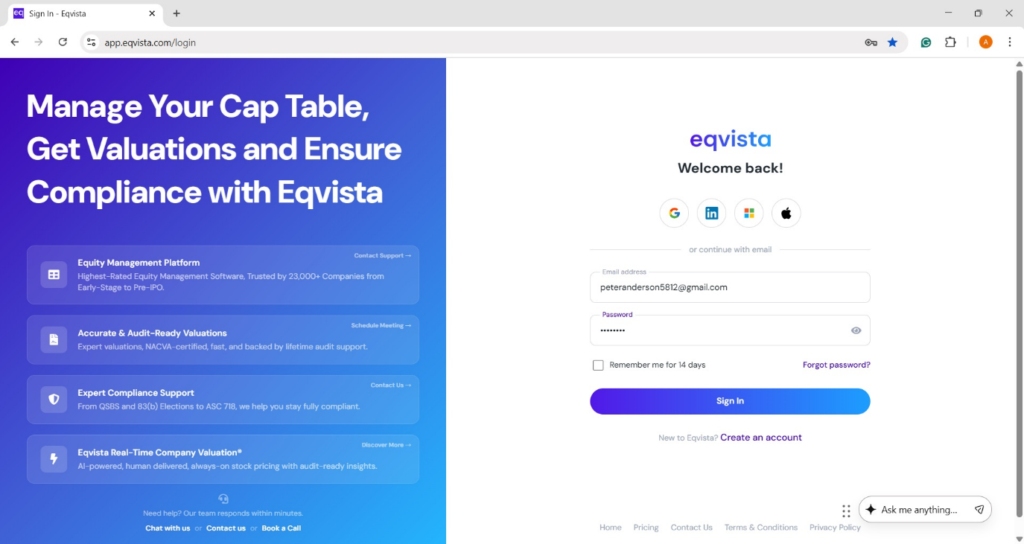
Step 1: Log into Eqvista and select your company account.
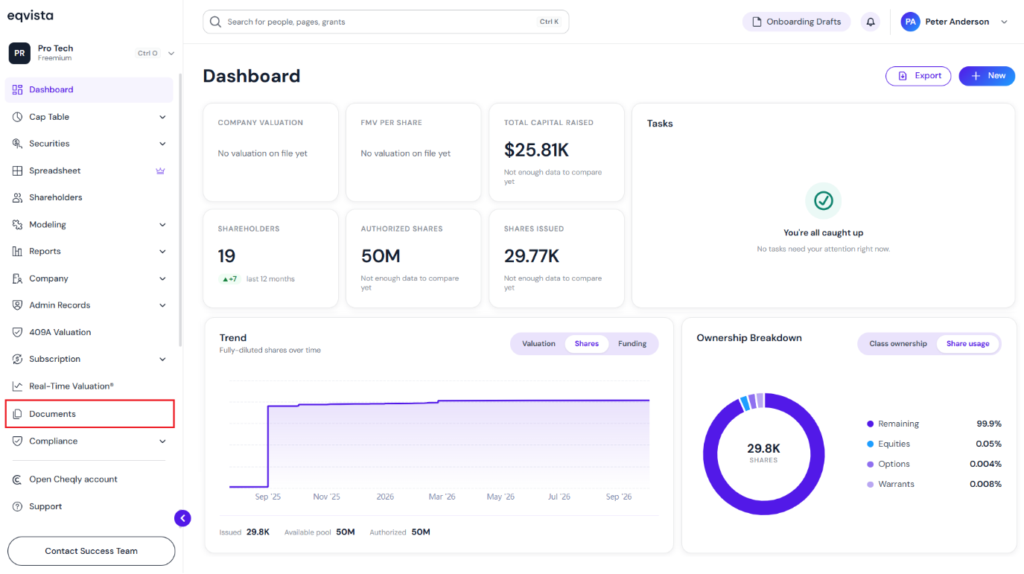
On the dashboard, click on “Documents” on the left side, as shown below.
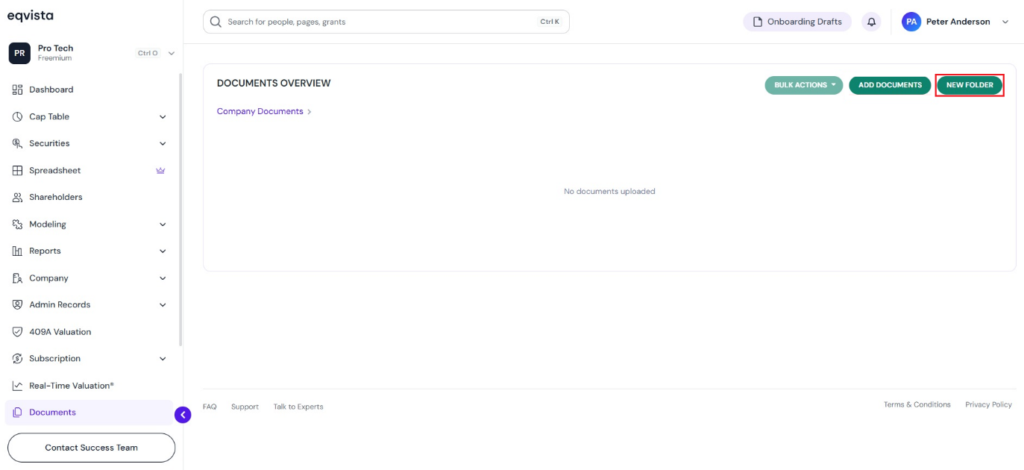
Create New Folder
Step 2: Once you click, you will be directed to the page that shows all documents and folders of the company. On the top right of the page, click “New Folder” to add a new folder.
Fill in Details to Create Folder
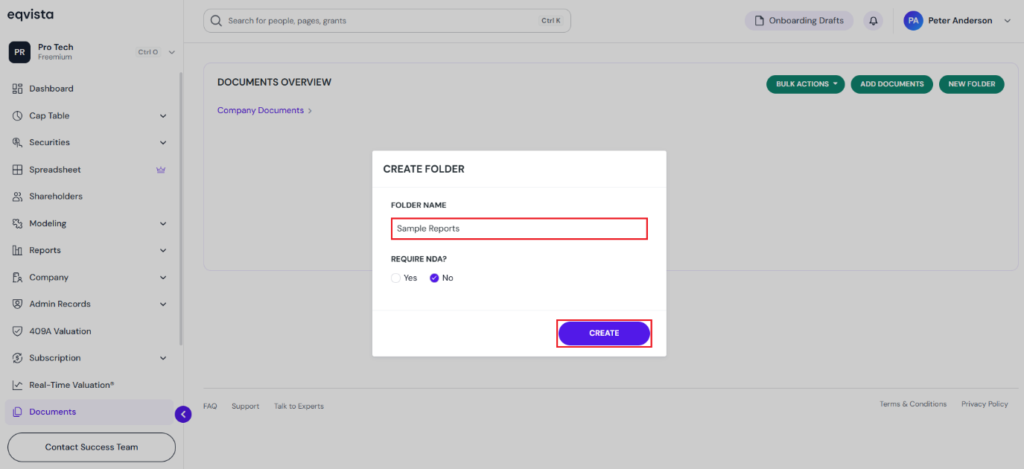
Step 3: As soon as you click, a new panel will appear as shown below. Here, fill in the folder name and select the option “Yes” or “No” for require NDA. By default, the option “No” is selected, and click on “Create” to add a new folder.
Add Document to Folder
The files can be added to the folder by clicking on it.
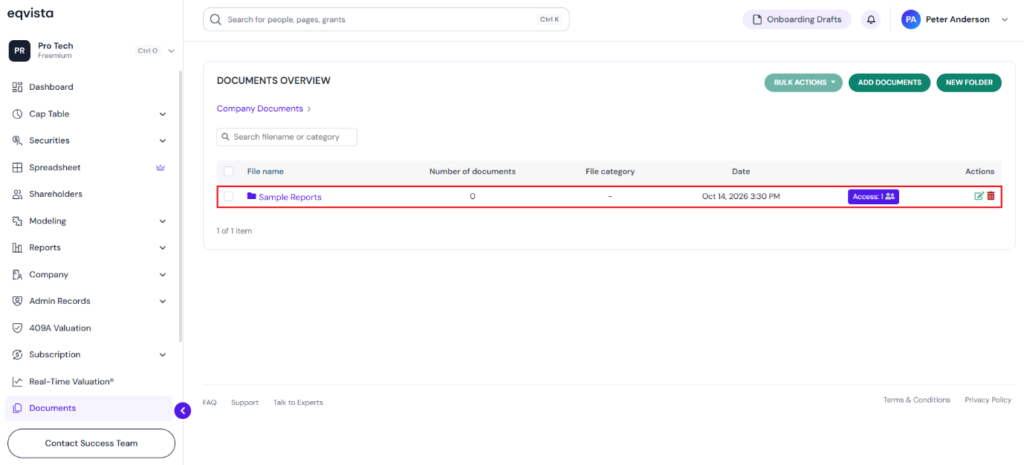
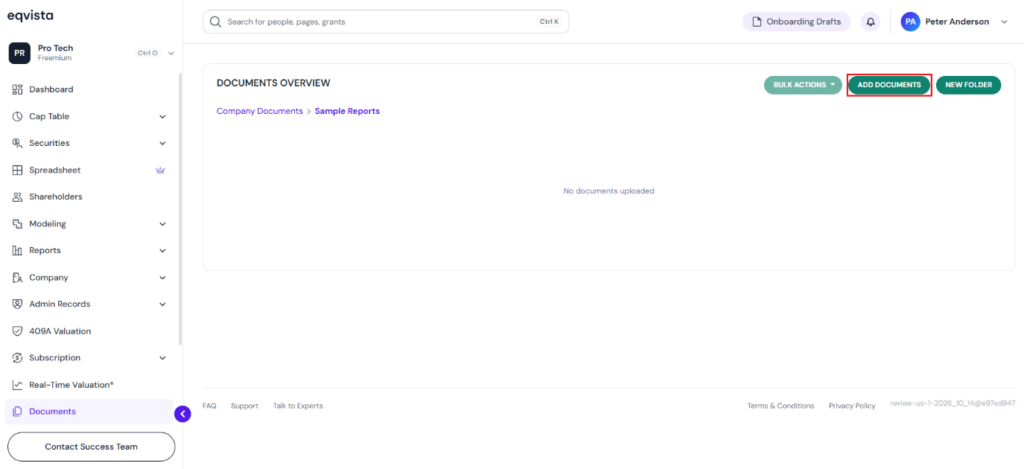
When you click on the folder name, it redirects to the following page. Click on “Add Document” to add a document to the folder.
As soon as you click on the option, a new panel will appear as shown below.
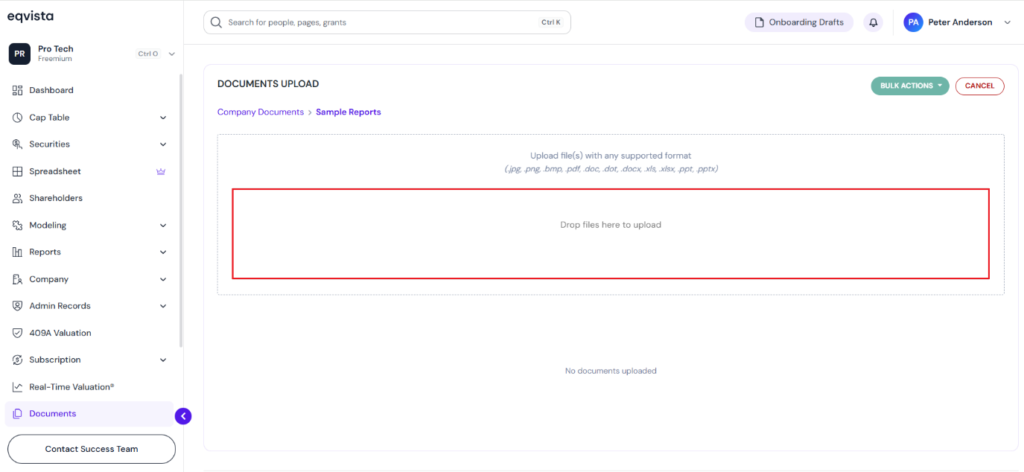
Here, click on “Drop file(s) here to upload” to select the files to upload from your computer.
Choose the file that you want to add to the folder and click on “Open”.
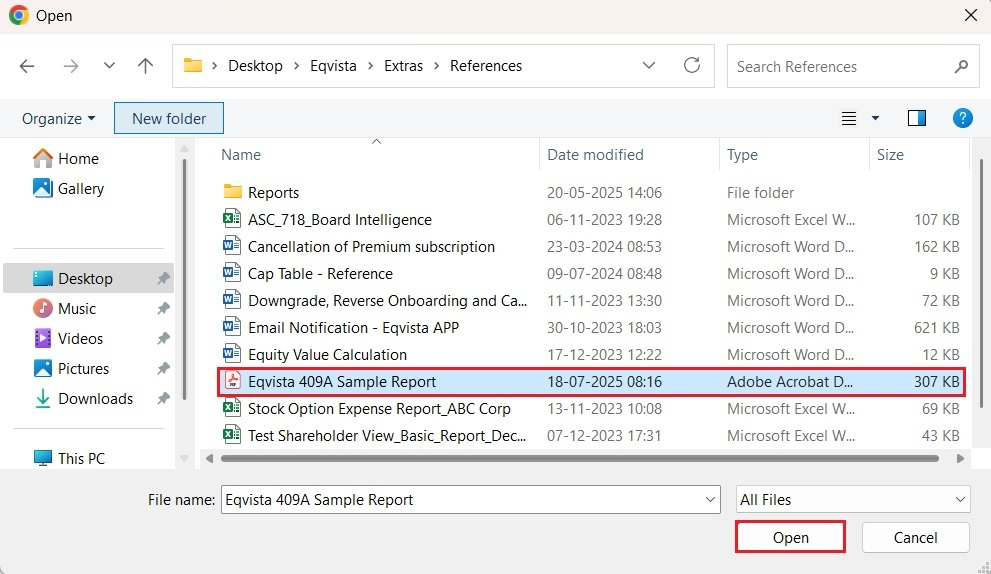
When you click open, the file will be added to the folder as shown below.
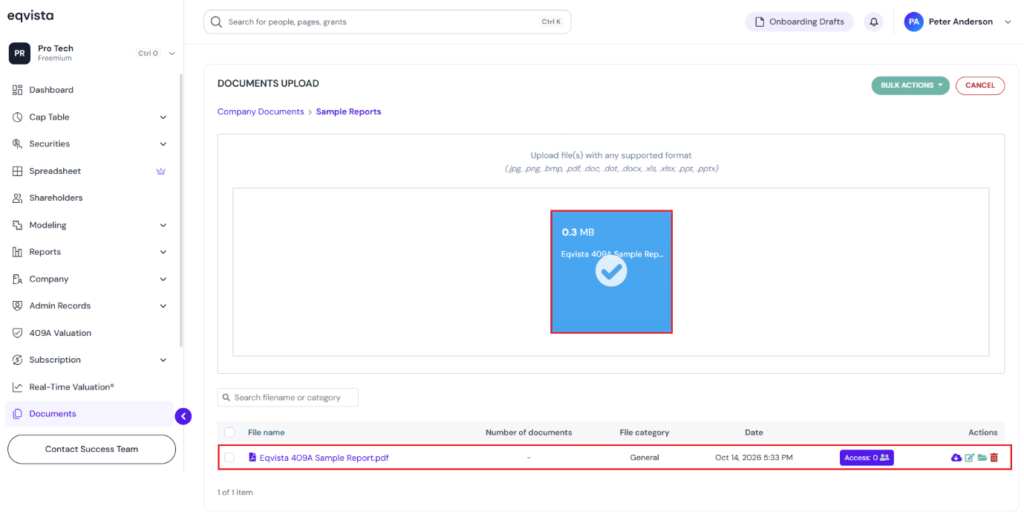
Note: As soon as you upload the file, it will be added, and you can perform many functions. Check out the respective support article to learn about the functions performed on added documents.
Share Access to Folder
Step 4: The folder can be shared with a shareholder type by clicking on “Access”.
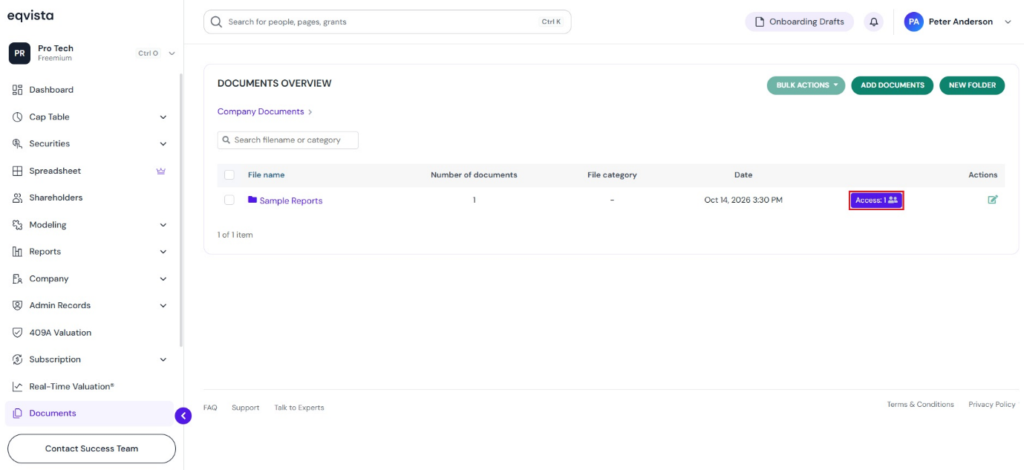
Select Shareholder Type
Step 5:
When you click on “Access”, a new panel will appear as shown below. To share the folder with the shareholder type, click on “Shareholder Type”.
Note: You can click on “Individual Shareholder” to share the folder with an individual shareholder. Check out the support article to learn about sharing folders with an individual shareholder.
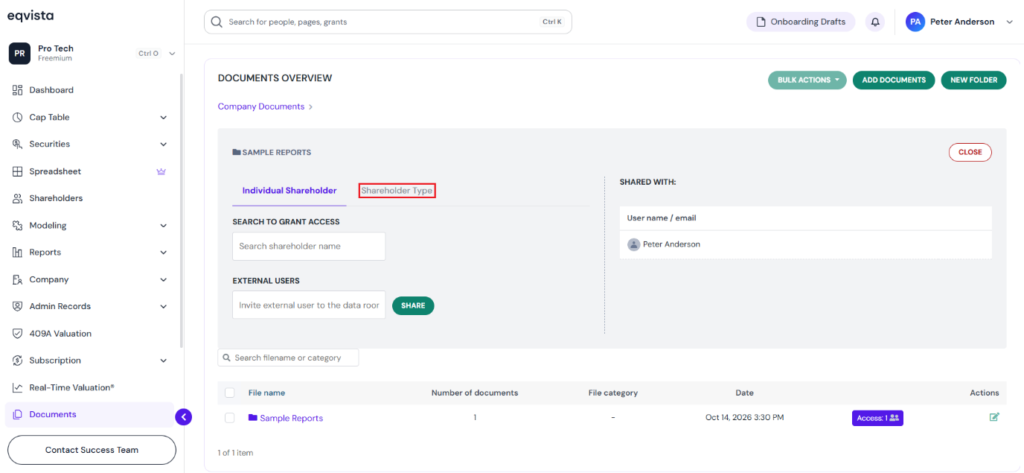
Click Share to Share Folder With Shareholder Type
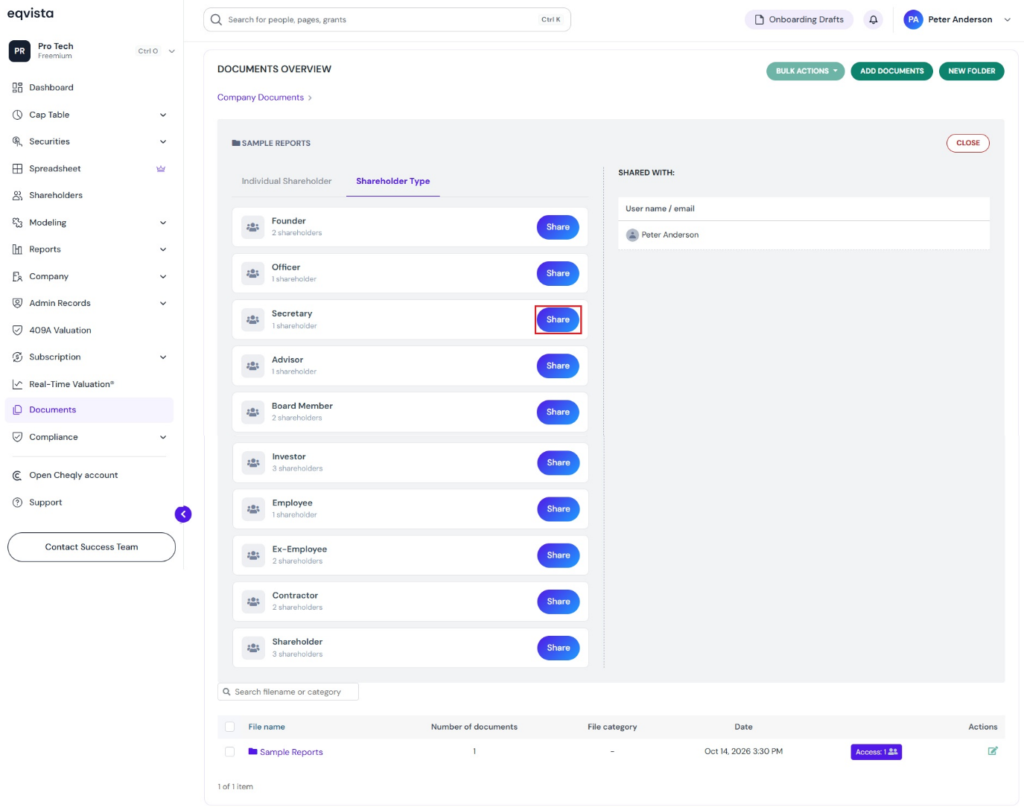
Step 6: Once you click, it displays the different shareholder types available in the company. Select a shareholder type and click on “Share”.
Share Access to Multiple Folders
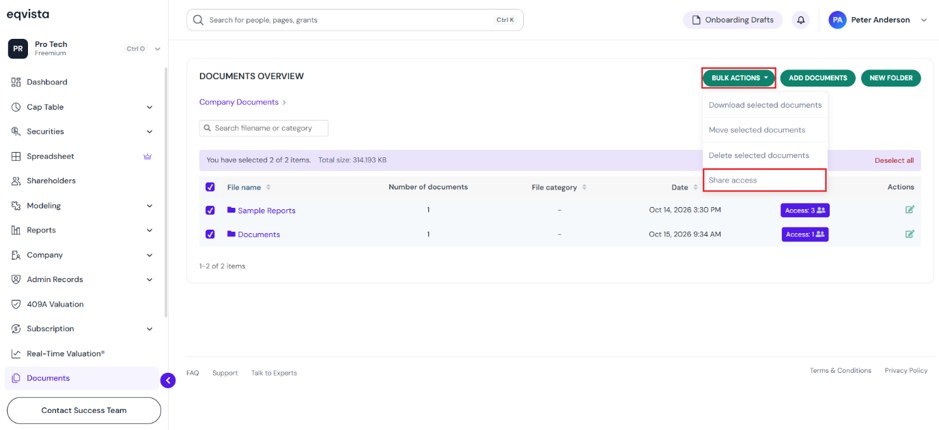
To share access to multiple folder(s), select the box next to the folder name(s) and click on “Bulk Action” to get the drop-down menu. Then, click on “Share Access”.
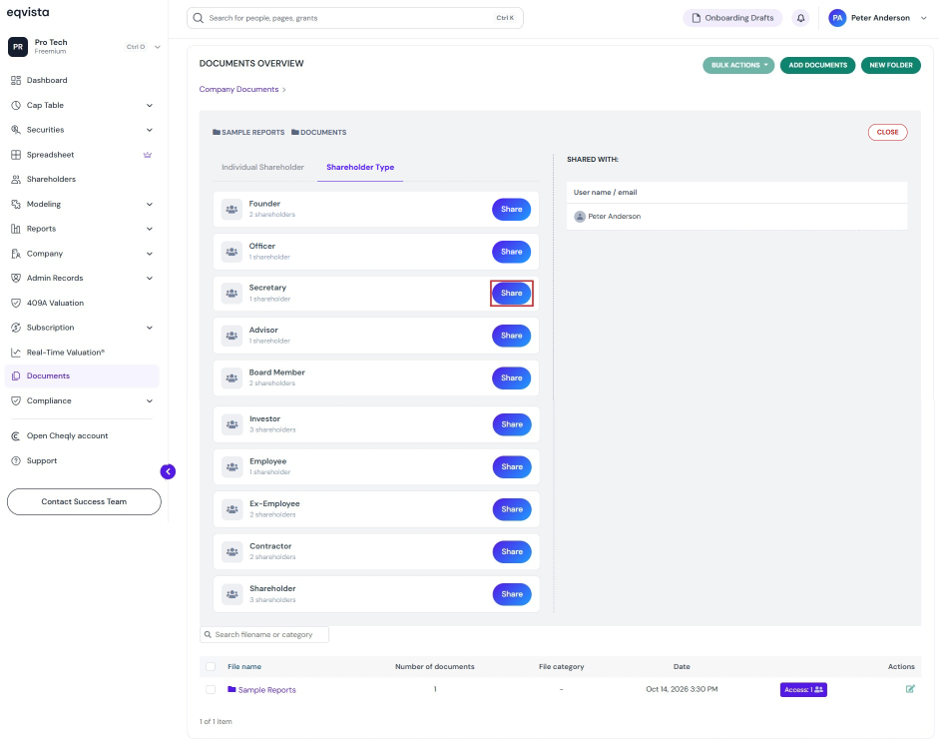
Share access to multiple folder(s) with the shareholder type by clicking on “Shareholder Type”. Once you click “Share”, the folder(s) will be shared with the shareholder type.
Note: You can click on “Individual Shareholder” to share the folder with an individual shareholder. Check out the support article to learn about sharing folders with an individual shareholder.
Folder Shared With Shareholder Type
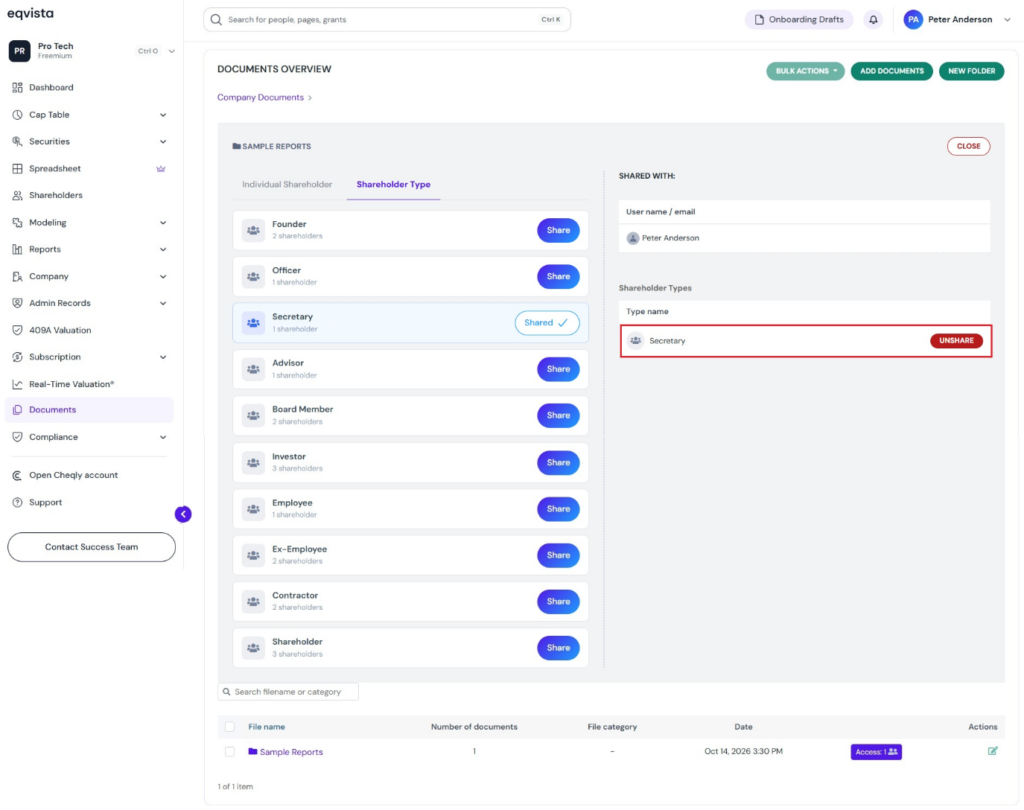
Step 7: Then, the folder will be shared with the shareholder type. You can view individual shareholder and shareholder types having access to the folder on the right. If you want to remove access, click on “Unshare”.
In this case, we have shared the folder with the shareholder type “Secretary”.
Note: For the shareholder type to view the folder, you should share access to the cap table. Check out the support article to learn about sharing access to shareholders.
By doing this, the folder will be shared with the shareholder type. To view the shared folder, you can follow the next steps.
Click on Shareholder’s Name
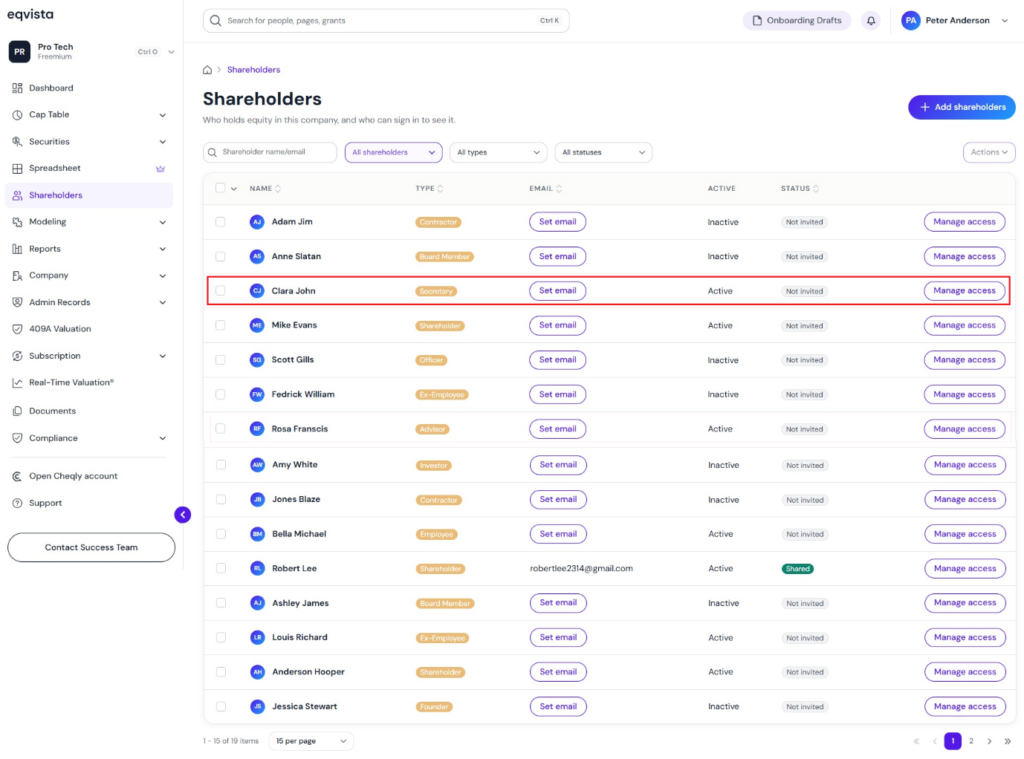
Step 8: On the dashboard, click on “Shareholders” on the left side, and you will be redirected to the shareholders’ page. Click on the shareholder’s name to whom the folder was shared.
In this case, it was “Clara John” since the document shared with the shareholder type is “Secretary“.
View Shared Folder on Shareholder Overview Page
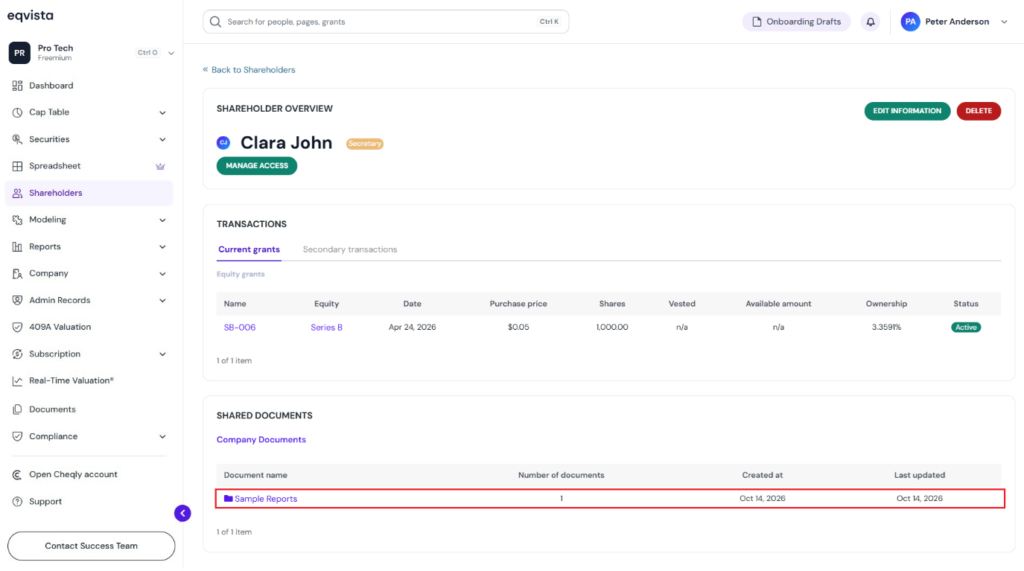
Step 9: When you click on the name, you will be directed to the page that displays the shared folder.
Note: Make sure to share access to the cap table with the shareholder to view the shared document.
To learn more about Eqvista, check out our support articles and knowledge base. For queries, get in touch with us!