Sharing Documents With Shareholder Type
Eqvista offers an option to share documents with different shareholder types.
How to share documents with different shareholder types?
On Eqvista, share documents with shareholder types in just a few clicks. It ensures that relevant information is easily accessible to shareholders, streamlining communication and collaboration.
Here are the steps to follow:
Step 1: Log into Eqvista and select your company account.
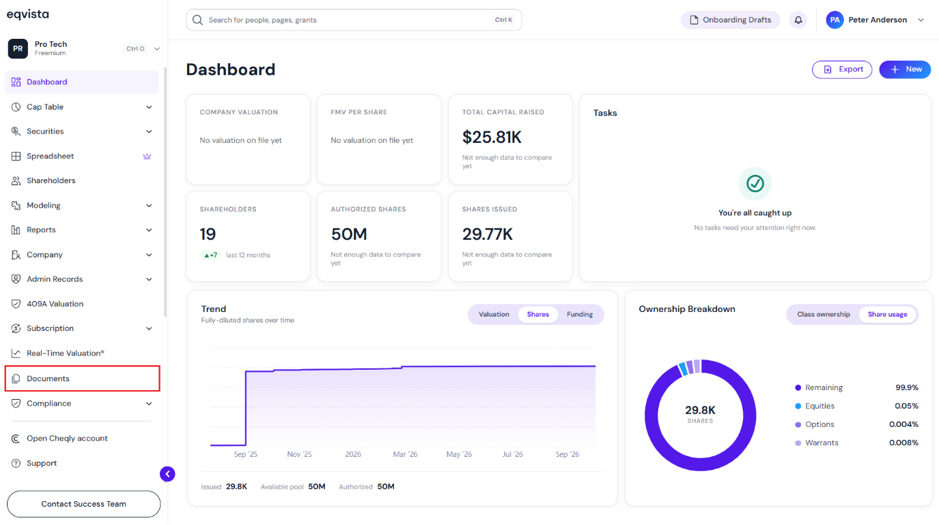
On the dashboard, click on “Documents” on the left side, as shown below.
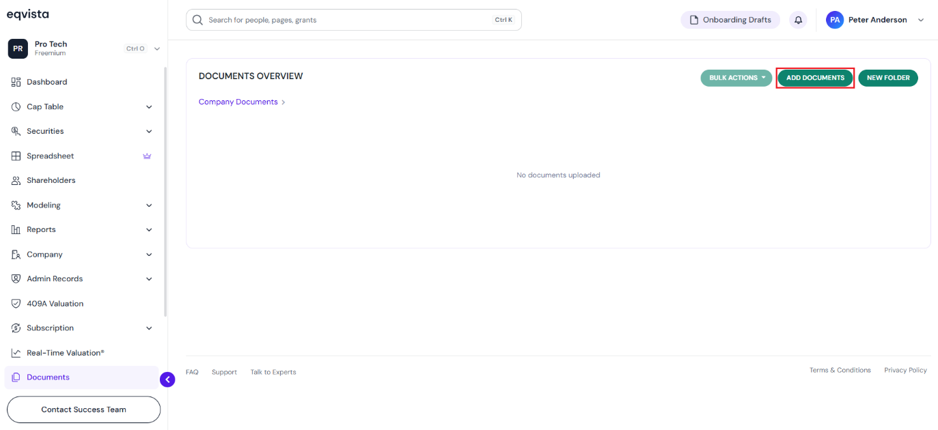
Step 2: Once you click, you will be directed to the page that shows all documents and folders of the company. On the top right of the page, click “Add Documents” to add documents.
Step 3: As soon as you click on the option, a new panel will appear as shown below.
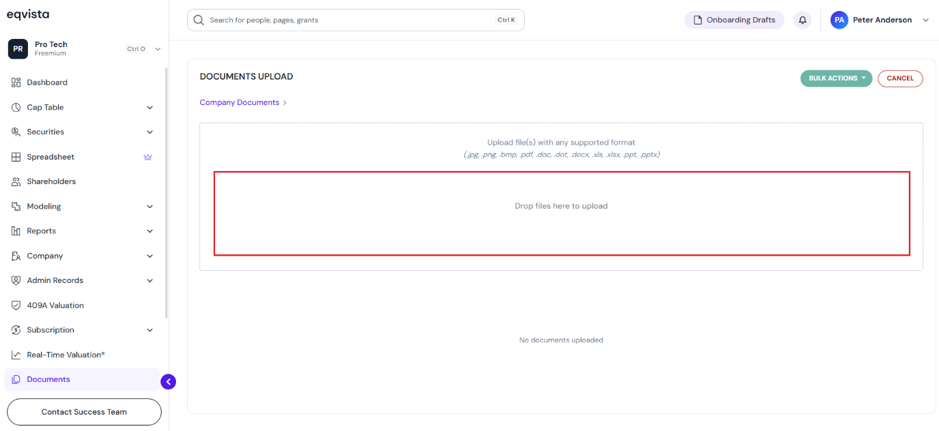
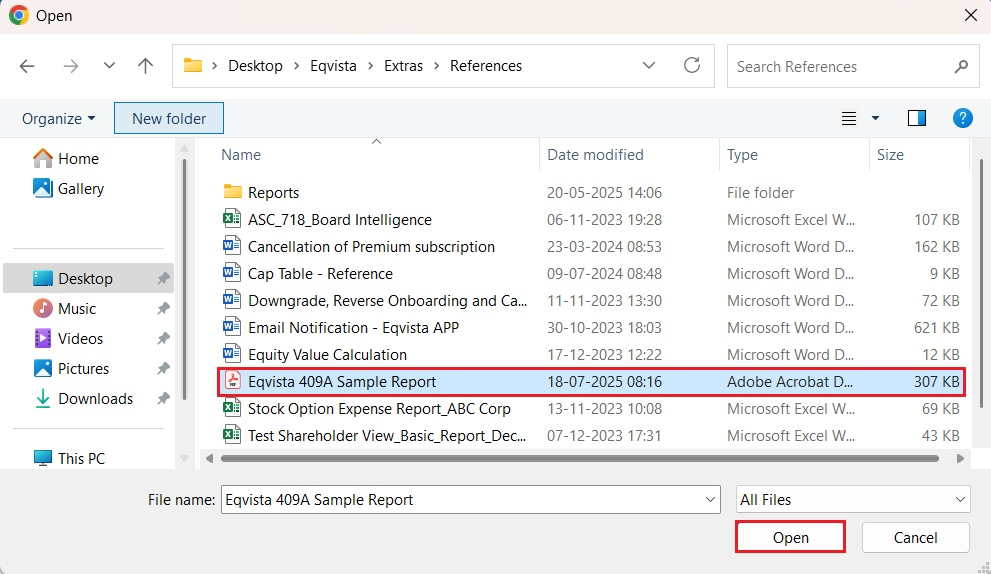
Here, click on “Drop files here to upload” to select the files to upload from your computer. Choose the file that you want to add and click on “Open”.
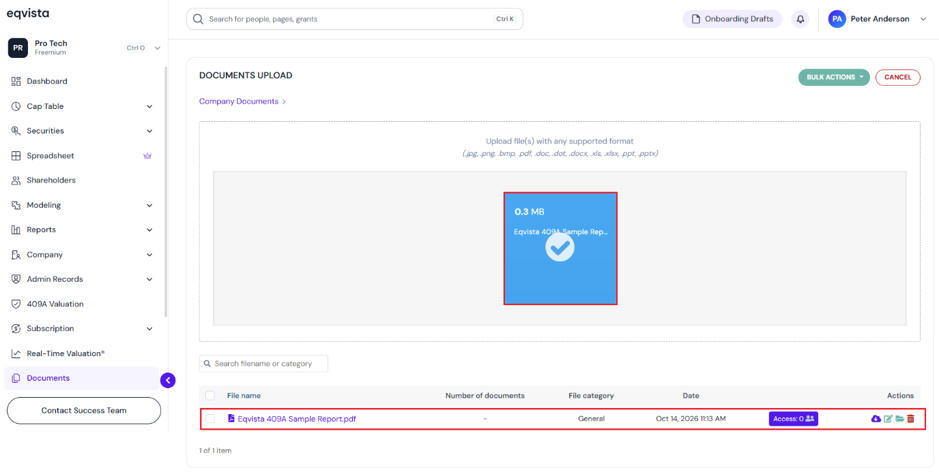
Step 4: When you click “Open”, the file will be uploaded as shown below.
Note: As soon as you upload the file, it will be added, and you can perform many functions. Check out the respective support article to learn about the functions performed on added documents.
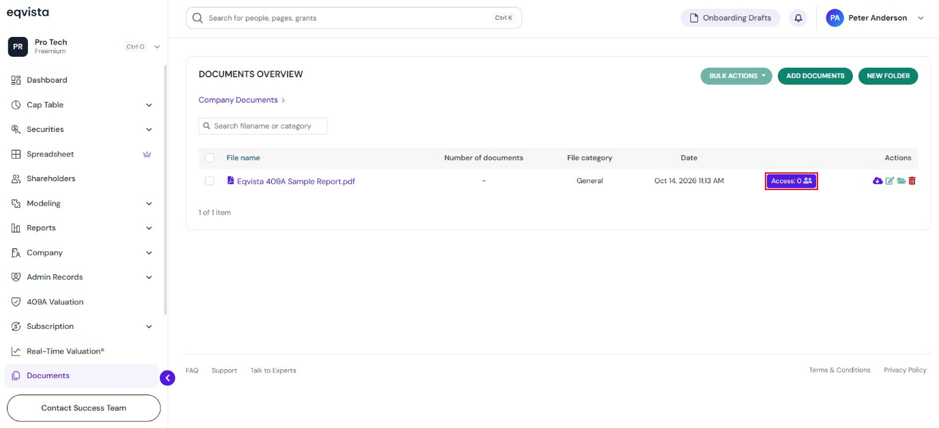
Step 5: The document can be shared with shareholder type by clicking on “Access”.
Note: Only individual documents can be shared with shareholder type, and folders cannot be shared the same way.
Step 6: When you click on “Access”, a new panel will appear as shown below. To share the document with the shareholder type, click on “Shareholder Type”.
Note: You can click on “Individual Shareholder” to share the document with an individual shareholder. Check out the support article to learn about sharing documents with an individual shareholder.
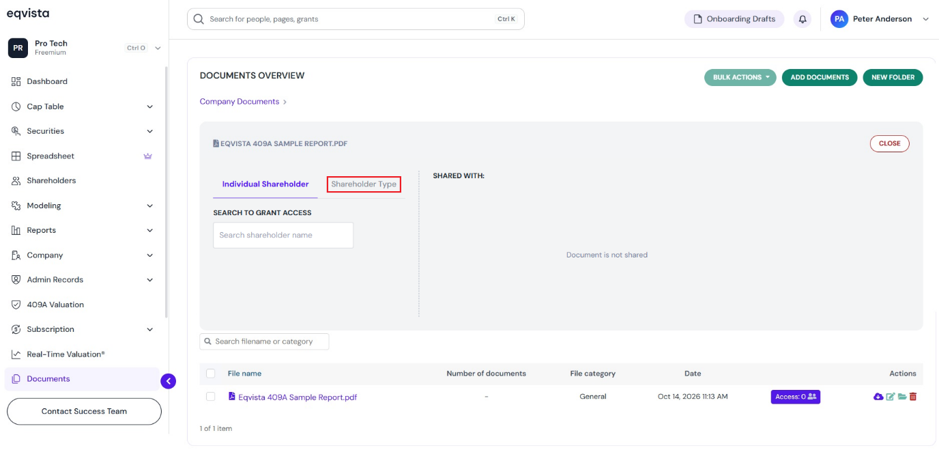
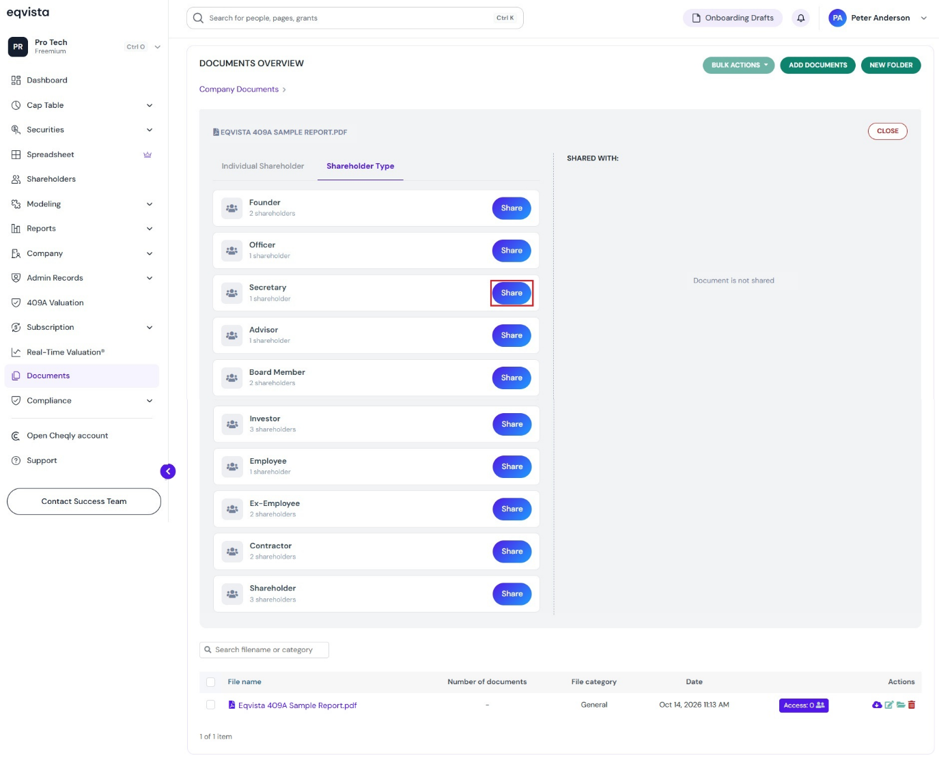
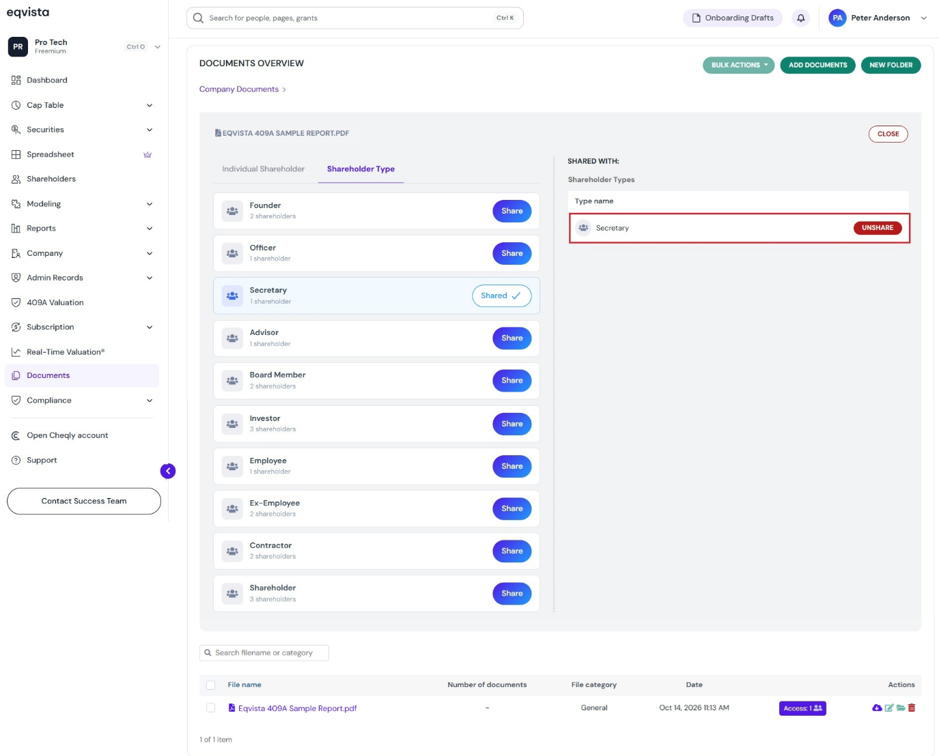
Step 7: Once you click, it displays the different shareholder types available in the company. Select a shareholder type and click on “Share”.
Share Access to Multiple Folders
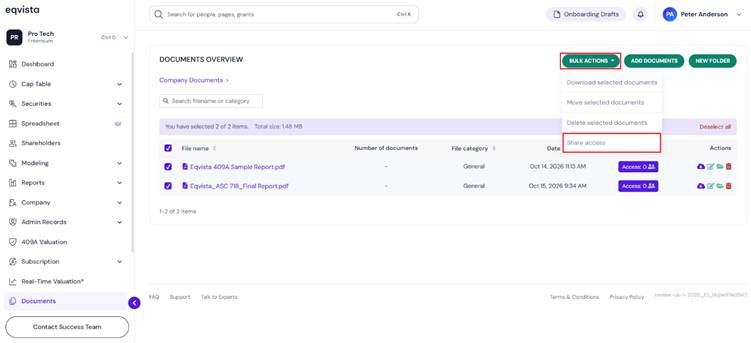
To share access to multiple folder(s), select the box next to the folder name(s) and click on “Bulk Action” to get the drop-down menu. Then, click on “Share Access”.
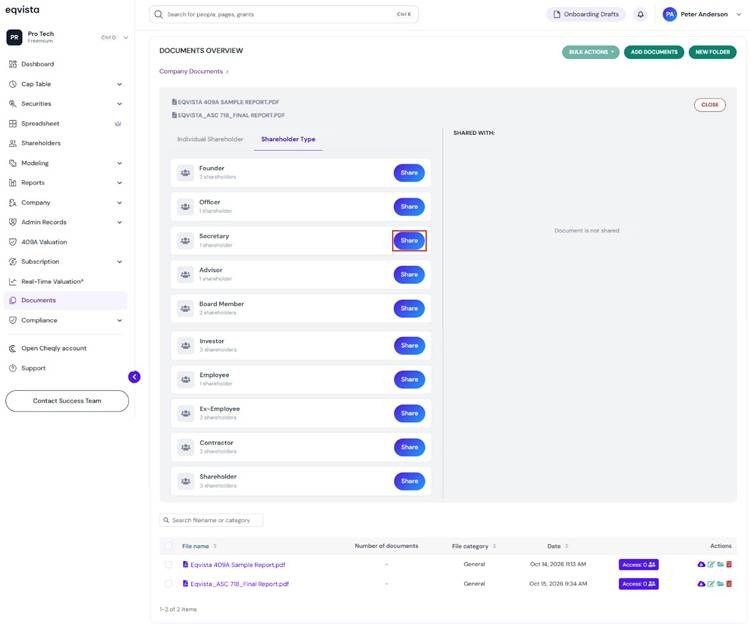
Share access to multiple folder(s) with the shareholder type by clicking on “Shareholder Type”. Once you click “Share”, the folder(s) will be shared with the shareholder type.
Note: You can click on “Individual Shareholder” to share the folder with an individual shareholder. Check out the support article to learn about sharing folders with an individual shareholder.
Step 8: Then, the document will be shared with the shareholder type. You can view individual shareholder, grants, and shareholder types having access to the document on the right. If you want to remove access, click on “Unshare”.
In this case, we have shared the document with shareholder type “Secretary”.
Note: For the shareholder type to view the document, you should share access to the cap table. Check out the support article to learn about sharing access to shareholders.
By doing this, the document will be shared with the shareholder type. To view the shared document, you can follow the next steps.
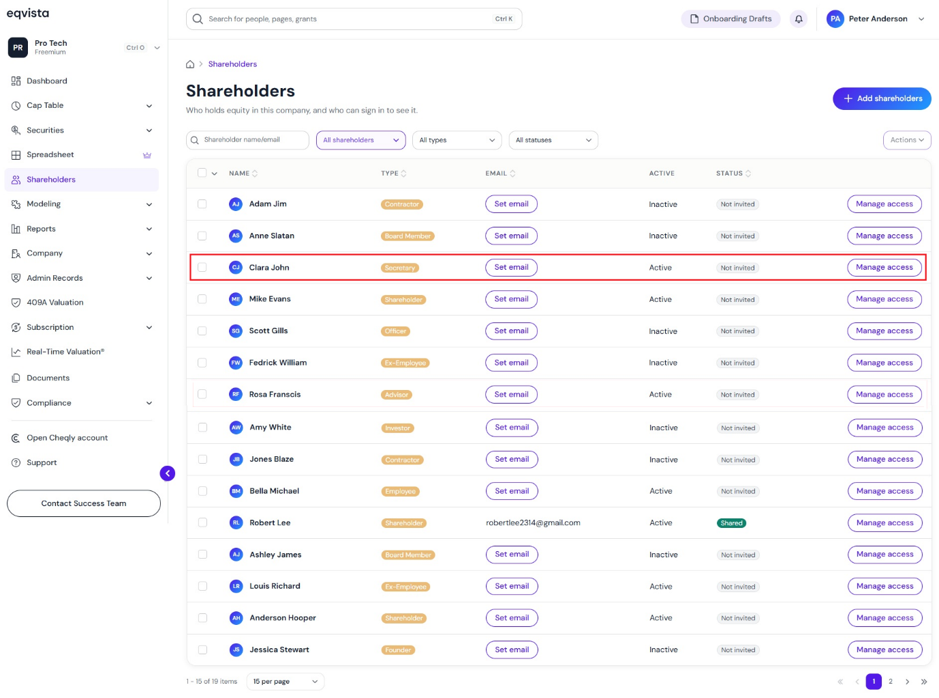
Step 9: On the dashboard, click on “Shareholders” on the left side, and you will be redirected to the shareholders’ page. Click on the shareholder’s name to whom the document was shared.
In this case, it was “Peter Henry” since the document shared with the shareholder type is “Secretary“.
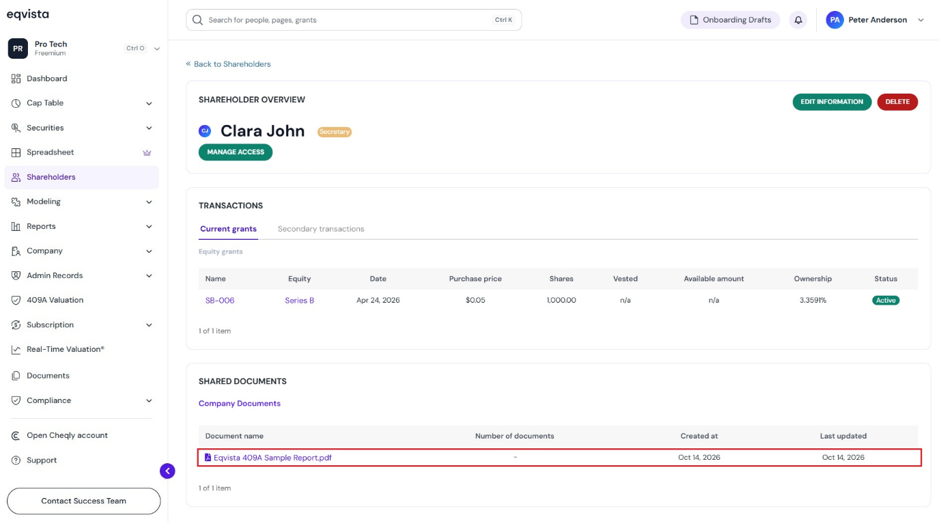
Step 10: When you click on the name, you will be directed to the page that displays the shared document.
Note: Make sure to share access to the cap table with the shareholder to view the shared document.
If you want to understand Eqvista, check out our support articles or contact us today!