What is Vesting Plan For 1/48 Monthly, 1-Year Cliff?
Many companies offer stock options or shares as part of their employee compensation. The stock options offered by the employer can be vested for a period before acquiring the complete asset, commonly known as stock vesting.
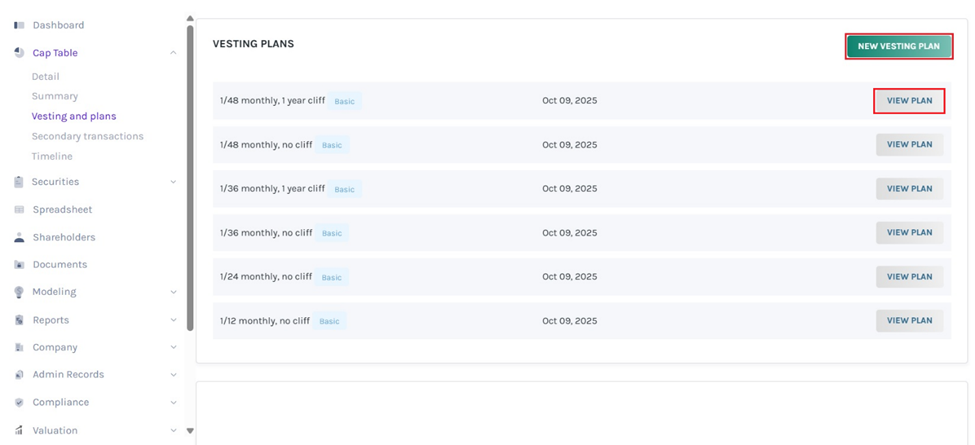
Eqvista offers six different pre-set vesting plans that would save time. Apart from that, you can also create a new vesting plan.
Vesting plan for 1/48 monthly, 1-year cliff
Here is one such basic vesting plan:
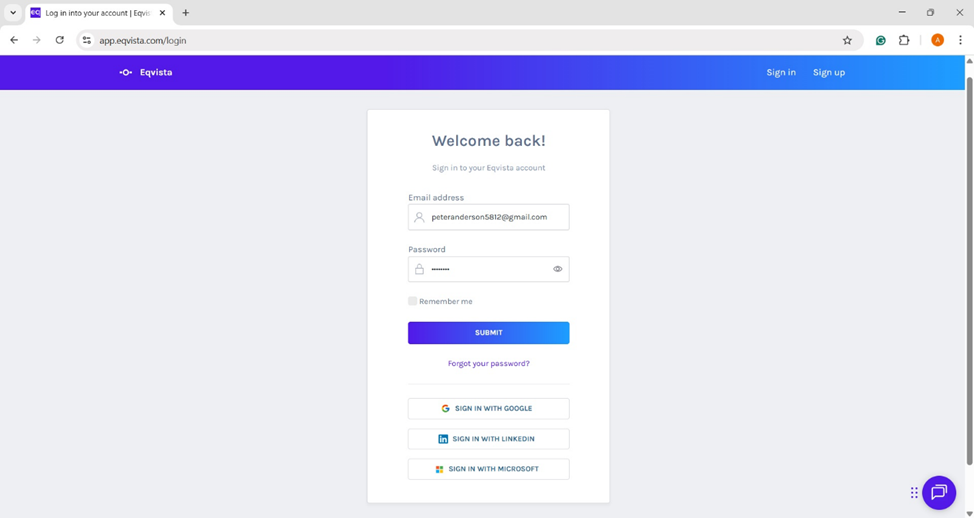
Step 1: Log into your Eqvista account and select the company account to view the vesting plan.
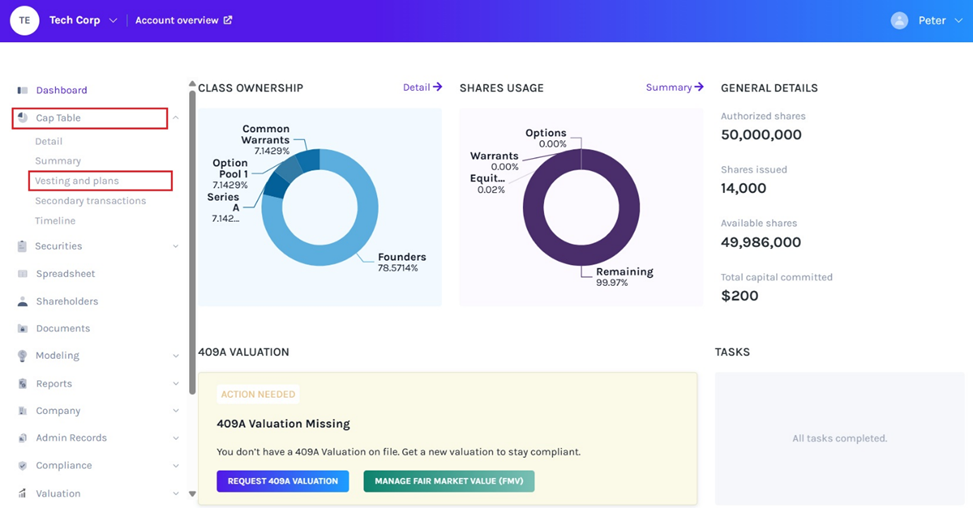
On the dashboard, click on “Cap Table” on the left-hand side to get a drop-down menu. Then click on “Vesting and plans” to view already pre-set plans available that would save time.
Step 2: Apart from viewing existing pre-set plans, click on “New Vesting Plan” to create a new plan and if you have created one, you will see them there.
Check out our support guide to learn how to create a new vesting plan on Eqvista.
Step 3: Once you click “View Plan”, you can get the overview of the plan along with details such as name, type, created at, and description.
Note: If you want to edit the plan, you can modify the plan by clicking “Actions”. Check out our support article on how to modify the vesting plan on Eqvista.
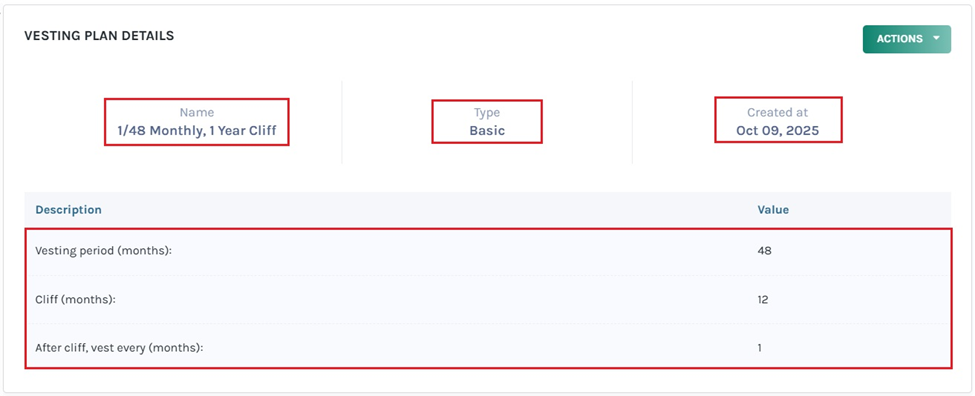
The description includes details for the vesting plan 1/48 monthly, 1 year cliff as an example:
- Vesting Period (months): After a period of 48 months, the shareholder gets complete ownership of the asset.
- Cliff (months): After 12 months, the shareholder will receive the first portion of the asset.
- After Cliff, vest every (months): After 1 month, the next portion of the asset will be given to the shareholder.
Step 4: The vesting schedule can be implemented while issuing equities, options and warrants by clicking “Yes” for if you need a vesting schedule and selecting the plan.
Note: You can add a vesting schedule while issuing shares, options and warrants. Check out the respective support articles to learn about this.

After selecting the plan, choose the vesting start date and any restrictions for issued equities.
Note: If you have issued equities, you need to choose Restrictions – No restrictions, Restricted Stock Units, Restricted Stock Awards and Phantom Stock. Check out the respective support articles to learn about this.
You can add another grant by clicking on “Add new grant”. This is if you want to issue shares from the same equity class to more than one shareholder. All you need to do is click on “Add new grant” and then select the shareholder profile or add a new shareholder and fill in the details.
Step 5: On the vesting and plans page under Cap Table, you will see all the grants that are vested under the plan based on the type of security – Equity Grants, Warrant Grants and Option Grants. Then, click on “Equity Grants” to see the details of the grant vested under this plan.
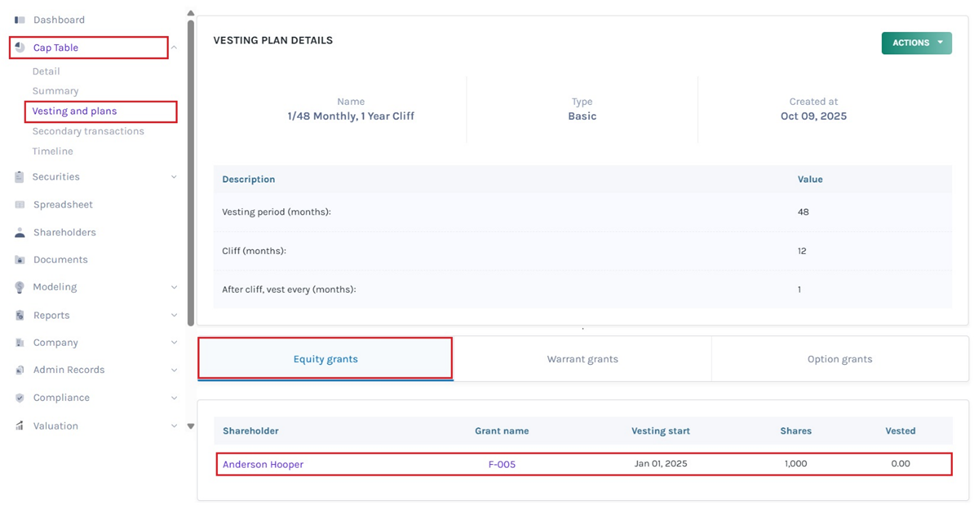
Step 6: To see the vesting schedule of the plan, click on the grant name “F-005” and you will be redirected to the equity grant details page with the vesting schedule.
Note: You can add document to the grant by clicking on “Add Document”. Check out the support article to know more about adding documents to grants.
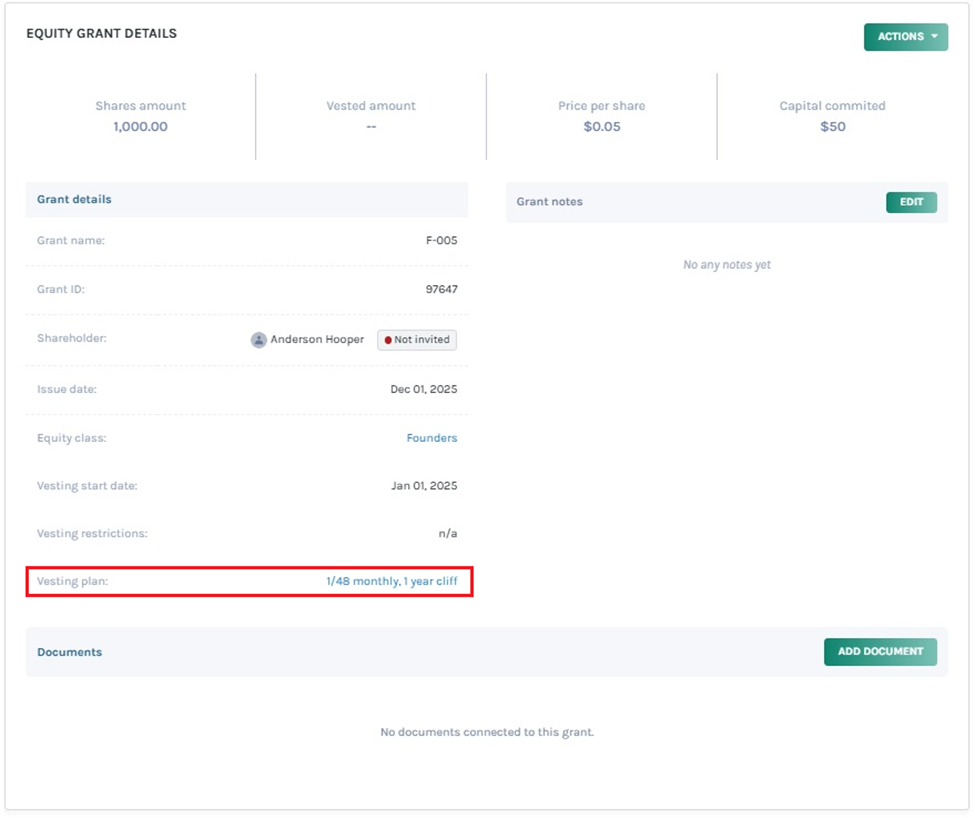
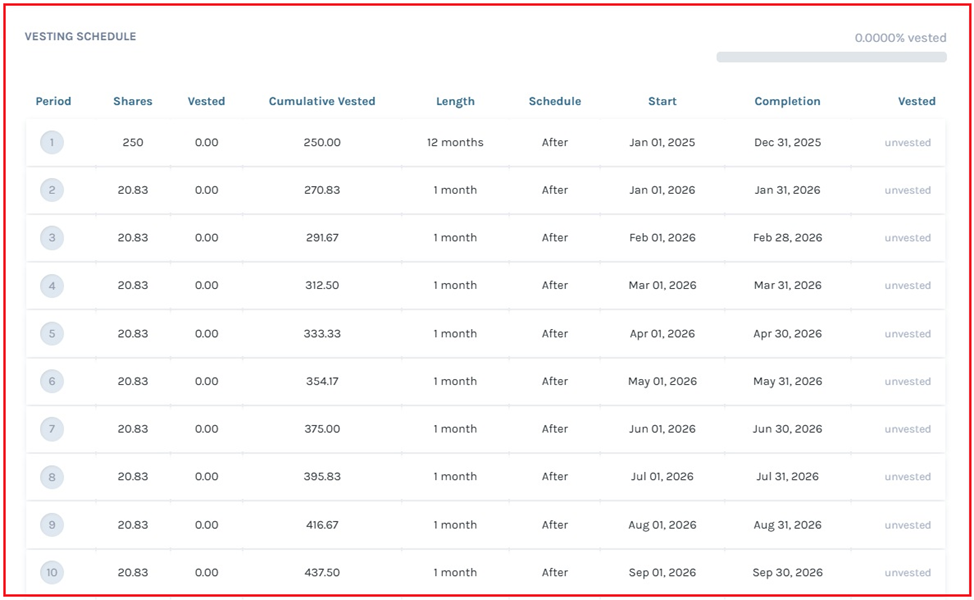
Step 7: The vested equity grant can also seen by clicking “Securities” on the left-hand side to get a drop-down menu. Then, click on “Equities” and you will reach the page with the vested equity grant under the plan.
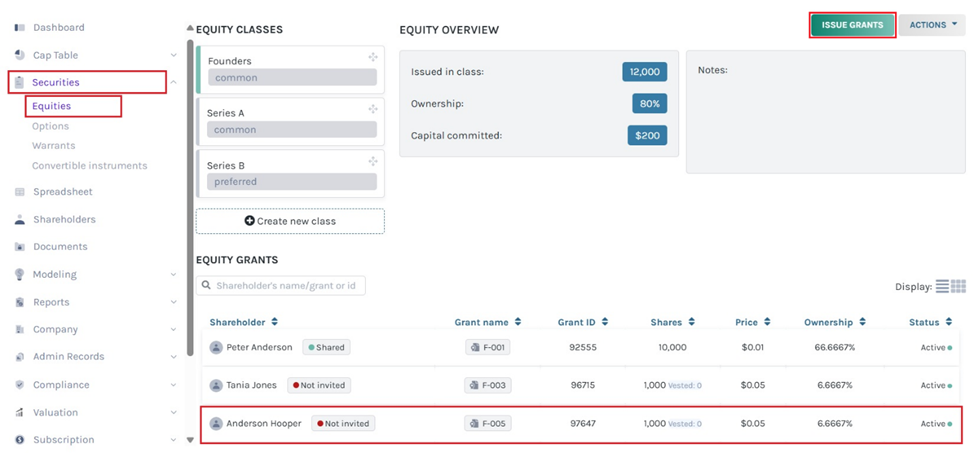
Note: Suppose you want to issue another equity from the class you issued. Then, click on “Issue grants”. Just ensure that you have selected the equity class from which you want to issue equities.
Apart from the above-discussed plan, there are five more plans that are similar in process: vesting plan 2, vesting plan 3, vesting plan 4, vesting plan 5, and vesting plan 6.
For more information on Eqvista’s other features, check out our support articles or get in touch with us right away!