How to Issue Profits Interest as Percentages?
An LLC can grant profits interest as percentages to a new or existing member that grants the right to share in future profits and appreciation of the company, without providing any claim to the current value.
Issue Contractual Percentage Grants
After creating a new LLC company or updating the type in company profile settings, you have enabled the profits interests equity and can issue contractual percentage units.
Open Profit Interests
Step 1: Log into Eqvista and select your company account.
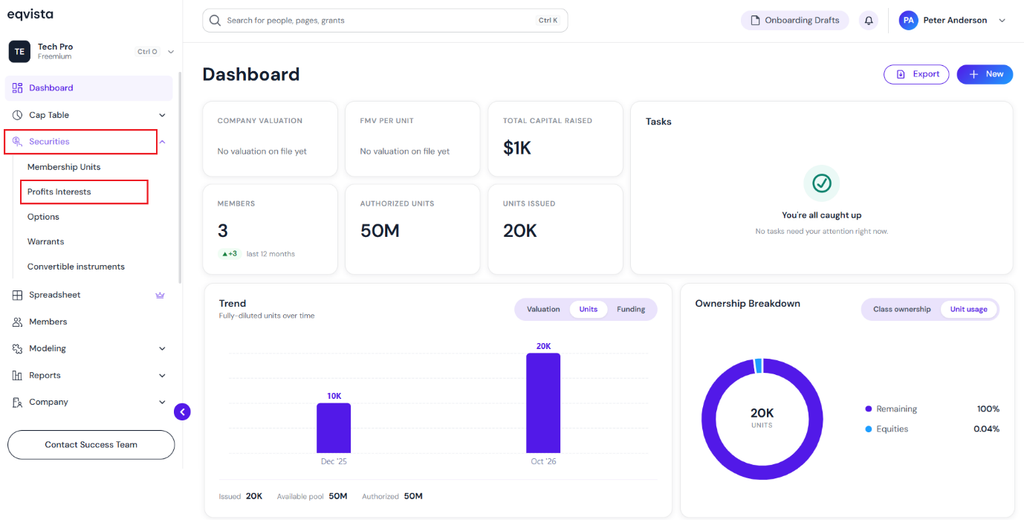
On the dashboard, click on “Securities” on the left side to get a drop-down menu and select “Profits Interests”.
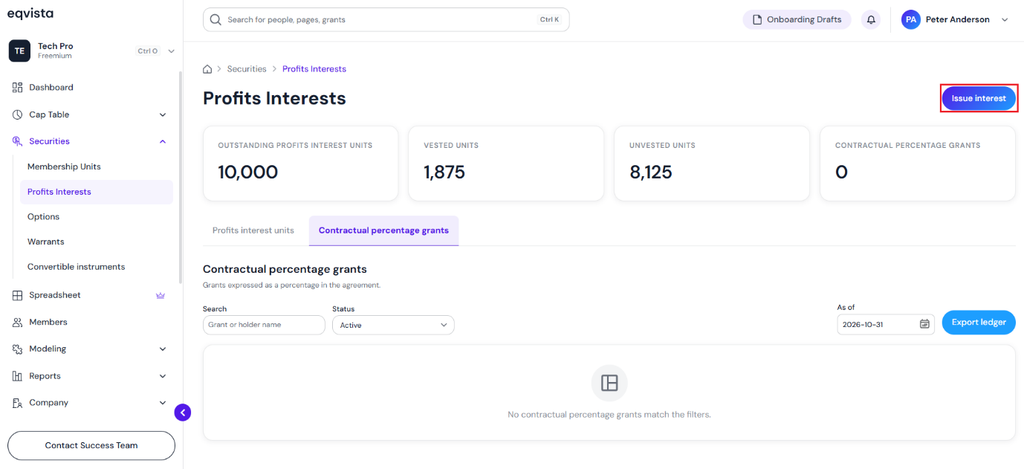
Click on Issue Interest
Step 2: Then, you will be redirected to the dedicated ledger for profits interests. On this page, you will find data to manage your transactions from the ledger. To issue contractual percentage grants, click on “Issue Interest”.
Note: A detailed feature-by-feature analysis of the profits interest ledger will help you understand it better. Check out the support article to understand the profits interest ledger in detail!
Fill in Details to Issue Grant
Step 3: Once you click, you will be directed to the next page to issue grants.
- Fill in the details such as selecting the member from the drop-down menu, grant name, grant date, contractual profits interest (%), and percentage basis.
- Threshold value (the amount above which the interest starts to participate), select the threshold currency from the drop-down menu, and overall threshold applies to.
Add in the details and select if you need a vesting schedule or not. In this case, select “No Vesting (Fully Vested)” for the vesting schedule.
Note: You need to have the member profile already created. Check out the support article to add a member.
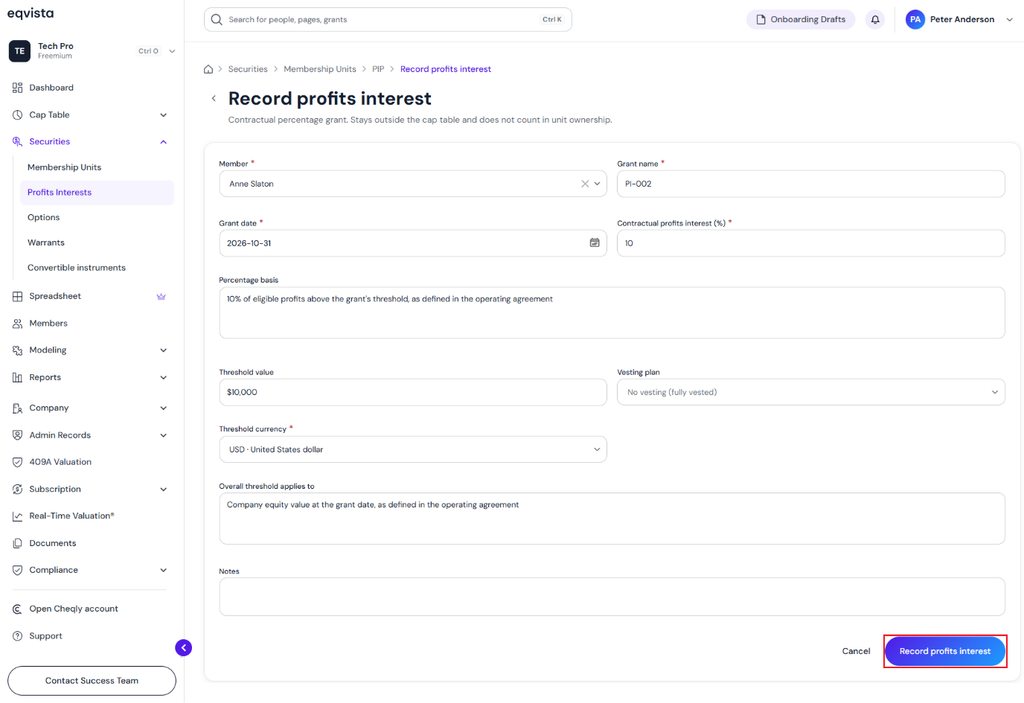
Once done, click on “Record Profits Interest”.
Contractual Percentage Grant Issued
Step 4: You will then be redirected to the profits interests ledger, where you can view the grant issued.
Note: The company has issued profits interests, so it remains an LLC. The company type cannot be changed in the company profile settings.
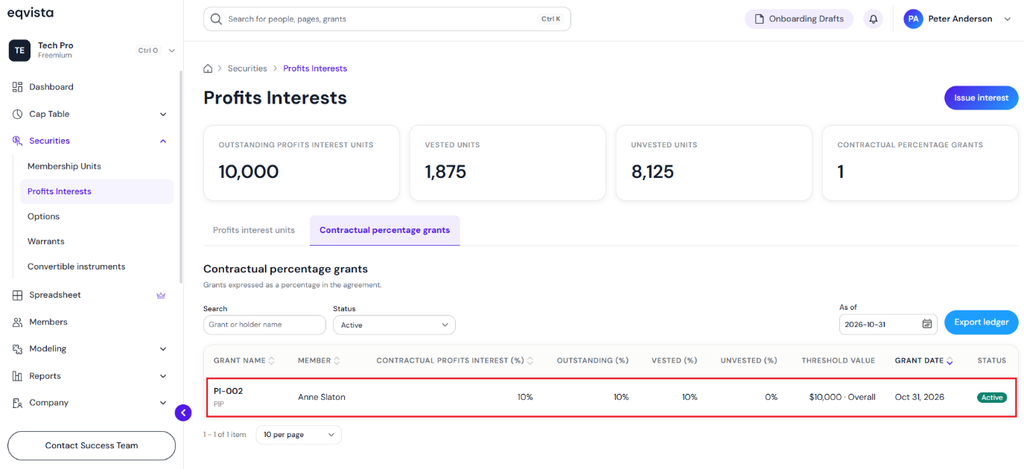
Then, click the grant name to view the grant details. In this case, click the grant name “PI-002”.
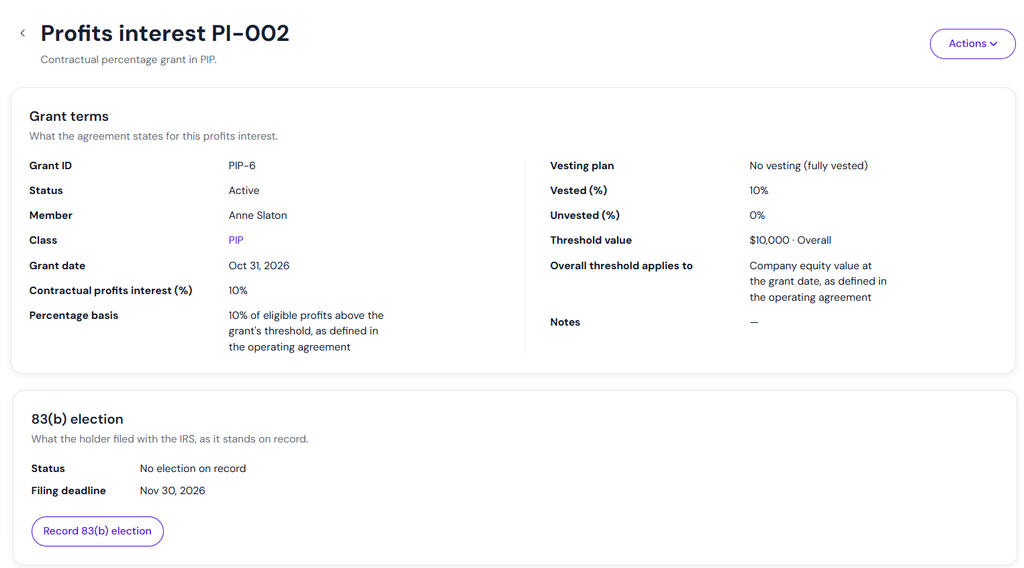
Record 83(B) Election
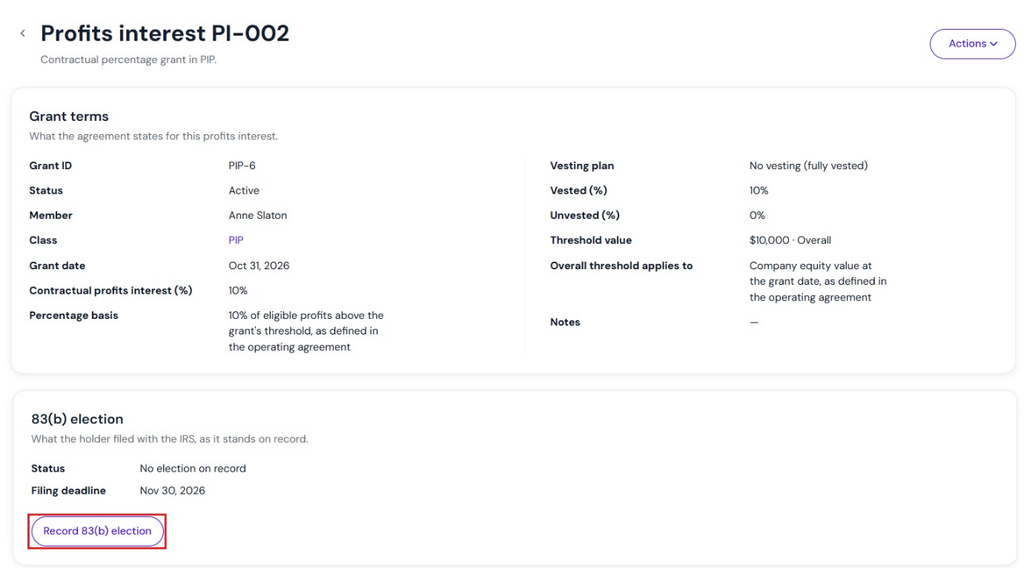
Step 5: On the grant terms page, you can record the 83(B) election by clicking on “Record 83(B) Election”.
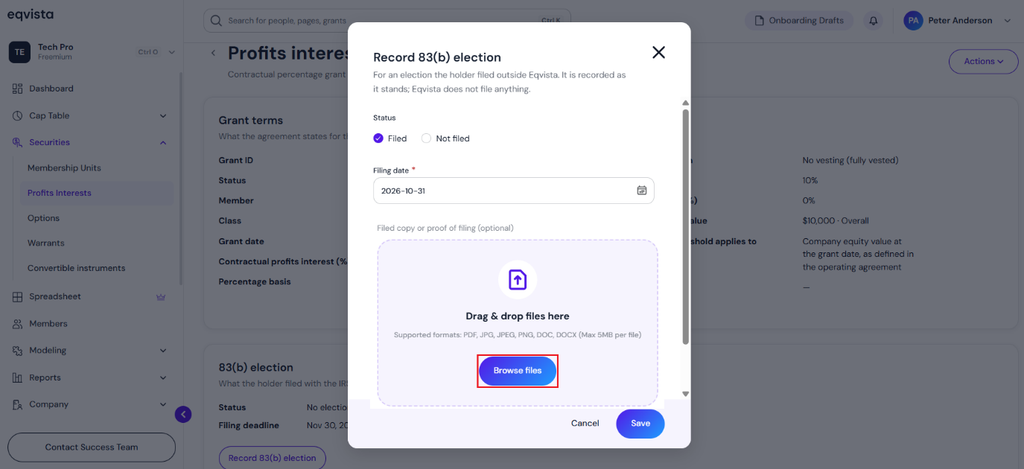
A pop-up panel appears to select the status “Filed” and fill in the filing date using the calendar. Upload the file copy for reference by clicking on “Browse Files”.
Note: This records the 83(B) election. It does not file the 83(B) election.
Choose the file that you want to add and click on “Open”.
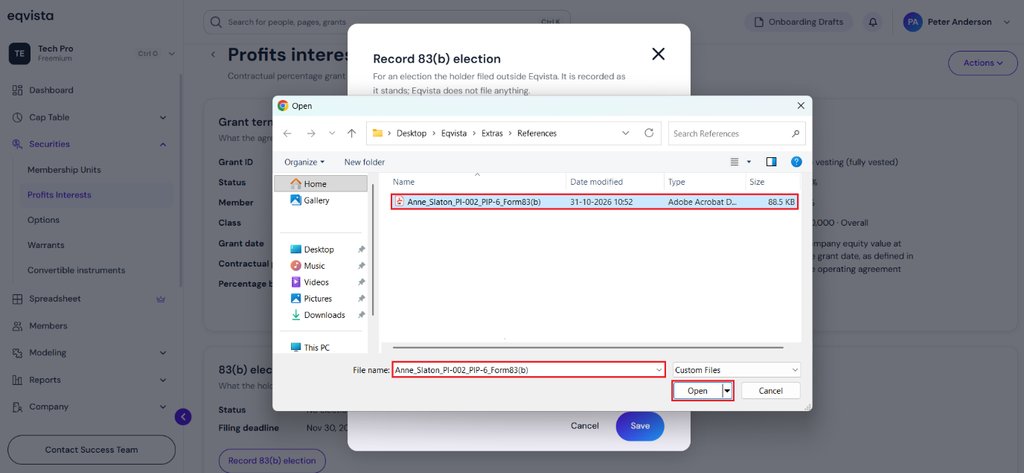
When you click on “Open”, the file will be uploaded as shown below.
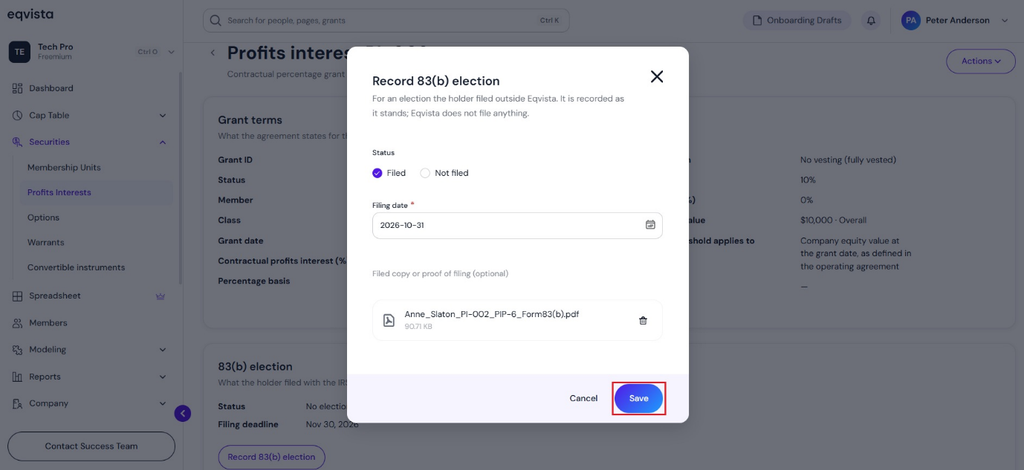
Once done, click on “Save”. The status, filing date, and file copy attached will appear in the 83(b) election section along with the option to “Update the Election”. The document section displays the file attached.
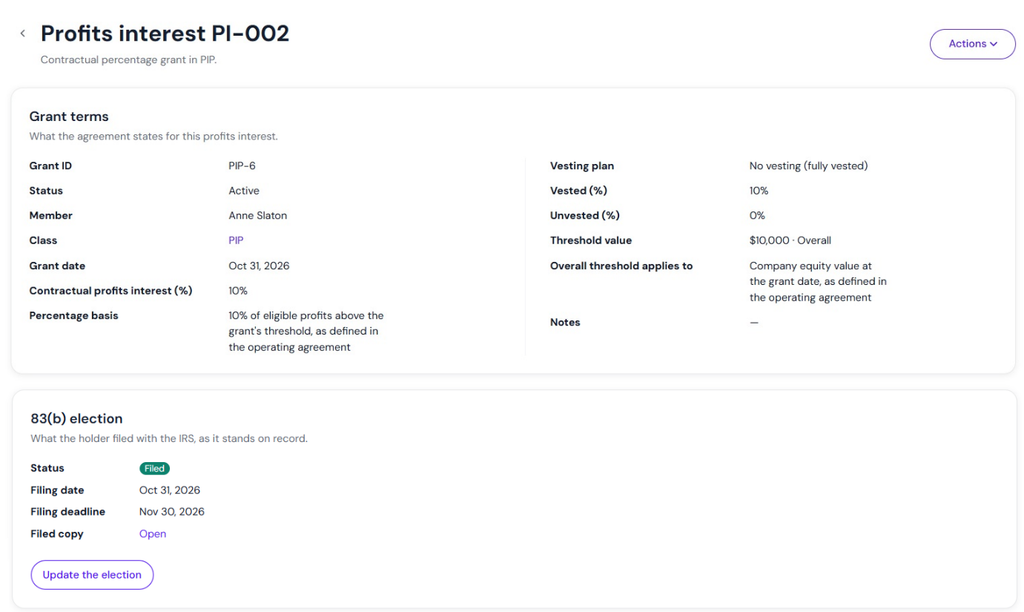
View Profits Interest Percentage (pip) Equity Class
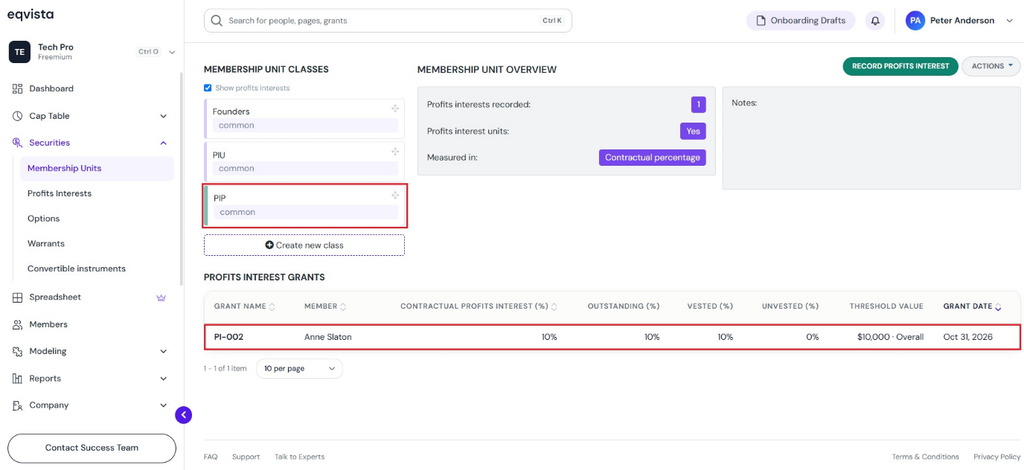
Step 6: Once the contractual percentage grant is issued, you can view it under the Profits Interest Percentage (PIP) equity class. Click on the Profits Interest Percentage (PIP) equity class to view the record of the issuance.
If you want to understand Eqvista, check out our support articles or contact us today!
