How to issue phantom stock on Eqvista?
Your organization might decide to issue phantom stocks to senior level employees as a part of employee benefit plan or incentive. With Eqvista, you can issue phantom stocks in minutes following some simple steps. The platform gives you all the flexibility to issue, manage, and repurchase phantom stocks as per the changing needs of your company.
What is a phantom stock?
A phantom stock is a type of agreement between a company and the receiver that promises a cash payment at a particular time in the future or on completion of a specific future event. The price of these stocks is directly tied to company performance, meaning just like other company stocks, the price of phantom stocks will also go up or down depending on the performance of the company.
These stocks are typically included in the benefit plan of senior management. They might also be used as a bonus for meeting certain targets. Phantom stocks are a great way to reward your employees with many of the benefits of company stock ownership without actually giving them company stocks.
Issue phantom stock on Eqvista
Here’s the step-by-step guide for issuing phantom stocks on Eqvista.
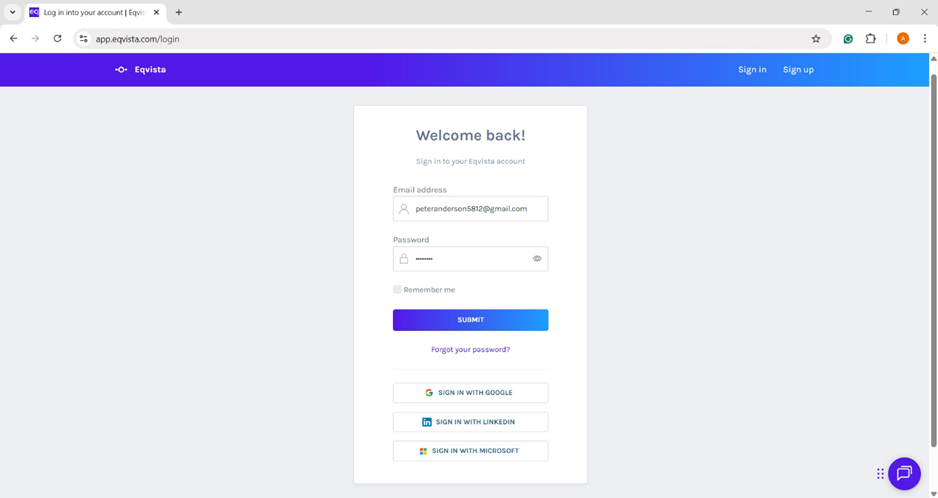
Step 1: Log into the Eqvista application and select the company account.
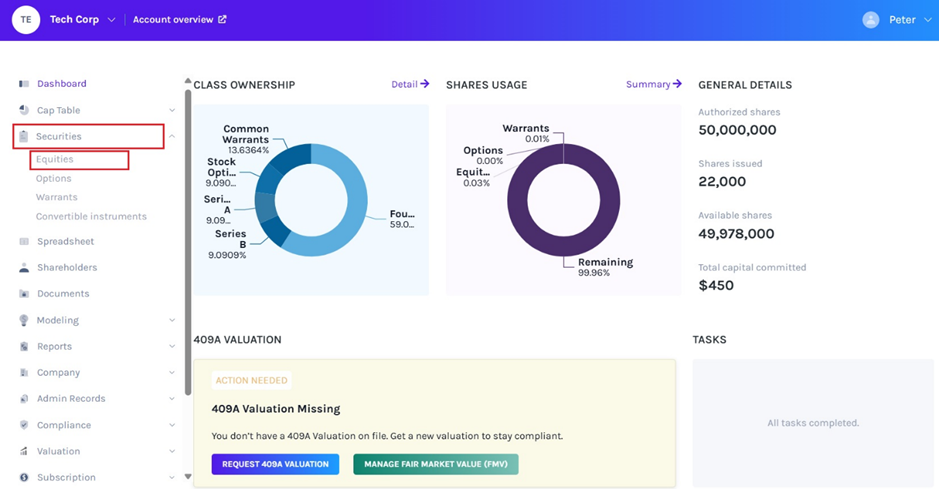
On the left side menu on your dashboard window click on ‘Equities’ to reach the next page. You will find the ’Equities’ tab under the ‘Securities’ menu.
Step 2: On the ‘Equities’ page, select the Equity Class for which you would like to issue the phantom stock. You may select any Equity class from the list as per your needs. Next, click on the ‘Issue Grants’ button on the right and the next new page will open.
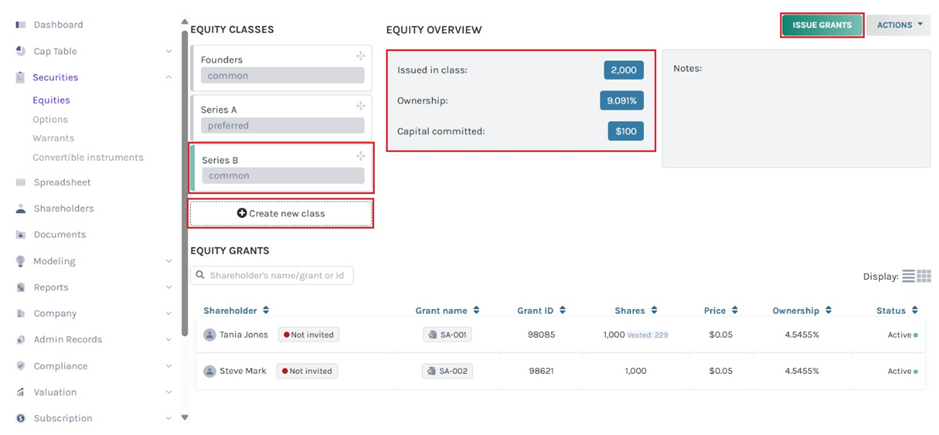
Note: On this page, click on “Create New Class” to create an equity class and if you have created one, you can issue shares and implement a vesting schedule.
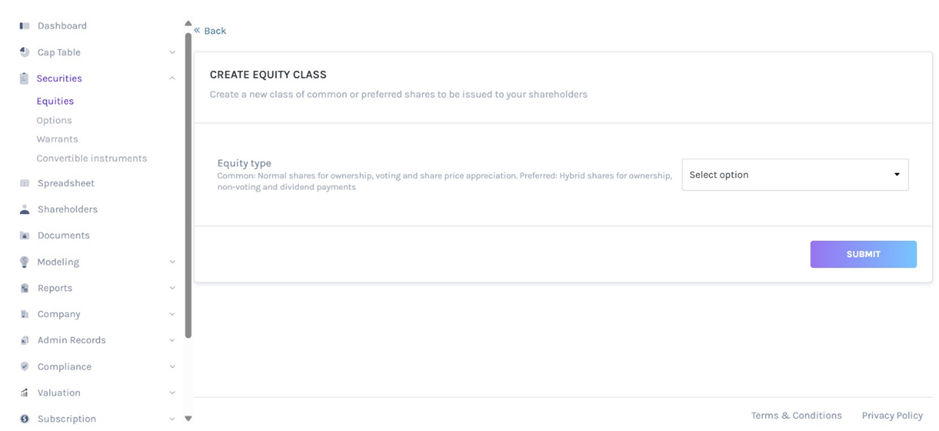
Then, click the equity class created, a panel will appear showing the details of those who have been issued shares from this class.
In this case, we will select “Series B” and click on “Issue Grants”.
Step 3: You will be redirected to the next page to select the equity class again from the list available.
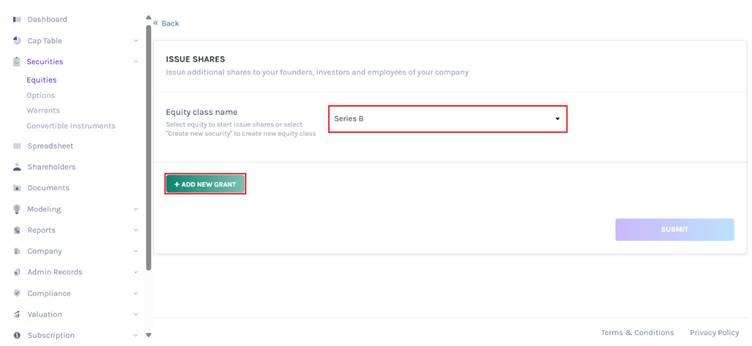
Once you select the equity class, a button will appear that says “Add New Grant” and click on this.
Step 4: Here you have to find the name of the shareholder who will receive the phantom stocks. Type the name and select it from the box (to the right) to move to the next step.
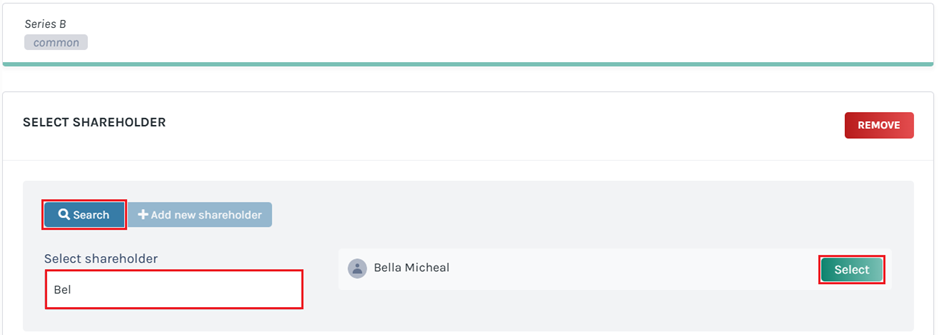
If the individual is not already on your list of shareholders, you can add a new shareholder right from this page by clicking the ‘Add New Shareholder’ button.
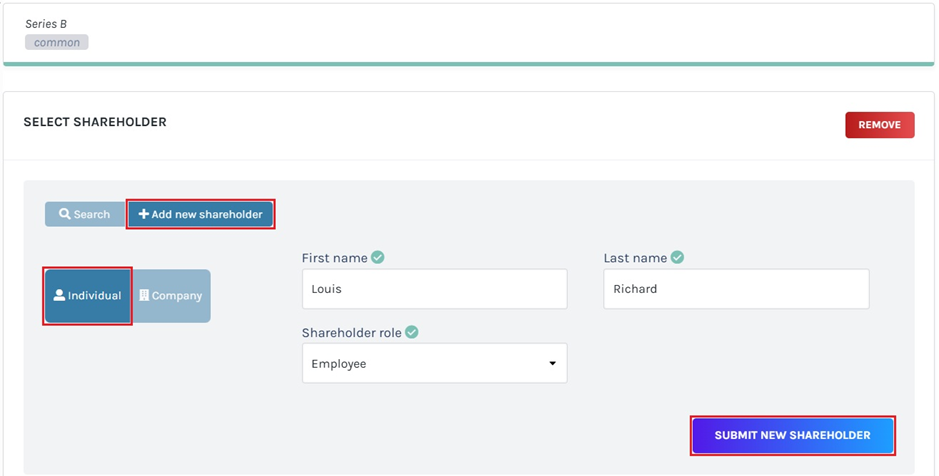
On clicking ‘Add New Shareholder’ you will have the option to choose between an ‘Individual’ and a ‘Company’. After making your selection, fill in the respective details on the form to the right. Finally, click on the ‘Submit New Shareholder’ button to add the new individual/company.
You can also refer to the support article Creating New Shareholders to know how to add a new shareholder.
Step 5: Once you have selected the name of the stock receiver, the above window will open. Fill in the fields with ‘Number of shares issued’ or select the option anti-dilution, ‘Price per share’, ‘Date of issuance’, and ‘Share name’.
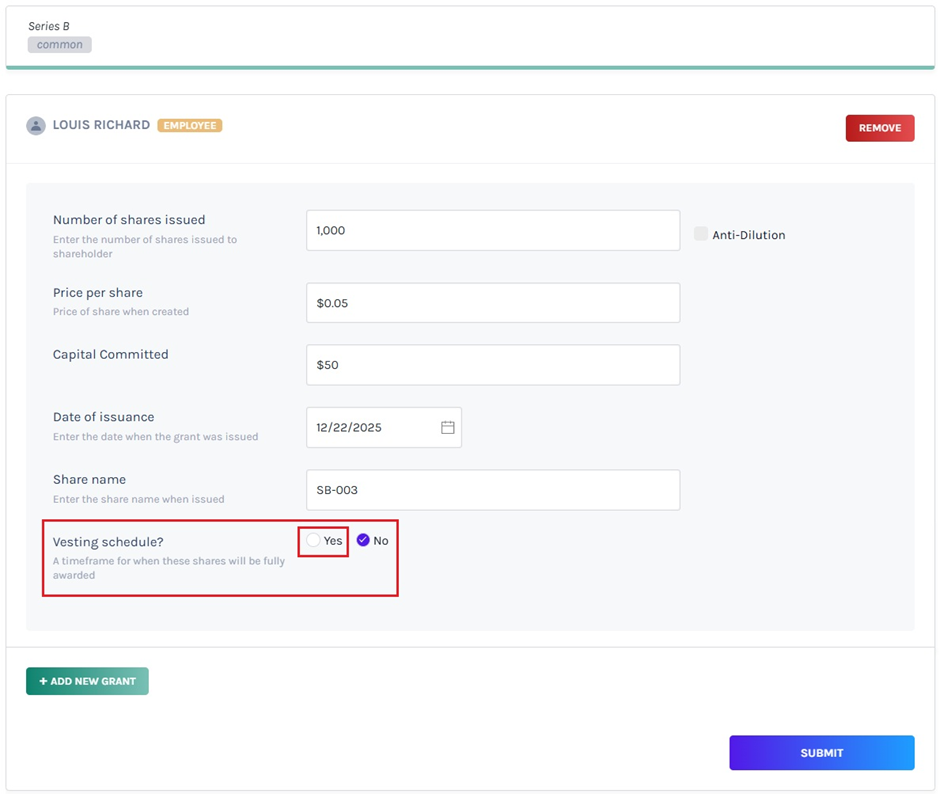
Under the ‘Vesting Schedule?’ click on ‘Yes’. This is set to ‘No’ by default. On clicking ‘Yes’, the next part of the form (as shown in the next image) will open.
Note: You can add a vesting schedule while issuing shares, options, and warrants. Check out the respective support articles to learn about this.
Step 6: Here first you need to select the ‘Vesting Plan’. You can also create a new Vesting plan if you want. Refer to the support article Create a Vesting Plan for creating a new plan.
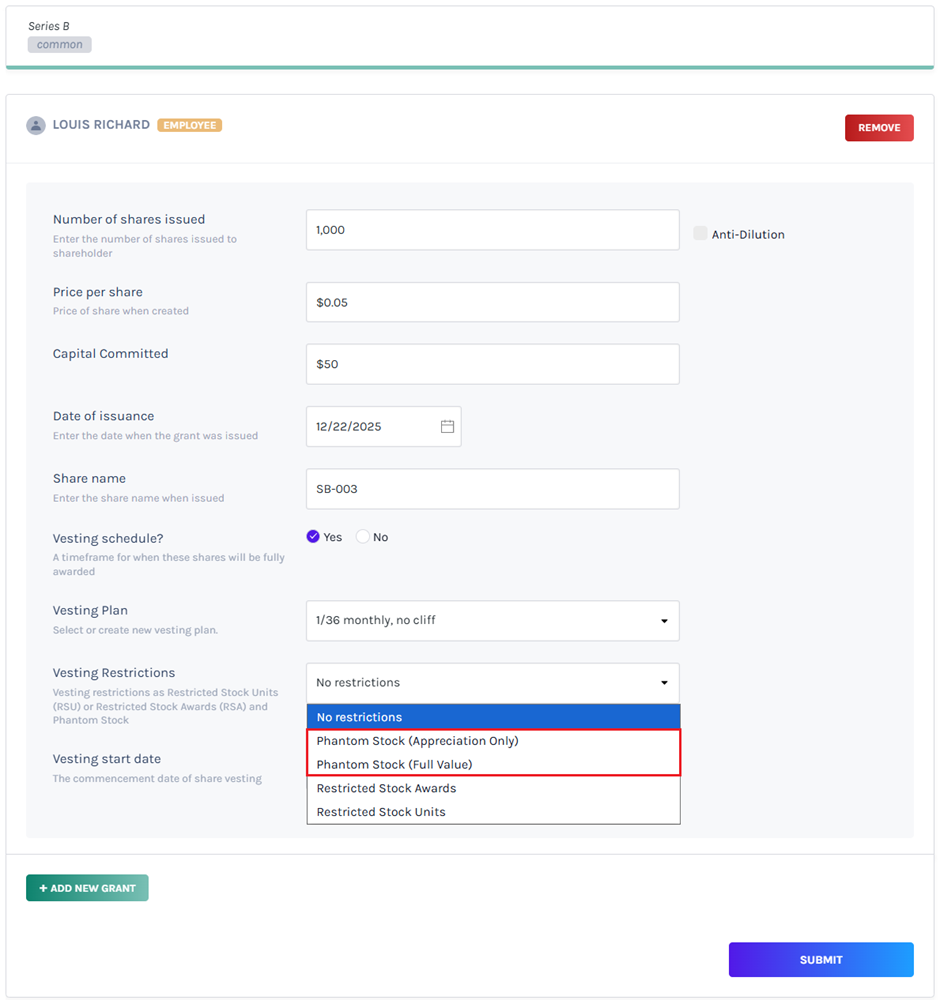
In ‘Vesting Restrictions’, click the white field beside it and you will find 4 options in the dropdown: No restrictions, Restricted Stock Units, Restricted Stock Awards, and Phantom Stock. You can select either ‘Phantom Stock (Full Value)’ or ‘Phantom Stock (Appreciation Only)’ from the options.
- If you select ‘Phantom Stock (Full Value)’, the shareholder will receive the full value of shares when sold.
- If you select ‘Phantom Stock (Appreciation Only)’ the shareholder will receive only the difference between the selling price and the original price of the shares when sold.
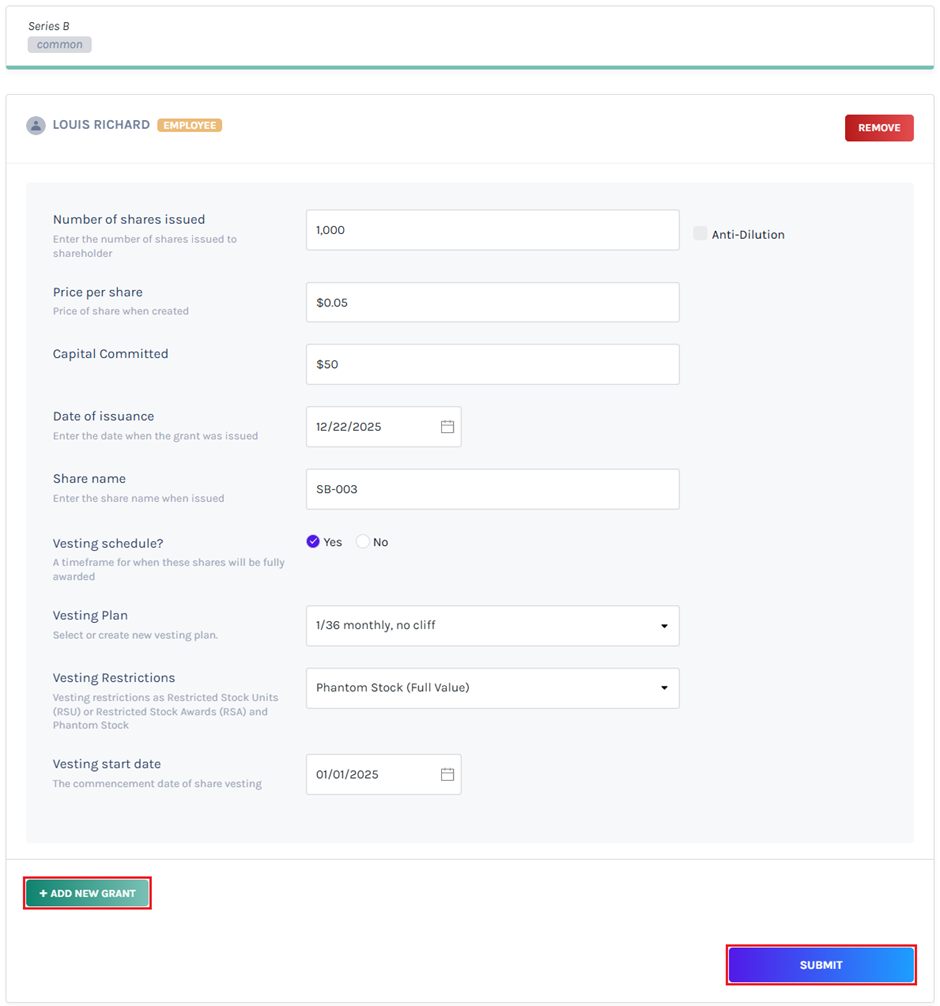
In the next field ‘Vesting start date’, choose the commencement date of share vesting and click on ‘Submit’.
Note: If you want to issue shares from the same class to more than one shareholder, click “Add New grant”. Then select the shareholder profile or add one and fill in the details.
Step 7: After the issuance of the Phantom stock, you will be redirected to the Equity Grants page. Here you will see that the Phantom Stock against the name of the receiver is faded out and the ownership percentage will be displayed blank or not available (n/a).
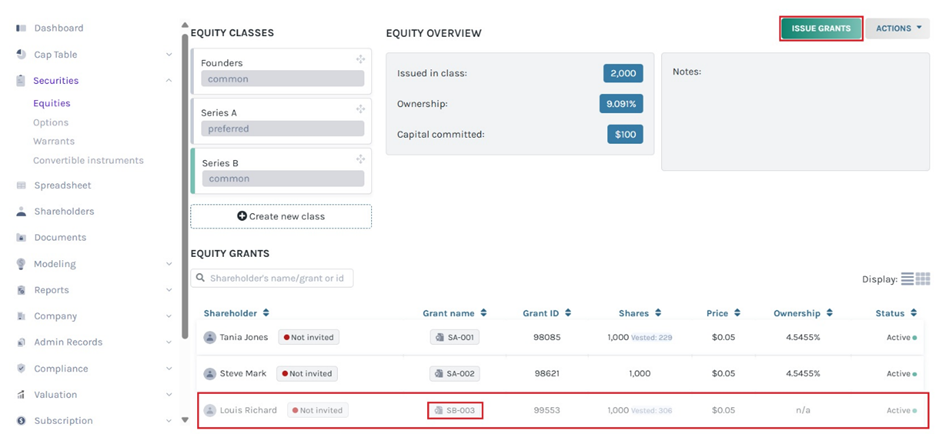
Note: Suppose you want to issue another equity from the class you issued. Then, click on “Issue grants”. Just ensure that you have selected the equity class from which you want to issue equities.
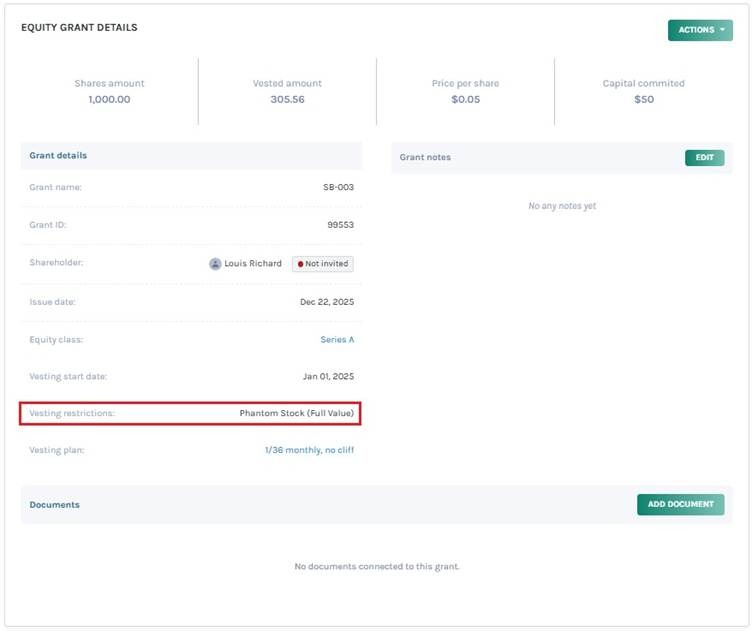
Select the grant name “SB-003” as shown below.
Step 8: When you click, you will be directed to the equity grant details page. You can see the type of restriction placed on the vesting plan, as shown below.
Note: You can add document to the grant by clicking on “Add Document”. Check out the support article to know more about adding documents to grants.
Now that you have issued Phantom Stocks for your company, you can manage or repurchase them from the same platform. To know more about Phantom Stocks and how they work for your company you can read this article.