Onboarding Drafts
On Eqvista, you can easily revisit and complete the onboarding process without losing any information.
What Are Onboarding Drafts?
Onboarding drafts save the progress of onboarding:
- Single company.
- Multiple companies using a template or manually.
- Adding services such as cap table management and 409A valuation for an existing company.
- Adding services for multiple existing companies using a template or manually.
On Eqvista, you can view the onboarding drafts in just a few clicks. Here are the steps to follow:
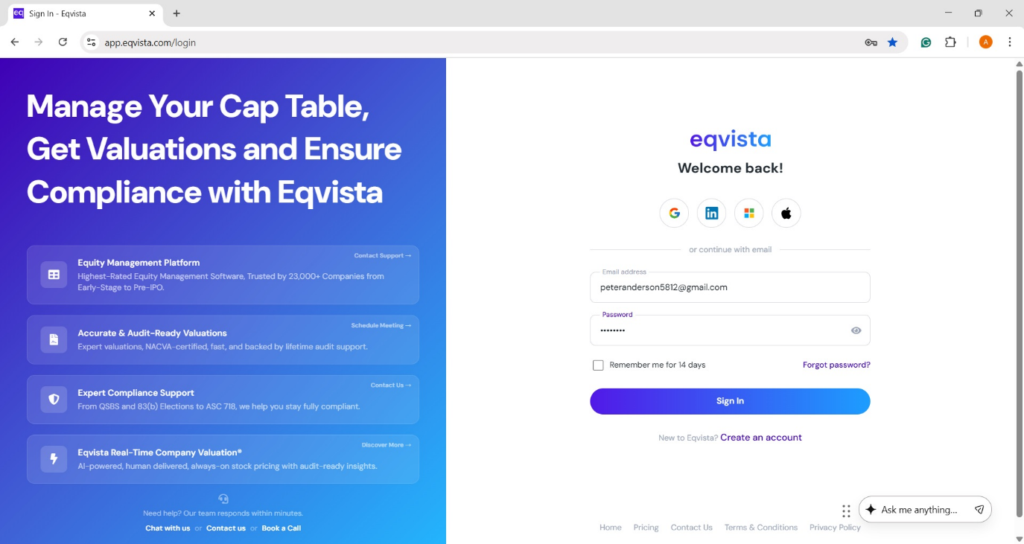
Step 1: Log into your account on Eqvista, or create an account if you have not yet signed up.
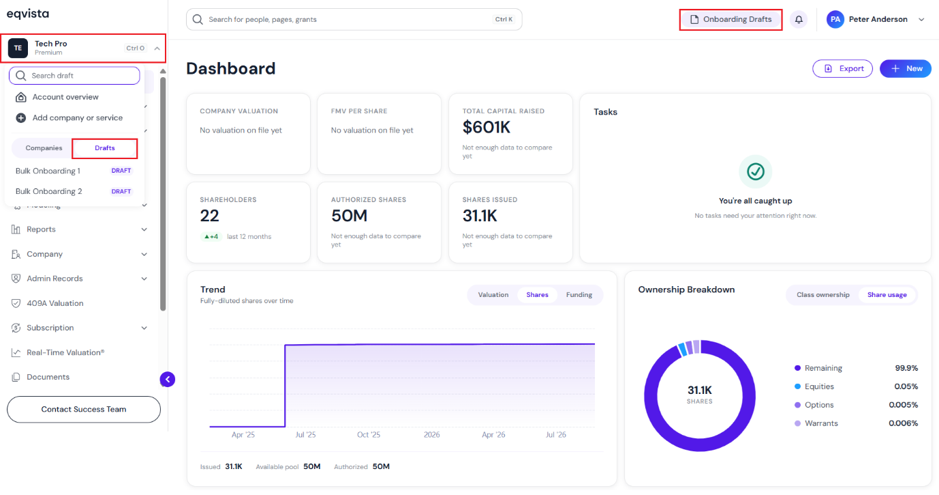
On the dashboard, click on company name on the left-hand side to get a drop-down menu and select the drafts or click on “Onboarding Drafts” on the right-hand side as shown below.
Step 2: On this page, you can view the onboarding drafts created for adding one or multiple companies, as well as including services for existing or multiple companies. Apart from viewing the drafts, you can perform the following functions:
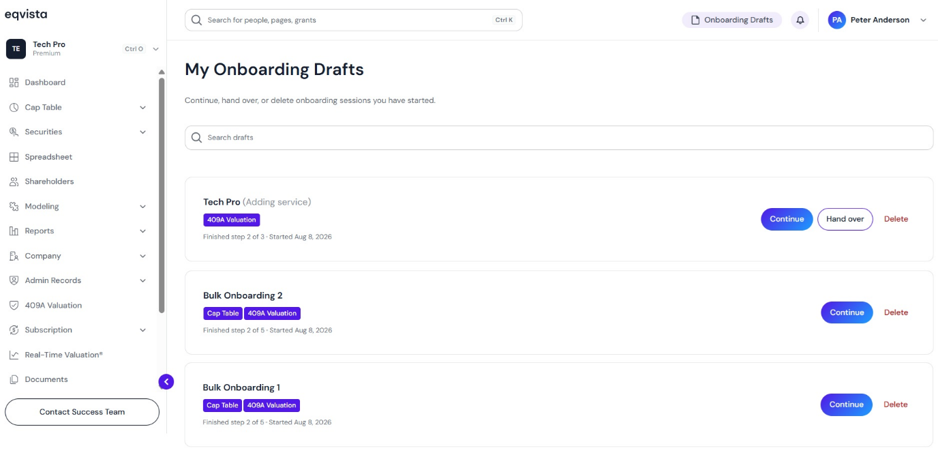
#1 Search
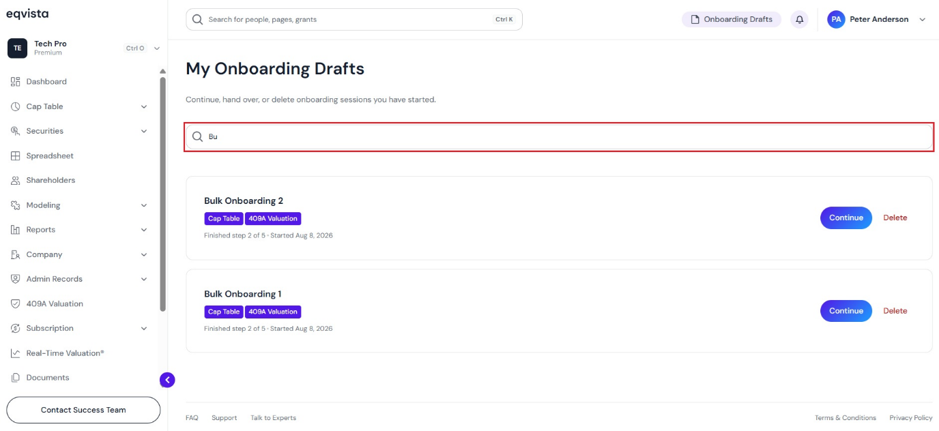
You can search for an onboarding draft by typing the first few letters of its name in the space as shown below.
#2 Continue
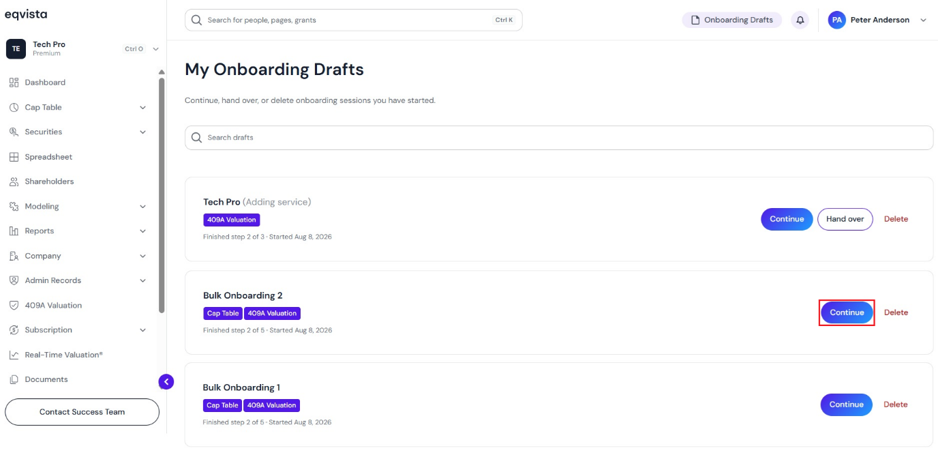
If you wish to resume the onboarding process and pick up from where you left off, click “Continue”.
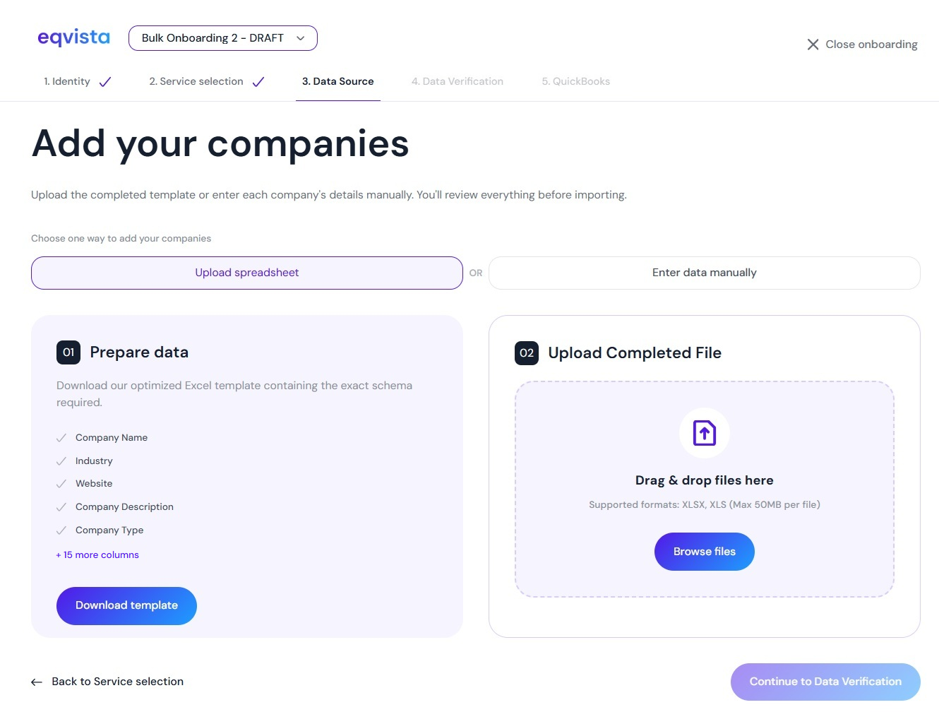
Once you click, you will be directed to the page where you left off in the onboarding process.
#3 Hand Over
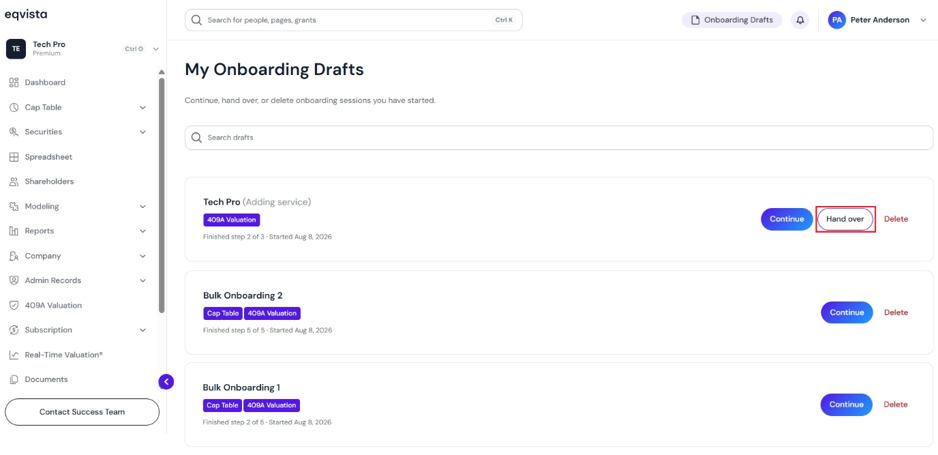
Suppose you would like to hand over the onboarding draft to another Eqvista user. You can hand over the draft by clicking on “Hand Over”. First, ensure that the user has been granted full access to the company before handing the draft over to them.
When you click, a panel will appear to select a recipient’s email from a drop-down menu. The drop-down menu displays company users who have full access.
Note: The recipient must already have full access to the company. They will be notified by email, and the draft will move to their account.
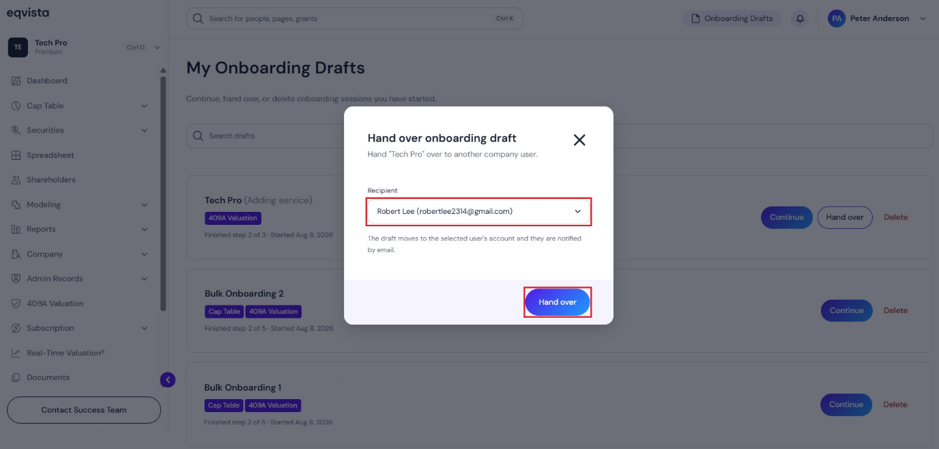
After entering the recipient’s email, click on “Hand Over”.
#4 Delete
If you want to remove an onboarding draft, then click on “Delete”.
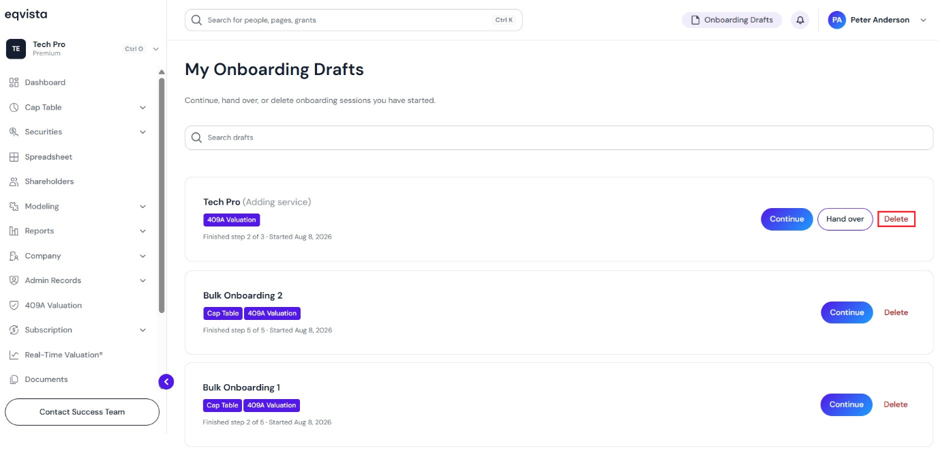
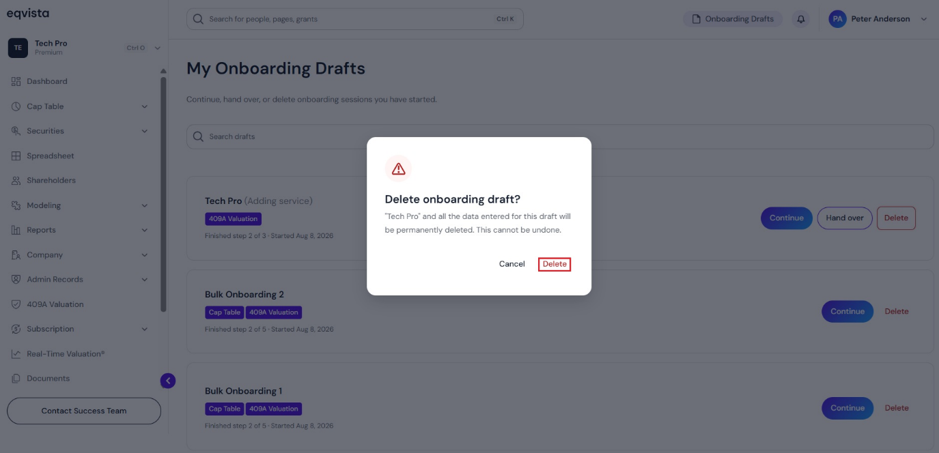
Once you click, a panel appears stating that all data entered for this draft will be permanently deleted. To proceed with deleting the onboarding draft, click on “Delete”. If you want to cancel the process, click on “Cancel”.
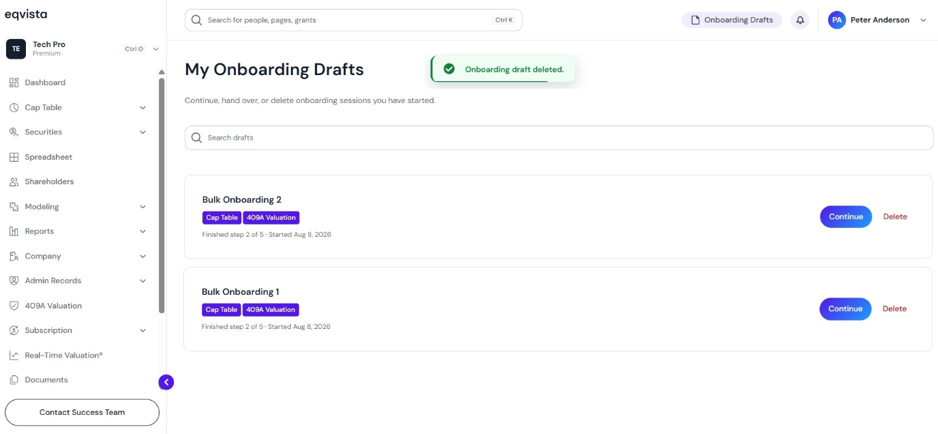
The onboarding draft will be removed from the list as shown below.
For more information on Eqvista, check out our support articles or get in touch with us today!