Secondary Transactions – Repurchase All Shares
One of the important secondary transactions is a share repurchase where a company buys its shares from the shareholders.
Repurchase all shares
Here are the steps to follow:
Step 1: Log into your Eqvista account and select your company account.

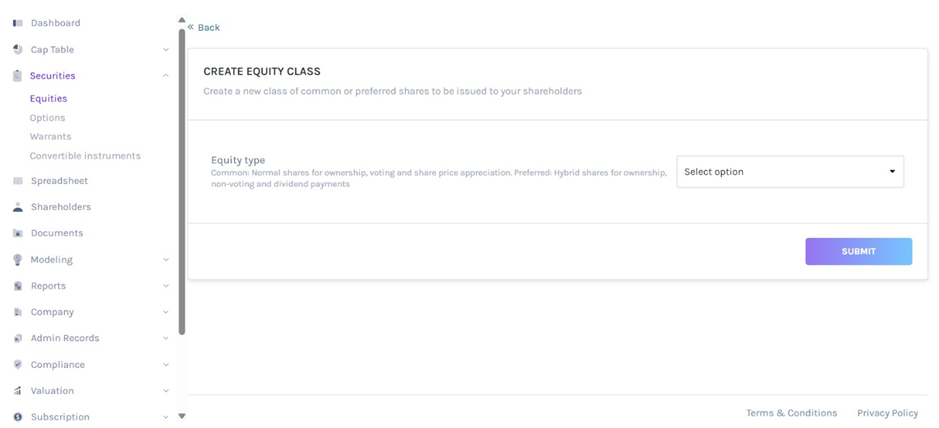
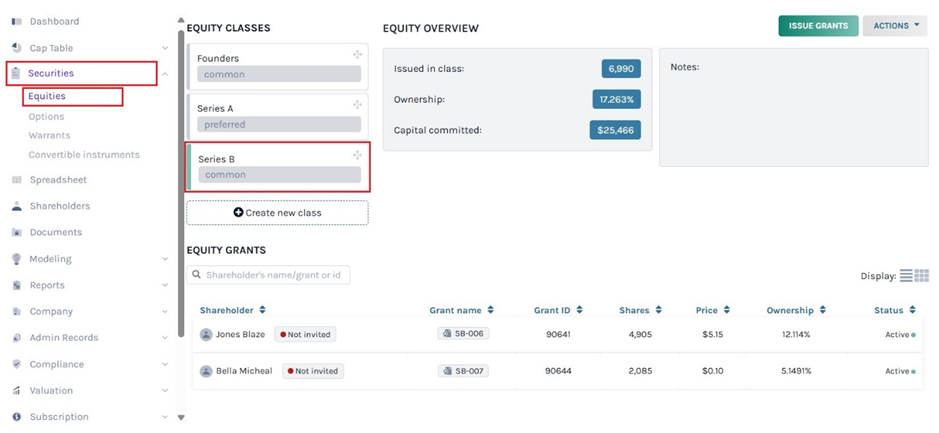
On the dashboard, click on “Securities” on the left-hand side to get a drop-down menu. Then select “Equities”.

Step 2: Once you select, you will be redirected to the following page.

Note: On this page, click on “Create New Class” to create an equity class and if you have created one, you can issue shares and implement a vesting schedule.
Then, click the equity class created, a panel will appear showing the details of those who have been issued shares from this class.
In this case, we will click “Series B” and select the grant “SB-007”.
Step 3: You will be redirected to the grant details page below.

Here, click on “Actions” and then from the drop-down menu, click on “Repurchase Shares”.
Step 4: By doing this, a new window will appear. The first step is deciding whether it will be a Partial repurchase or Repurchase all shares.
Note: You can also partially repurchase shares by clicking “Partial repurchase”. To learn how to partially repurchase shares, check out the support article!
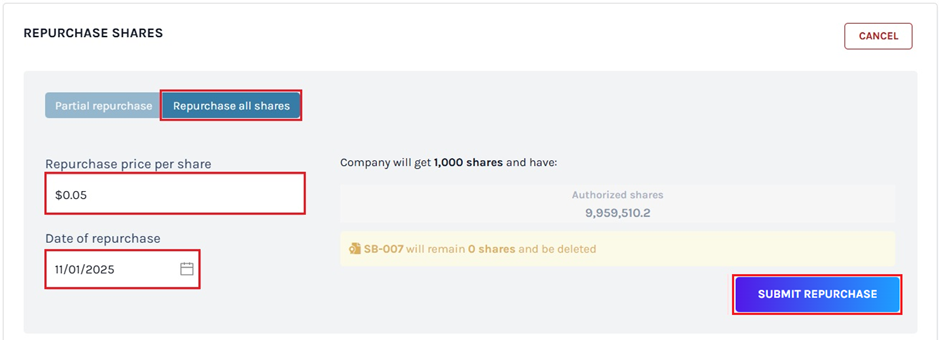
In this case, we selected “Repurchase all shares”. The price per share and repurchase date will be automatically filled.
If the repurchase date is not today and the price per share is not the same as the initial share grant, then you can edit that as well. As you edit the details, the right-side panel gets updated.
Once you have added all the details, click on “Submit Repurchase”.
Step 5: Then, you will be redirected to secondary transaction details.
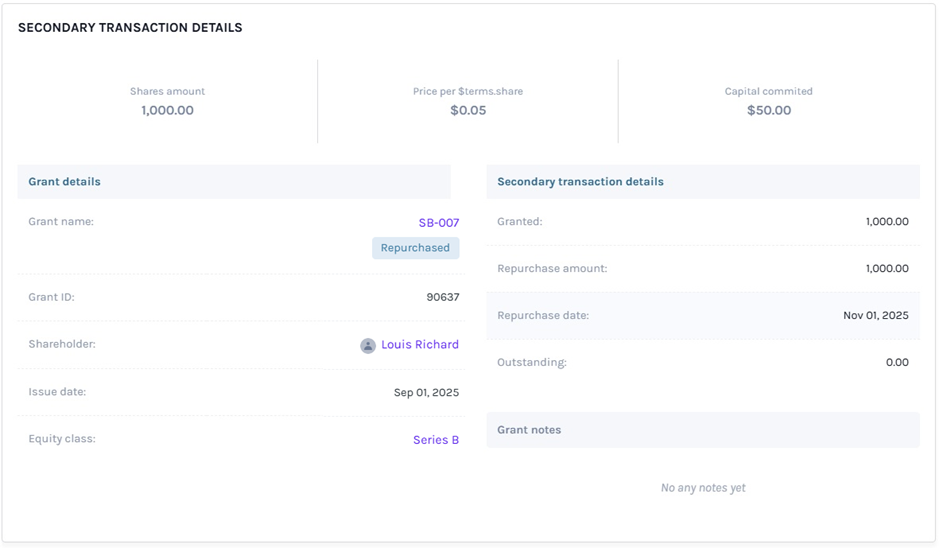
Step 6: To view the grant that has been repurchased, click on “Securities” on the left-hand side to get a drop-down menu and select “Equities”.
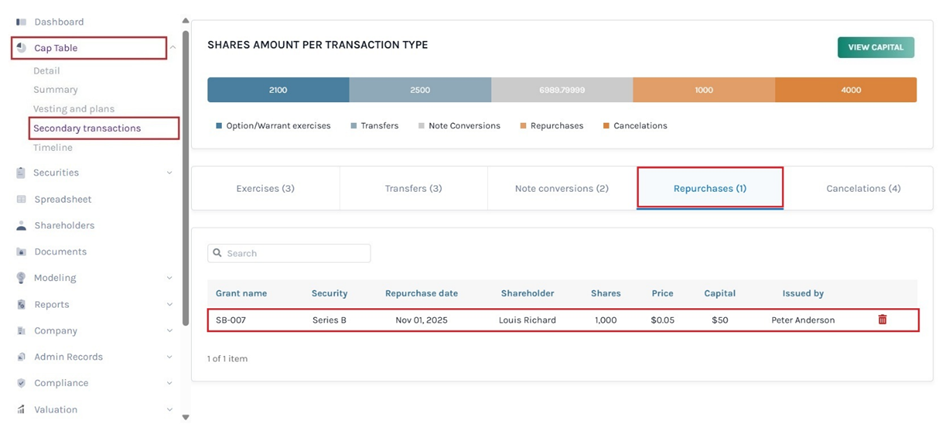
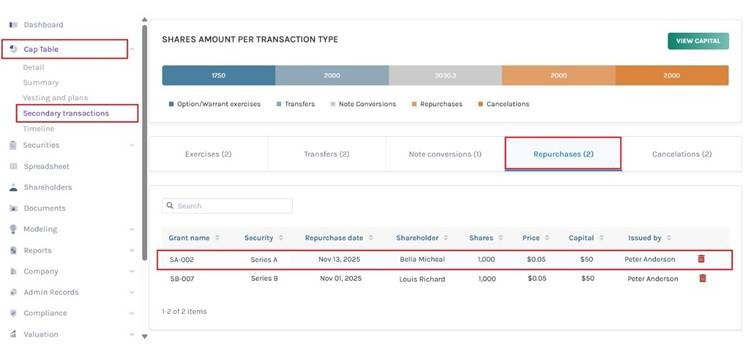
Step 7: The record of the repurchased grant can be seen by clicking “Cap Table” on the left-hand side to get a drop-down menu. Then, click on “Secondary Transactions” and you will see all the transactions – Exercises, Transfers, Note conversions, Repurchases, and Cancellations.
On this page, click on “Repurchases” to check if the grant is repurchased.
Repurchase using spreadsheet
Step 8: Suppose you want to perform repurchase using the spreadsheet feature. At the top of the table, click on “Preferred Equity Grants”. Under the Secondary Transaction section, the first one is “Secondary Transaction” which provides the different options to choose from. Once you select “Repurchase” from the drop-down menu, enter the date, amount, and price per share.
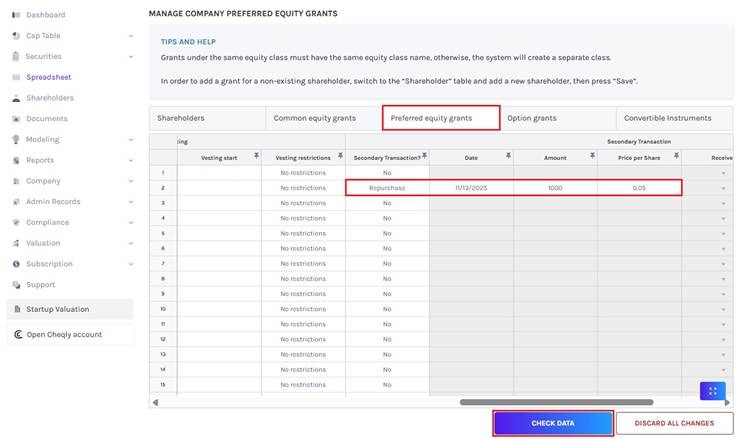
After adding the details, click on “Check Data”. If you want to cancel the process, click “Discard all Changes”.
Step 9: Once your details have been checked, a data validation message will appear: either the entered details are correct and you can save them, or some information may be missing or incorrect.
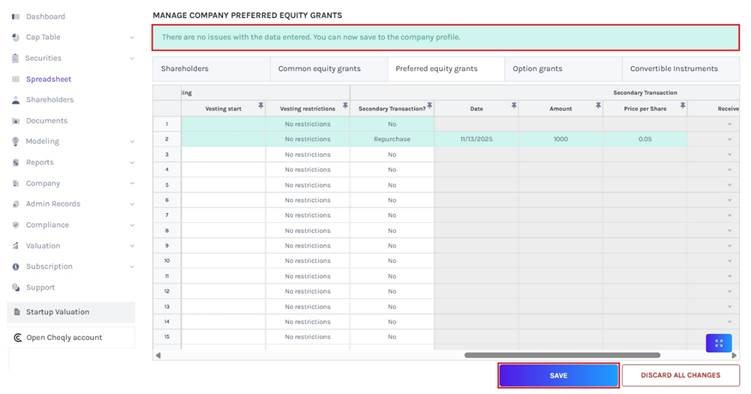
When there are some issues or missing information, the validation message will appear in “Red” along with the details of the issue.
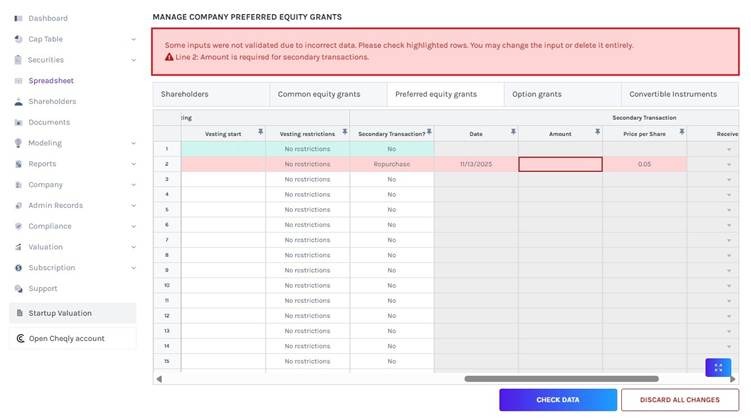
Once the details have been checked, click on “Save”.
Step 10: The record of the repurchase can be seen by clicking “Cap Table” on the left side to get a drop-down menu and selecting “Secondary Transactions”. On this page, click on “Repurchases” to verify if the grant is repurchased.
Note: Similarly, you can also repurchase issued options and warrants.
To know more about Eqvista’s processes, check out our support articles and knowledge base. For further queries, get in touch with us!