How is phantom stock recorded in reports?
After you issue Phantom stocks, they will be recorded in the company reports. Let’s find out how they will appear in the reports so that you can quickly point them out.
Record phantom stock in reports
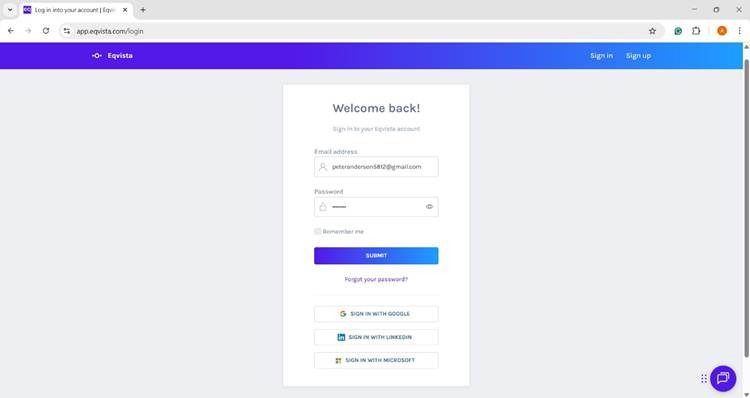
Step 1: Log into the Eqvista application and select the company account.
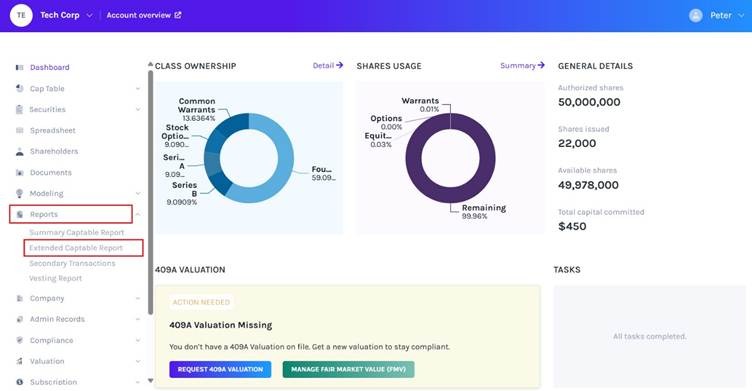
On the dashboard, click on “Reports” from the left-side menu and select “Extended Captable Report”.
Step 2: Once you do this, you will see the report information along with an option to download the report.
Note: Suppose you want to download past cap table reports, click on “Historical Capitalization Table Report” and select the date. Check out the support article to know more about extended cap table reports.
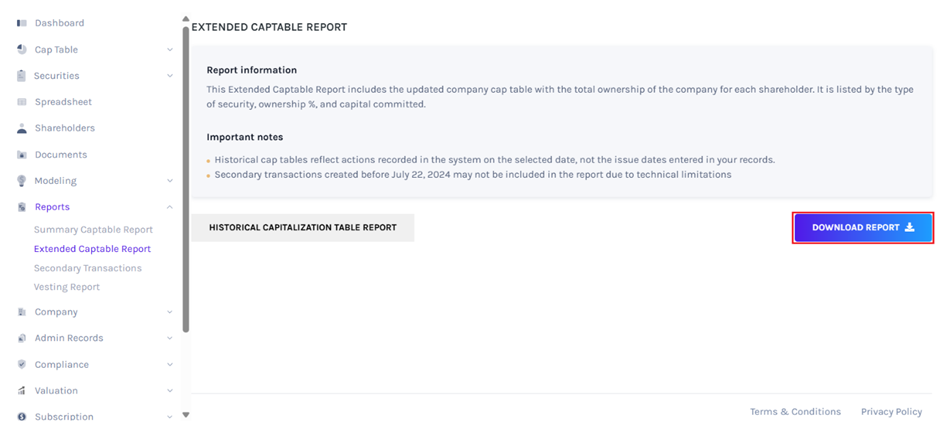
Then, click “Download Report” on the right-hand side of the page to download the report.
Step 3: Once you click, the report gets downloaded as an Excel sheet in your Downloads.
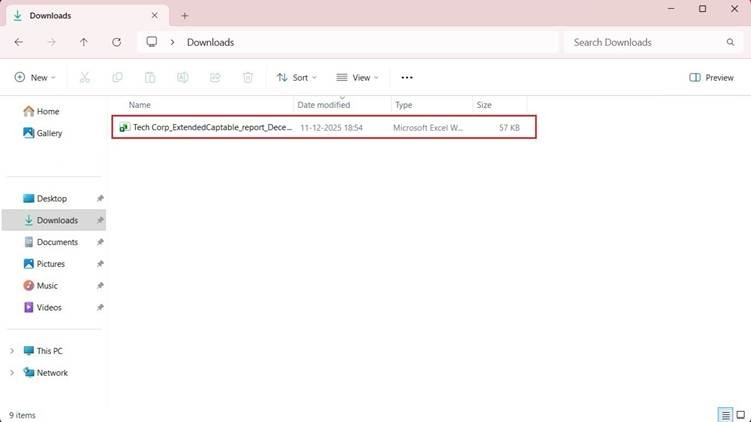
Step 4: Double-click the Excel sheet to open the downloaded report from the download folder in your system.

The report will have seven sheets with details. The first sheet is like a cover that tells what the report is about with the company name.
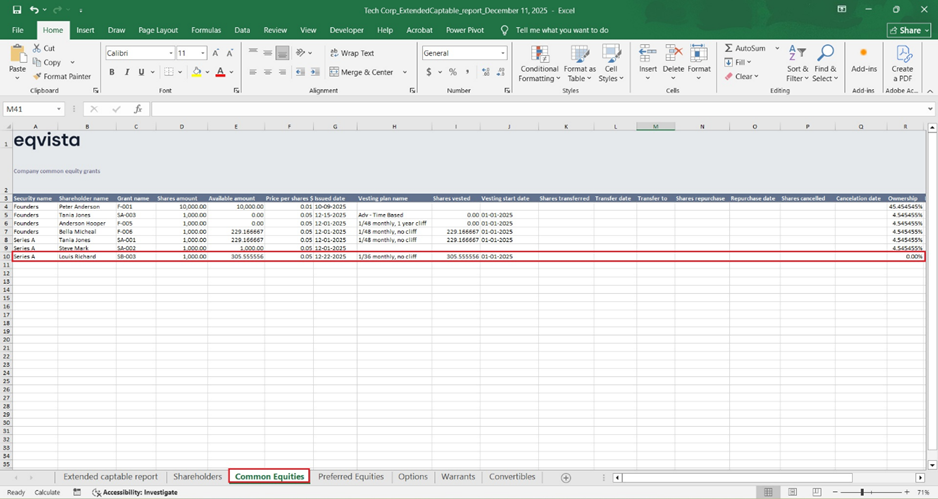
Step 5: On the third tab ‘Common equities’, you can see all the company’s common equity grants, including any phantom stocks issued. However, for the Phantom stock owners (Louis Richard in our example), the ‘Ownership’ will appear as ‘0.00%’.
To know how to issue Phantom stocks you can refer to this support article. For a better understanding of phantom stocks and how they work for a company, check out here.