How is phantom stock repurchased?
Phantom stock gives you the flexibility to offer cash incentives to your employees or other company associates without giving them actual company ownership. You can repurchase phantom stocks on Eqvista just as easily as you can issue them on the platform.
Not sure how to issue phantom stocks on Eqvista? Read the detailed step-by-step guide here.
Repurchase phantom stock
In this article, we will show you how you can repurchase phantom stocks.
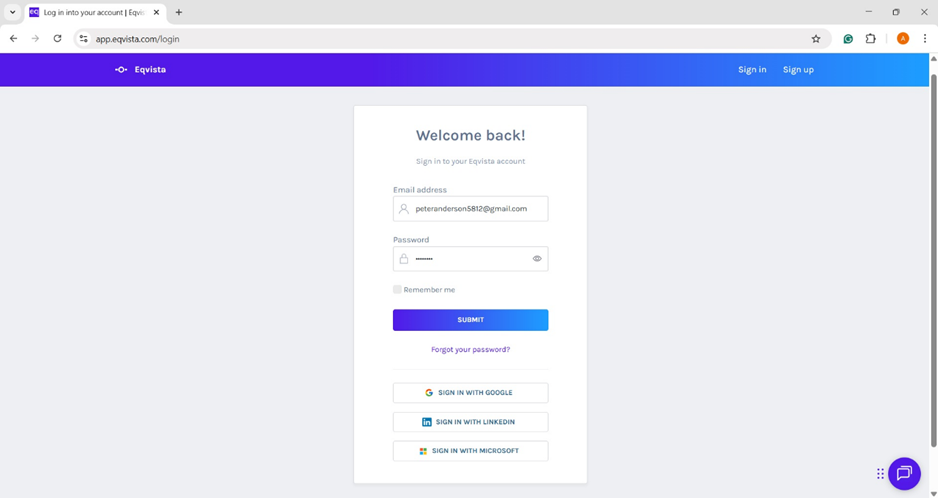
Step 1: Log into the Eqvista application and select the company account.
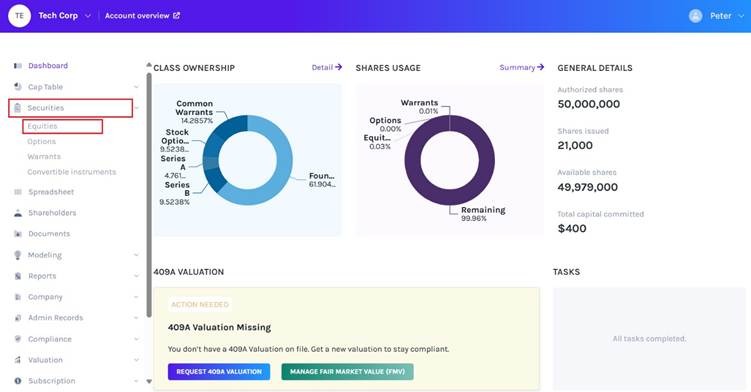
On the dashboard, click on “Securities” from the left-hand side panel for a drop-down menu and select the option “Equities”.
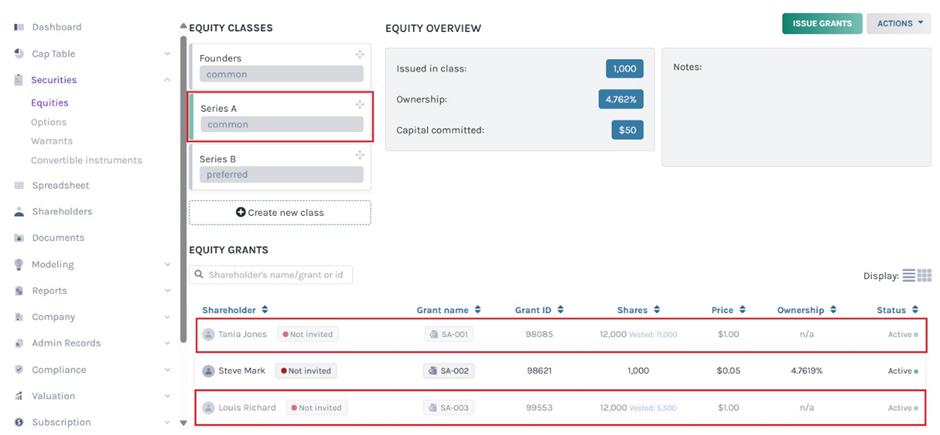
Step 2: Select the Equity class under which you have issued ‘Phantom stocks’. Now locate the receiver of the stock from the list of shareholders. In our example, we have marked both ‘Tania Jones’ and ‘Louis Richard’ who received phantom stocks.
Note: To know how to issue Phantom stocks, you can refer to this support article.
There are 2 types of phantom stocks –
- Phantom stock with Full Value: In this case, the full value of the share price will be given to the employee once the shares are repurchased by the company.
- Phantom stock with Appreciation Only: Here only the difference between the transfer price and the original share price is paid to the employee once the shares are repurchased.
Repurchasing phantom stock with full value
Step 3(A): Click on the name of the Phantom stockholder (in our example – Tania Jones) and you will reach the ‘Equity grant details’ page. Here you can see that the Phantom stocks issued to the holder are ‘Full Value’, meaning the holder will receive the full value of the share price once they have been repurchased. Now, click on the ‘Action’ button and from the drop-down select the second option ‘Repurchase shares’.

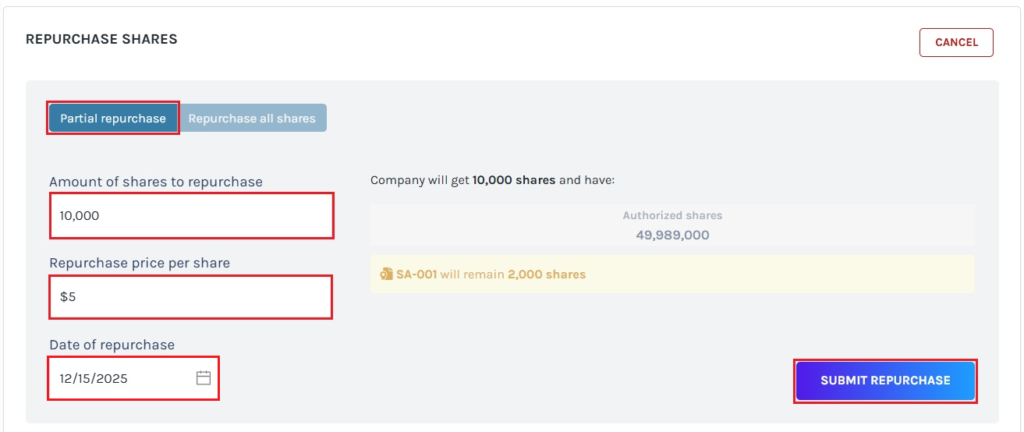
Step 4(A): You will be directed to the next page as shown in the image below. Enter the number of shares you want to repurchase in the ‘Amount of shares to repurchase’ box. In the next box, enter the ‘Repurchase price per share’. The last box is where you need to select the ‘Date of repurchase’, which automatically gets filled. If the repurchase date is not today, then you can edit it. Finally, click on ‘Submit Repurchase’.
Note: You can repurchase shares by clicking on “Partial Repurchase”. To learn how to partially repurchase shares, check out the support article!
Then, you will be redirected to the secondary transaction details.
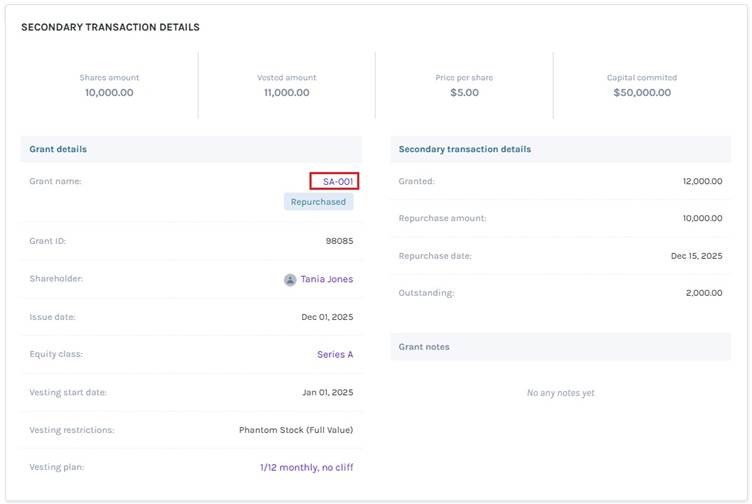
For more details on the share repurchase and the grant, click on the share name here. In this case, it is – “SA-001”.
Step 5(A): You will be directed back to the ‘Equity grant details’ page for the stockholder. Here, the previous and current ‘Share amount’, the currently ‘Available’ number of shares for repurchase or transfer, and the current ‘Capital commitment’ after the repurchase will be displayed.
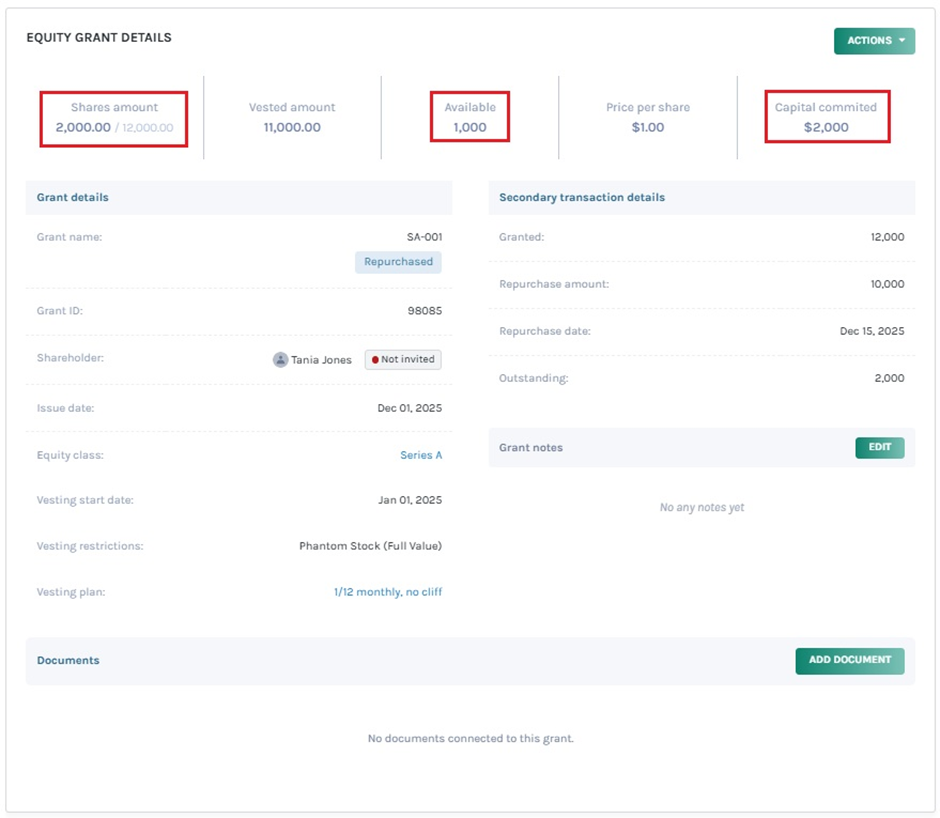
Note: After partially repurchasing the shares, you cannot edit the grant details. You can add a documentadd document to the grant by clicking on “Add Document”. Check out the support article to know more about adding documents to grants.
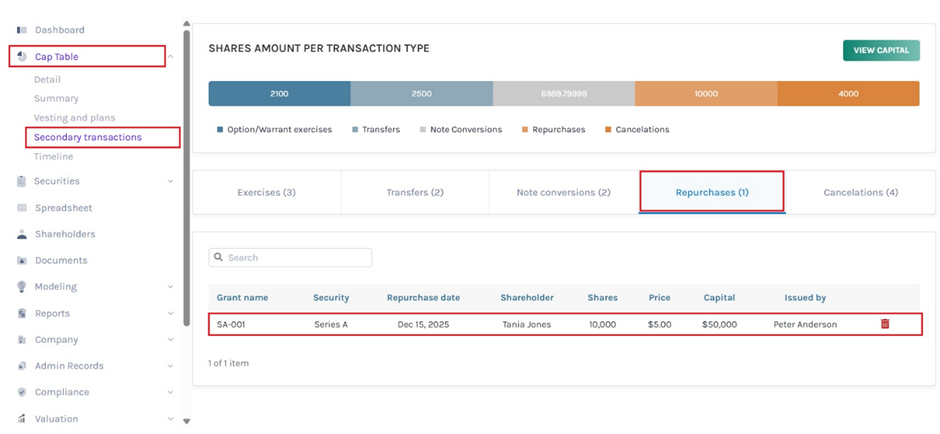
Step 6(A): To check the repurchase amount, go to the ‘Secondary transactions’ tab under the ‘Cap Table’ menu. Next, move to ‘Repurchase’ (the 4th tab on the page). Here, the repurchase amount ($50,000 in our example) will be displayed against the name of the stockholder (Tania Jones in our example).
In our example, 10,000 shares will be repurchased at $5 per share. So, the phantom stockholder will receive 10,000 x $5 = $50,000.
Repurchasing phantom stock with appreciation only
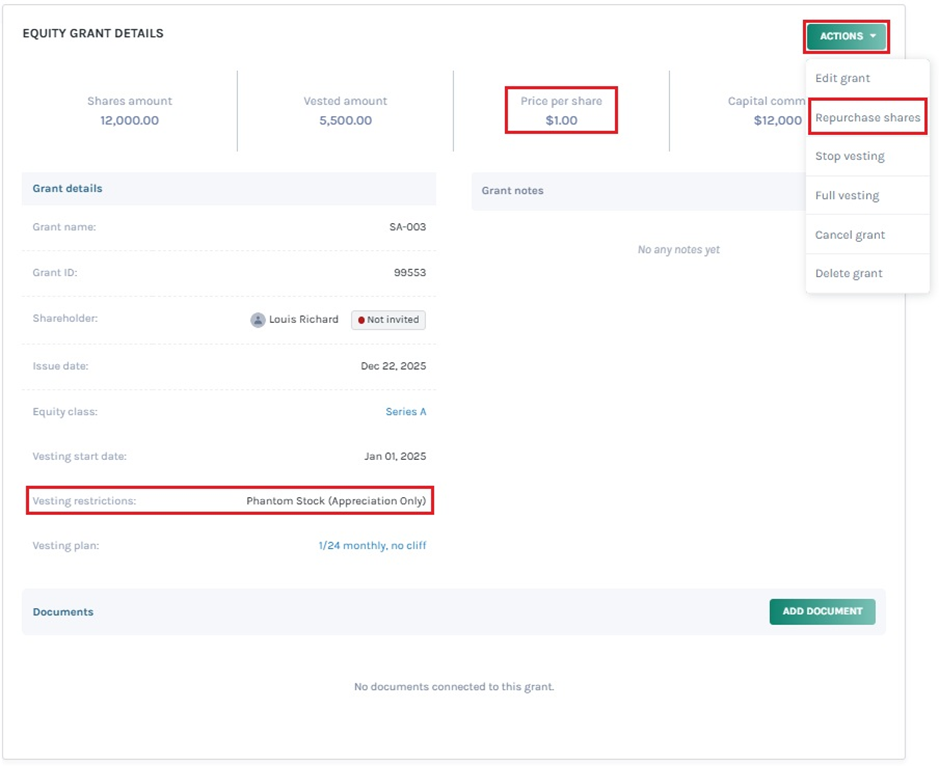
Step 3(B): Click on the name of the other Phantom stockholder (in our example – Louis Richard) on the ‘Equity Grants’ page. You will reach the page with ‘Equity grant details’ issued to her. Here you can see that the Phantom stocks issued are ‘Appreciation only’, meaning the holder will receive only the difference between the transfer price and the original share price once the shares are repurchased. Also, the original price per share is available on this page. In our example, the original price per share is $1.
Go to the ‘Actions’ button and from the drop-down, select ‘Repurchase shares’ to reach the next page.
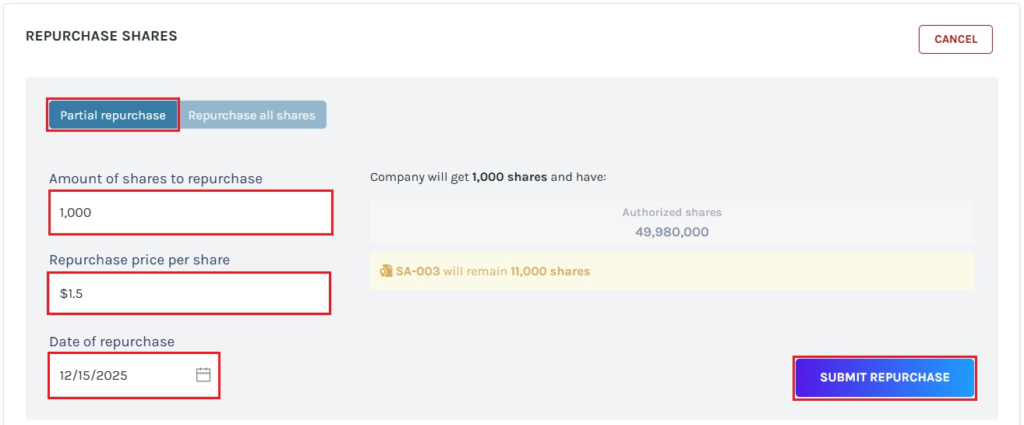
Step 4(B): Enter the ‘Amount of shares to repurchase’ and then the ‘Repurchase price per share’ which is the transfer price for the stocks in the designated boxes. Fill in the last box with the ‘Date of repurchase’, which automatically gets filled. If the repurchase date is not today, then you can edit it. Complete the process by clicking on the ‘Submit Repurchase’ button.
Note: You can repurchase shares by clicking on “Partial Repurchase”. To learn how to partially repurchase shares, check out the support article!
Then, you will be redirected to the secondary transaction details.
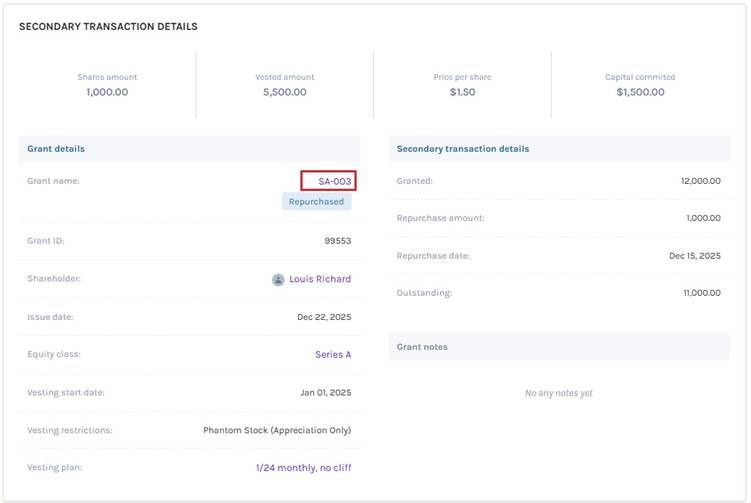
For more details on the share repurchase and the grant, click on the share name here. In this case, it is – “SA-003”.
Step 5(B): You will be directed back to the ‘Equity grant details’ page. Here you will see that the fields – ‘Share amount’ and ‘Capital commitment’ have been updated. Also, a new field – ‘Available’ is added which shows the number of available shares for repurchase or transfer.
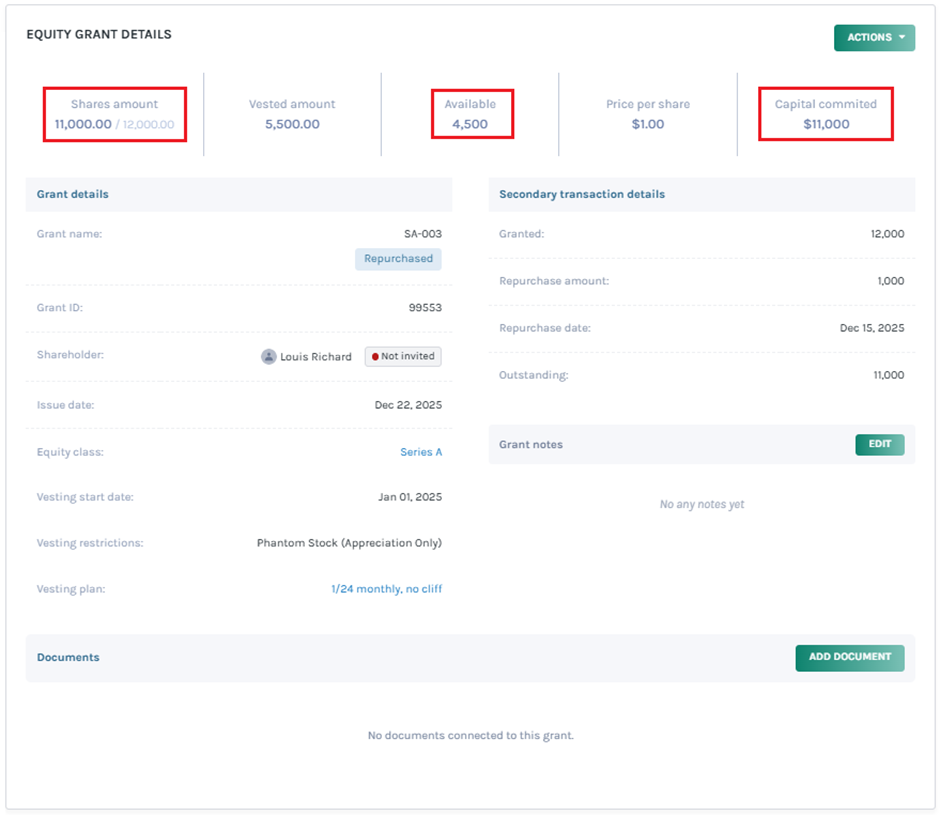
Note: After partially repurchasing the shares, you cannot edit the grant details. You can add a documentadd document to the grant by clicking on “Add Document”. Check out the support article to know more about adding documents to grants.
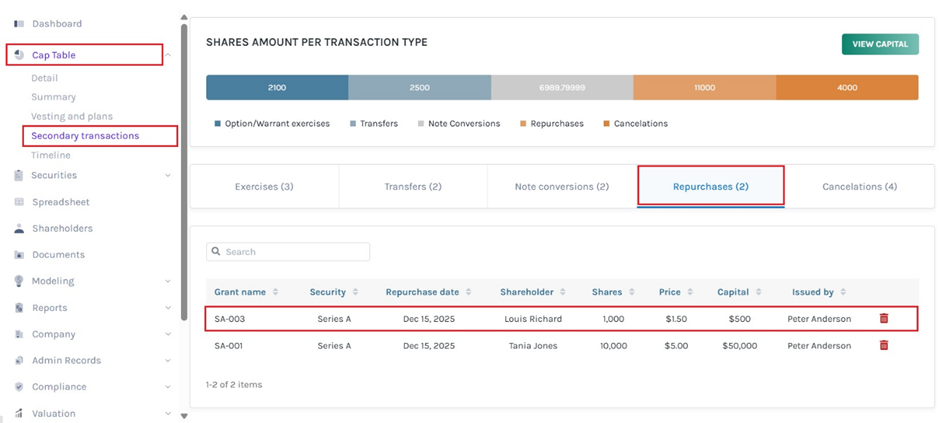
Step 6(B): Now, to check the repurchase amount, go to the ‘Secondary transactions’ tab under the ‘Cap Table’ menu and then move to ‘Repurchase’. Here, the repurchase amount ($500 in our example) will be displayed against the name of the stockholder (Louis Richard in our example).
In our example, 1,000 shares will be repurchased for the transfer price of $1.5 per share. The original price was $1 per share. So here the Phantom stockholder will receive $1.5 – $1 = $0.5 x 1000 = $500 after the repurchase is complete.
You can learn more about Phantom stocks and how they can work for your company from this article.