How to Connect My Companies in Group Structure?
Group structure allows companies to connect their subsidiary companies to their parent companies (or vice versa). When creating a group structure, each company can belong to only one group structure, and it cannot appear in multiple separate structures.
Here are the steps to follow:
Step 1: Log into Eqvista and choose your company.
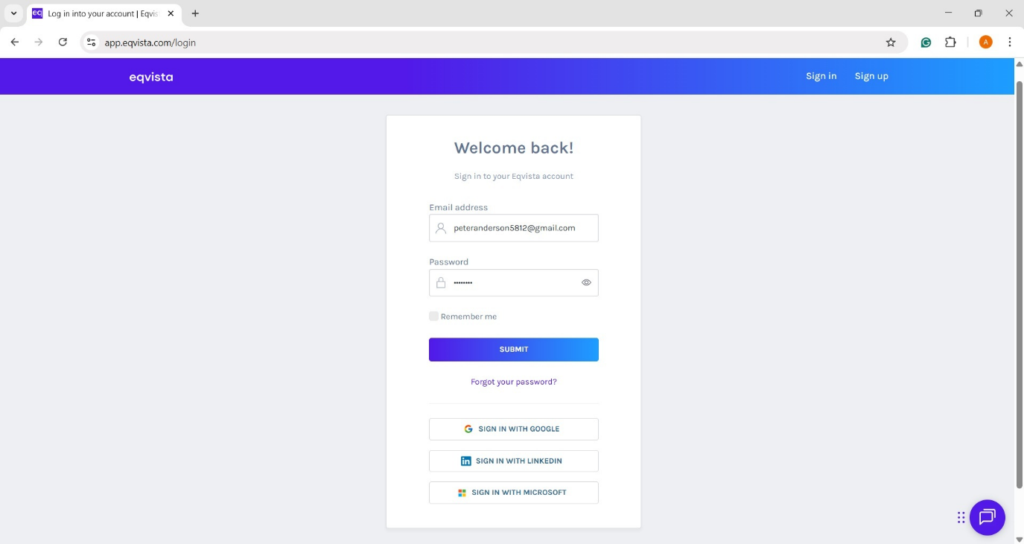
On the dashboard, click “Company” on the left to get a drop-down menu and select “Group Structure”.
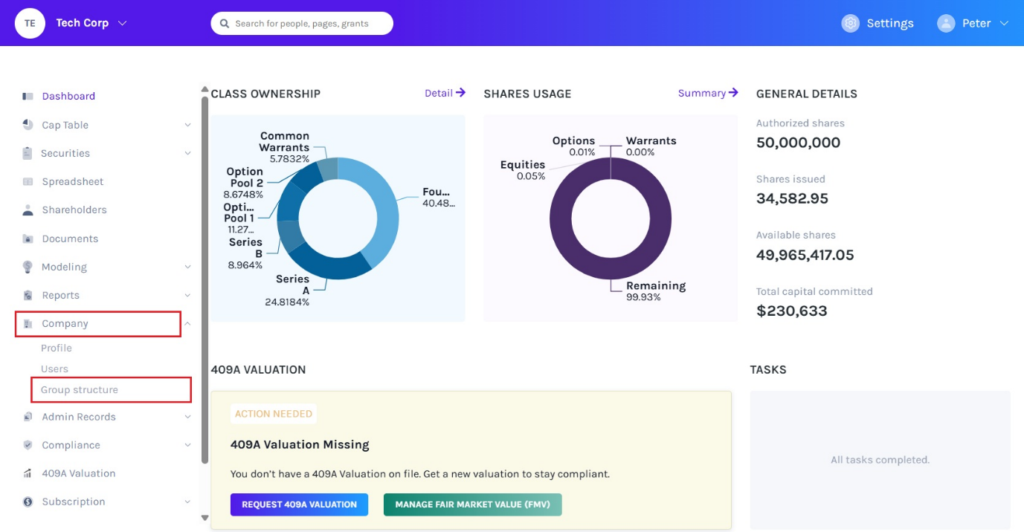
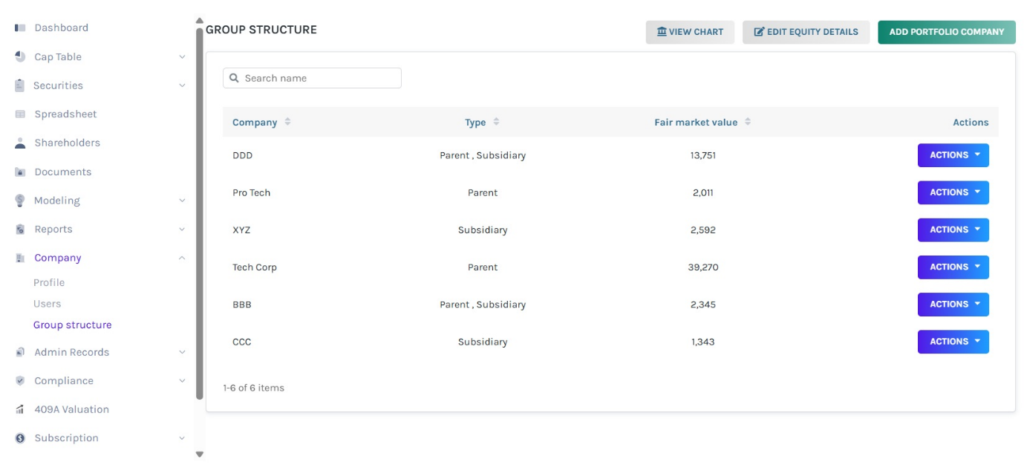
Step 2: Then, you will be directed to the page as shown below. On this page, click on “Add Portfolio Company” to add companies to create a portfolio.
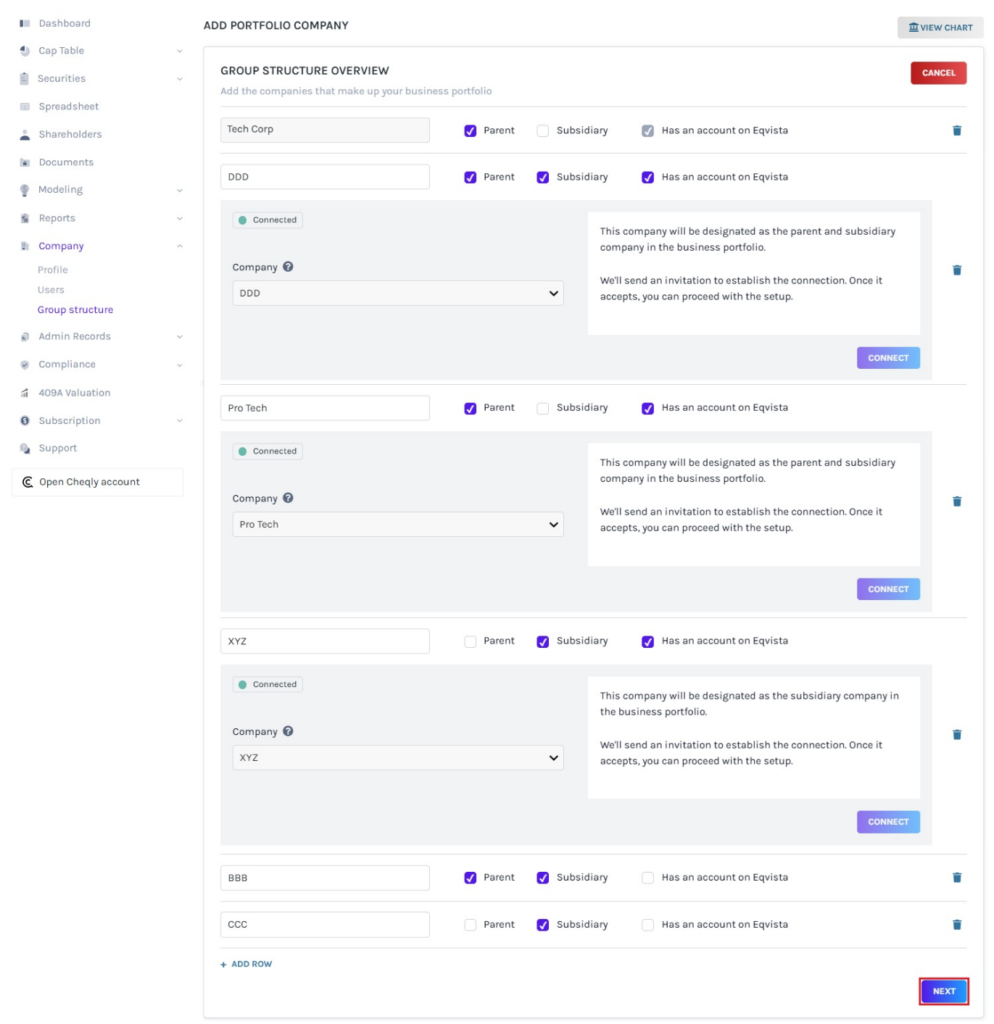
Step 3: Once you click, you will be directed to add companies. By default, the name of the company in which you are creating the business portfolio appears. Select whether they are a parent, subsidiary, or both.
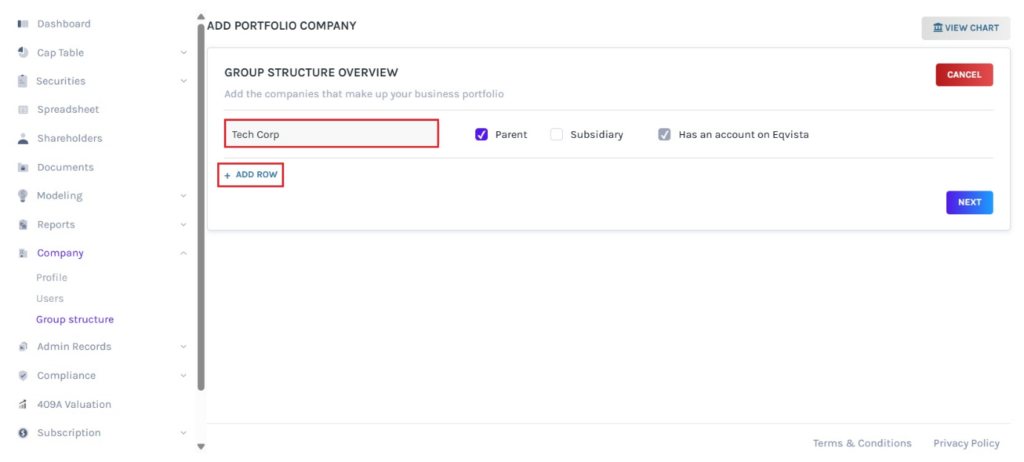
To add companies, click on “Add Row”.
Step 4: Then, enter the name of the company and select the option “Has an Account on Eqvista” or not.
When the option “Has an Account on Eqvista” is selected, a panel appears to select the company name from the drop-down menu.
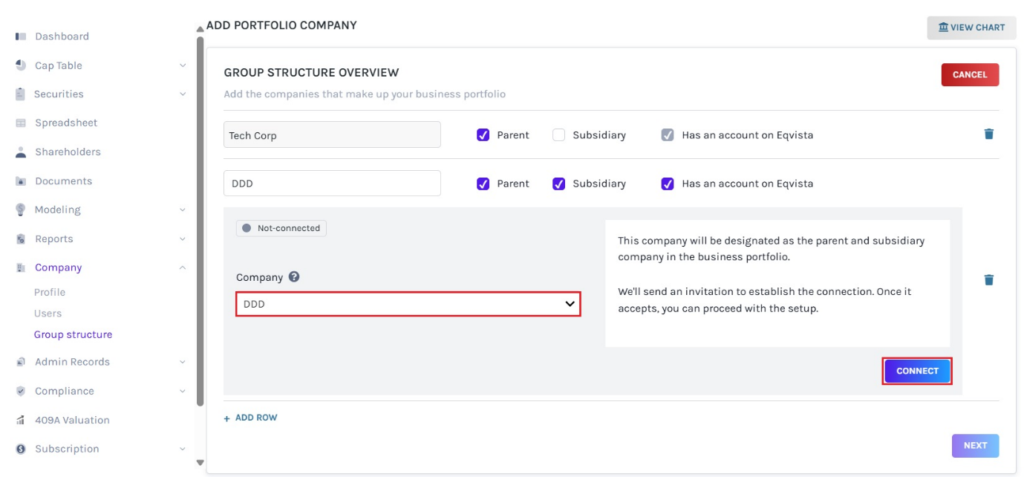
Step 5: An invitation will be sent, which needs to be accepted by clicking on “Accept Invitation”.
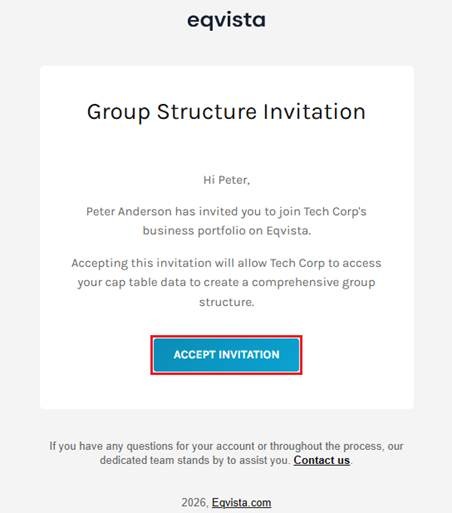
Step 6: Once the invitation is accepted, the company will be linked to the portfolio. Then, the status will change from “Not Connected” to “Invited”. Once the invitation has been accepted, the status changes to “Connected” as shown below.
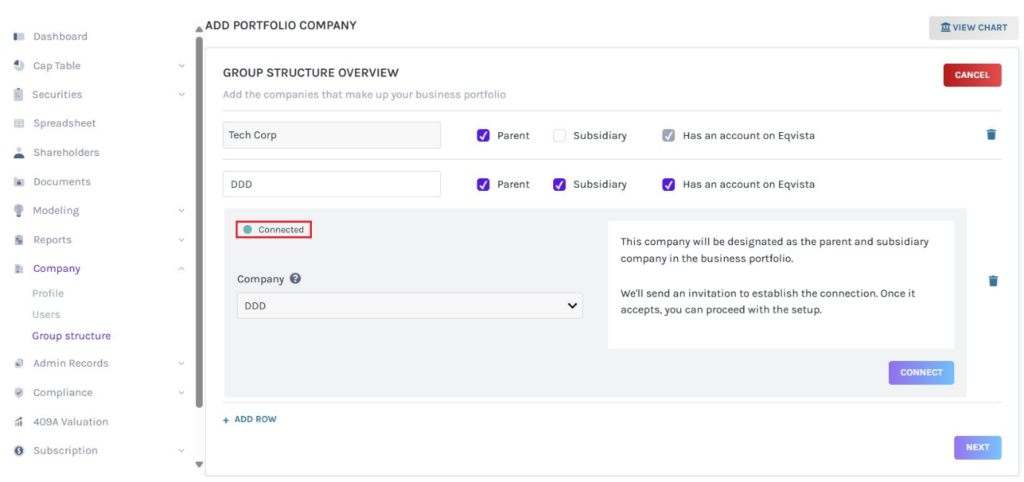
After adding the companies and linking them if they have an account on Eqvista, click on “Next”.
Note: Each company can belong to only one structure, it cannot appear in multiple separate structures.
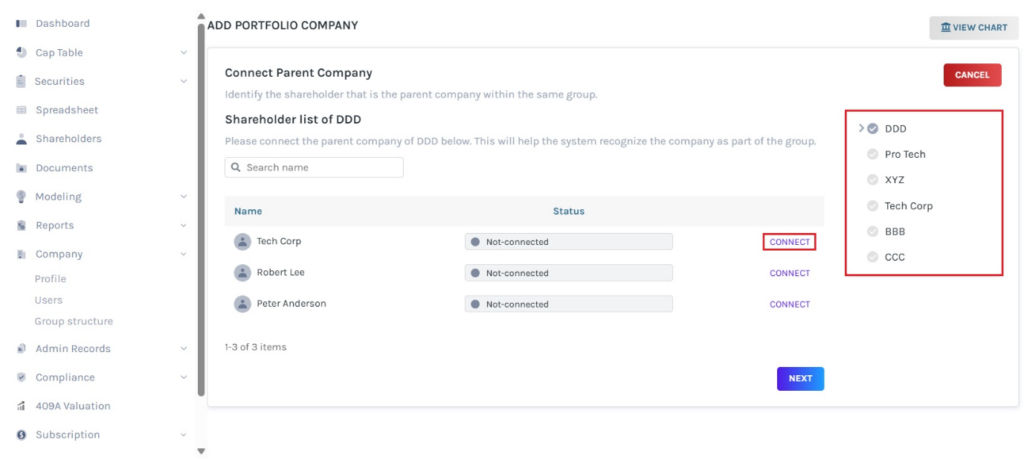
Step 7: Select the company by clicking on the company name on the right side of the page. When the selected company has an account on Eqvista, select the shareholder to connect the parent company. On this page, click on “Connect” on the right side of the page.
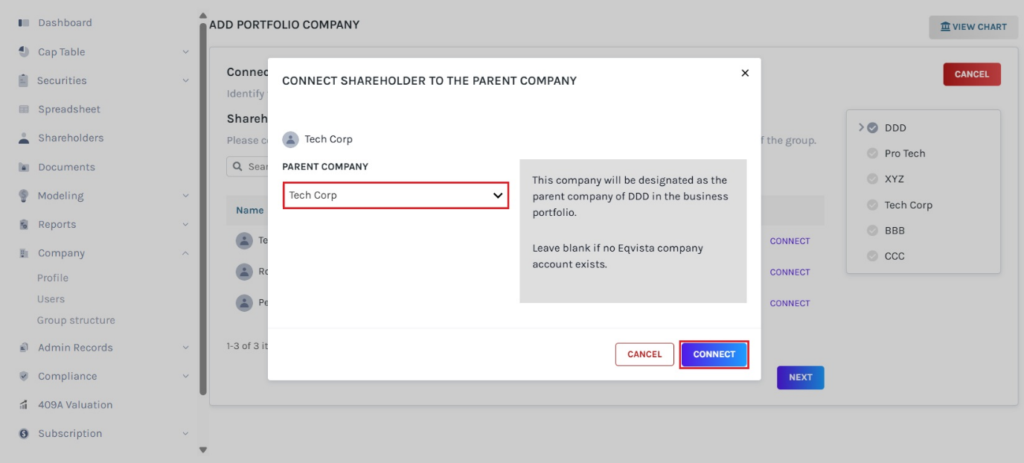
A pop-up panel appears with an option to select the parent company from the drop-down menu.
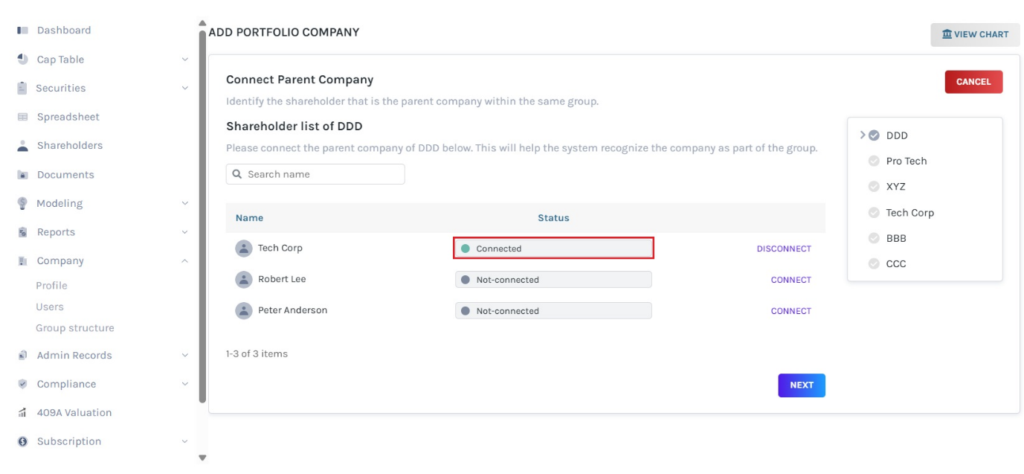
Step 8: Then, the status will change from “Not Connected” to “Connected”. If you want to disconnect, click on “Disconnect”.
Step 9: The group structure will be successfully created, as shown below.
Note: On this page, you can edit the group structure and view chart. To know more about it, check out the respective support articles!
If you want to understand Eqvista, check out our support articles or contact us today!